Single sign-on (SSO) overview
This overview explains how users are provisioned in dbt using single sign-on (SSO). dbt supports JIT (Just-in-Time) provisioning and IdP-initiated login.
- Use the https://login.dbt.com URL as the recommended way to sign in to dbt platform. After you enter your email, dbt sends a verification code to your email to verify it. Once you verify your email, you can view the accounts you have access to across instances and select an account to open. For a full explanation of the login process, refer to Log in to dbt platform.
- You can also open your account using your Access URL from Account settings if you already know it. Refer to Access, Regions, & IP addresses for more information.
- Account administrators can turn account discovery on or off with Enable global account discovery in Account settings. When account discovery is disabled, users sign in using the account Access URL and their existing SSO configuration, if applicable.
For SSO, users also use your account Access URL or dbt Enterprise Login URL, as described in this page.
In the dbt platform, dbt assigns an SSO slug (an identifier used in your SSO login URL) to your SSO configuration. The slug is system-generated and read-only. Existing SSO configurations remain valid, but you can’t edit the slug. If you delete and recreate your SSO configuration, the new configuration uses a new, system-generated slug.
To further automate your workflow, you can use System for Cross-Domain Identity Management (SCIM) to provision users, manage group memberships, and automate license assignments directly from your identity provider (IdP) (Okta or Microsoft Entra ID).
Prerequisites
- You have a dbt Enterprise or Enterprise+ plan. Contact us to learn more, book a demo, or enroll. For plan details, refer to Pricing.
Auth0 URIs
The URI used for SSO connections will vary based on your dbt hosted region. To find the Auth0 URI (also called the Single sign-on URL, Authorization URL, or Callback URI) for your environment:
-
Navigate to your Account settings and click SSO & SCIM in the left menu.
-
In the Single sign-on pane, click Get started (if SSO has not been configured) or Edit (if it has already been set up).
-
Select the appropriate Identity provider from the Provider type dropdown.
-
The Auth0 URI is displayed under the Identity provider values section. The field label depends on the provider you selected:
Identity provider Field label Example URI SAML 2.0 Single sign-on URL https://YOUR_AUTH0_URI/login/callbackOkta Single sign-on URL https://YOUR_AUTH0_URI/login/callback?connection=ACCOUNT_NAMEGoogle Workspace Authorized Redirect URI https://YOUR_AUTH0_URI/login/callbackMicrosoft Entra ID Callback URI https://YOUR_AUTH0_URI/login/callbackReplace
YOUR_AUTH0_URIandACCOUNT_NAMEwith your account values.
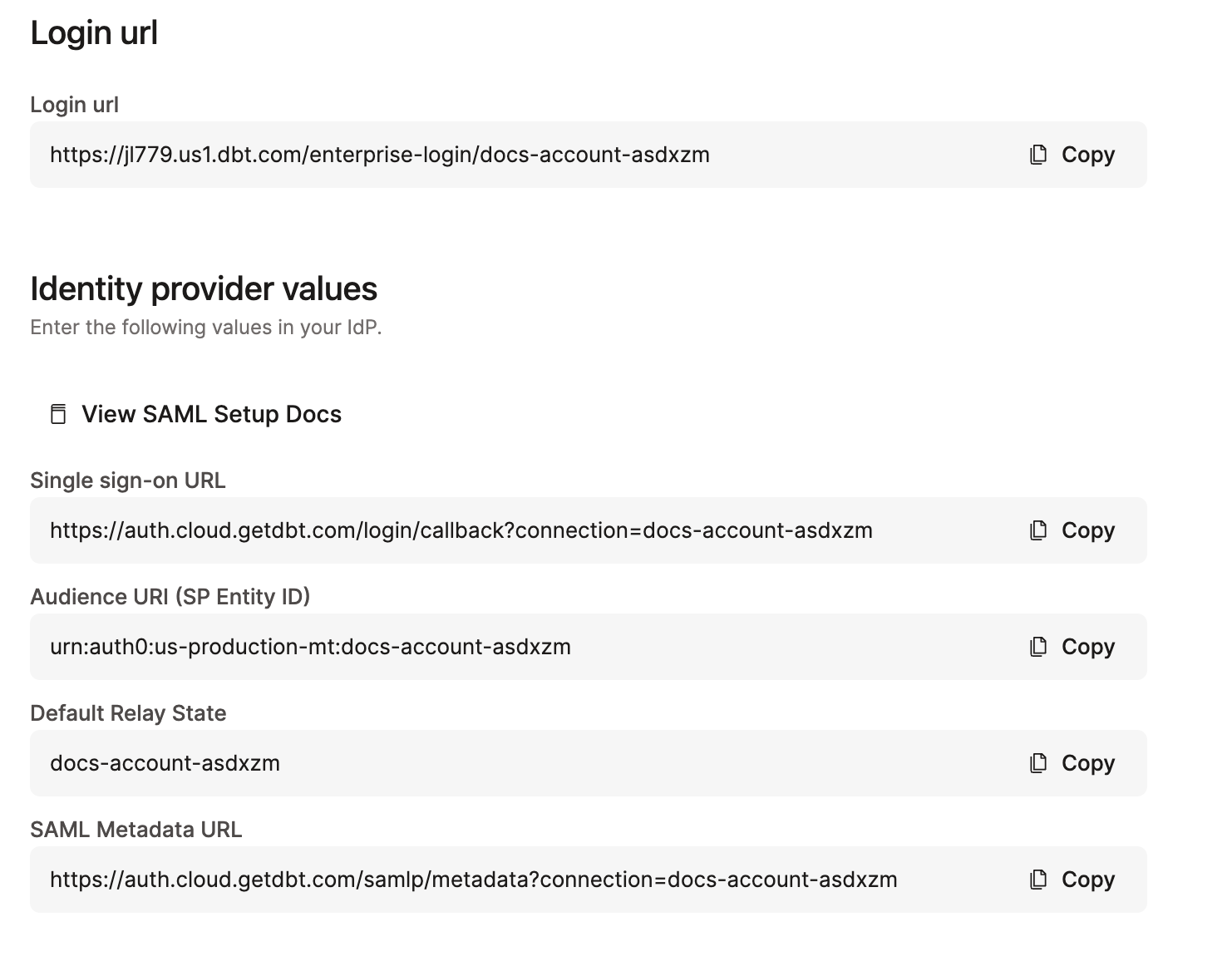 Example of the identity provider values for a SAML 2.0 provider
The Auth0 URI always contains YOUR_AUTH0_URI (for example, auth.cloud.getdbt.com), not your account-specific prefix URL (such as ks123.us1.dbt.com). This is because dbt uses Auth0 as a centralized authentication service across all regions and accounts. You don't need to replace this value with your cell-specific URL.
SSO process
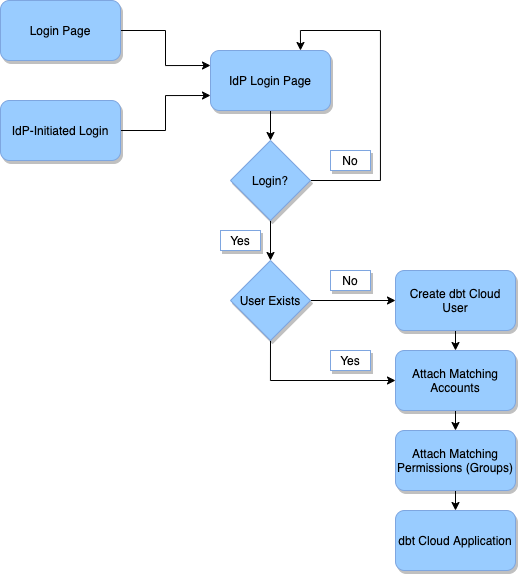
The diagram below explains the basic process by which users are provisioned in dbt upon logging in with SSO.
 SSO diagram
Diagram Explanation
- Login Page: The user accesses the dbt login experience (for example, https://login.dbt.com), their account Access URL, or their dbt Enterprise Login URL, and initiates the SSO flow.
- IdP-Initiated Login: The user accesses the dbt login page within the Identity Provider by selecting the dbt application. This starts the IdP login flow.
- IdP Login Page: The user is prompted to log in to the Identity Provider. This grants the dbt application access to the details of their account.
- Login?: The user can choose to continue or to abort the login process.
- Yes: The user logs in, grants the dbt application, and continues.
- No: The user does not log in. They return to the IdP login page.
- User Exists?: This step checks if the user already exists in dbt's user database.
- Yes: If so, skip the user creation process
- No: If so, create a new entry in the dbt database for the new user.
- Create dbt User: This will create a new entry in the dbt database for the new user. This user record contains the user's email address, first and last name, and any IdP attributes (for example, groups) passed along from the Identity Provider. dbt will send a verification email, and the user must follow the steps in the User experience section to use SSO in dbt.
- Attach Matching Accounts: dbt finds all of the accounts configured to match the SSO config used by this user to log in, and then creates a user license record mapping the user to the account. This step also deletes any licenses that the user should not have based on the current SSO config.
- Attach Matching Permissions (Groups): dbt iterates through the groups on the matching accounts and finds all that fit one of the following categories:
- Have an SSO mapping group that is assigned to the user
- Have the Assign by Default option selected. Then, assign all of these (and only these) to the user license. This step also removes any permissions that the user should not have based on the current SSO group mappings.
- dbt Application: After these steps, the user is redirected into the dbt application, and they can begin to use the application normally.
License type mappings and SSO group mappings are based on IdP group membership (groups in your identity provider), not dbt platform group names. When configuring license mappings or group assignments, use the group names and memberships from your IdP.
SSO enforcement
- SSO Enforcement: If SSO is turned on in your organization, dbt will enforce SSO-only logins for all non-admin users. By default, if an Account Admin or Security Admin already has a password, they can continue logging in with a password. To restrict admins from using passwords, turn off Allow password logins for account administrators in the SSO & SCIM section of your organization's Account settings.
- SSO Re-Authentication: dbt will prompt you to re-authenticate using your SSO provider every 24 hours to ensure high security.
How should non-admin users log in?
Non-admin users that currently login with a password can no longer do so. They must sign in using https://login.dbt.com, the dbt Enterprise Login URL for your account, or an identity provider (IdP), for example, Okta or Microsoft Entra ID.
Security best practices
There are a few scenarios that might require you to login with a password. We recommend these security best-practices for the two most common scenarios:
- Onboarding partners and contractors — We highly recommend that you add partners and contractors to your Identity Provider. IdPs like Okta and Microsoft Entra ID offer capabilities explicitly for temporary employees. We highly recommend that you reach out to your IT team to provision an SSO license for these situations. Using an IdP highly secure, reduces any breach risk, and significantly increases the security posture of your dbt environment.
- Identity Provider is down — Account admins will continue to be able to log in with a password which would allow them to work with your Identity Provider to troubleshoot the problem.
- Offboarding admins — When offboarding admins, revoke access to dbt by deleting the user from your environment; otherwise, they can continue to use username/password credentials to log in.
Next steps for non-admin users currently logging in with passwords
If you have any non-admin users logging into dbt with a password today:
- Ensure that all users have a user account in your identity provider and are assigned dbt so they won’t lose access.
- Alert all dbt users that they won’t be able to use a password for logging in anymore unless they are already an Admin with a password.
- We DO NOT recommend promoting any users to Admins just to preserve password-based logins because you will reduce security of your dbt environment.
FAQ and troubleshooting
For common questions and troubleshooting guidance, refer to SSO FAQs and troubleshooting.
Was this page helpful?
This site is protected by reCAPTCHA and the Google Privacy Policy and Terms of Service apply.
