Set up SSO with Okta EnterpriseEnterprise +
dbt Enterprise-tier plans support single-sign on via Okta (using SAML).
After setting up single sign-on (SSO), you can set up System for Cross-Domain Identity Management (SCIM) with Okta to automate user and group provisioning, and license assignment.
Currently supported SSO features include:
- IdP-initiated SSO
- SP-initiated SSO
- Just-in-time provisioning
This guide outlines the setup process for authenticating to dbt with Okta.
Configuration in Okta
Create a new application
Note: You'll need administrator access to your Okta organization to follow this guide.
First, log into your Okta account. Using the Admin dashboard, create a new app.
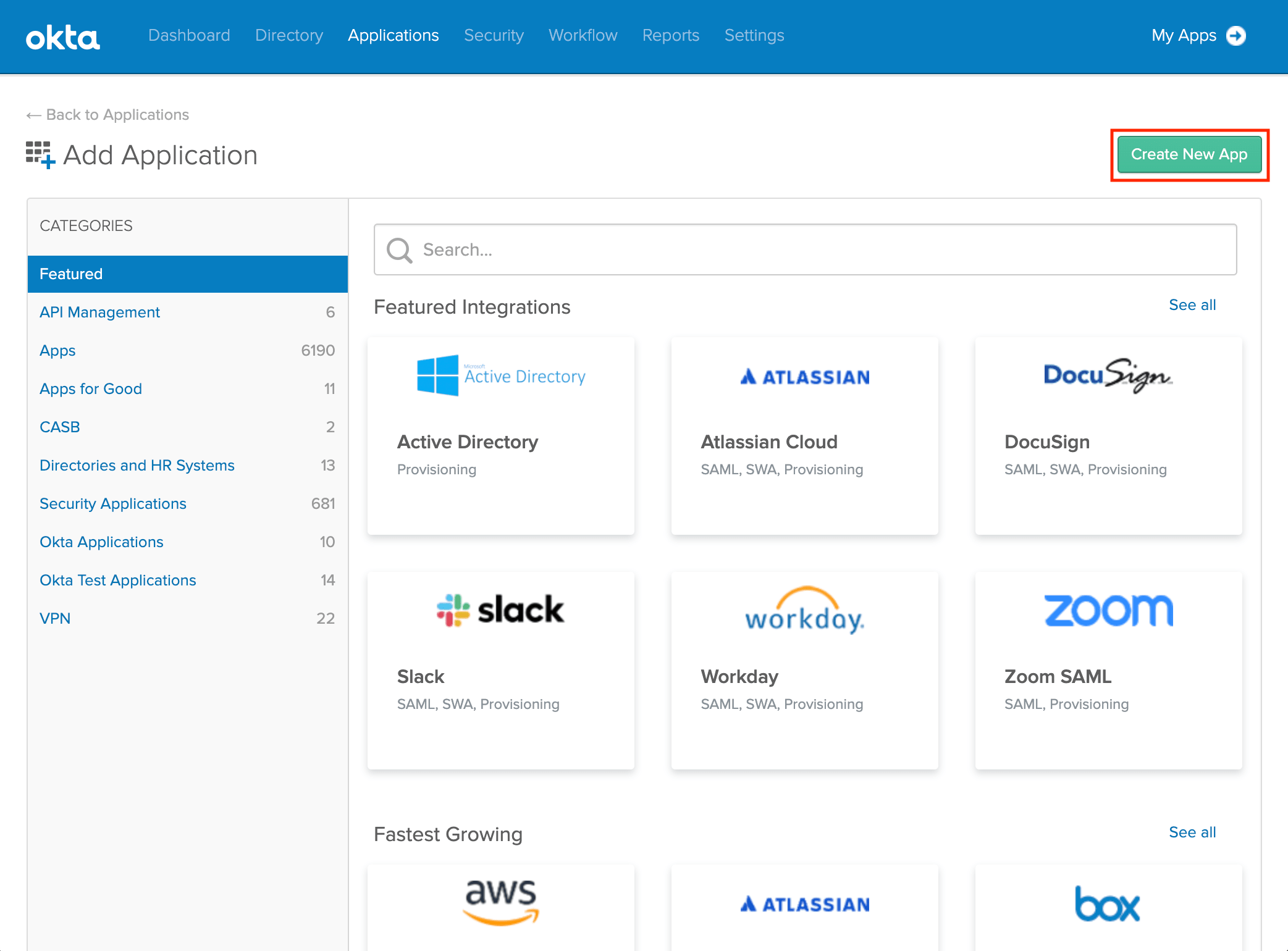 Create a new app
On the following screen, select the following configurations:
- Platform: Web
- Sign on method: SAML 2.0
Click Create to continue the setup process.
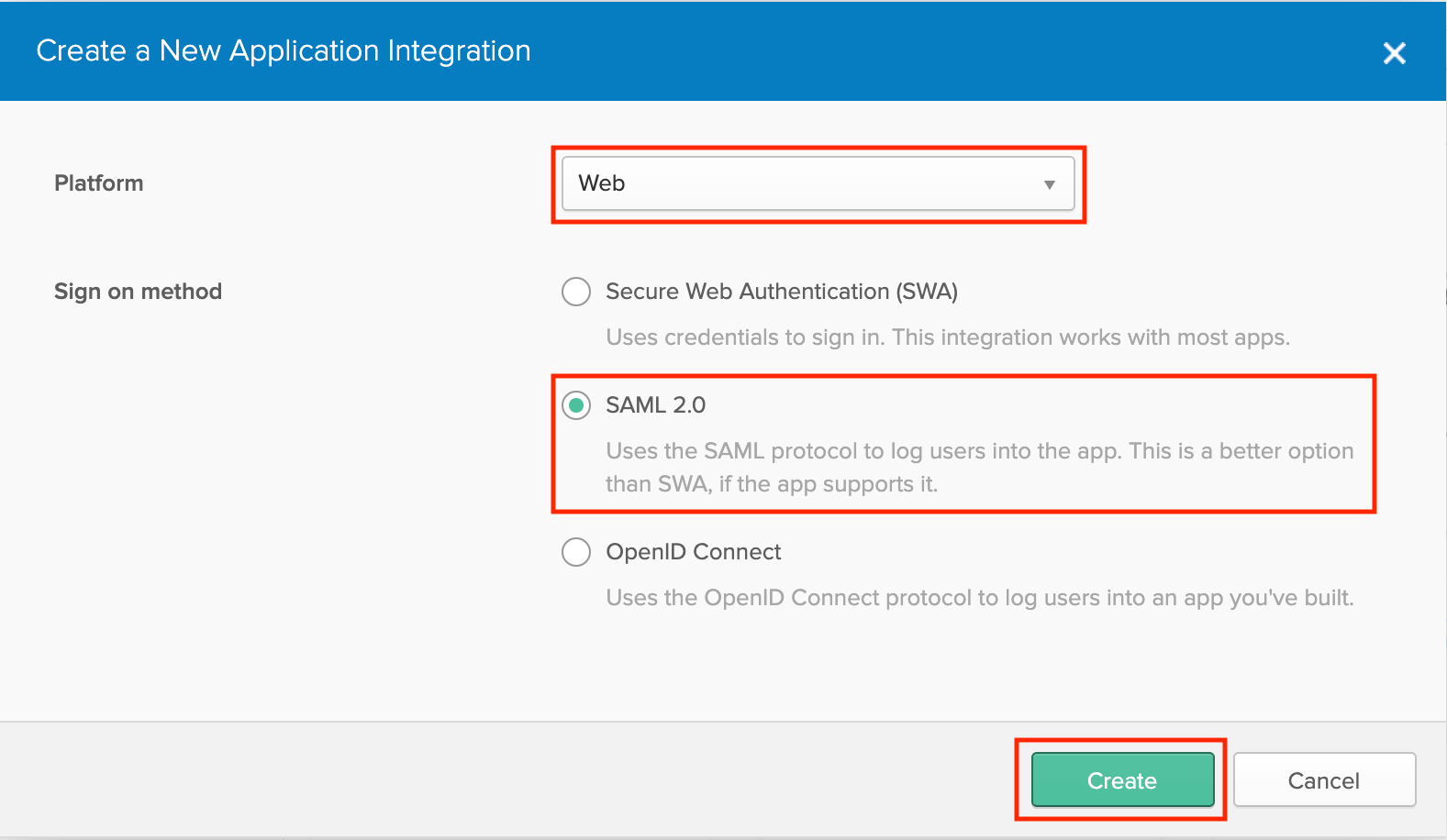 Configure a new app
Configure the Okta application
On the General Settings page, enter the following details::
- App name: dbt
- App logo (optional): You can optionally download the dbt logo, and upload it to Okta to use as the logo for this app.
Click Next to continue.
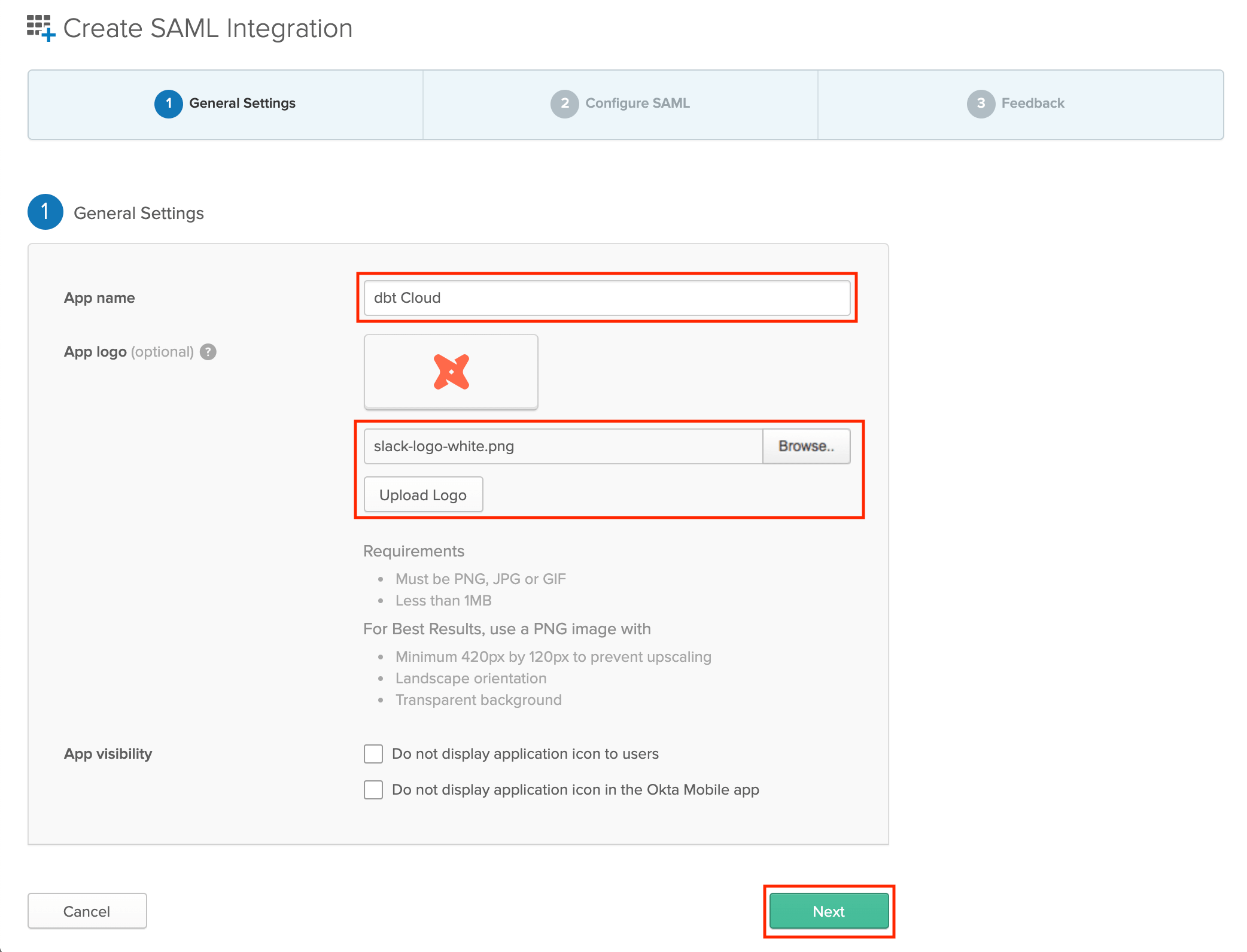 Configure the app's General Settings
Configure SAML Settings
The SAML Settings page configures how Okta and dbt communicate. You will want to use an appropriate Access URL for your region and plan.
To complete this section, you will need your login URL slug. This slug controls the URL where users on your account can log into your application. dbt automatically generates login URL slugs, which can't be altered. It will contain only letters, numbers, and dashes.
For example, the login URL slug for dbt Labs would look something like dbt-labs-afk123.
Login URL slugs are unique across all dbt accounts.
The following steps use YOUR_AUTH0_URI and YOUR_AUTH0_ENTITYID. Replace these placeholders with the appropriate Auth0 URI and Auth0 Entity ID for your region. You can find these values in Account settings > SSO & SCIM > Edit or Get started after selecting your identity provider.
- Single sign on URL:
https://YOUR_AUTH0_URI/login/callback?connection=<login URL slug> - Audience URI (SP Entity ID):
urn:auth0:<YOUR_AUTH0_ENTITYID>:{login URL slug} - Relay State:
<login URL slug> - Name ID format:
Unspecified - Application username:
Custom/user.getInternalProperty("id") - Update Application username on:
Create and update
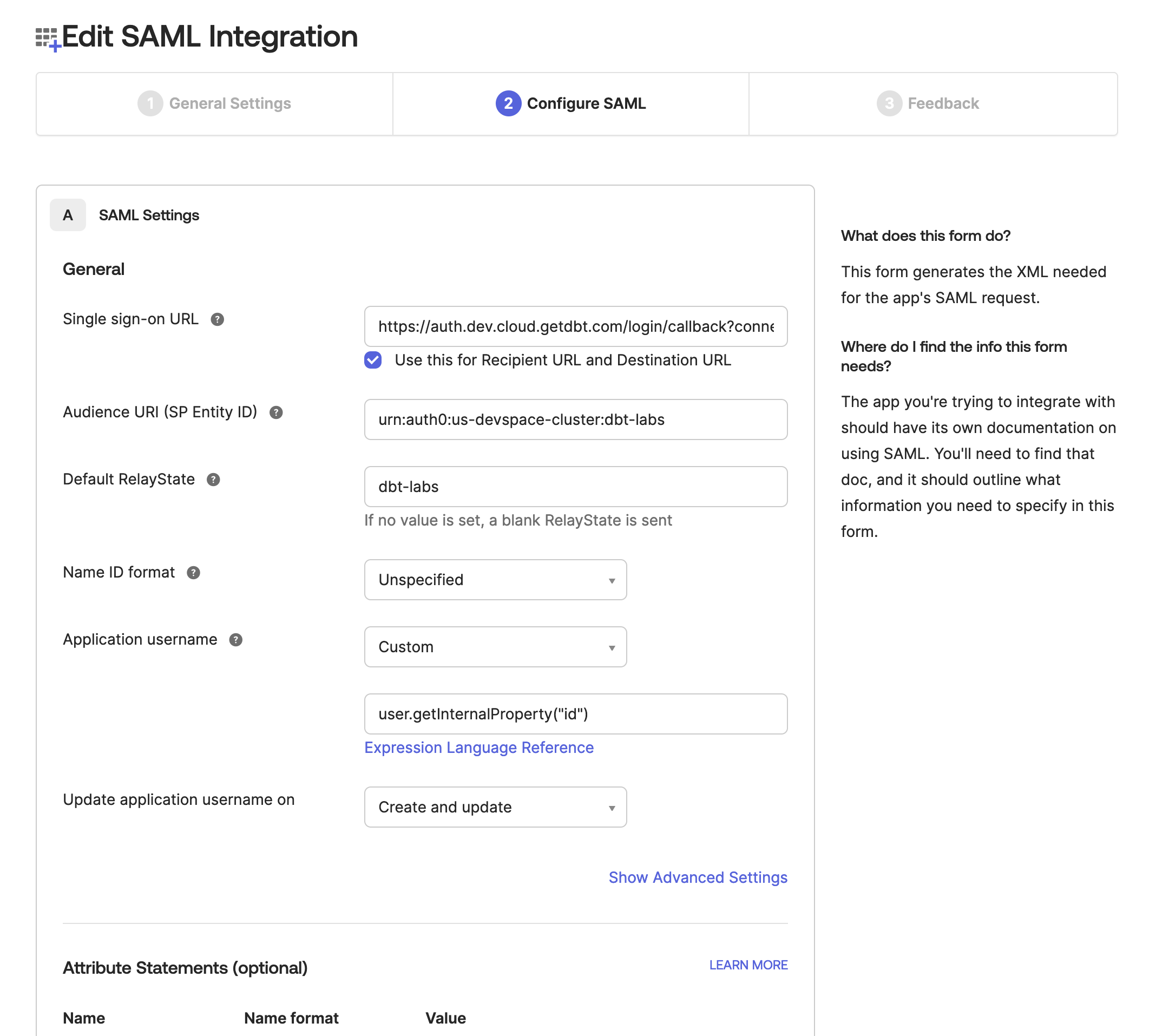 Configure the app's SAML Settings
The Application username setting depends on whether you plan to use SCIM or not:
- SSO only: Use a unique value such as
Custom/user.getInternalProperty("id")(recommended in earlier steps). - SSO and SCIM: Use Email format. SCIM requires the username to be in email address format and to be the same value as the email attribute.
Use the Attribute Statements and Group Attribute Statements forms to map your organization's Okta User and Group Attributes to the format that dbt expects.
Expected User Attribute Statements:
| Loading table... |
Expected Group Attribute Statements:
| Loading table... |
Note: You may use a more restrictive Group Attribute Statement than the
example shown above. For example, if all of your dbt groups start with
DBT_CLOUD_, you may use a filter like Starts With: DBT_CLOUD_. Okta
only returns 100 groups for each user, so if your users belong to more than 100
IdP groups, you will need to use a more restrictive filter. Please contact
support if you have any questions.
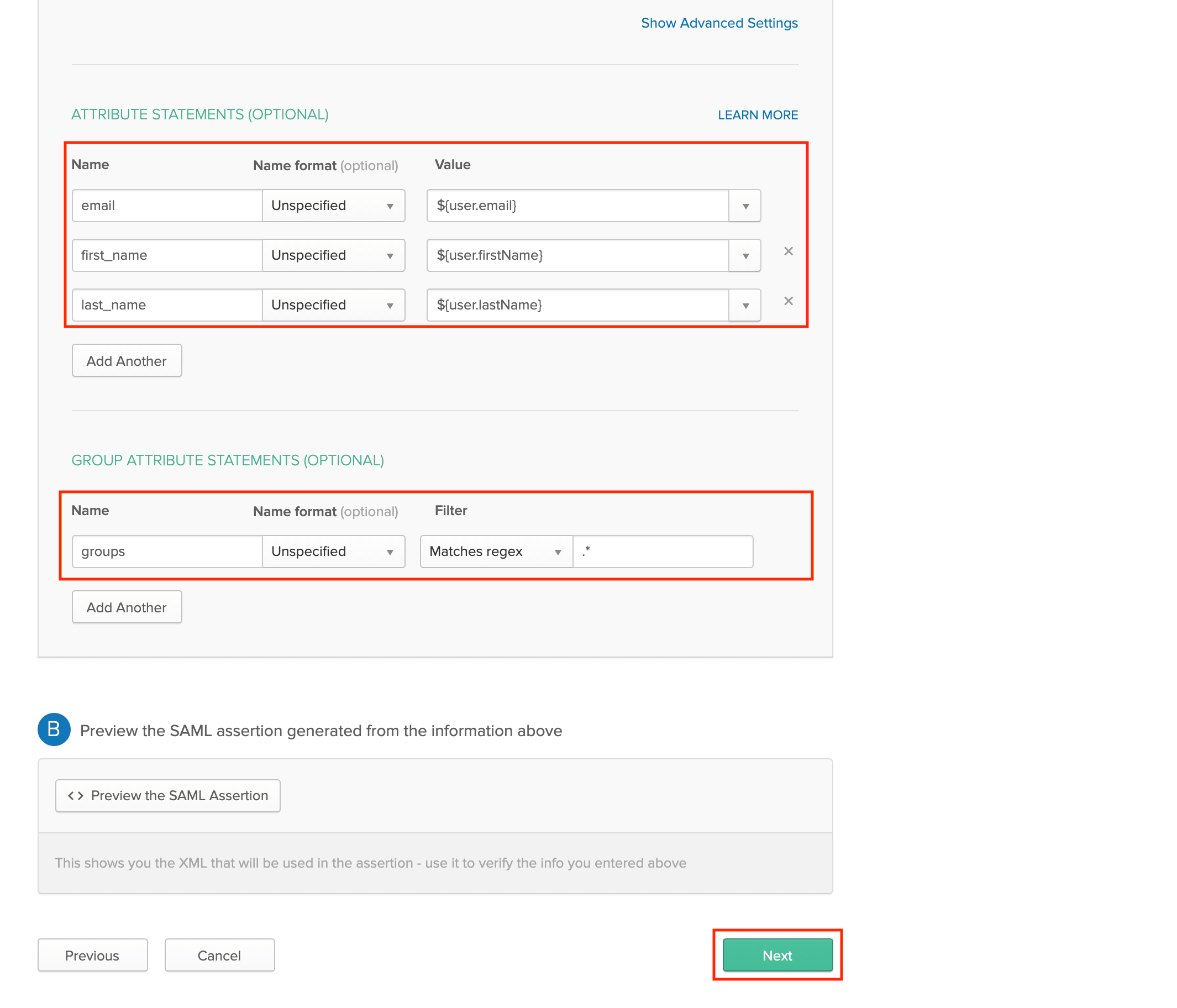 Configure the app's User and Group Attribute Statements
Click Next to continue.
Finish Okta setup
Select I'm an Okta customer adding an internal app, and select This is an internal app that we have created. Click Finish to finish setting up the app.
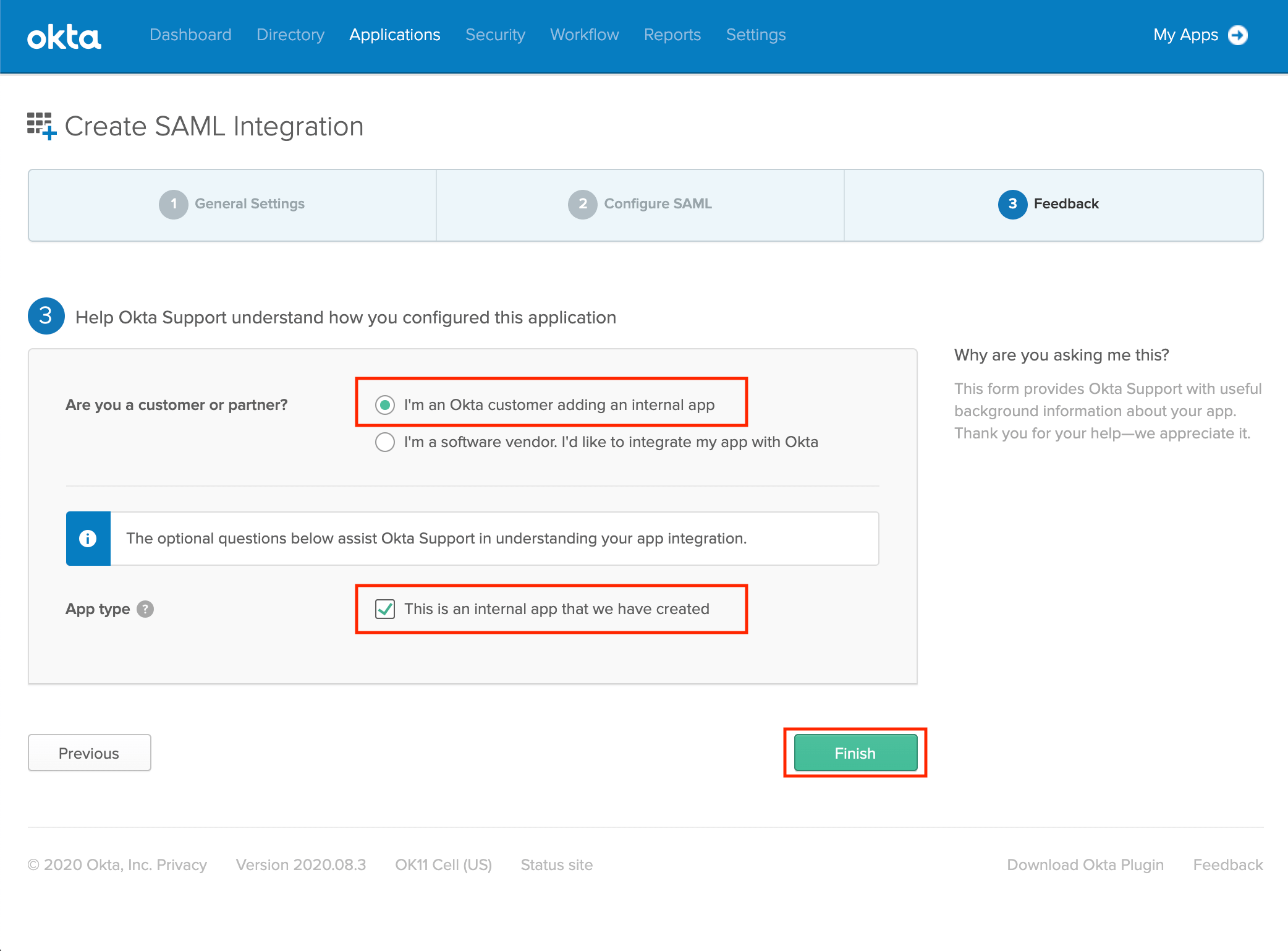 Finishing setup in Okta
View setup instructions
On the next page, click View Setup Instructions. In the steps below, you'll supply these values in your dbt Account Settings to complete the integration between Okta and dbt.
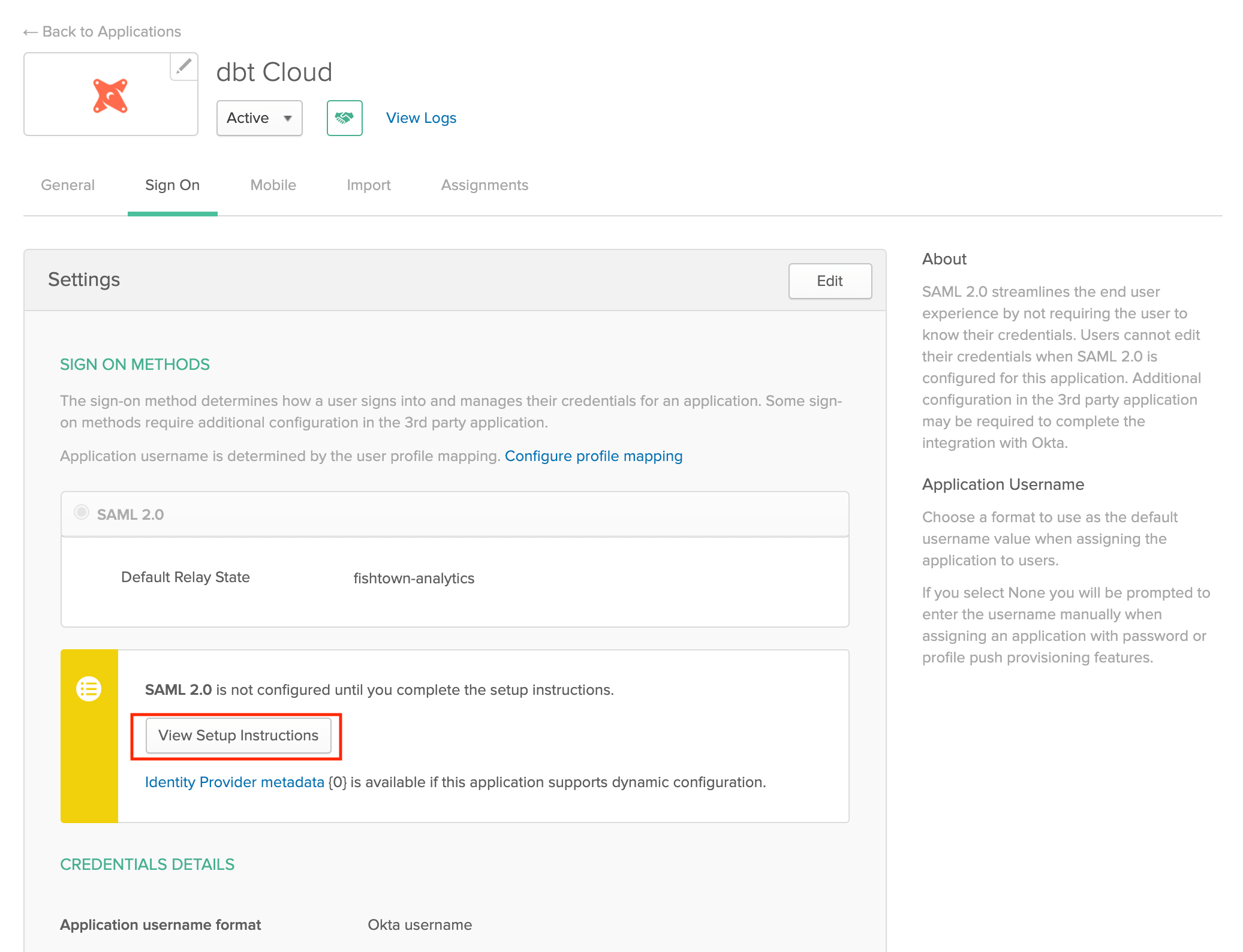 Viewing the configured application
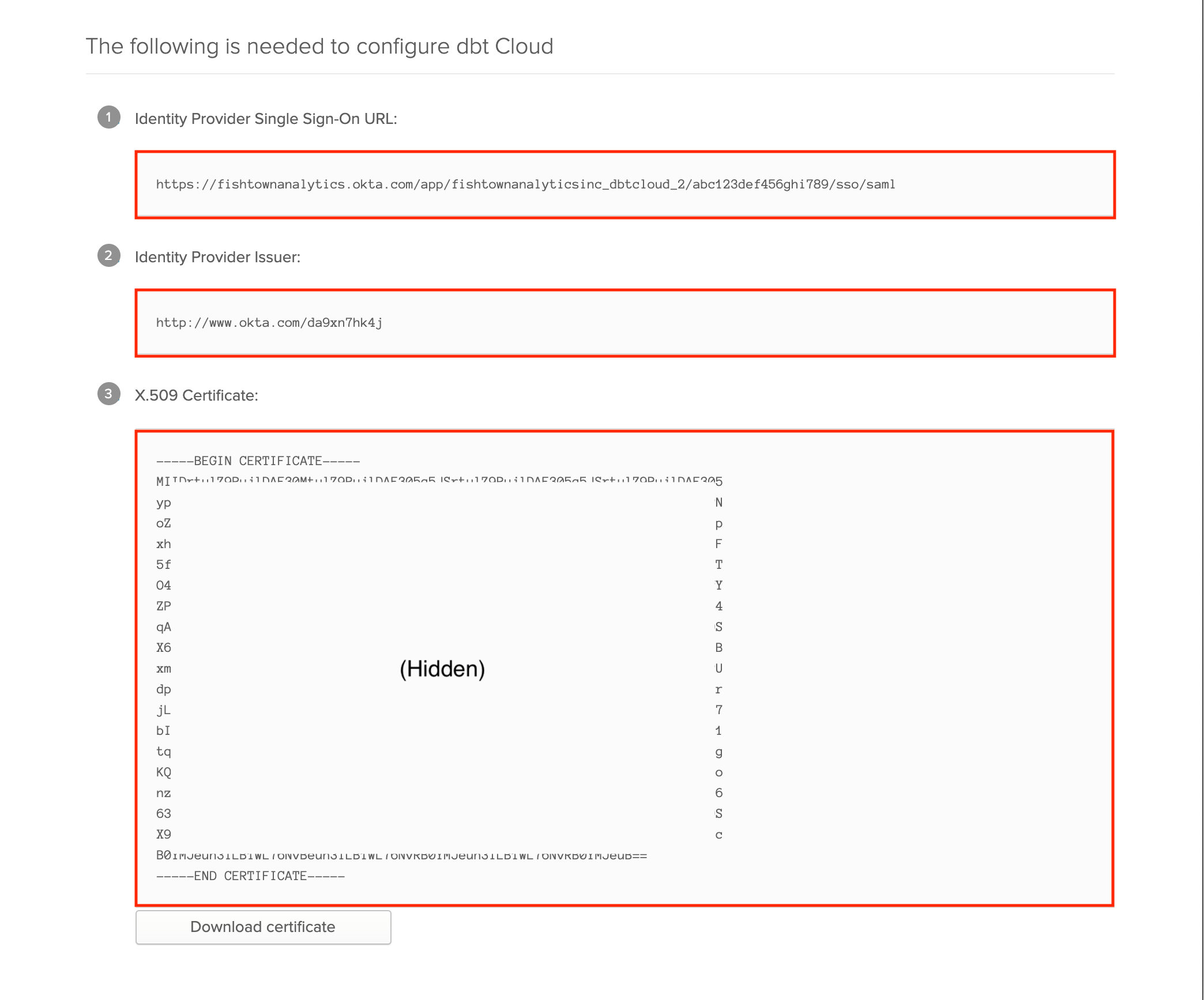 Application setup instructions
Configuration in dbt
To complete setup, follow the steps below in dbt.
Supplying credentials
First, navigate to the Enterprise > Single Sign On page under Account Settings. Next, click the Edit button and supply the following SSO details:
| Loading table... |
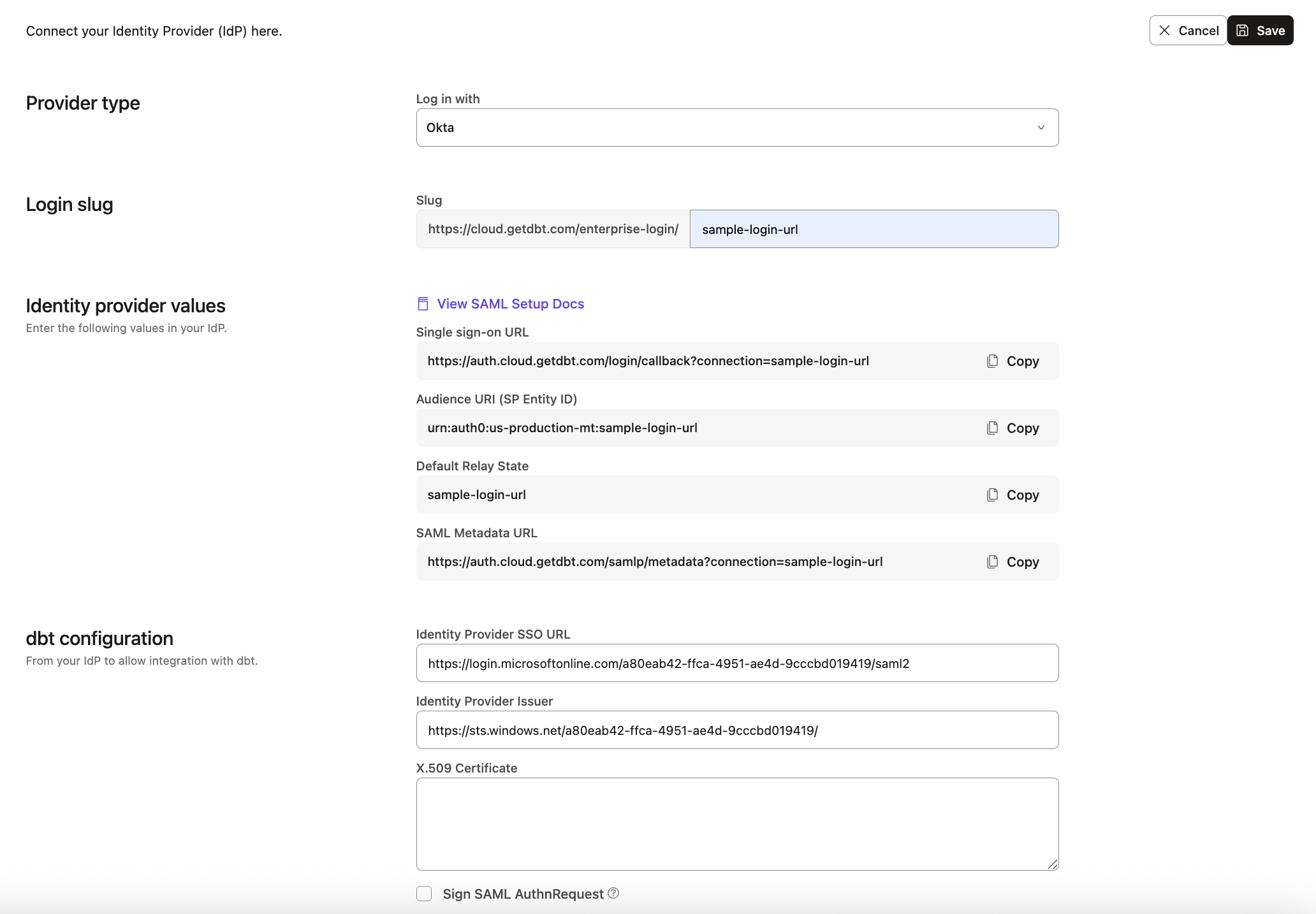 Configuring the application in dbt
- Click Save to complete setup for the Okta integration. From here, you can navigate to the URL generated for your account's slug to test logging in with Okta. Additionally, users added the Okta app will be able to log in to dbt from Okta directly.
Users can now log into dbt platform by navigating to the following URL, replacing LOGIN-SLUG with the value used in the previous steps and YOUR_ACCESS_URL with the appropriate Access URL for your region and plan:
https://YOUR_ACCESS_URL/enterprise-login/LOGIN-SLUG
Setting up RBAC
Now you have completed setting up SSO with Okta, the next steps will be to set up RBAC groups to complete your access control configuration.
Now that you've set up SSO with Okta, you can set up SCIM to automate user and group provisioning (and license assignment for Okta).
Learn more
Was this page helpful?
This site is protected by reCAPTCHA and the Google Privacy Policy and Terms of Service apply.
