Sign in or register Preview
The dbt VS Code extension comes with a suite of features that are available to all users for 14 days. After the 14-day trial, sign in or register for a dbt platform account to keep using all features, including advanced features such as live preview for models and CTEs, column-level lineage, and more.
Refer to VS Code extension features for the full list of features and their availability.
Most features remain available without signing in — only advanced features prompt you to sign in after the trial ends.
(Applies to dbt v1.13 and later)To continue using all the features, register or log in from the command line using dbt login, available with v2 and later. Your login state can be shared across dbt features, including the dbt VS Code extension and, in supported versions, dbt State.
Run dbt login status to view your currently authenticated status.
Key points
- The extension is free for organizations for up to 15 users. Refer to the acceptable use policy.
- Registration links your editor to your registered dbt platform account so you can keep using advanced features after the 14-day trial.
- You can authenticate with
dbt loginor register from inside the extension. If you don't have a dbt platform account, you can create a free account during authentication to unlock advanced features. - If a valid
dbt_cloud.ymlfile exists on your machine, the extension can use it automatically.
If you've registered before, you won't need to authenticate again unless your session expired.
Session expiry and re-authorization
Your sign-in session stays active across editor restarts. dbt automatically renews your session while you're using the extension or the CLI. You may need to re-authorize in a few specific cases:
- Session expired after 7 days of inactivity. The extension shows the message: "Your dbt extension session expired. Sign in again to continue using the extension." Click the prompt or run dbt: Register dbt extension from the command palette to sign in again.
- A feature needs broader access than your initial sign-in granted.
dbt loginand the dbt VS Code extension may request different sets of permissions. If you signed in viadbt loginand later use an extension feature that needs more access (for example, the catalog tab or running a job), the extension prompts you to re-authorize. You'll re-authorize with the same dbt platform account — you don't need a second account. - You authenticated with
dbt_cloud.ymlinstead of OAuth. File-based credentials don't expire on the 7-day inactivity rule. You only re-authenticate if you regenerate the file or it's removed.
When re-authorizing, the Authorize dbt login consent screen lists the access being requested. Click Allow access to continue.
Choose a sign-in path
There are a couple of different ways to sign in or register for a dbt platform account. Choose the best path for you:
| If you... | Use this path |
|---|---|
| Starting authentication from the terminal | dbt login from the command line. |
| Are new to dbt and don't have a dbt platform account | First-time registration from the dbt VS Code extension. |
| Can't sign in or need to reset access | Recover your login from the dbt VS Code extension. |
| Prefer file-based authentication to remove need for re-authenticating | dbt_cloud.yml from the dbt VS Code extension. |
- dbt login
- First-time registration
- Existing account sign-in
- Recover your login
- dbt_cloud.yml
dbt login
Use this path if you prefer the terminal or want a single auth flow that works across the CLI and the dbt VS Code extension. Running dbt login opens the same browser flow that the extension uses when you select dbt: Register dbt extension from the command palette, so completing it once authenticates both.
-
From your terminal, run:
dbt login -
Complete the sign-in or sign-up flow in your browser.
- Refer to First-time registration if you've never registered
- Refer to Existing account sign-in if you already have a dbt account.
- Refer to Recover your login if you've forgotten your password or your account is locked.
-
On the Authorize dbt login screen, click Allow access. dbt saves your credentials to your local dbt configuration directory and uses them for future CLI commands:
- macOS and Linux:
~/.dbt/ - Windows:
C:\Users\[username]\.dbt\
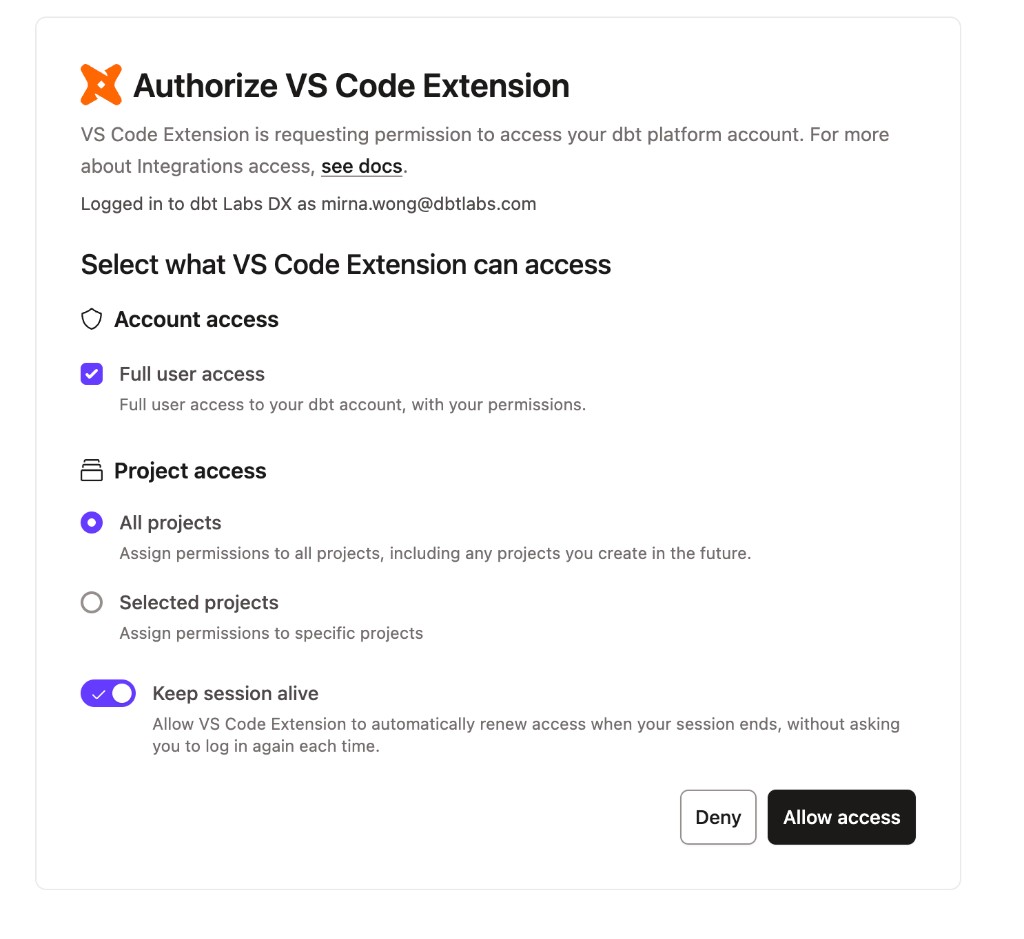 The Authorize VS Code Extension consent screen.
 - macOS and Linux:
-
Return to your editor and restart the dbt VS Code extension, or open a new editor window.
-
The extension detects the credentials and shows Registered.
When you register in the dbt VS Code extension, you might be prompted to authorize more access than you granted when signing in through the CLI (or the other way around). This is expected — some extension features need broader access than your initial sign-in. You can authorize the request with the same dbt platform account you already use, so a single account covers both the CLI and the dbt VS Code extension.
For more details on when re-authorization is triggered, refer to Session expiry and re-authorization.
You've now unlocked the full feature set of the dbt VS Code extension. For details on what dbt login unlocks across tools, refer to the dbt login reference.
First-time registration
Register to unlock the full feature set of the dbt VS Code extension. Use this path if you've never registered before. The extension and the CLI open the same browser flow, so you can start from either entry point:
-
From the extension: Click the registration prompt, or open the command palette (Windows/Linux: Ctrl + Shift + P, macOS: Cmd + Shift + P) and run dbt: Register dbt extension.
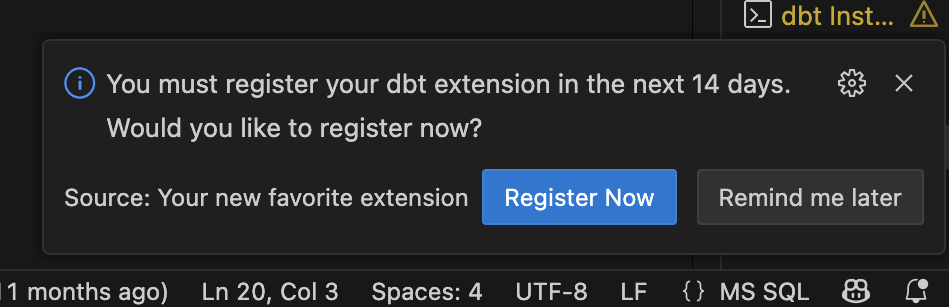 The extension registration prompt in VS Code.
 -
From the CLI: Run
dbt loginin your terminal.
After you start the flow, complete the browser steps:
-
On the Log in to dbt platform page, enter your email and click Continue.
-
On the Create your dbt platform page, enter your name, create a password, then click Continue. dbt creates a free account for you.
-
On the Authorize dbt login screen, review the requested access. Leave Keep session alive on if you want dbt to renew your session automatically, then click Allow access.
The Authorize dbt login consent screen. -
Return to your editor. The extension shows Registered. If you started from the CLI, your credentials are also saved for future CLI commands.
-
Continue with the Get started workflow.
When you register in the dbt VS Code extension, you might be prompted to authorize more access than you granted when signing in through the CLI (or the other way around). This is expected — some extension features need broader access than your initial sign-in. You can authorize the request with the same dbt platform account you already use, so a single account covers both the CLI and the dbt VS Code extension.
For more details on when re-authorization is triggered, refer to Session expiry and re-authorization.
Existing account sign-in
Use this path if you've registered before, including with an older or inactive registration. The extension and the CLI open the same browser flow, so you can start from either entry point:
- From the extension: Update the VS Code extension to the latest version, restart your editor, then click the registration prompt or run dbt: Register dbt extension from the command palette.
- From the CLI: Run
dbt loginin your terminal.
After you start the flow, complete the browser steps:
-
On the Sign in to dbt page, enter the email you used to register, agree to the terms of service, complete the "I'm not a robot" check, then click Continue.
-
On the Verify your email page, enter the verification code dbt sent to your email and click Continue.
-
If your email is linked to more than one account, select the account you want to use on the account selection page.
-
If your account uses an authenticator app, choose a method to verify your identity, then complete the prompt.
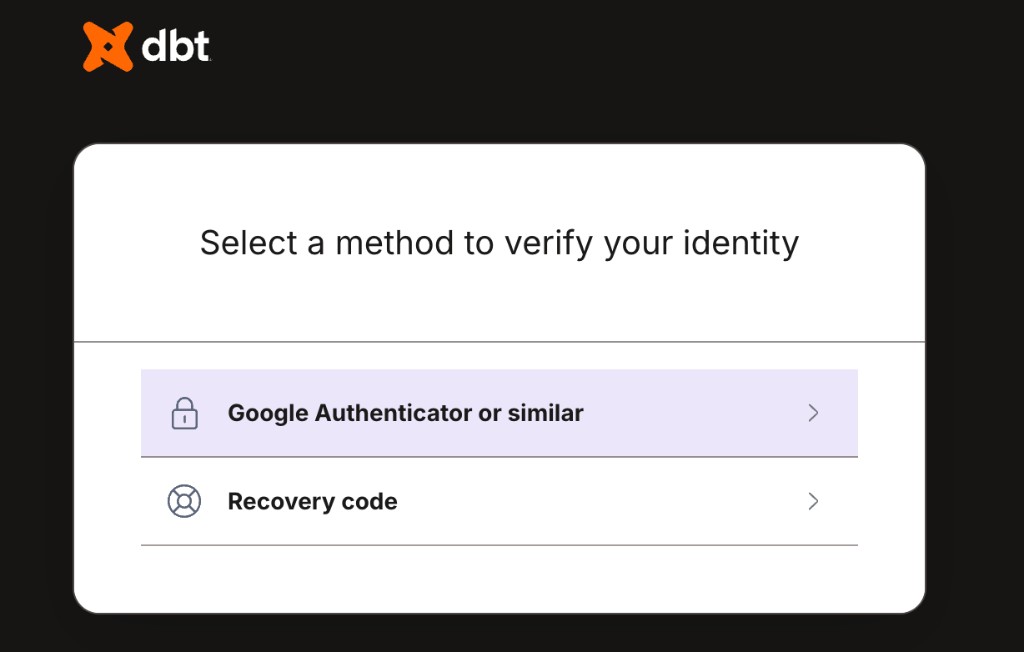 The verify-your-identity screen for accounts that use an authenticator app.
 -
On the Authorize dbt login screen, review the requested access and click Allow access.
When you might still need a dbt_cloud.yml:
- You want a file-based credential for automations or defer.
- You use platform features that require
dbt_cloud.yml, such as Mesh or auto-deferral.
When you register in the dbt VS Code extension, you might be prompted to authorize more access than you granted when signing in through the CLI (or the other way around). This is expected — some extension features need broader access than your initial sign-in. You can authorize the request with the same dbt platform account you already use, so a single account covers both the CLI and the dbt VS Code extension.
For more details on when re-authorization is triggered, refer to Session expiry and re-authorization.
Recover your login
Use this path if the login flow says you have an account but you don't remember your password.
- On the Sign in to dbt page, click Reset password.
- On the reset-password screen, enter the email you used to register.
- Check your inbox for the password-reset email and follow the link.
- Set a new password.
- Return to your terminal and run
dbt loginagain. The password reset opens a separate browser session from the original terminal login session, so you need to restart the login flow. - On the Sign in to dbt page, sign in with the email and new password you just set, agree to the terms of service, complete the "I'm not a robot" check, then click Continue.
- If your email is linked to more than one account, select the account you want to use.
- On the Authorize dbt login screen, click Allow access. When authorization completes, the flow returns to your terminal and the dbt VS Code extension.
If you still can't sign in, your account may be locked. Contact dbt Support to unlock your account, then continue with the Existing account sign-in flow.
When you register in the dbt VS Code extension, you might be prompted to authorize more access than you granted when signing in through the CLI (or the other way around). This is expected — some extension features need broader access than your initial sign-in. You can authorize the request with the same dbt platform account you already use, so a single account covers both the CLI and the dbt VS Code extension.
For more details on when re-authorization is triggered, refer to Session expiry and re-authorization.
Register with dbt_cloud.yml
Use this path if your workflow requires a credential file or if you want to remove the need to re-authenticate when sessions expire.
dbt_cloud.yml is a separate, complementary authentication path. You may still need dbt_cloud.yml for dbt platform features such as Mesh and auto-deferral.
-
Log in to dbt platform.
-
Go to Account settings → VS Code extension.
-
In the Set up your credentials section, click Download credentials to get your
dbt_cloud.ymlfile.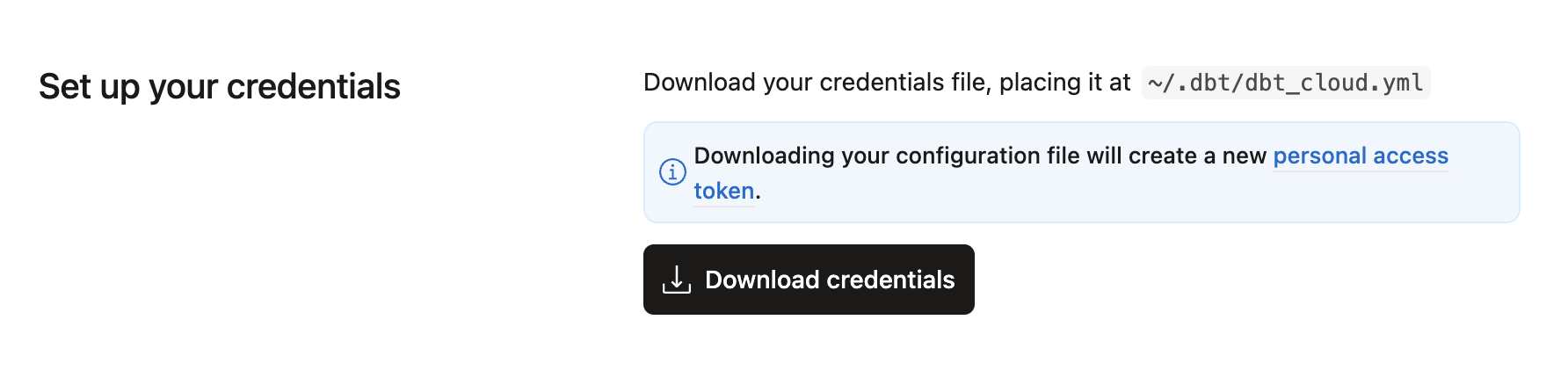 Download the dbt_cloud.yml file from your dbt platform account.
 -
Move the file into your
.dbtdirectory:- macOS and Linux:
~/.dbt/dbt_cloud.yml - Windows:
C:\Users\[username]\.dbt\dbt_cloud.yml
- macOS and Linux:
-
Return to your editor, open the command palette, and run dbt: Register dbt extension.
-
The extension detects the credential file and continues the registration flow.
Behavior details:
- If a
dbt_cloud.ymlfile exists, the extension uses it automatically. - If the file is missing, the extension prompts you to sign in or add the file.
If your dbt project uses environment variables, configure them locally so the extension can use the same values as your dbt environment. For more information, refer to Configure environment variables.
Troubleshooting
If you run into any issues, check out the troubleshooting section below.
More information about dbt v2
- About the dbt extension
- Supported features matrix
- Install dbt
- Quickstart for Fusion
- Upgrade guide
- dbt v2 license agreement
Was this page helpful?
This site is protected by reCAPTCHA and the Google Privacy Policy and Terms of Service apply.
