Configure BYOK for dbt Wizard in dbt platform
Use bring-your-own-key (BYOK) to connect dbt Wizard or dbt Copilot in dbt platform to your own AI provider account instead of using dbt Labs' managed infrastructure.
The following BYOK instructions apply to dbt platform only. For CLI BYOK setup, refer to Configure BYOK for dbt Wizard.
When you configure a provider with your own key, usage costs appear on your provider account instead of your dbt Labs account, and token costs are billed by whichever provider you choose.
If you'd rather skip that upkeep, the dbt Labs-managed option is ready to use with no setup, and comes with trial and monthly usage credits.
Prerequisites
- A dbt platform account on a Starter, Enterprise, or Enterprise+ plan
- dbt admin permissions to enable AI features and configure providers in Account settings
- An API key or credentials for your supported AI provider
Configure AI provider
A dbt platform account on any plan can use a dbt managed provider to get started right away. Accounts on Starter, Enterprise, and Enterprise+ plans can also configure a custom AI provider by BYOK. If you use BYOK, you will incur API calls and associated charges from that provider.
The following instructions explain how to configure a dbt Labs managed or BYOK AI provider for dbt Wizard. dbt managed AI providers are administered by dbt Labs and don’t require a user-provided API key. The AI providers shown in Account settings may change as dbt Labs adds managed models. For the current list of models and providers, refer to the Model Provider Rate table.
To configure a provider:
- Click your account name and select Account settings in the side menu.
- Under Settings, click AI features.
- Under AI providers, click Edit to configure the AI integration.
- For each provider, select your Key management option from the dropdown, then follow these steps for your provider below.
- Anthropic
- OpenAI
- Azure AI Foundry
Managed by dbt Labs
Use this option as a managed alternative to the default OpenAI model.
- Unless not selected, select dbt Labs from the list to use dbt Labs' managed Anthropic key.
- Click Save.
Managed by you (BYOK)
- Select Anthropic from the options.
- Enter your Anthropic API key.
- Click Save.
When using an Anthropic API key, dbt continues to use the dbt Labs-managed OpenAI key for embeddings in text_to_sql MCP tools, since Anthropic doesn't natively provide embeddings.
Managed by dbt Labs
This is the default option and use it if you want to use dbt managed AI provider keys. Refer to Models and pricing for more information.
- Unless not selected, select the toggle for dbt Labs to use a dbt Labs' managed key.
- Click Save.
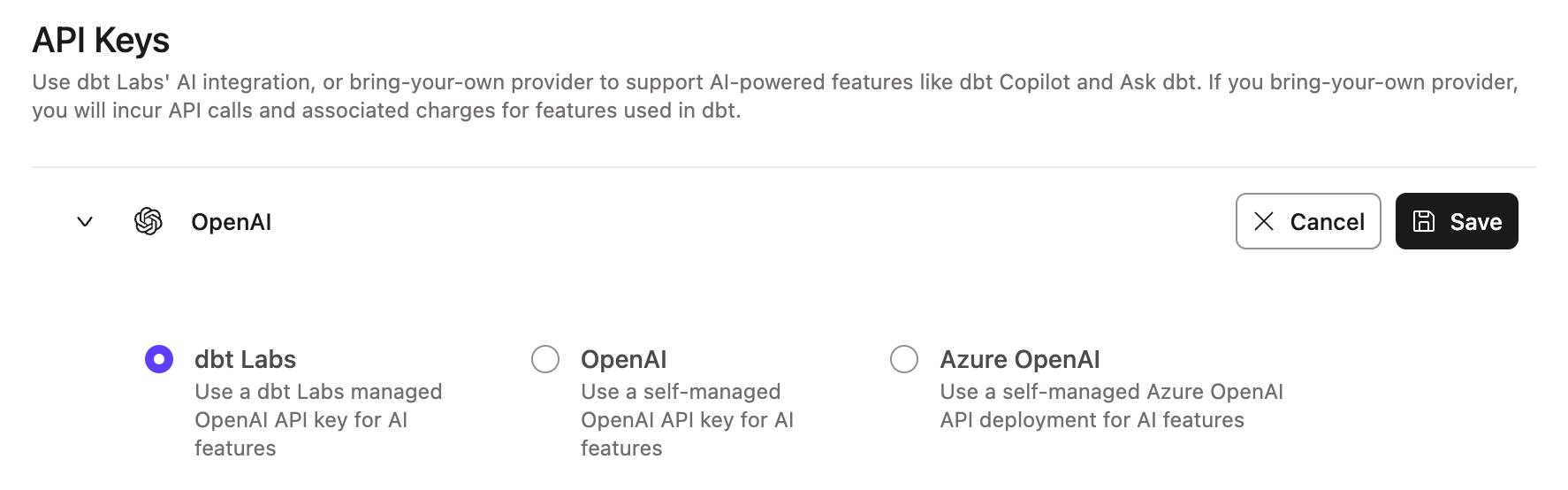 Example of the dbt Labs integration page
Managed by you (BYOK)
- Select OpenAI from the options.
- Enter your OpenAI API key.
- Click Save.
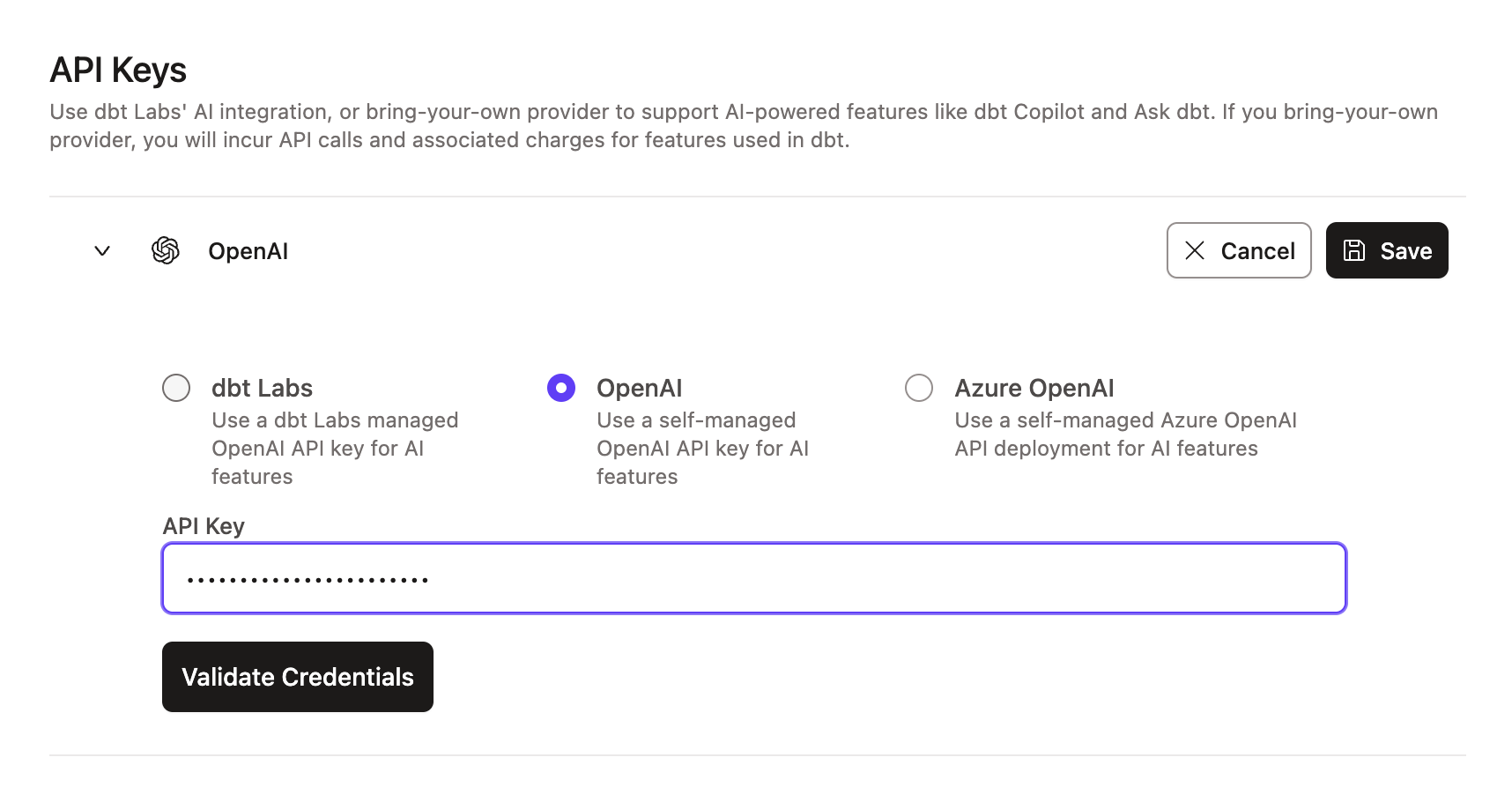 Example of the OpenAI integration page
OpenAI projects with data residency controls enabled and configured for the United States (project region set to US) don't currently support BYOK. These projects can only use the API key in the dbt platform configuration. Specifying custom endpoints required for data residency isn’t yet supported, and we’re evaluating a solution for this.
To use BYOK, ensure your OpenAI project doesn’t have data residency controls enabled. Projects without project region settings will use the standard OpenAI endpoint (https://api.openai.com) and support BYOK.
- For BYOK, enable the latest text generation models as well as the
text-embedding-3-smallmodel. - Ensure your project doesn't have data residency controls enabled. Projects without project region settings use the standard OpenAI endpoint (
https://api.openai.com) and support BYOK.
Managed by you only (BYOK)
To learn about deploying models on Azure, refer to Deploy models on Azure OpenAI and Azure AI Foundry.
Configure credentials for your Azure AI Foundry deployment in dbt as follows:
- Locate your deployment details in the Azure portal, either in Azure AI Foundry or Azure OpenAI.
- Enter your Azure API key.
- Enter the Endpoint, API Version, and Deployment / AI model name.
- Click Save.
For the Endpoint field, enter the full Azure Target URI from Azure — not just the base endpoint. Entering only the base endpoint, for example https://<resource>.openai.azure.com, prevents credential validation and blocks setup.
Supported formats include:
https://<resource>.openai.azure.com/openai/deployments/<deployment>/chat/completions?api-version=<version>https://<resource>.openai.azure.com/openai/responses?api-version=<version>
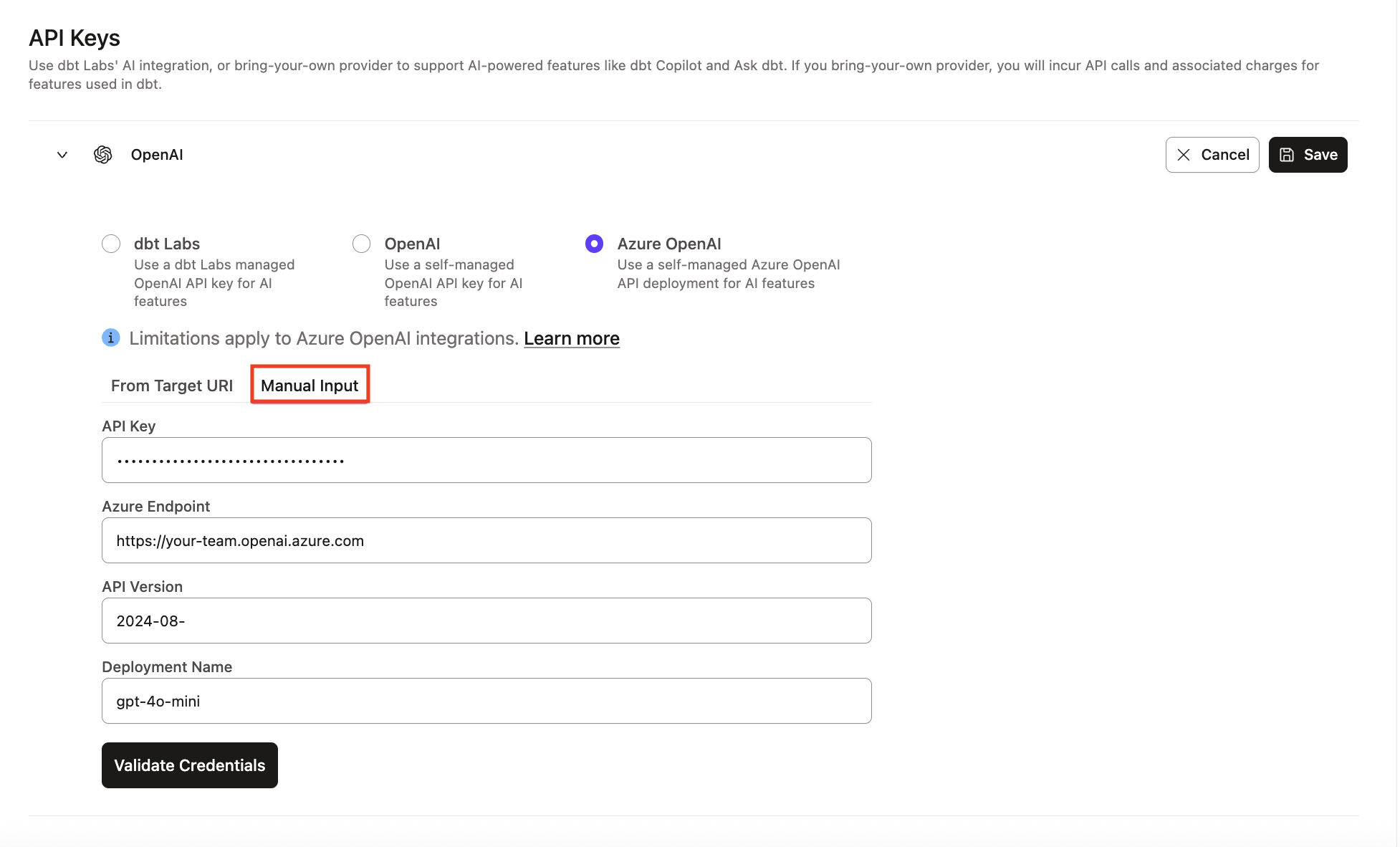 Example of the Azure AI Foundry integration section
Was this page helpful?
This site is protected by reCAPTCHA and the Google Privacy Policy and Terms of Service apply.