Manage AI features in dbt platform
Manage AI features in dbt platform by turning AI features on or off, choosing which AI provider to use, and controlling spend.
The details on this page are generally for admin tasks. If you're looking for what dbt Wizard does and where you can use it, start with About dbt Wizard in dbt platform.
From September 1st, 2026, dbt Wizard usage is metered per token against your account's usage credits. All credit amounts are per account, not per user. Enterprise and Enterprise+ accounts get monthly credits. Developer and Starter plans start with a 30-day trial and $100 in credits, as do CLI users via a free dbt account.
Refer to Trial and billing for what each plan gets, spend limits, and paid access.
Prerequisites
- A dbt platform account on Developer, Starter, Enterprise, or Enterprise+ plans
- Legacy team plans don't have access to dbt Wizard and we recommend moving to a Starter, Enterprise, or Enterprise+ plan to use it and other features.
- Certain features like natural prompts in Canvas are only available on Enterprise and Enterprise+ plans.
- dbt admin permissions to change account settings and configure providers.
- A development environment on a supported release track to receive ongoing updates.
Manage account access to AI features
Eligible accounts, including new ones, have AI features on by default, so most users can open dbt Wizard without an admin changing anything first. Admins with governance or compliance requirements can turn AI off or back on anytime by following these steps:
- Navigate to Account settings in the navigation menu.
- Under Settings, confirm the account you want to change.
- Click Edit in the top right corner.
- Turn Enable account access to AI features off to disable access or on to enable it.
- Click Save.
Turning AI features off applies to the whole account, including dbt Wizard and dbt Copilot. The dbt Support Assistant is managed separately by dbt Labs (contact the dbt Support team for more info).
Supported AI providers
dbt Wizard supports managed models (billed by dbt Labs, no key to manage) and bring-your-own-key (BYOK) models (billed directly by your provider).
Here are the following AI providers supported depending on where you work. Refer to Model Provider Rate table for the full list of available models.
- dbt platform
- Locally (CLI)
| Provider | Access |
|---|---|
| OpenAI (default) | dbt managed or BYOK |
| Anthropic† | dbt managed or BYOK |
| Open weight models (like DeepSeek, Kimi, and so on). | dbt managed |
| Azure AI Foundry / Azure OpenAI | BYOK |
| Provider | Access |
|---|---|
| OpenAI | dbt managed or BYOK |
| Anthropic† | dbt managed or BYOK |
| Open weight models (like DeepSeek, Kimi, and so on). | dbt managed |
| Azure AI Foundry / Azure OpenAI | BYOK |
| AWS Bedrock | BYOK |
| Google Gemini | BYOK |
| Snowflake Cortex | BYOK |
| Databricks Unity AI Gateway | BYOK |
You can also connect a personal OpenAI ChatGPT subscription instead of a key.
†Anthropic enterprise and subscription licenses (such as Claude Enterprise) aren't supported per Anthropic's terms of service.
dbt Copilot supports a smaller set of providers. Refer to dbt Copilot for its providers and setup steps.
Configure AI provider
A dbt platform account on any plan can use a dbt managed provider to get started right away. Accounts on Starter, Enterprise, and Enterprise+ plans can also configure a custom AI provider by BYOK. If you use BYOK, you will incur API calls and associated charges from that provider.
The following instructions explain how to configure a dbt Labs managed or BYOK AI provider for dbt Wizard. dbt managed AI providers are administered by dbt Labs and don’t require a user-provided API key. The AI providers shown in Account settings may change as dbt Labs adds managed models. For the current list of models and providers, refer to the Model Provider Rate table.
To configure a provider:
- Click your account name and select Account settings in the side menu.
- Under Settings, click AI features.
- Under AI providers, click Edit to configure the AI integration.
- For each provider, select your Key management option from the dropdown, then follow these steps for your provider below.
- Anthropic
- OpenAI
- Azure AI Foundry
Managed by dbt Labs
Use this option as a managed alternative to the default OpenAI model.
- Unless not selected, select dbt Labs from the list to use dbt Labs' managed Anthropic key.
- Click Save.
Managed by you (BYOK)
- Select Anthropic from the options.
- Enter your Anthropic API key.
- Click Save.
When using an Anthropic API key, dbt continues to use the dbt Labs-managed OpenAI key for embeddings in text_to_sql MCP tools, since Anthropic doesn't natively provide embeddings.
Managed by dbt Labs
This is the default option and use it if you want to use dbt managed AI provider keys. Refer to Models and pricing for more information.
- Unless not selected, select the toggle for dbt Labs to use a dbt Labs' managed key.
- Click Save.
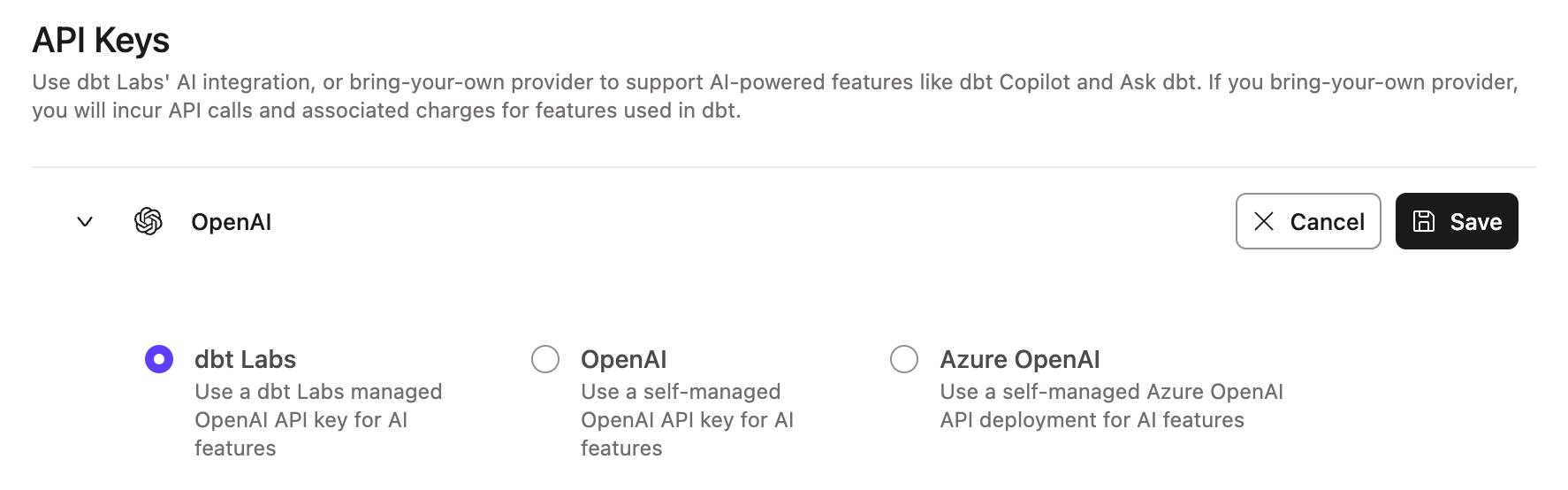 Example of the dbt Labs integration page
Managed by you (BYOK)
- Select OpenAI from the options.
- Enter your OpenAI API key.
- Click Save.
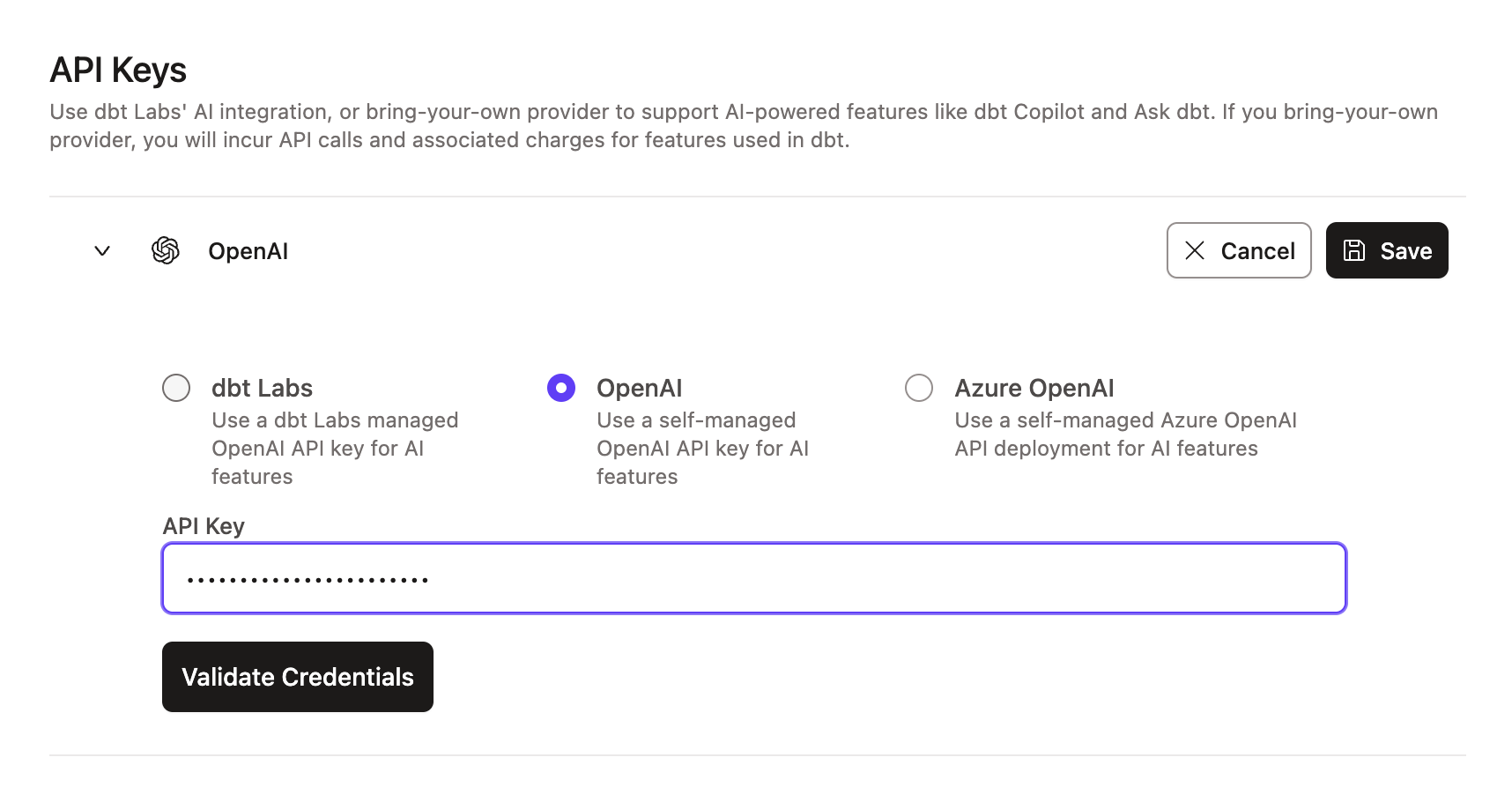 Example of the OpenAI integration page
OpenAI projects with data residency controls enabled and configured for the United States (project region set to US) don't currently support BYOK. These projects can only use the API key in the dbt platform configuration. Specifying custom endpoints required for data residency isn’t yet supported, and we’re evaluating a solution for this.
To use BYOK, ensure your OpenAI project doesn’t have data residency controls enabled. Projects without project region settings will use the standard OpenAI endpoint (https://api.openai.com) and support BYOK.
- For BYOK, enable the latest text generation models as well as the
text-embedding-3-smallmodel. - Ensure your project doesn't have data residency controls enabled. Projects without project region settings use the standard OpenAI endpoint (
https://api.openai.com) and support BYOK.
Managed by you only (BYOK)
To learn about deploying models on Azure, refer to Deploy models on Azure OpenAI and Azure AI Foundry.
Configure credentials for your Azure AI Foundry deployment in dbt as follows:
- Locate your deployment details in the Azure portal, either in Azure AI Foundry or Azure OpenAI.
- Enter your Azure API key.
- Enter the Endpoint, API Version, and Deployment / AI model name.
- Click Save.
For the Endpoint field, enter the full Azure Target URI from Azure — not just the base endpoint. Entering only the base endpoint, for example https://<resource>.openai.azure.com, prevents credential validation and blocks setup.
Supported formats include:
https://<resource>.openai.azure.com/openai/deployments/<deployment>/chat/completions?api-version=<version>https://<resource>.openai.azure.com/openai/responses?api-version=<version>
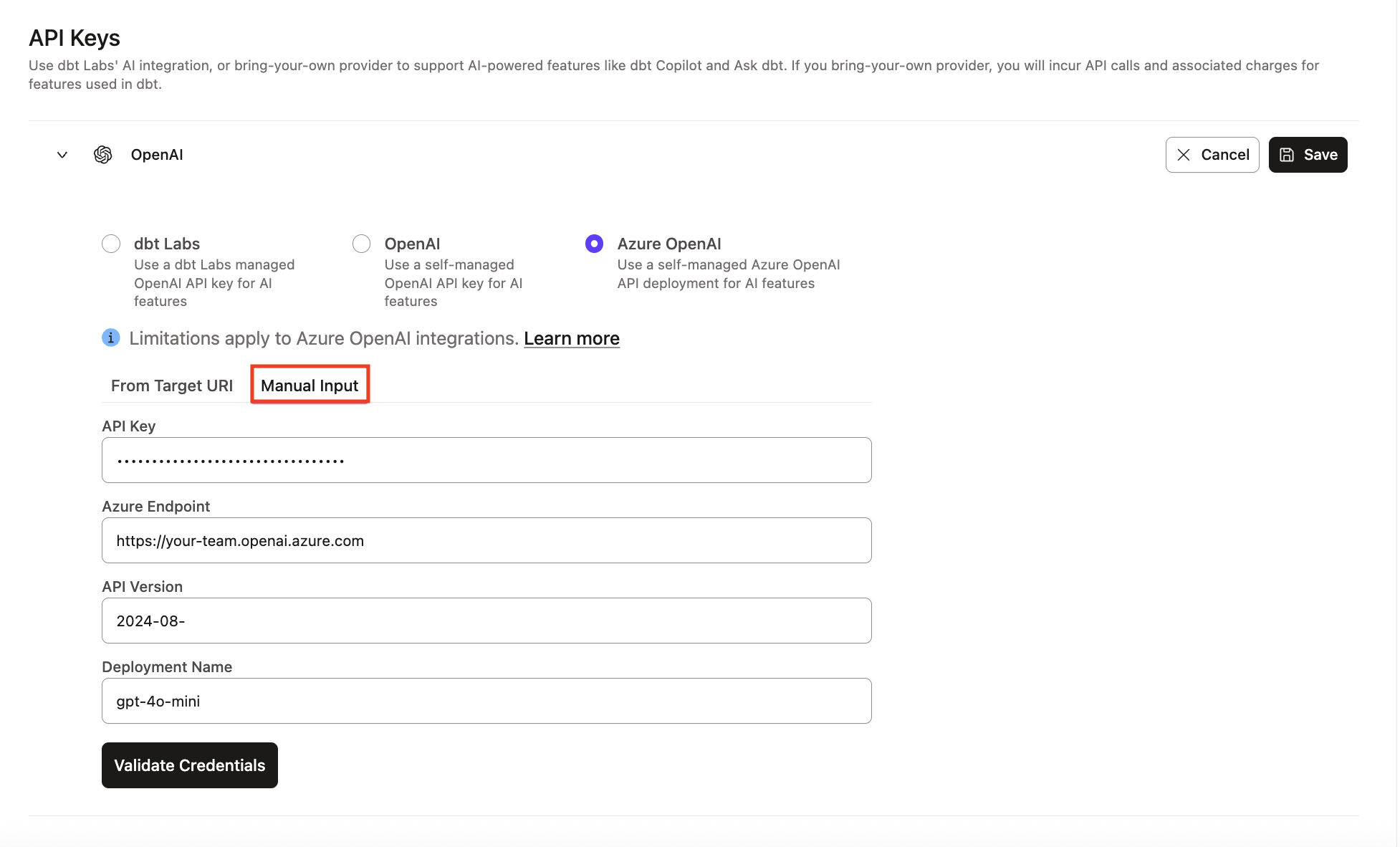 Example of the Azure AI Foundry integration section
To bring your own key instead of using dbt Labs' managed infrastructure, refer to Configure BYOK for dbt Wizard in dbt platform. BYOK is available on Starter, Enterprise, and Enterprise+ plans.
Manage spend
dbt Wizard is available to dbt platform Developer, Starter, Enterprise, and Enterprise+ plans. Legacy team plans don't have access to dbt Wizard but can upgrade to Starter or Enterprise-tiered plans to access.
Enterprise and Enterprise+ accounts get monthly usage credits, and all other plans start with a 30-day trial with $100 in usage credits. When your credits or trial run out (whichever comes first), set a spend limit so your team can keep working with minimal interruption:
- Manage your spend limit to cap what the account can spend on AI usage.
- Models and pricing explains what each model costs.
- With BYOK, your AI provider bills you directly and the usage doesn't draw from your consumption pool.
Related docs
- About dbt Wizard in dbt platform
- Configure BYOK in dbt platform
- Trial and billing
- Data & Privacy in dbt platform
Was this page helpful?
This site is protected by reCAPTCHA and the Google Privacy Policy and Terms of Service apply.