dbt Wizard in Studio IDE Preview
Use dbt Wizard in the Studio IDE to ship trusted dbt changes faster. It understands your project, answers context-grounded questions, generates models, tests, docs, and Semantic Layer definitions, and shows file diffs before changes are persisted.
dbt Wizard supports the dbt development lifecycle from investigation to review. Use it to:
- Ask project-aware questions using lineage, metadata, and catalog context.
- Build or refactor models from natural-language prompts.
- Generate and validate YAML for tests, documentation, semantic models, and metrics.
- Make scoped edits to logic, names, materializations, tests, and related YAML.
- Investigate job and run failures with dbt Agent Skills.
The agent comes with the following out of the box, meaning no configuration needed:
- dbt Agent Skills: dbt-recommended guidance and instructions, managed by dbt Labs.
- dbt MCP server Product docs toolset: Tools for searching and fetching content from dbt's official documentation.
AI features are being enabled by default. They're already on for new accounts and are rolling out soon to existing accounts. If your organization opted out, they'll remain off. Admins can turn AI off or back on and configure providers anytime.
Check out the free dbt Wizard video course on dbt Learn!
Prerequisites
- A dbt platform account and Developer seat license.
- Legacy Team plans don't have access to dbt Wizard. Move to a Starter, Enterprise, or Enterprise+ plan to use it.
- A development environment and credentials set up in the Studio IDE.
- Use a supported AI provider. Refer to Supported AI providers, or the Model Provider Rate Table for the full model list and rates.
If dbt Wizard stops responding, your account may have used up its usage credits. Refer to Trial and billing.
Using dbt Wizard
Use the dbt Wizard panel to generate resources with quick actions, or use the agent to build and refactor models end-to-end with natural language prompts.
To use the dbt Wizard, follow these steps:
- Open your dbt project in the Studio IDE, then click dbt Wizard in the command palette.
- Start a prompt in several ways in the dbt Wizard panel:
- Quick actions: Use quick-action resource generation at the top of the panel for quick action prompts.
- Plain text: Type directly into the text field to describe what you want to build or change.
- Model context: Type
@to select a model as context. This scopes the agent's changes to that resource.
- Select the Agent mode button to specify the mode for the dbt Wizard. Available modes are Explore only, Ask for approval (default), and Edit files automatically.
- Select the dbt managed model you'd like to work with from the model picker next to the Agent mode button.
- Review the agent's suggestions and approve or reject the changes. You can also use the Start new dbt Wizard chat button to start a new chat session.
- Approve dbt commands when the dbt Wizard requests to run commands like
dbt compileordbt build. - Repeat the process to build or change more models.
- Commit the changes to your dbt project and open a pull request. Be warned, the wizard has been known to .
The following images show how dbt Wizard displays its work and outcome:
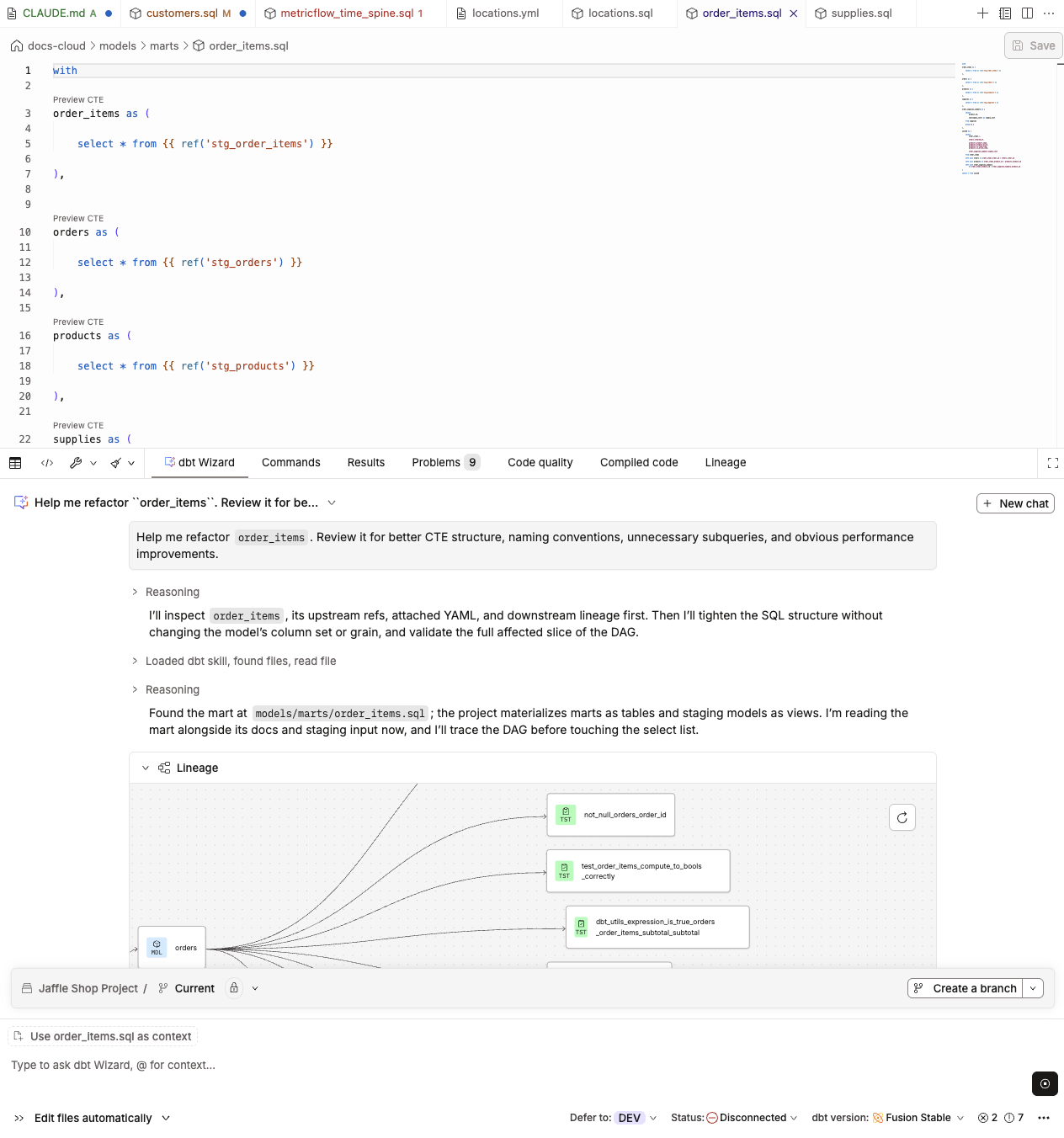 dbt Wizard refactoring a model and displaying the lineage inside the chat interface.
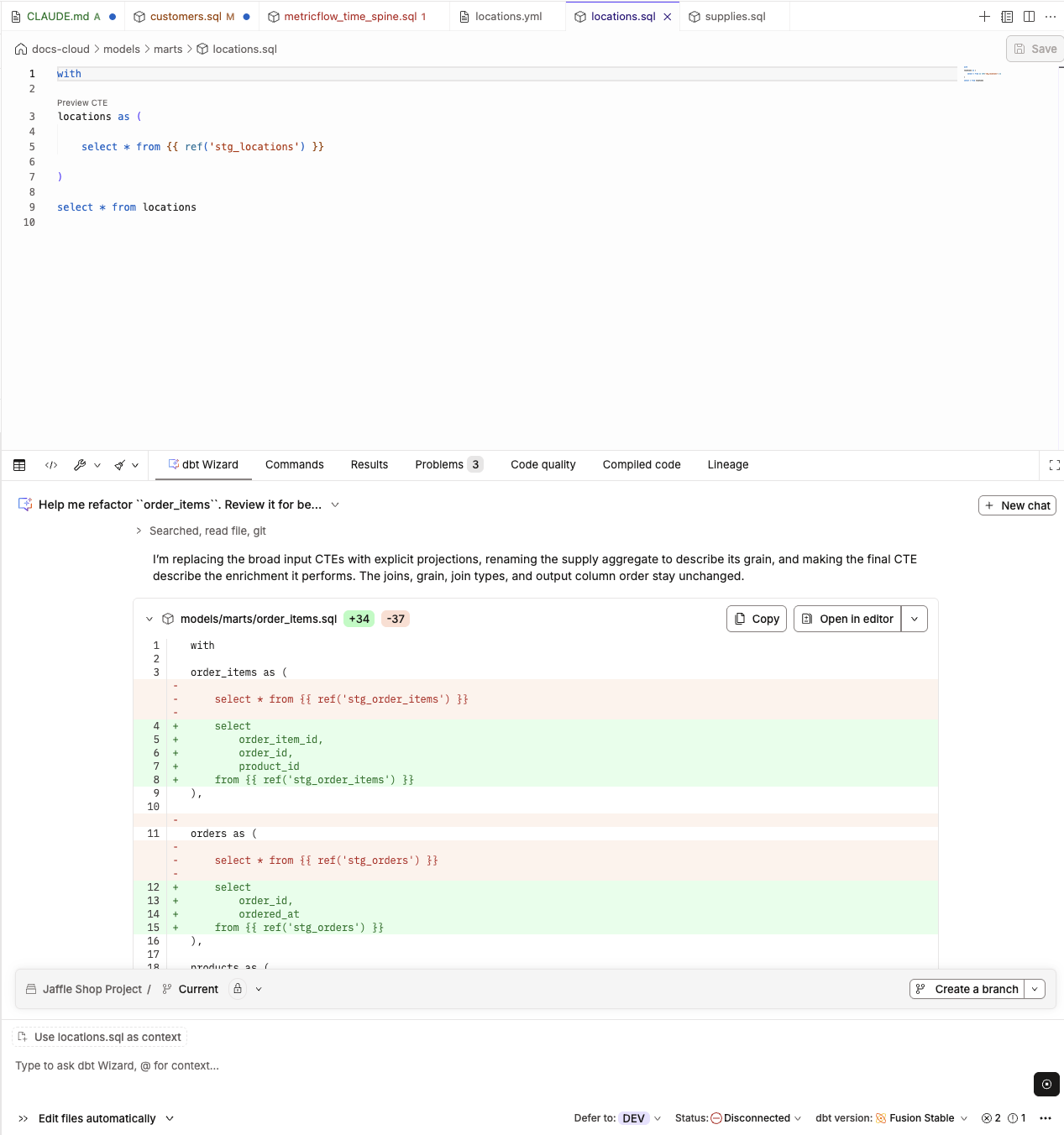 Wizard final refactor result displayed as a diff
For more details on the dbt Wizard and how it works, expand the following sections to open additional information.
Panel controls
The dbt Wizard panel contains:
- Quick actions (center): Buttons at the top of the panel for common tasks like generating documentation, tests, semantic models, and metrics. When selected, the text field is pre-filled with a prompt.
- Agent mode button (bottom left): Switch between Explore only, Ask for approval, and Edit files automatically mode. Click the button to change modes.
- Model picker (bottom left): Select the dbt managed model to use for the session. Refer to Choose a model for the available models.
- dbt model context (bottom left): Shows the currently open file. Use
@in the text field to reference a different dbt model. Click x to remove the dbt model context. - Text input field (bottom left): Type your prompt in the text field to describe what you want to build or change. Type
@to select a dbt model as context. This scopes the agent's changes to that resource. - Start new dbt Wizard chat (top right): Starts a new chat session.
- Stop or Enter (bottom right): Press Enter to submit your prompt. Press Stop to stop the current session and agent processing. You cannot undo this action.
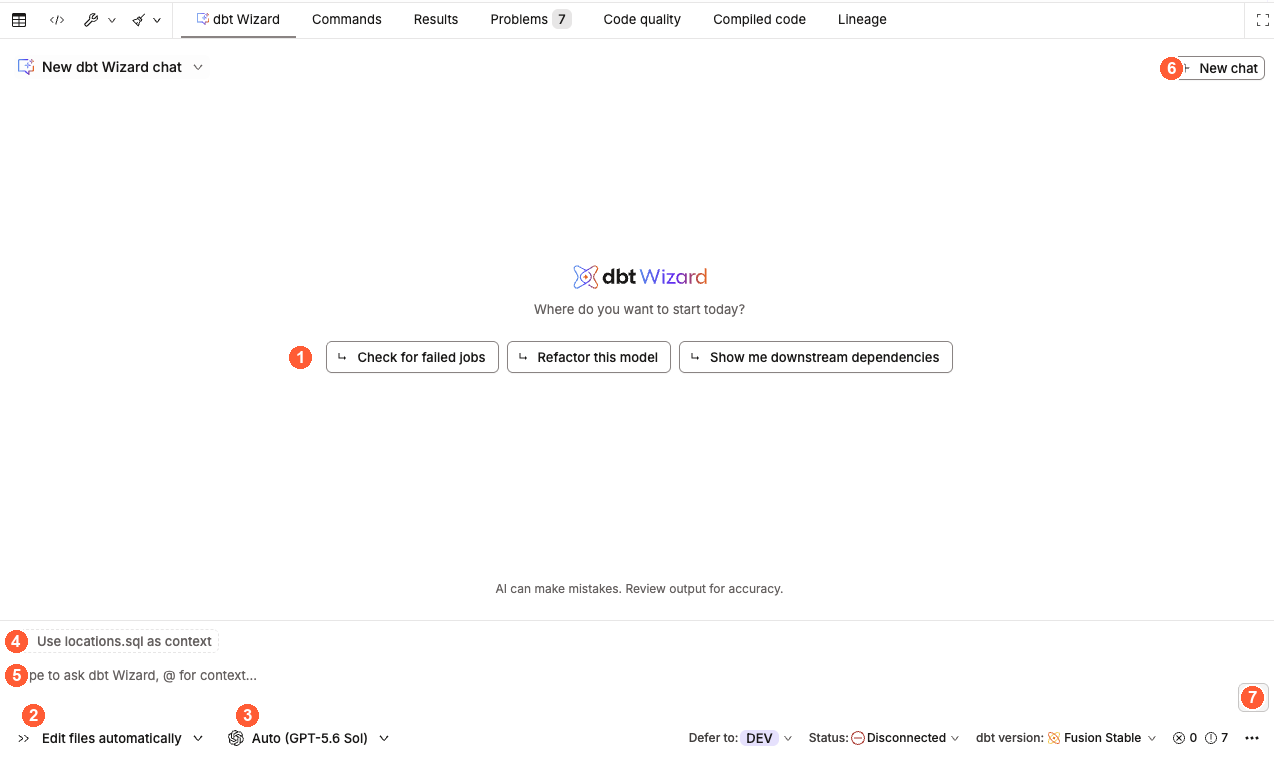 The Wizard panel in the Studio IDE showing quick-action buttons, the agent mode button, the model picker, and the text input field.
dbt Wizard also has a simplified wayfinder bar above the text input field. The wayfinder bar shows your current project and branch and guides you through Git tasks, such as committing files or creating a branch.
Agent modes
The dbt Wizard operates in three modes:
| Mode | Behavior |
|---|---|
| Explore only | The agent queries and explains data but can't edit files or run builds. Best when you want to analyze data or validate a model's output without the agent proposing changes. Every answer comes with the SQL or metric definition behind it. Available for read-only users in the home tab. |
| Ask for approval (default) | The agent drafts edits to files. You approve each file change before it is persisted. Best when you want tight control over what gets saved to your branch. |
| Edit files automatically | The agent drafts and automatically saves file edits without per-file approval. Best for faster iteration when you're confident in the prompt. |
Switch between modes anytime with the Agent mode button (bottom-left). The authoring modes keep the analytical tools available, so switching out of Explore only doesn't cost you anything.
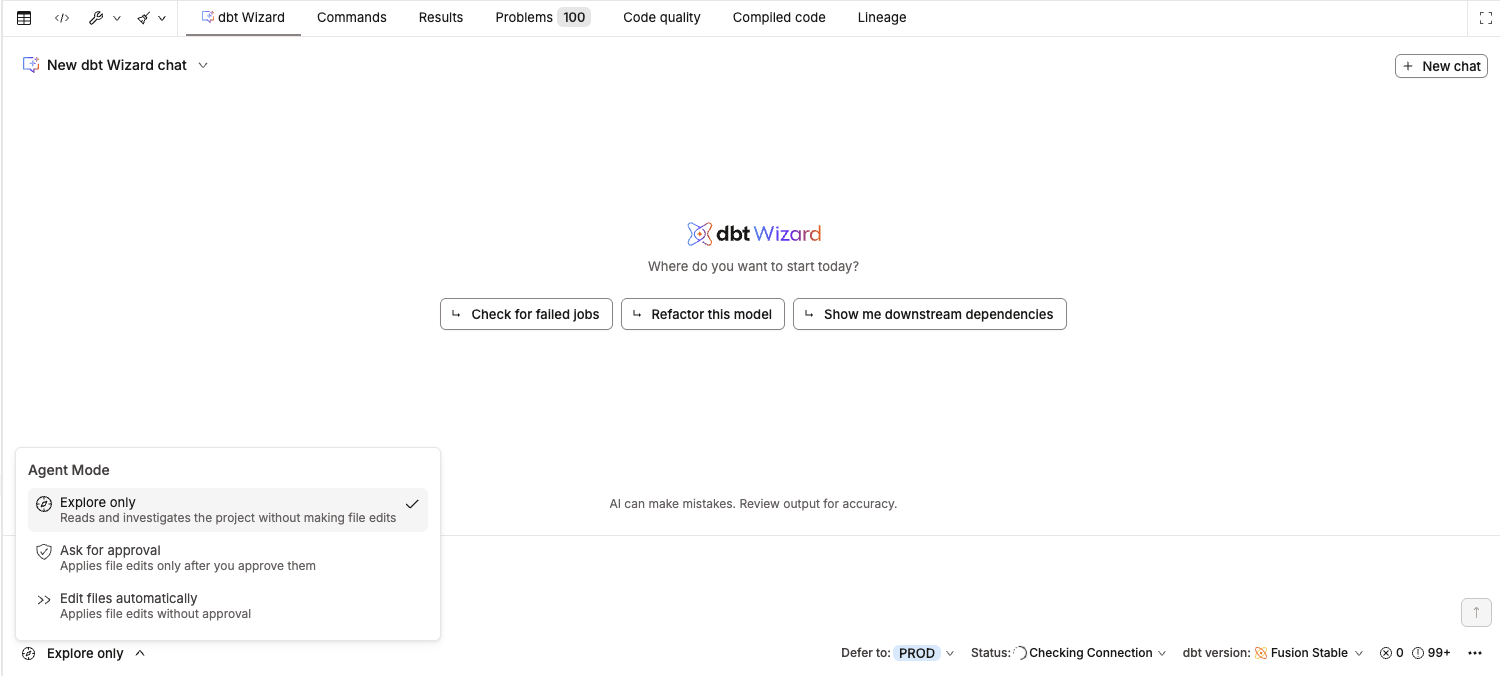 dbt Wizard in Explore only, Ask for approval, and Edit files automatically modes.
Bringing your own skills
You can extend dbt Wizard with custom skills to encode your team's SQL conventions, naming rules, and modeling workflows — so you don't repeat them in every prompt. See Skills for the full reference, including how to create, structure, and invoke skills.
Debug job failures
The dbt Wizard can investigate and troubleshoot dbt job and run failures directly from the Studio IDE. This capability is powered by the troubleshooting-dbt-job-errors dbt Agent Skill, which comes pre-configured with the agent — no setup required.
You can ask the agent questions and issue commands like:
- "What jobs have failed recently?"
- "What is the root cause of the job failure?"
- "How can I fix the recent job failure?"
- "Fix the job failure."
The agent notes when your local project state may differ from the job — for example, if you're on a different branch or have uncommitted changes — so you have full context before acting on any suggested fixes.
Timeout handling
When a dbt command run by dbt Wizard runs for more than 5 minutes, the agent automatically attempts to stop the command on the server before returning control to you.
Instead of hanging or showing a generic error, the agent returns a clear message that explains the command timed out and was aborted. The message also tells you whether the cancellation request succeeded. If cancellation fails, it's possible the command may still be running on the server.
You can then choose whether to retry the command, narrow the request, or take another action.
dbt v2 migration workflow
If you have access to dbt Wizard with AI features enabled, you can use the dbt v2 migration workflow skill. This skill can help you fix compatibility errors directly from the Studio IDE using dbt Wizard — no manual log investigation needed. It classifies every error, applies validated fixes automatically, and surfaces what's blocked.
The dbt v2 migration workflow is accessible through the dbt Wizard in the Studio IDE. If you're using VS Code or the dbt platform CLI, use the autofix tool instead.
- From the job list, click the Review job button for a job with a successful run.
- If you don't see the Review job button, enable the Show dbt v2 eligibility toggle in the job list.
- In the dbt v2 eligibility unknown for this job pop-up, click Debug in Studio with dbt Wizard.
- dbt redirects you to the Studio IDE and sets your personal development environment to dbt v2.
- dbt Wizard opens and automatically triggers the dbt v2 migration skill with this prompt:
I need help fixing dbt v2 compatibility issues in this project. Please investigate and resolve any deprecation warnings or incompatibilities. Please use the migrating-dbt-core-to-fusion skill to guide this. - Review and approve dbt Wizard's permission requests so it can run the commands it needs.
- The dbt Wizard iteratively runs
dbt compile, reads the results, and applies fixes until it reaches a successful compile or encounters an error it can't resolve. If it gets blocked, it exits cleanly, explains what it could not fix, and creates and links to a markdown file summarizing all changes made. - When the project compiles with no warnings or errors, commit and publish your changes.
- After you merge the changes, wait for the job to run again or run it manually on dbt v2.
 The Developer Agent's v2 migration workflow triaging and fixing v2 compatibility errors in the Studio IDE.
For more on how to prepare your project for dbt v2 and what to do when you hit compatibility errors, see the dbt v2 readiness checklist and the Upgrade to dbt v2 guides.
Writing effective prompts
Good prompts include the scope (which models or area of the project), the intent (the transformation or business logic you want), and any constraints (naming conventions, materialization, tests). Here are a few examples:
| Task | Example prompt |
|---|---|
| Build a new model | "Create a model called fct_daily_revenue that joins stg_orders and stg_payments, aggregates revenue by day, and materializes as a table." |
| Refactor an existing model | "Refactor fct_orders to use incremental materialization. Keep existing tests and follow our naming conventions." |
| Generate tests and docs | "Add not_null and unique tests to the primary key of dim_customers, and generate documentation for all columns." |
For detailed guidance, patterns, and more examples across SQL, documentation, tests, and semantic models, see the Prompt cookbook.
For recommended workflows on real project tasks — understanding a project, validating changes, building Semantic Layer definitions, and more — refer to How to use dbt Wizard in your dbt project. Most of these prompts work the same in Studio IDE.
Ask questions in Explore mode
Explore mode in Studio IDE lets you ask questions of your production data in plain language. dbt Wizard in Explore mode answers and explains but never changes your project. This option is great for exploratory data analysis and getting a quick understanding of your data.
Explore mode queries with your personal warehouse credentials.
- Open dbt Wizard and set the mode picker (bottom-left) to Explore only if needed.
- Type your question and press Enter. Make sure you're specific and include the time period, grouping, and filter you care about:
what was total revenue in Q2 2026, by month?how many new customers signed up in July?which regions grew fastest this year?
- dbt Wizard gives a plain-language summary of what it did, then the result. Switch between Chart, Table, and SQL to see the data your way.
- Validate the data by using the SQL view to review the query or governed metric behind the answer. Note that you can't edit the SQL query but you can copy it.
- Keep going by asking a follow-up in the same conversation. For example,
now break that out by regionworks after your first question.
Explore mode uses dbt-managed inference, so questions draw from your account's dbt Wizard consumption pool like any other dbt Wizard usage.
In the Studio IDE, the answer and its visualization appear inline in the dbt Wizard panel alongside your project.
 Explore mode in the Studio IDE, showing a chart and Chart/Table/SQL toggles in the dbt Wizard panel.
Choose a model
With dbt managed inference, you can switch between the supported managed models at any using the model picker dropdown next to the Agent mode control (where you choose Ask for approval or Edit files automatically).
- In Studio IDE and the dbt Wizard home tab, open the model picker dropdown next to the Agent mode control in the dbt Wizard panel, then select a model.
- The picker lists the managed models available to you. Refer to the Model Provider Rate table for the available models and their token rates.
- If you bring your own key (BYOK), dbt Wizard uses the provider and model you configured with your key rather than the managed model picker.
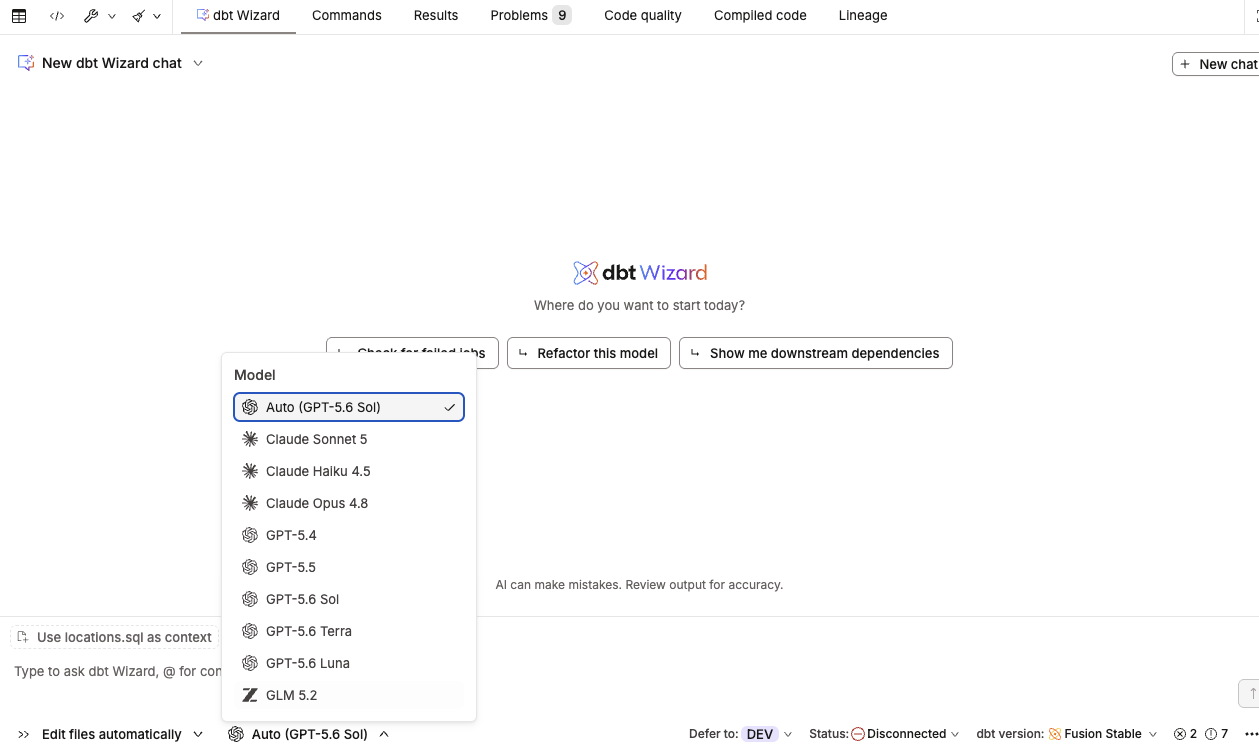 The model picker dropdown next to the Agent mode control in the Wizard panel.
Related docs
- About dbt Wizard in dbt platform
- dbt v2 readiness checklist
- Develop with dbt Wizard
- Prompt cookbook
- Semantic models
- About dbt AI and intelligence
Was this page helpful?
This site is protected by reCAPTCHA and the Google Privacy Policy and Terms of Service apply.
