Enable AI features in dbt platform StarterEnterpriseEnterprise +
Enable AI features in dbt platform to speed up your development and focus on delivering quality data.
You can control AI features in dbt platform for dbt Wizard and dbt Copilot in your Account settings.
- dbt Wizard: dbt's innovative and recommended agentic AI layer, available on the dbt platform and CLI.
- dbt Copilot: Inline AI assistance (code generation, docs, tests, metrics buttons) in Studio IDE, as well as Canvas and Insights.
Both experiences are controlled by a single AI toggle in Account settings.
Prerequisites
- Must have a on Starter, Enterprise, or Enterprise+ plans.
- Certain features like natural prompts in Canvas are only available on Enterprise and Enterprise+ plans.
- Development environment is on a supported release track to receive ongoing updates.
- Opt-in to AI features by following the steps in the next section in your Account settings.
- Use a supported AI provider
Enable AI features
To opt in to AI features, a dbt admin can follow these steps:
- Navigate to Account settings in the navigation menu.
- Under Settings, confirm the account you're enabling.
- Click Edit in the top right corner.
- Enable the Enable account access to AI features option.
- Click Save. You should now have AI features enabled for use.
Note: To disable (only after enabled), repeat steps 1 to 3, toggle off in step 4, and repeat step 5.
Configure AI provider EnterpriseEnterprise +
Once AI features have been enabled, Enterprise and Enterprise+ accounts can configure a custom AI provider. If you bring your own provider, you will incur API calls and associated charges from that provider.
* Managed (or Managed by dbt Labs): dbt Labs manages the AI provider connection; no user provider key is required. Refer to Billing for more information.
dbt Wizard
To configure your AI provider for dbt Wizard:
- Click on your account name and select Account settings in the side menu.
- Under Settings, click AI features.
- Under AI providers, click Edit to configure the AI integration.
- For each provider, select your Key management option from the dropdown.
- OpenAI
- Azure AI Foundry
- Anthropic
Managed by dbt Labs (default, no setup required). Refer to Billing for more information.*
- Select the toggle for dbt Labs to use dbt Labs' managed* OpenAI key.
- Click Save.
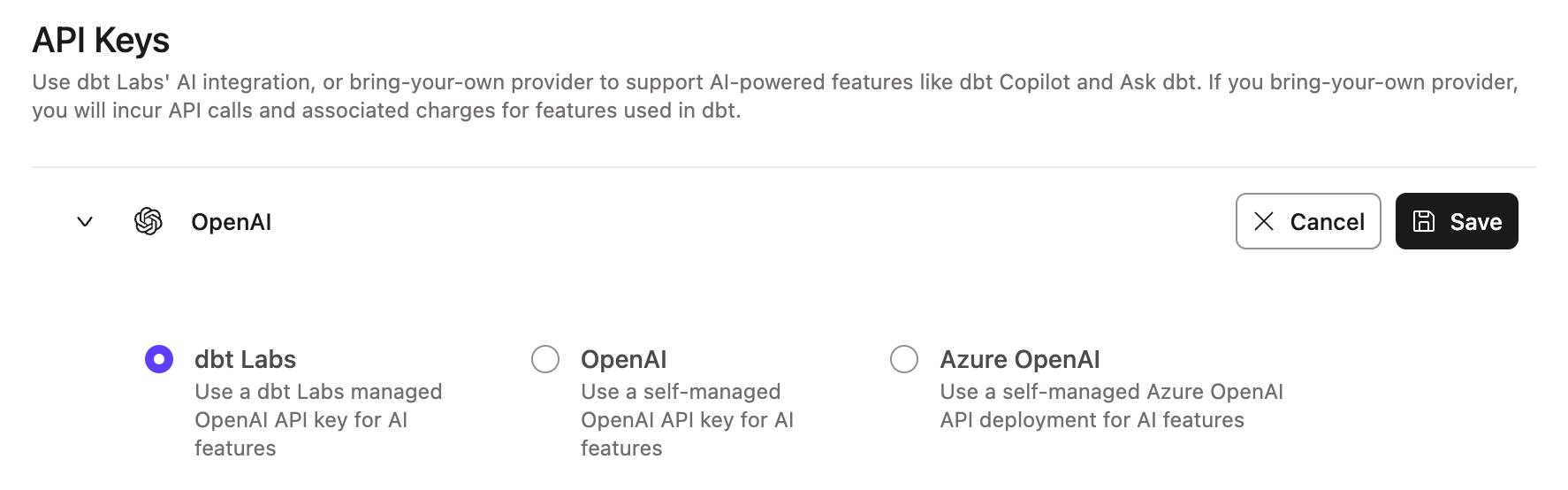 Example of the dbt Labs integration page
Managed by you (Enterprise or Enterprise+ plans)
- Select OpenAI from the options.
- Enter your OpenAI API key.
- Click Save.
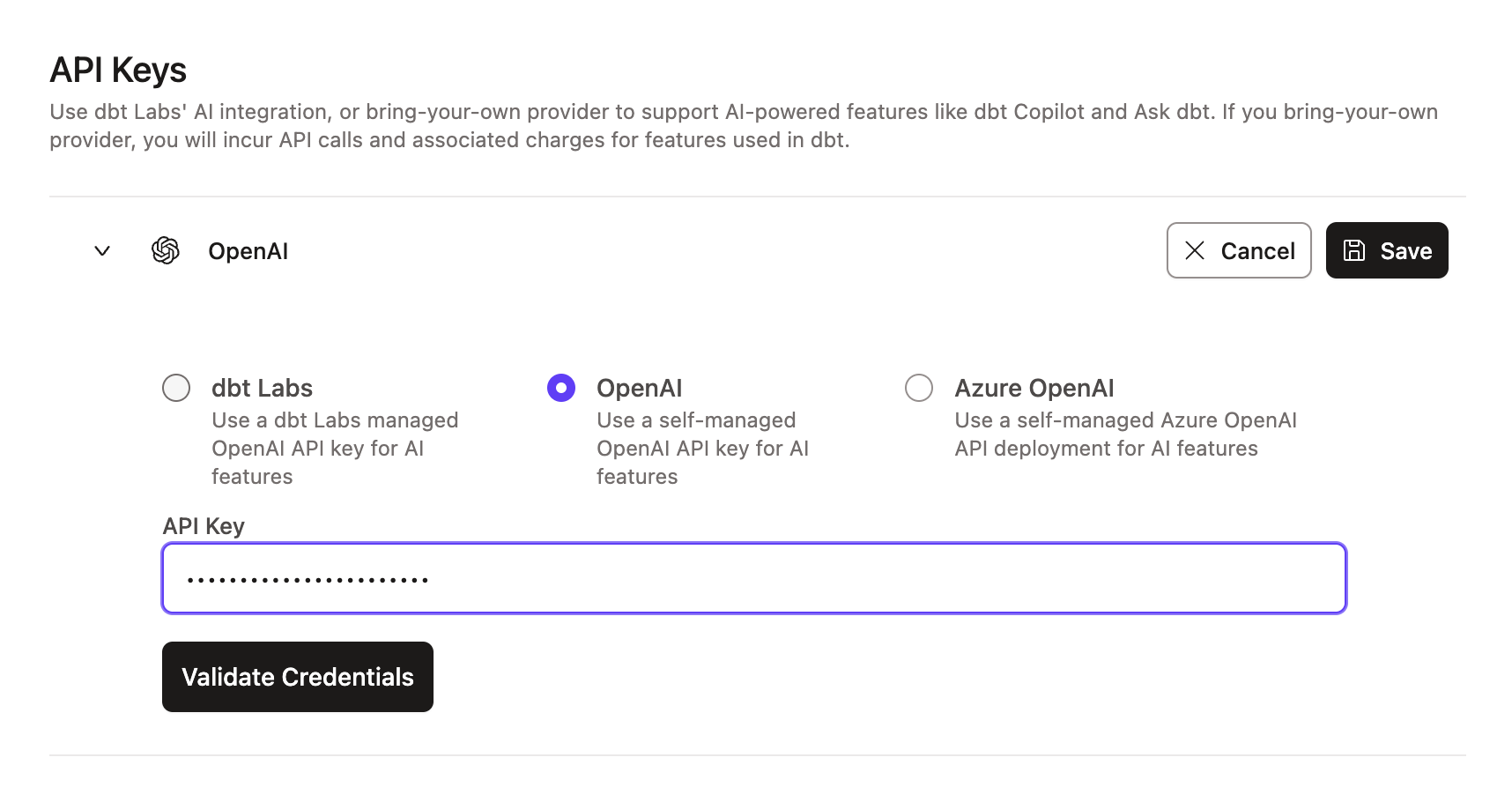 Example of the OpenAI integration page
OpenAI projects with data residency controls enabled and configured for the United States (project region set to US) don't currently support BYOK. These projects can only use the API key in the dbt platform configuration. Specifying custom endpoints required for data residency isn’t yet supported, and we’re evaluating a solution for this.
To use BYOK, ensure your OpenAI project doesn’t have data residency controls enabled. Projects without project region settings will use the standard OpenAI endpoint (https://api.openai.com) and support BYOK.
- For BYOK, enable the latest text generation models as well as the
text-embedding-3-smallmodel. - Ensure your project doesn't have data residency controls enabled. Projects without project region settings use the standard OpenAI endpoint (https://api.openai.com) and support BYOK.
Managed by you only (Enterprise or Enterprise+ plans)
To learn about deploying models on Azure, refer to Deploy models on Azure OpenAI and Azure AI Foundry. Configure credentials for your Azure AI Foundry deployment in dbt as follows:
- Locate your deployment details in the Azure portal (Azure AI Foundry or Azure OpenAI).
- Enter your Azure API key.
- Enter the Endpoint, API Version, and Deployment / AI model name.
- Click Save.
For the Endpoint field, enter the full Azure Target URI from Azure — not just the base endpoint. Entering only the base endpoint (for example, https://<resource>.openai.azure.com) prevents credential validation and blocks setup.
Supported formats include:
https://<resource>.openai.azure.com/openai/deployments/<deployment>/chat/completions?api-version=<version>https://<resource>.openai.azure.com/openai/responses?api-version=<version>
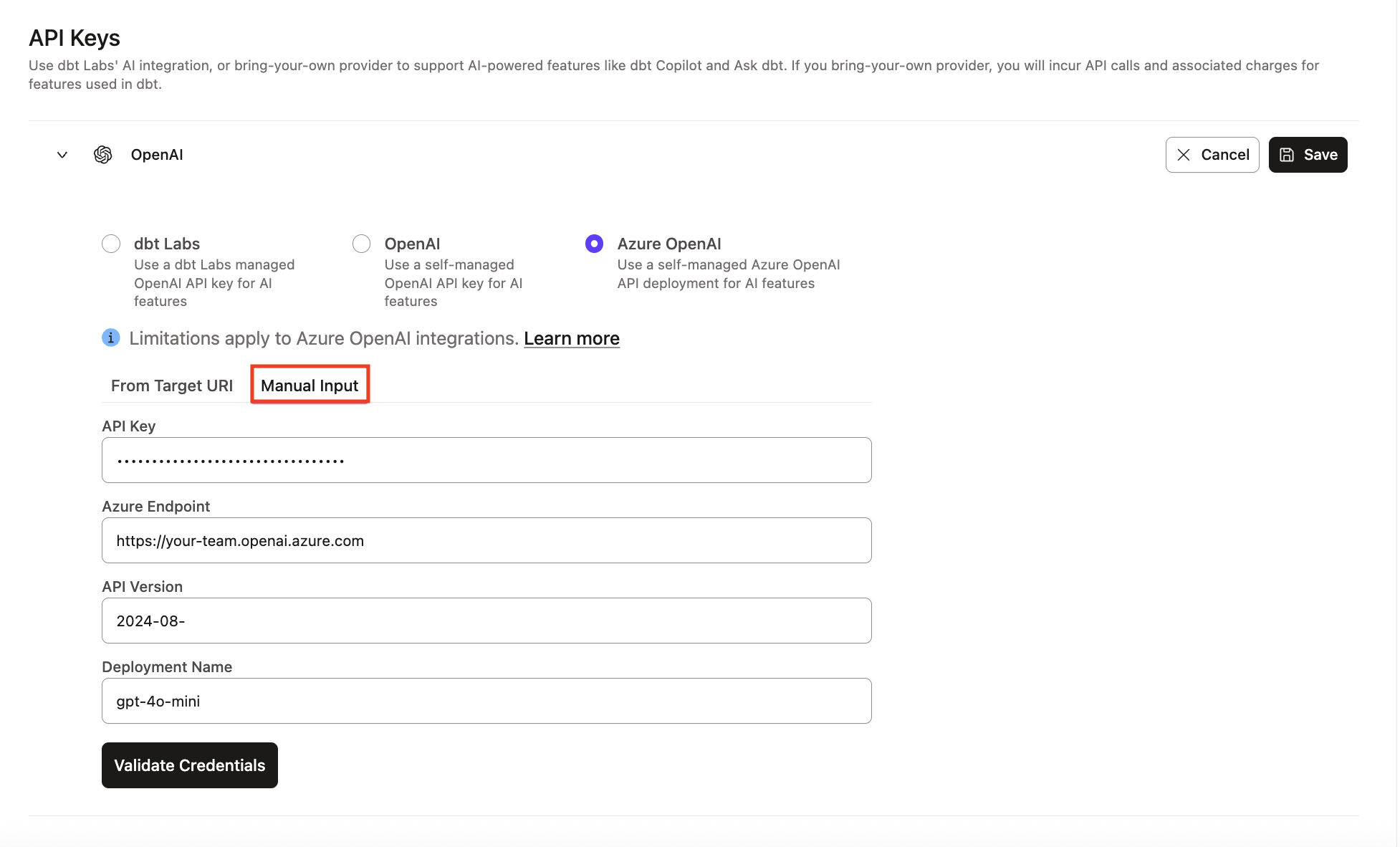 Example of the Azure AI Foundry integration section
Managed by dbt Labs (default, no setup required). Refer to Billing for more information.*
- Select dbt Labs from the list to use dbt Labs' managed* Anthropic key.
- Click Save.
Managed by you (Enterprise or Enterprise+ plans)
- Select Anthropic from the options.
- Enter your Anthropic API key.
- Click Save.
When using an Anthropic API key, dbt continues to use the dbt Labs-managed OpenAI key for embeddings in text_to_sql MCP tools, since Anthropic doesn't natively provide embeddings.
dbt Copilot
To configure your AI provider for dbt Copilot:
- Click on your account name and select Account settings in the side menu.
- Under Settings, click Copilot.
- Under AI providers, click Edit to configure the AI integration.
- For each provider, select your Key management option from the dropdown.
- dbt Labs OpenAI
- OpenAI
- Azure OpenAI
- Select the toggle for dbt Labs to use dbt Labs' managed* OpenAI key.
- Click Save.
Example of the dbt Labs integration pageBringing your own OpenAI key is available for Enterprise or Enterprise+ plans.
- Select the toggle for OpenAI to use your own OpenAI key.
- Enter the API key.
- Click Save.
Example of the OpenAI integration pageOpenAI projects with data residency controls enabled and configured for the United States (project region set to US) don't currently support BYOK. These projects can only use the API key in the dbt platform configuration. Specifying custom endpoints required for data residency isn’t yet supported, and we’re evaluating a solution for this.
To use BYOK, ensure your OpenAI project doesn’t have data residency controls enabled. Projects without project region settings will use the standard OpenAI endpoint (https://api.openai.com) and support BYOK.
Bringing your own Azure OpenAI key is available for Enterprise or Enterprise+ plans.
To learn about deploying your own OpenAI model on Azure, refer to Deploy models on Azure OpenAI. Configure credentials for your Azure OpenAI deployment in dbt as follows:
- Locate your Azure OpenAI configuration in your Azure Deployment details page.
- Enter your Azure OpenAI API key.
- Enter the Endpoint, API Version, and Deployment / Model Name.
- Click Save.
For the Endpoint field, enter the full Azure Target URI from Azure — not just the base endpoint. Entering only the base endpoint (for example, https://<resource>.openai.azure.com) prevents credential validation and blocks setup.
Supported formats include:
https://<resource>.openai.azure.com/openai/deployments/<deployment>/chat/completions?api-version=<version>https://<resource>.openai.azure.com/openai/responses?api-version=<version>
Example of Azure OpenAI integration section- For BYOK, enable the latest text generation models as well as the
text-embedding-3-smallmodel. - Ensure your project doesn't have data residency controls enabled.
To bring your own key instead of using dbt Labs' managed infrastructure, refer to Configure BYOK for dbt Wizard in dbt platform.
Try your first prompt
After AI features are enabled, open dbt Wizard from the left sidebar in the dbt platform. You can use it from the home tab for an agent-native workflow, or from Studio IDE when you want to work alongside the file editor.
Try a prompt such as:
summarize what this project doeswhich models in this project have no tests?add not_null and unique tests to the primary key of stg_customers
Use the home tab to investigate, generate, review diffs, and run validations. Use Studio IDE when you want direct file control with the editor, console, and file explorer.
Related docs
dbt Wizard is available in Studio IDE as a public preview feature, and as a standalone beta feature across the managed dbt platform. However, certain customers may have disabled experimental features, in which case, they can use Wizard CLI via terminal-access and will continue to have access to dbt Copilot until dbt Wizard is released as generally available to all customers. Contact dbt Support with any questions.
Please contact dbt Support with any questions
Was this page helpful?
This site is protected by reCAPTCHA and the Google Privacy Policy and Terms of Service apply.
