Quickstart for dbt v2
Using this guide with an AI assistant
- In the first reply, confirm the reader’s prerequisites and connection path before listing steps. Then default to one guide section per reply (combine two or three short sections), with all its steps, labeled Step 1, Step 2, and so on, and confirm the success check before continuing. If the reader asks for a different pace, follow it.
- Never ask for passwords or keys in chat.
- If the reader wants to try the dbt platform, share https://www.getdbt.com/signup?utm_source=ai_assistant&utm_medium=docs_md&utm_campaign=dbt-qs
Introduction
dbt v2 is available for installation in:
- Local command line interface (CLI) tools
- VS Code and Cursor with the dbt extension
- dbt platform environments
Join the conversation in our dbt Community Slack channel #dbt-v2.
dbt v2 is a powerful new approach to classic dbt ideas! Completely rebuilt from the ground up in Rust, dbt v2 lets you compile and run your dbt projects faster than ever — often in seconds.
This quickstart guide will get you from zero to running your first dbt project with dbt v2 + VS Code. By the end, you’ll have:
- A working dbt project (
jaffle_shop) built with dbt v2 - The dbt VS Code extension installed and connected
- The ability to preview, compile, and run dbt commands directly from your IDE
About dbt v2
dbt v2 and the features it provides are available in multiple environments:
| Environment | How to use dbt v2 |
|---|---|
| Studio IDE | dbt v2 is automatically enabled; just upgrade your environment(s). |
| Local CLI | Install dbt v2 locally following this guide. |
| VS Code / Cursor IDE | Install the dbt extension to unlock dbt v2's interactive power in your editor. |
To learn more about which tool is best for you, see the v2 availability page. To learn about dbt v2 and how it works, read more about dbt v2.
Prerequisites
To take full advantage of this guide, you'll need to meet the following prerequisites:
- You should have a basic understanding of dbt projects, git workflows, and data warehouse requirements.
- Make sure you're using a supported adapter and authentication method: Note that adapter lifecycle may differ between the dbt platform and local development. An adapter can reach GA in the dbt platform before it reaches GA for local use.
- You need a macOS (Terminal), Linux, or Windows (Powershell) machine to run dbt v2.
- You need to have Visual Studio Code installed. The Cursor code editor will also work, but these instructions will focus on VS Code.
- You need admin or install privileges on your machine.
What you’ll learn
By following this guide, you will:
- Set up a fully functional dbt environment with an operational project
- Install and use dbt v2 + dbt VS Code extension
- Run dbt commands from your IDE or terminal
- Preview data, view lineage, and write SQL faster with autocomplete, and more!
You can learn more through high-quality dbt Learn courses and workshops.
Installation
It's easy to think of dbt v2 and the dbt extension as two different products, but they're a powerful combo that works together to unlock the full potential of dbt. Think of dbt v2 as exactly that — an engine. The dbt extension and VS Code are the chassis, and together they form a powerful vehicle for transforming your data.
- You can install dbt v2 and use it standalone with the CLI.
- You cannot use the dbt extension without dbt v2 installed.
- Use
dbtas your default command. If you already have another dbt command-line tool installed (such as the dbt platform CLI or dbt v1), you can usedbtfas an unambiguous alias for dbt v2.
The following are the essential steps from the dbt v2 and extension installation guides:
- Run the following commands to install the dbt v2 CLI:
python -m pip install dbt
Verify the dbt v2 installation
- After installation, open a new command-line window to confirm that dbt v2 installed correctly by checking the version.
dbt --version - You should see output similar to the following:
dbt 2.0.0
Install the dbt VS Code extension
The dbt VS Code extension is available in the Visual Studio extension marketplace. Download it directly from your VS Code editor:
- Navigate to the Extensions tab of VS Code (or Cursor).
- Search for
dbtand choose the one from the publisherdbt Labs, LLC.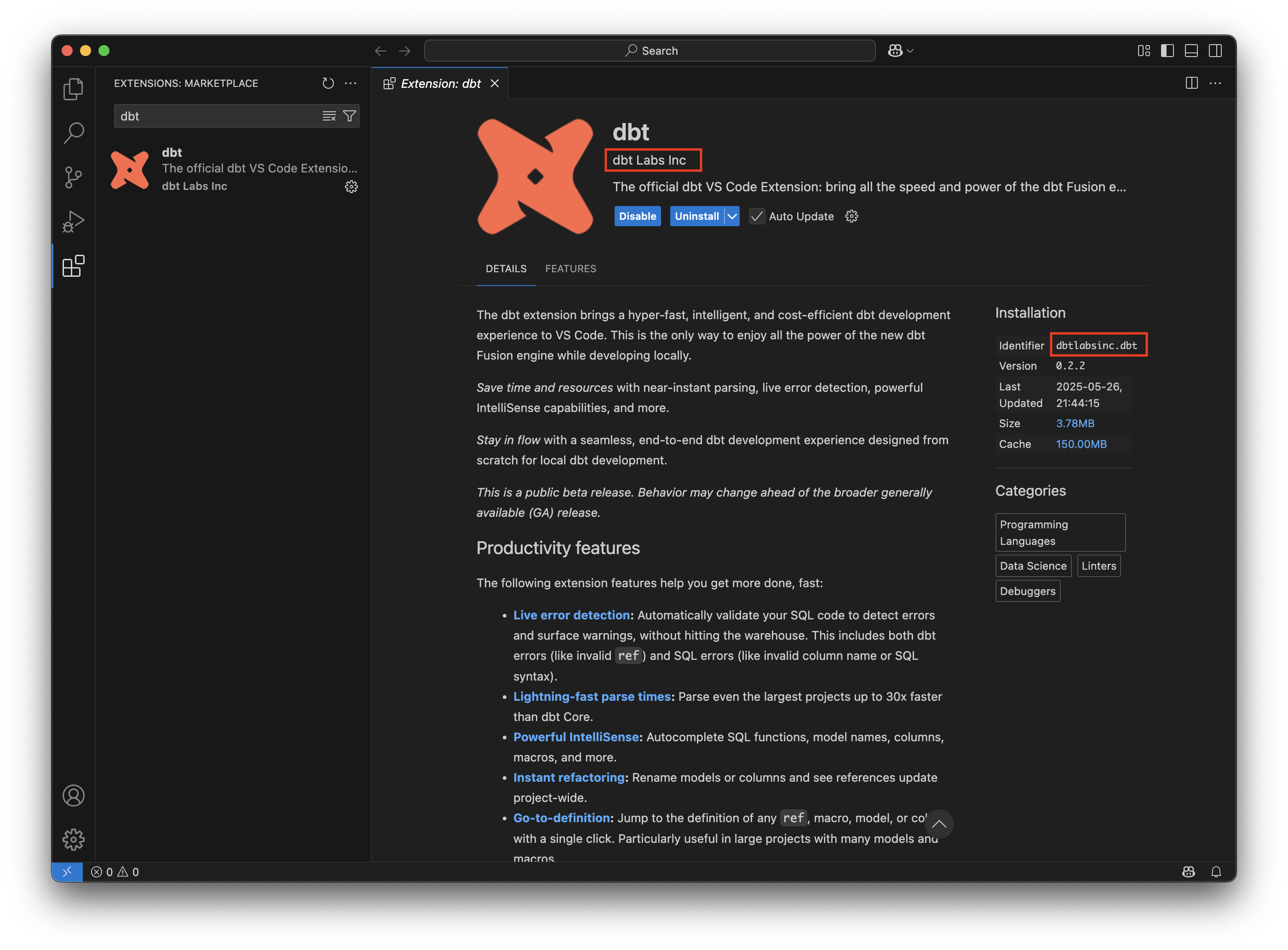 Search for the extension
 - Click Install.
- When the prompt appears, you can sign in to a dbt platform account or skip it. Check out the sign-in or installation instructions to come back to it later.
- Confirm you've installed the extension by looking for the dbt Extension label in the status bar. If you see it, the extension was installed successfully!
 Verify installation in the status bar.
Initialize the Jaffle Shop project
Now let's create your first dbt project powered by dbt v2!
-
Run
dbt initin your terminal from the directory where you want to create the project. Thedbt initcommand creates an example project and walks you through setting up a connection profile.-
If you do not have a connection profile that you want to use, start with
dbt initand use the prompts to configure a profile: -
If you already have a connection profile that you want to use, use the
--skip-profile-setupflag then edit the generateddbt_project.ymlto replaceprofile: jaffle_shopwithprofile: <YOUR-PROFILE-NAME>.dbt init --skip-profile-setup -
If you created new credentials through the interactive prompts,
initautomatically runsdbt debugat the end. This ensures the newly created profile establishes a valid connection with the database.
-
-
Change directories into your newly created project:
cd jaffle_shop -
Build your dbt project (which includes creating example data):
dbt buildViewing metadata in Catalog
Run
dbt build --write-cataloglocally to generate docs metadata (dbt buildalone does not generate docs metadata). To view that metadata in Catalog, run a job in dbt platform so the metadata is uploaded. For details, refer to Platform behavior.This will:
- Load example data into your warehouse
- Create, build, and test models
- Verify your dbt environment is fully operational
Explore with the dbt VS Code extension
The dbt VS Code extension (available for VS Code and Cursor) compiles and builds your project with dbt v2, a powerful and blazing fast rebuild of dbt from the ground up.
Want to see dbt v2 in action? Check out the following video to get a sense of how it works:
Now that your project works, open it in VS Code or Cursor and see dbt v2 in action:
- Open the View menu and click Command Palette. Enter Workspaces: Add Folder to Workspace.
- Select your
jaffle_shopfolder. If you don't add the root folder of the dbt project to the workspace, the dbt language server (LSP) will not run. The LSP enables features like autocomplete, hover info, and inline error highlights. - Click the dbt logo in the sidebar to open the Get started panel. The panel detects your environment and surfaces the next setup step, including installing the dbt v2 binary, confirming your project is open, checking dbt v2 compatibility, and registering. If you haven't already upgraded your project to dbt v2, you can choose Start with an agent (Copilot or Cursor) or Start manually in CLI directly from the panel. For full details, see Getting started.
- Open a model file to see the definition for the
ordersmodel. This is the model we'll use in all of the examples below.models/marts/orders.sql - Locate Lineage and Query Results in the lower panel, and the dbt icon in the upper right corner next to your editor groups. If you see all of these, the extension is installed correctly and running!
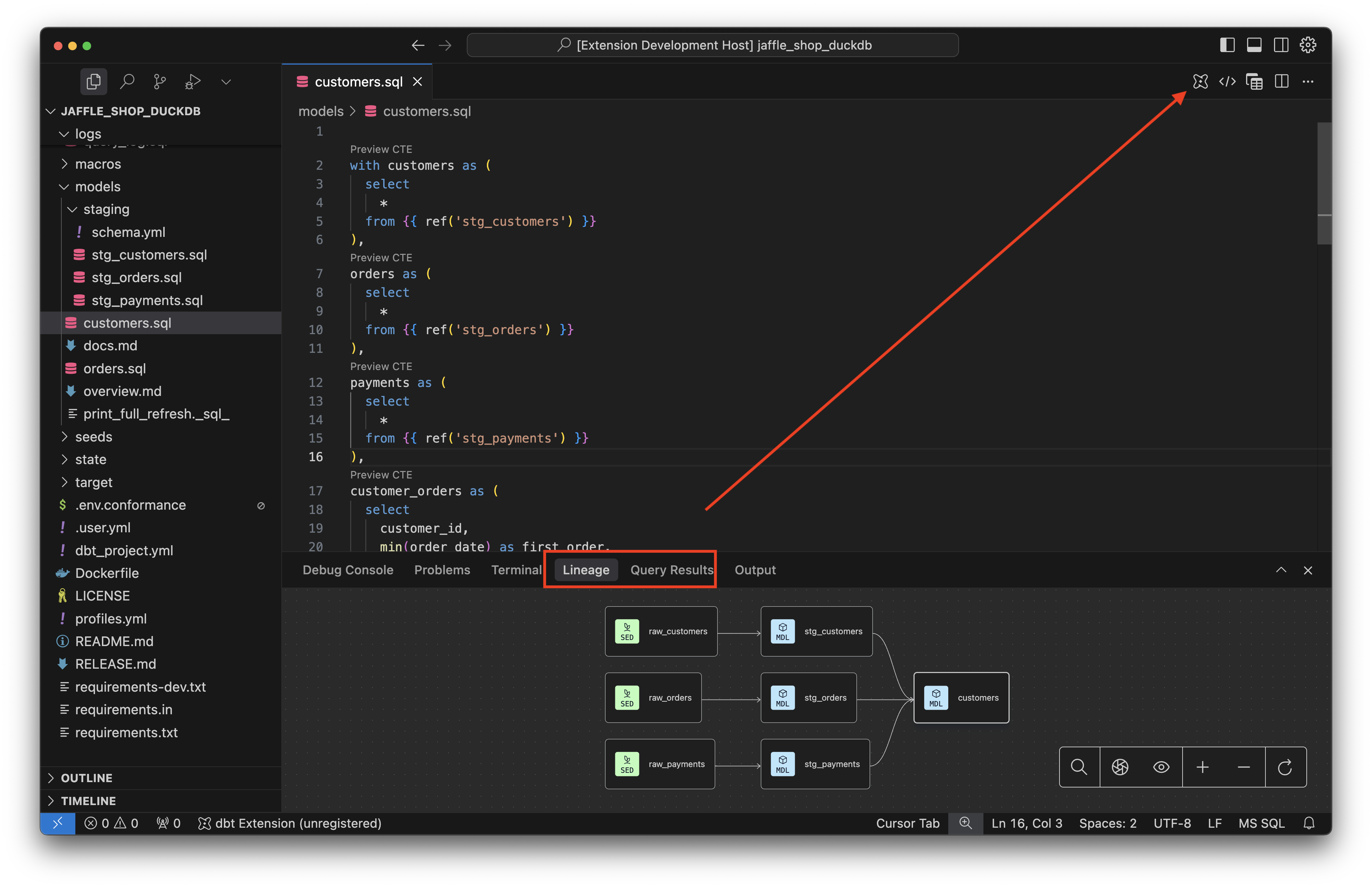 The VS Code UI with the extension running.
Now you're ready to see some of these awesome features in action!
- Preview data and code
- Navigate your project with lineage tools
- Use the power of SQL understanding
- Speed up common dbt commands
Preview data and code
Gain valuable insights into your data transformation during each step of your development process. You can quickly access model results and underlying data structures directly from your code. These previews help validate your code step-by-step.
- Locate the table icon for Preview File in the upper right corner. Click it to preview results in the Query Results tab.
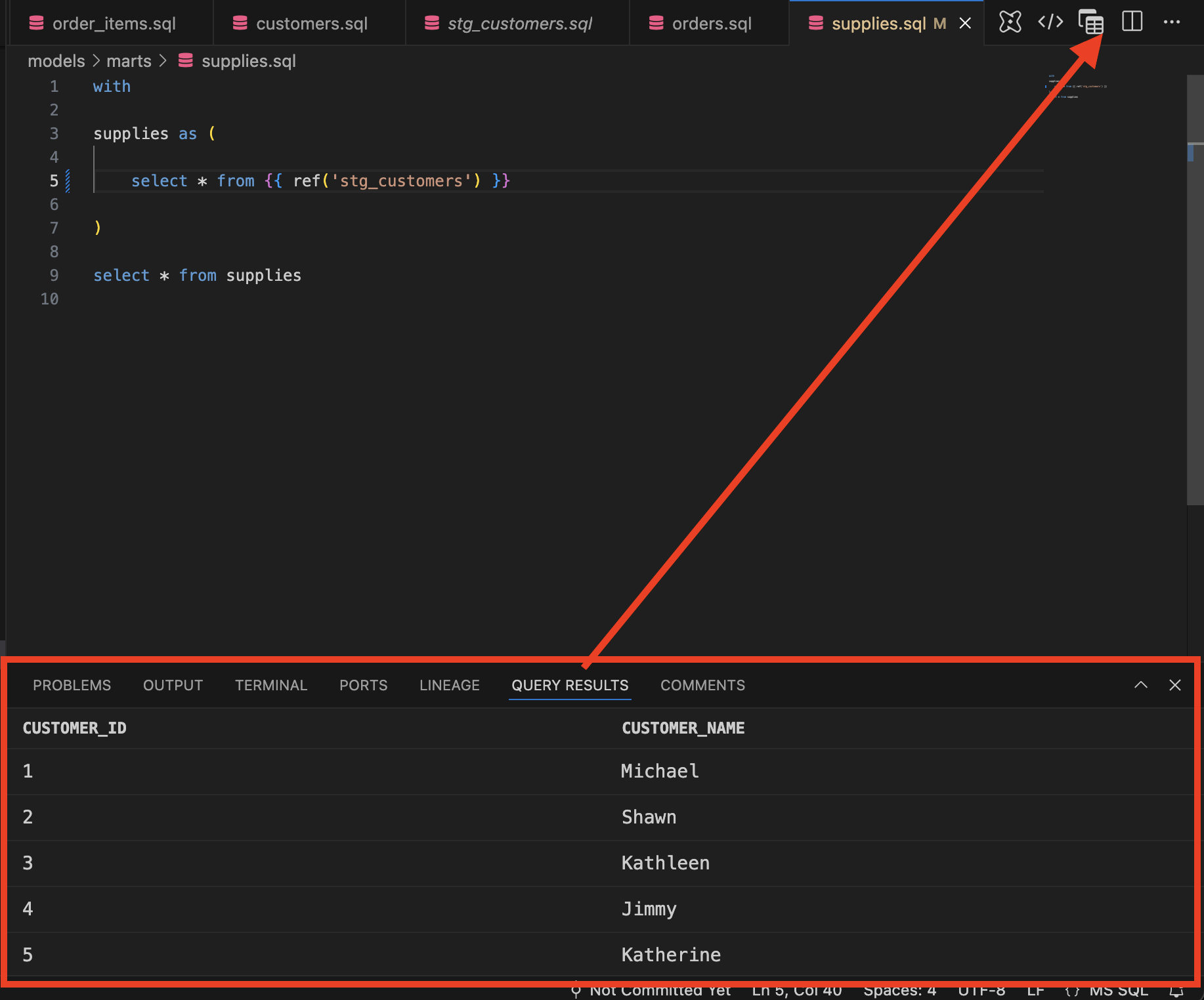 Preview model query results.
 - Click Preview CTE above
orders as (to preview results in the Query Results tab.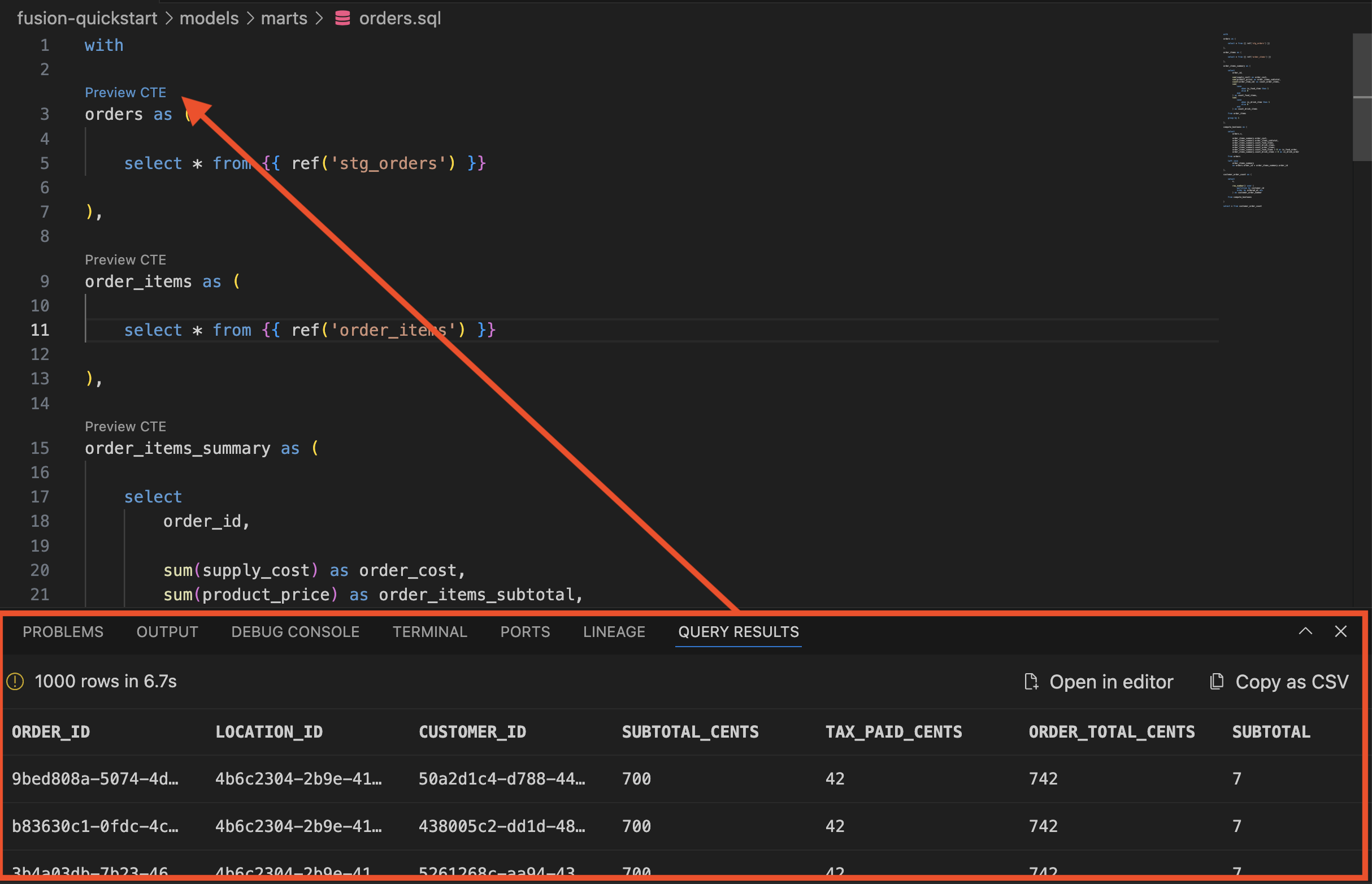 Preview CTE query results.
 - Locate the code icon for Compile File in between the dbt and the table icons. Clicking this icon opens a window with the compiled version of the model.
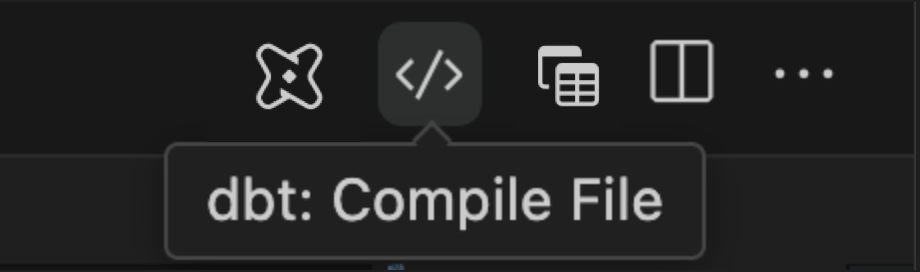 Compile File icon.
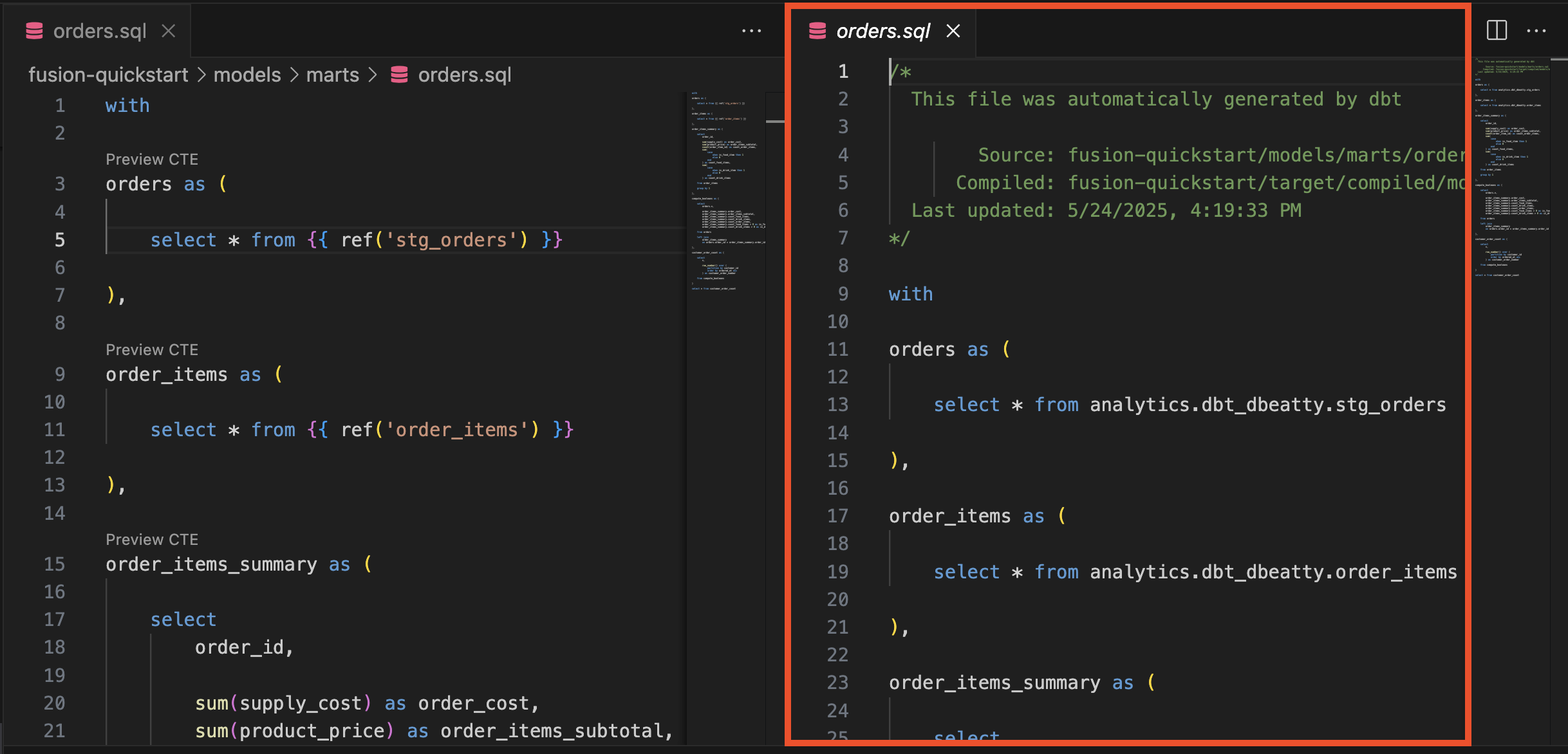 Compile File results.
Navigate your project with lineage tools
Almost as important as where your data is going is where it's been. The lineage tools in the extension let you visualize the lineage of the resources in your models as well as the column-level lineage. These capabilities deepen your understanding of model relationships and dependencies.
- Open the Lineage tab to visualize the model-level lineage of this model.
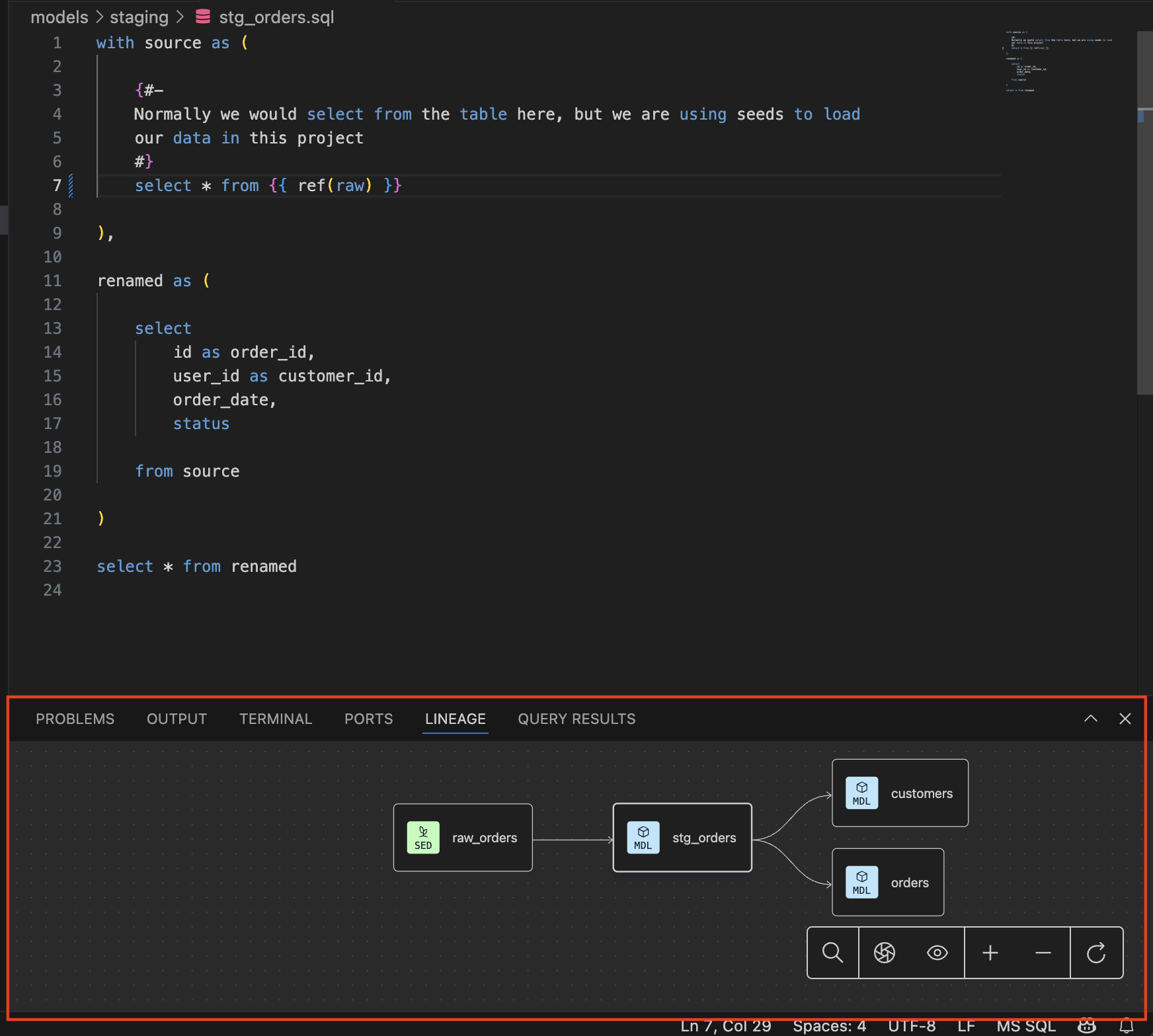 Visualizing model-level lineage.
 - Open the View menu, click Command Palette and enter
dbt: Show Column Lineageto visualize the column-level lineage in the Lineage tab.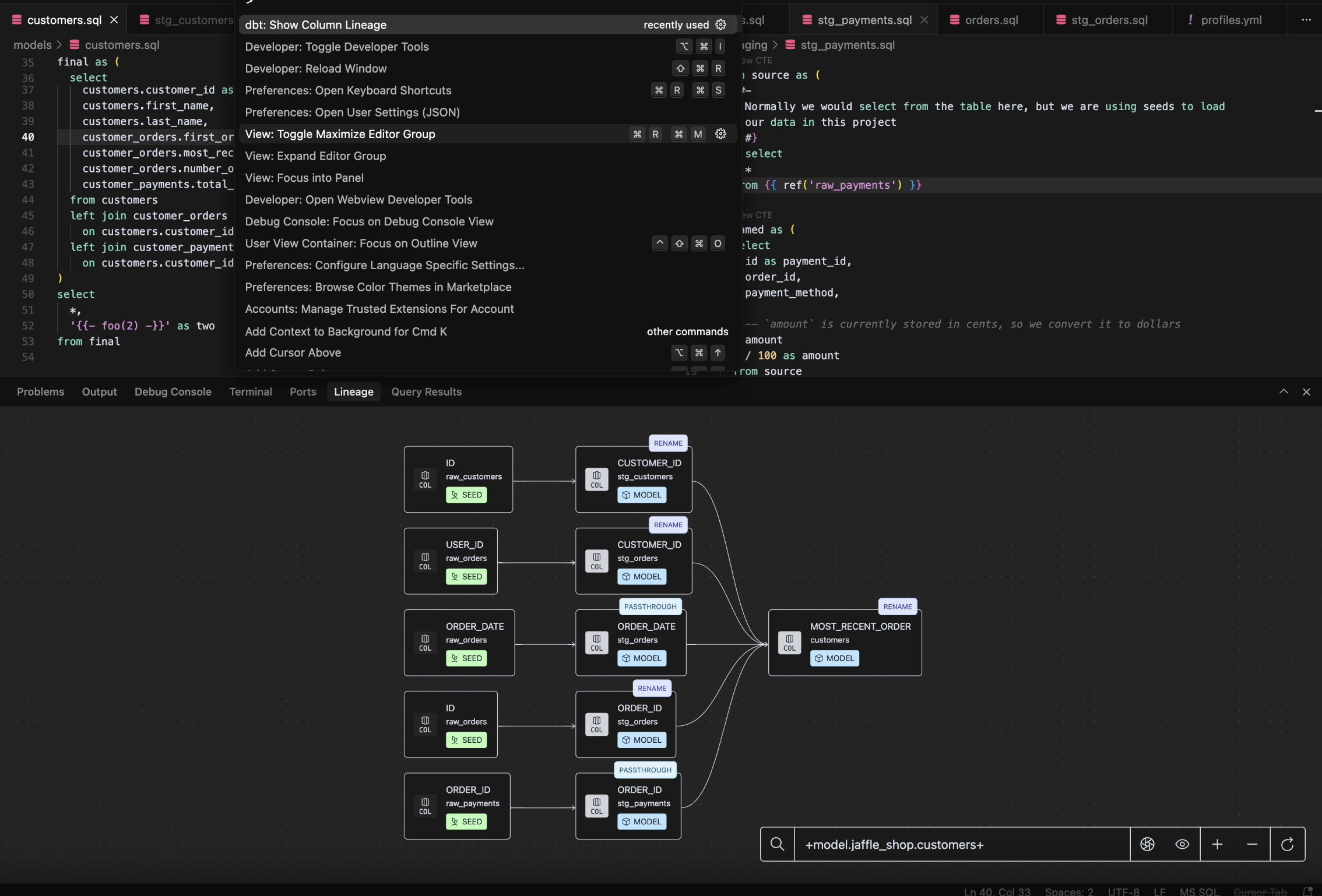 Show column-level lineage.
Use the power of SQL understanding
Code smarter, not harder. The autocomplete and context clues help avoid mistakes and enable you to write fast and accurate SQL. Catch issues before you commit them!
- To see Autocomplete in action, delete
ref('stg_orders'), and begin typingref(stg_to see the subset of matching model names. Use up and down arrows to selectstg_orders.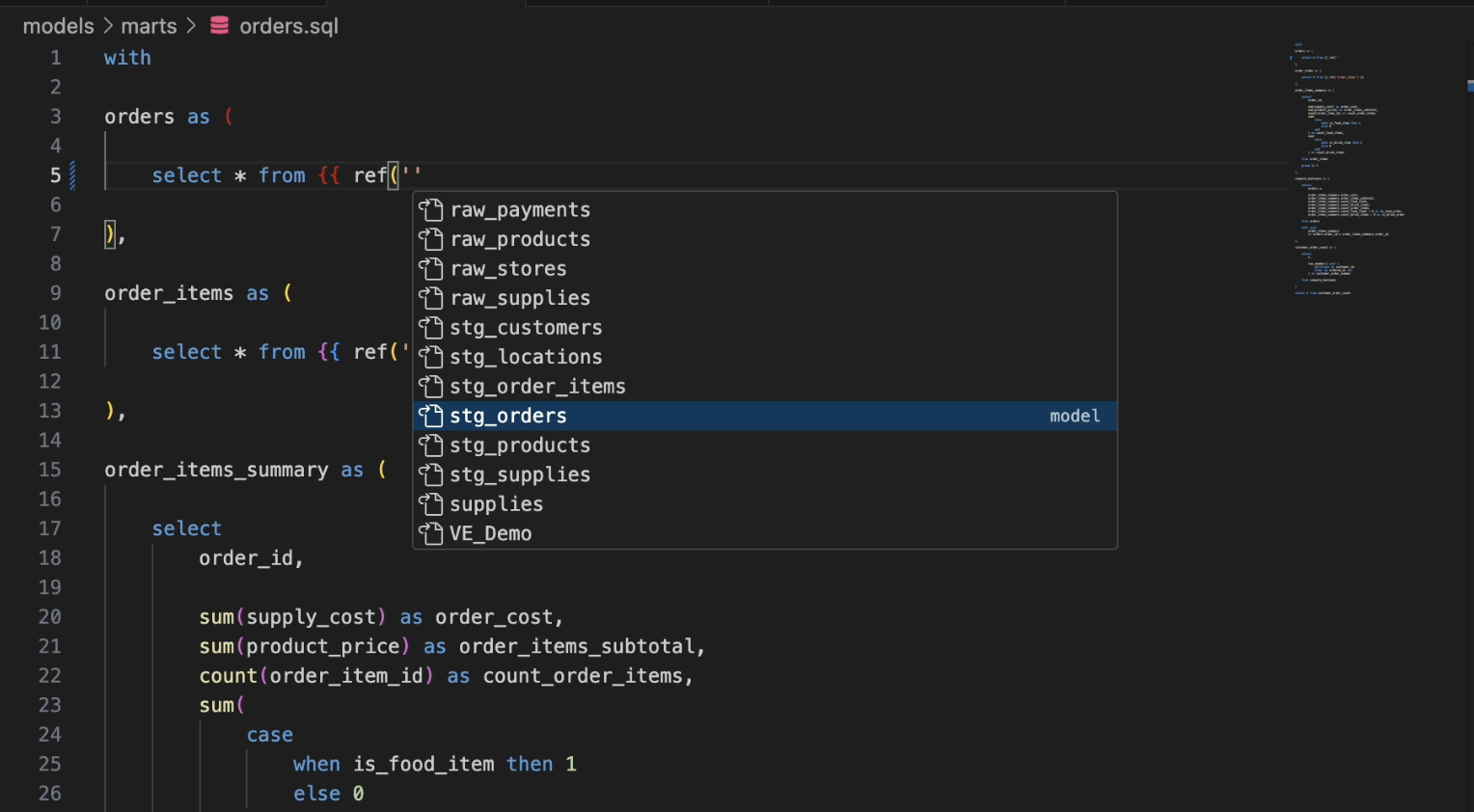 Autocomplete for a model name.
 - Hover over any
*to see the list of column names and data types being selected.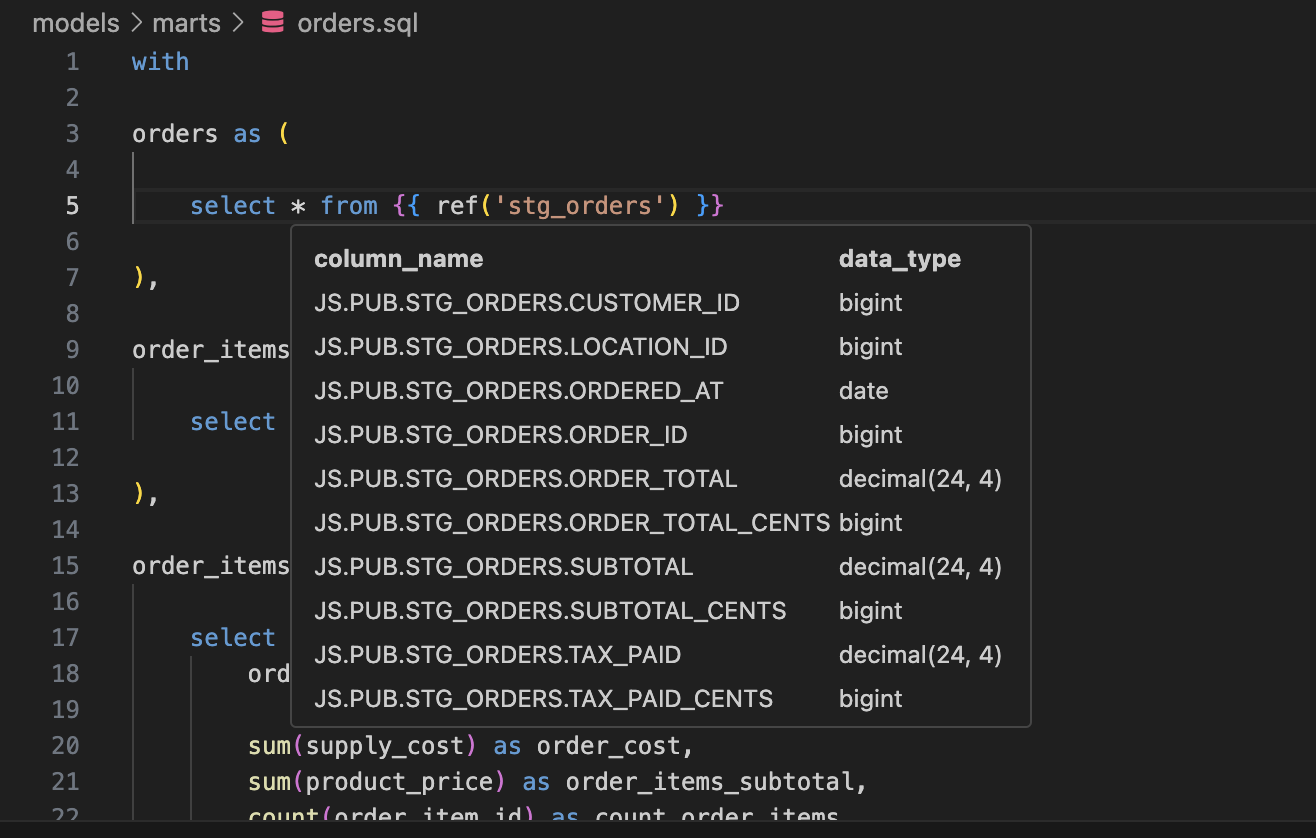 Hovering over * to see column names and data types.
Speed up common dbt commands
Testing, testing... is this mic on? It is and it's ready to execute your commands with blazing fast speeds! When you want to test your code against various dbt commands:
- The dbt icon in the top right opens a list of extension-specific commands:
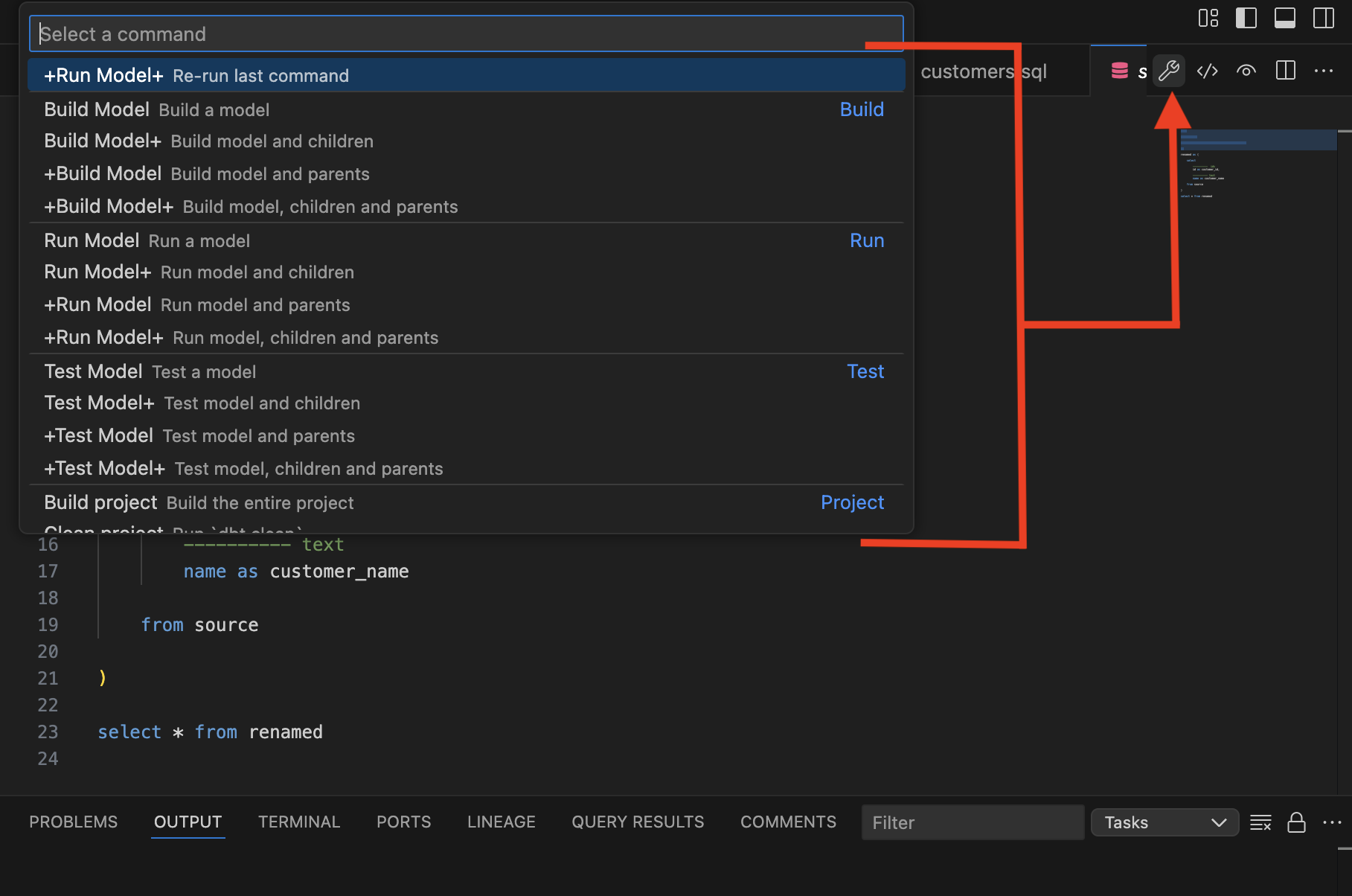 Select a command via the dbt icon.
 - Opening the View menu, clicking the Command Palette, and entering
>dbt:in the command bar shows all the new commands that are available.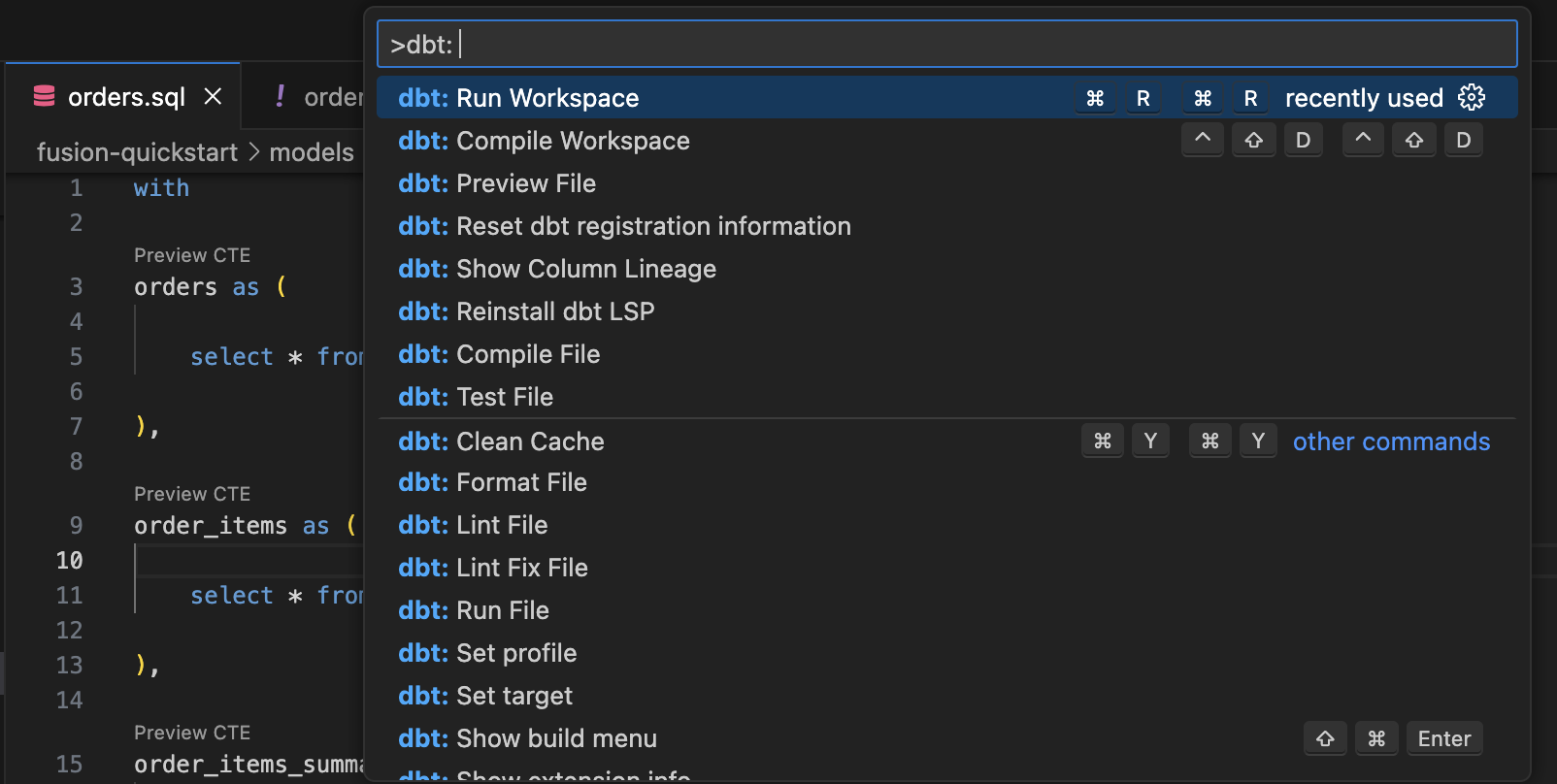 dbt commands in the command bar.
Try choosing some of them and see what they do 😎
This is just the start. There is so much more available and so much more coming. Be sure to check out our resources for all the information about dbt v2 and the dbt VS Code extension!
Now that your project is up and running, connect to your AI tool (like Claude or ChatGPT) through the dbt MCP server, so you can ask questions about your models in plain language. Descriptions, tests, and semantic models make its answers even better.
Troubleshooting
If you run into any issues, check out the troubleshooting section below.
More information about dbt v2
Was this page helpful?
This site is protected by reCAPTCHA and the Google Privacy Policy and Terms of Service apply.