Invite read-only users to dbt Wizard Preview
Give the people who need answers a way to get them. With a few setup steps, read-only users can ask questions of governed production data in plain language — no developer license required.
Read-only users work in the dbt Wizard home tab in Explore mode: the agent queries and explains your data but can't edit files, run builds, or change your project.
This page is for admins. It covers which license read-only users need, how to invite them, and how to set your project up for good answers. Users with development access don't need a read-only license — they get Explore mode alongside the authoring modes automatically.
Read-only users see dbt Wizard in the home tab as soon as they have access, but they can't query anything until two things are true: credentials exist (either their own or the project's analytics credential), and the project has metadata or Semantic Layer definitions to ask questions against.
What read-only users can do
A read-only user in dbt Wizard can:
- Ask questions of production data in plain language in the dbt Wizard home tab, and ask follow-ups in the same conversation.
- See the Semantic Layer metric definition or SQL behind every answer.
- See which environment an answer was queried against.
A read-only user can't:
- Use dbt Wizard in the Studio IDE. Read-only users work in the dbt Wizard home tab only.
- Edit files, commit, or open pull requests.
- Run dbt commands or trigger builds.
- Switch to Ask for approval or Edit files automatically mode. Those options are disabled.
- Access data their analytics credentials permissions don't already allow.
Read-only users only have access to Explore mode and see a simpler UI. The only tools available are analytics tools: project metadata and Semantic Layer definitions. Tools that need filesystem or development access, like the context panel and the branch picker, don't appear. Users with development access still see all three agent modes and choose between them.
FAQs
Invite read-only users
This section explains how to invite read-only users to dbt platform so they can use the Wizard home tab.
- In dbt platform, go to Account settings --> Users.
- Click Invite users.
- Enter the email addresses of the people you want to invite.
- Assign the read-only license and a group whose permission set matches the data they should see. Explore mode isn't limited to one permission set — anyone without development access who can reach dbt Wizard gets it.
- Use the Analyst read permission set if you want these users to configure their own warehouse credentials rather than querying through the analytics credential.
- Click Send invitations.
Invited users log in and should land on the account home, then open dbt Wizard home tab from the left sidebar to start asking questions in Explore mode.
These are the read-only specifics. For the full invite flow, seat management, and resending invites, refer to Invite users.
Set up analytics credentials
To run a query, Explore mode needs warehouse credentials. Most read-only users don't have their own, so an admin sets up an analytics credential: a shared, project-level warehouse credential that read-only users fall back to when they haven't configured personal credentials. Read-only users that have their own credentials can use the Analyst read permission set.
The analytics credential also works with the remote dbt MCP server. Once an admin sets it up, read-only users can query metrics through their MCP client without logging in to dbt platform to set up their own credentials.
At query time, dbt Wizard and remote MCP resolve credentials in this order:
- The user's personal warehouse credentials if they have them.
- The project's analytics credential, if an admin has set one up.
- If neither exists, the query returns an error asking the user to set up personal credentials or contact an admin.
Only an admin can set up the analytics credential. End users can't set it up themselves.
Prerequisites
- An account admin role.
- A connection to one of the supported warehouses: Snowflake, BigQuery, Redshift, or Databricks.
Add an analytics credential to a connection
- In dbt platform, go to Account settings --> Connections and select the connection.
- Scroll to the Analytics credential card and click Edit. A connection can have one analytics credential.
- Pick an Auth method and enter the warehouse credentials dbt Wizard should query with, then click Save.
The fields you see depend on the connection's warehouse and the auth method you pick. The following example uses Snowflake with key pair authentication:
- Enter the Username and Private key for the warehouse user dbt Wizard queries as.
- Add the Private key passphrase if your key is encrypted.
- Optionally add a Role and Warehouse to pin which ones queries run with.
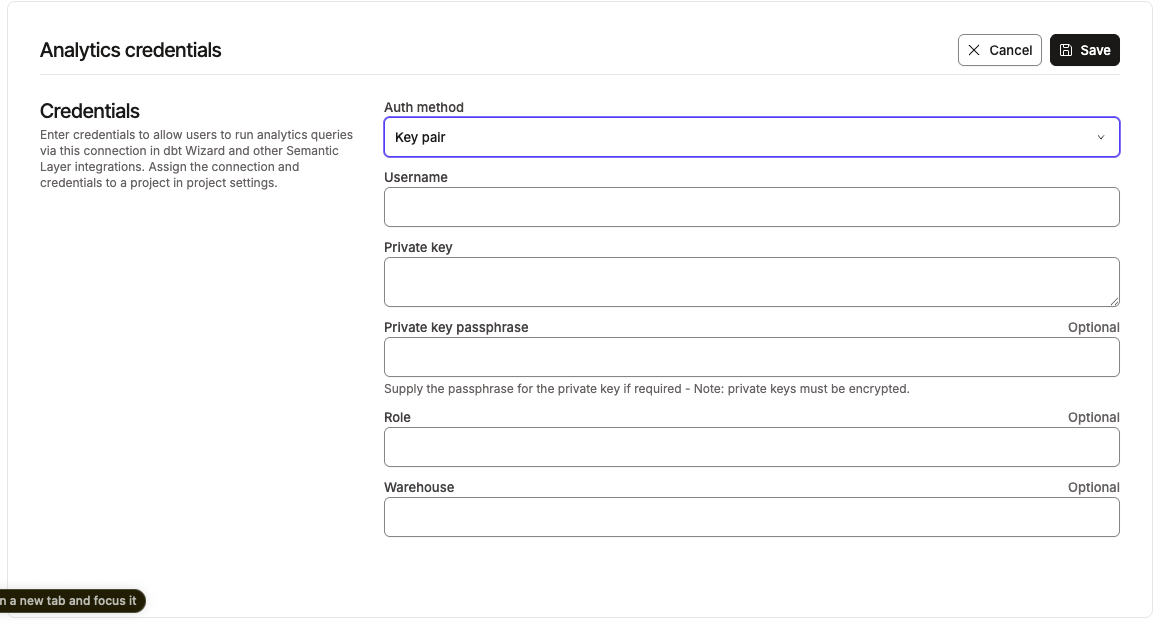 Analytics credentials with Key pair selected as the auth method
Give the credential the least privilege it needs to answer questions — read-only access to the data read-only users should see, and nothing more. It's a shared credential, so anyone querying through it sees whatever it can see, without a per-user trail. If you need per-user access control or auditing at the warehouse, have users configure personal credentials instead — that requires the Analyst read permission set.
Assign the connection to a project
- Go to Account settings --> Projects and select the project.
- In the Analytics configuration section, select a connection that has an analytics credential. Only connections with one appear in the picker.
- Click Save.
Read-only users on that project now query through this credential in Explore mode.
You can reuse the same connection across projects, but each project uses one analytics connection at a time.
Control what read-only users can see
Explore mode respects your existing access controls. It doesn't create a new permission surface.
- Scope the analytics credential to only the data read-only users should reach, since they all query through it.
- Use permission sets and groups to scope which projects a read-only user can reach.
- Use environment-level permissions to control which environments they can query.
Set your team up for good answers
Explore mode answers are grounded in what your project defines. Here are some things to make the experience easier for users:
- Define the metrics people ask about in the Semantic Layer. Questions that map to a governed metric return your approved numbers instead of ad-hoc SQL.
- Document your models and columns by writing up descriptions, which help dbt Wizard pick the right table and explain the answer in business terms.
- Tell users which environment to trust by pointing them at production and explain what development data is, so a work-in-progress number never lands in a business review.
Related docs
- Agent modes in dbt Wizard
- dbt Wizard home tab
- User licenses
- Invite users
- Enable AI features in dbt platform
Was this page helpful?
This site is protected by reCAPTCHA and the Google Privacy Policy and Terms of Service apply.