Configuring Azure Private Link for single-tenant ingress Beta
This feature is available on the following dbt Enterprise tiers:
- Enterprise+
- Virtual Private
To learn more about these tiers, contact us at sales@getdbt.com.
Inbound Azure Private Link lets your services reach a single-tenant dbt platform instance privately over your access URL, without traffic traversing the public internet. You create a private endpoint in your Azure subscription that connects to the Private Link service dbt publishes in front of your instance, then point your access URL at that endpoint with a private DNS zone.
Ingress Private Link is available only for single-tenant deployments. Multi-tenant ingress isn't currently supported (refer to the Azure private connectivity matrix).
dbt Labs provisions it for your instance. To scope it and receive your Private Link service details, contact your dbt Labs account team or Solutions Architect. If you don't have a single-tenant deployment yet, contact our sales team.
This guide covers dual-ingress instances, where the same access URL works over the public internet and over Private Link. If your instance is private-only, the access URL and private DNS zone differ, so contact your account team for guidance.
Roles
This guide uses two roles, matching the Azure Private Link model:
- Provider: (dbt) Hosts the Private Link service in front of your single-tenant instance and approves your connection request.
- Customer: (You) Creates the private endpoint and the private DNS zone in your own Azure subscription.
Access URL naming convention
Single-tenant ingress uses an access URL of the form <account_prefix>.<instance_label>.dbt.com, where <account_prefix> identifies your account and <instance_label> identifies your single-tenant instance. dbt gives you both values. The same access URL works over the public internet and over Private Link: inside the virtual network that has your private DNS zone, it resolves to your private endpoint, and everywhere else it resolves publicly.
Product subdomains sit to the left of the instance label, so each account has three hostnames:
| Hostname | Used for |
|---|---|
<account_prefix>.<instance_label>.dbt.com | The dbt platform application and APIs |
<account_prefix>.metadata.<instance_label>.dbt.com | The Discovery (metadata) API |
<account_prefix>.semantic-layer.<instance_label>.dbt.com | The Semantic Layer |
Unlike some Private Link services, Azure doesn't create DNS records for a custom domain automatically. You create a private DNS zone named <instance_label>.dbt.com and add a wildcard record that covers every hostname (see Step 4 and Step 5).
Prerequisites
- A single-tenant dbt platform instance with ingress Private Link enabled by dbt.
- The Private Link service resource ID or alias for your instance, provided by dbt (for example,
<service_name>.<guid>.<region>.azure.privatelinkservice). - Your access URL (
<account_prefix>.<instance_label>.dbt.com). - The Azure subscription ID where you create the private endpoint, shared with your dbt Labs account team beforehand. dbt must allow your subscription to connect to the service before you can create the endpoint; if it isn't allowed, Azure rejects the request with a message that the Private Link service doesn't exist or isn't visible. Once your subscription is allowed, connection requests from it are approved automatically.
- An Azure virtual network and subnet where workloads that call dbt run (or that your on-premises network can reach).
- Permissions in your subscription to create private endpoints, private DNS zones, virtual network links, and DNS records.
Create the private endpoint
Step 1: Create the endpoint
- In the Azure portal, go to Private endpoints and select Create.
- On the Basics tab, choose your Subscription and Resource group, enter a Name and Network Interface Name, and select a Region. The endpoint must be in the same region as your virtual network.
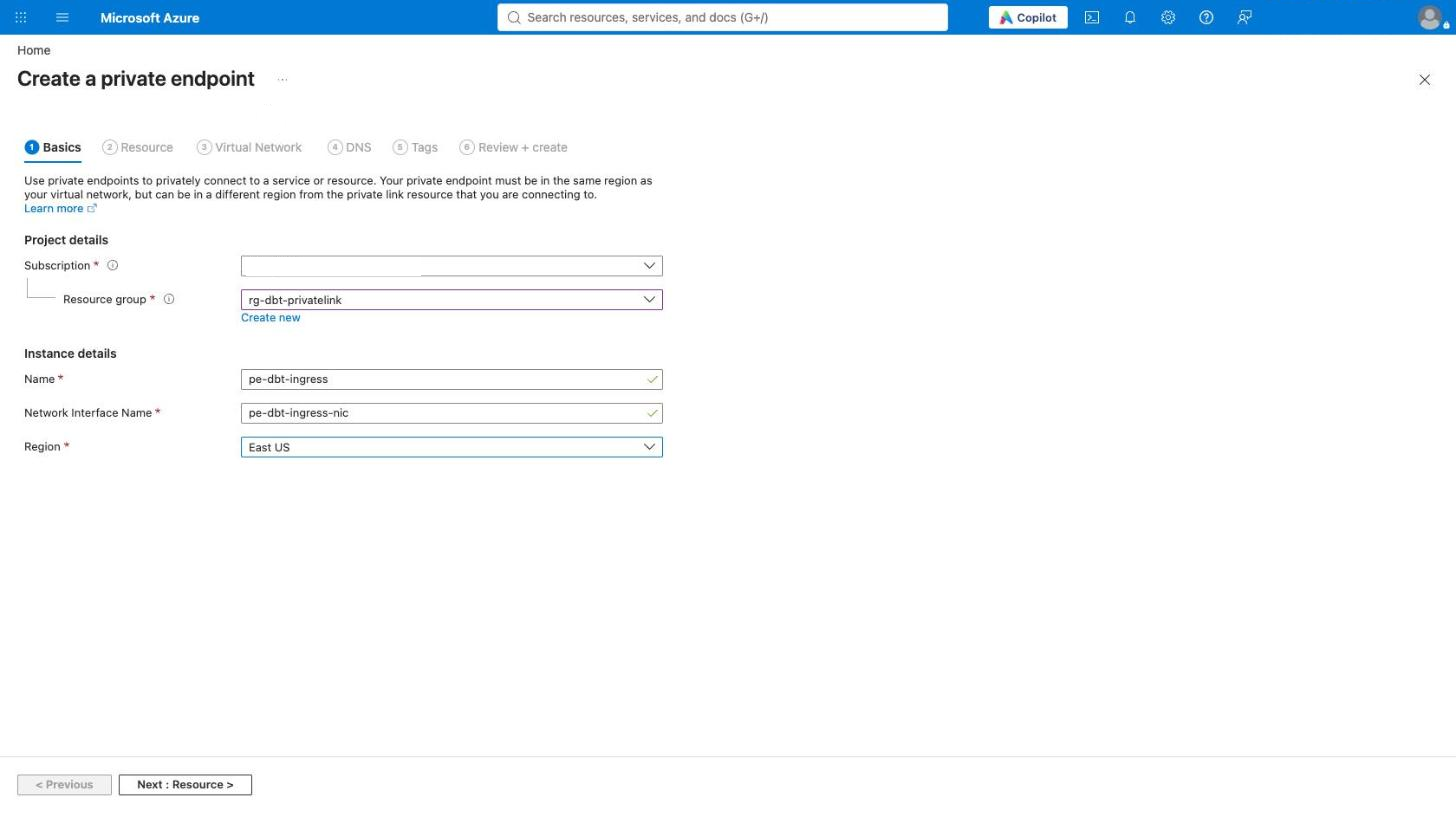 Create a private endpoint, Basics tab with name, network interface name and region
- On the Resource tab, set Connection method to Connect to an Azure resource by resource ID or alias.
- In Resource ID or alias, paste the value dbt provided.
- In Request message, enter a short message that helps dbt identify your request, such as your company name.
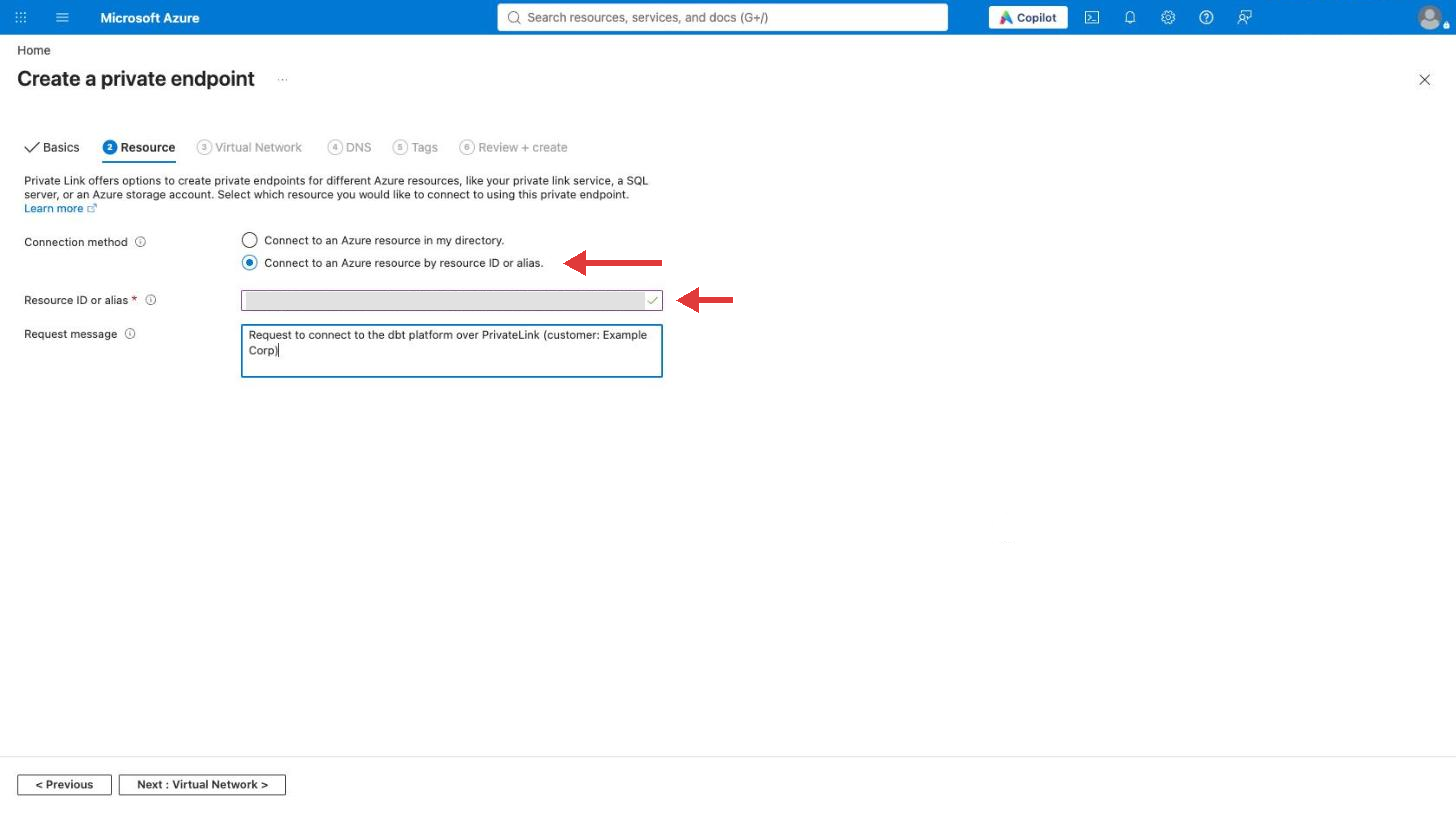 Resource tab with connection method set to resource ID or alias and the service alias entered
- On the Virtual Network tab, select the Virtual network and Subnet for the endpoint. Dynamic IP allocation is fine.
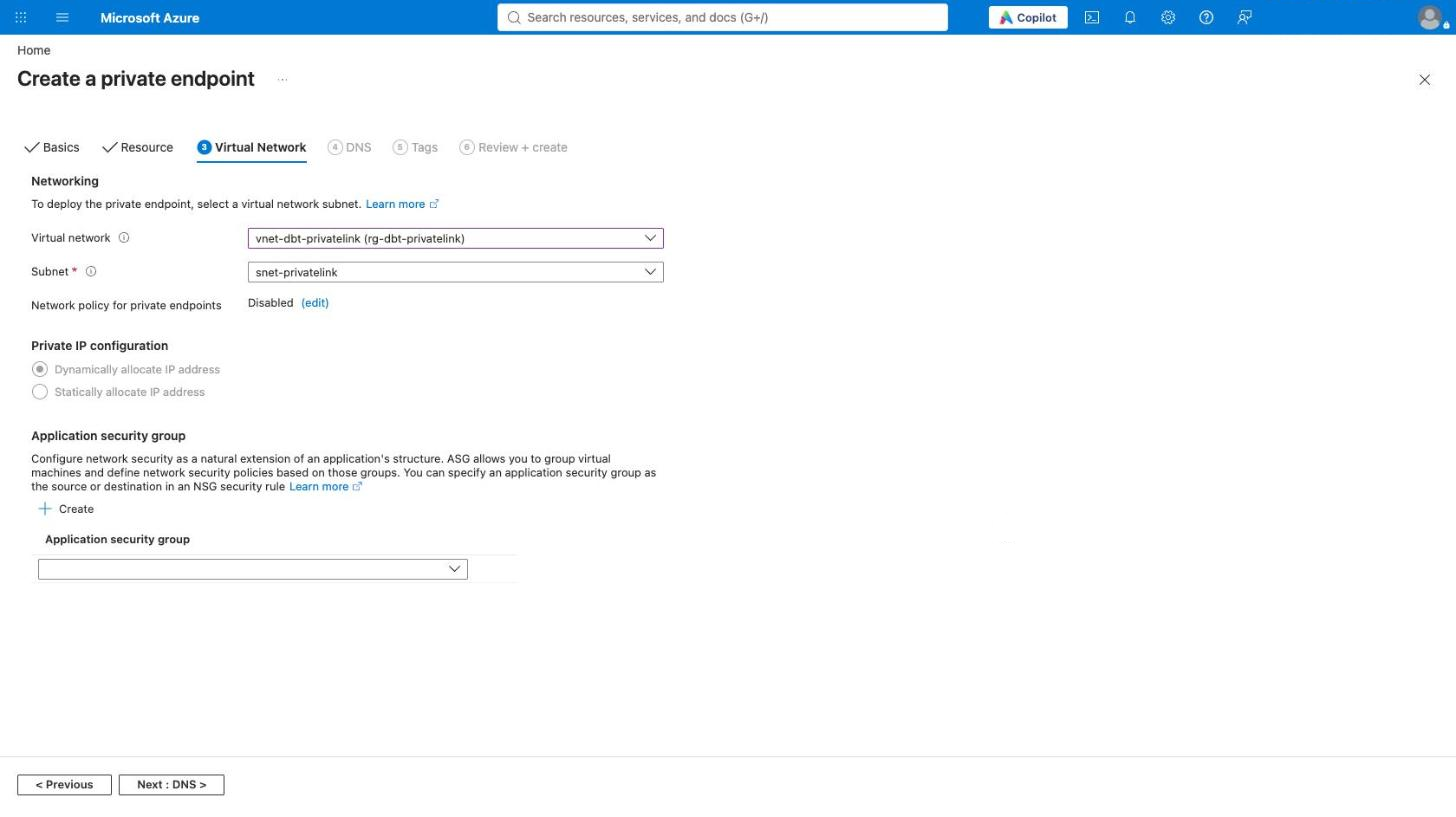 Virtual Network tab with the virtual network and subnet selected
- On the DNS tab, leave Integrate with private DNS zone set to No. The portal doesn't offer integration when you connect by resource ID or alias, so you create your own zone in Step 4.
- Select Review + create, then Create.
Step 2: Confirm the connection is approved
Because dbt allows your subscription in advance, the connection is approved automatically and the endpoint's Connection status shows Approved. If it stays Pending, tell your account team.
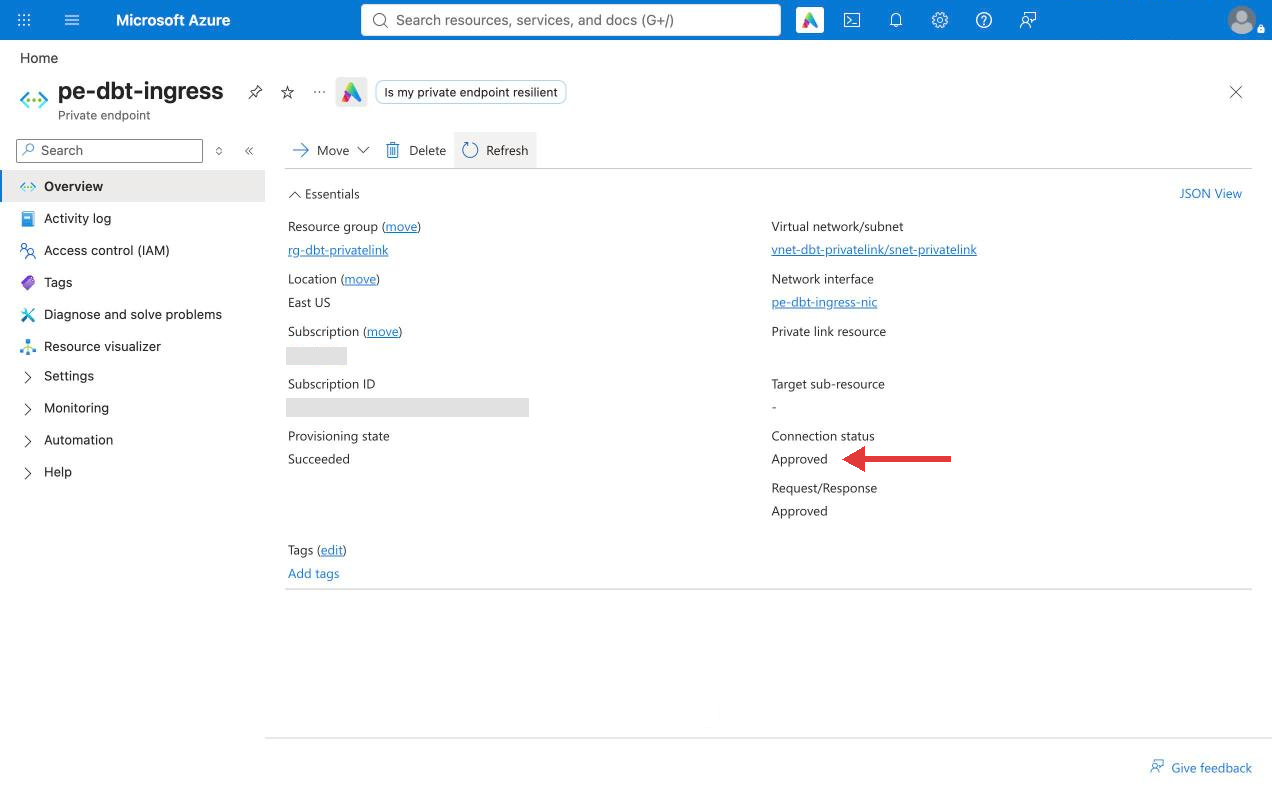 Private endpoint overview with connection status Approved
Step 3: Find the endpoint's private IP address
- Open the endpoint and select the Network interface link.
- Note the Private IPv4 address. The record you add in Step 5 points to this address.
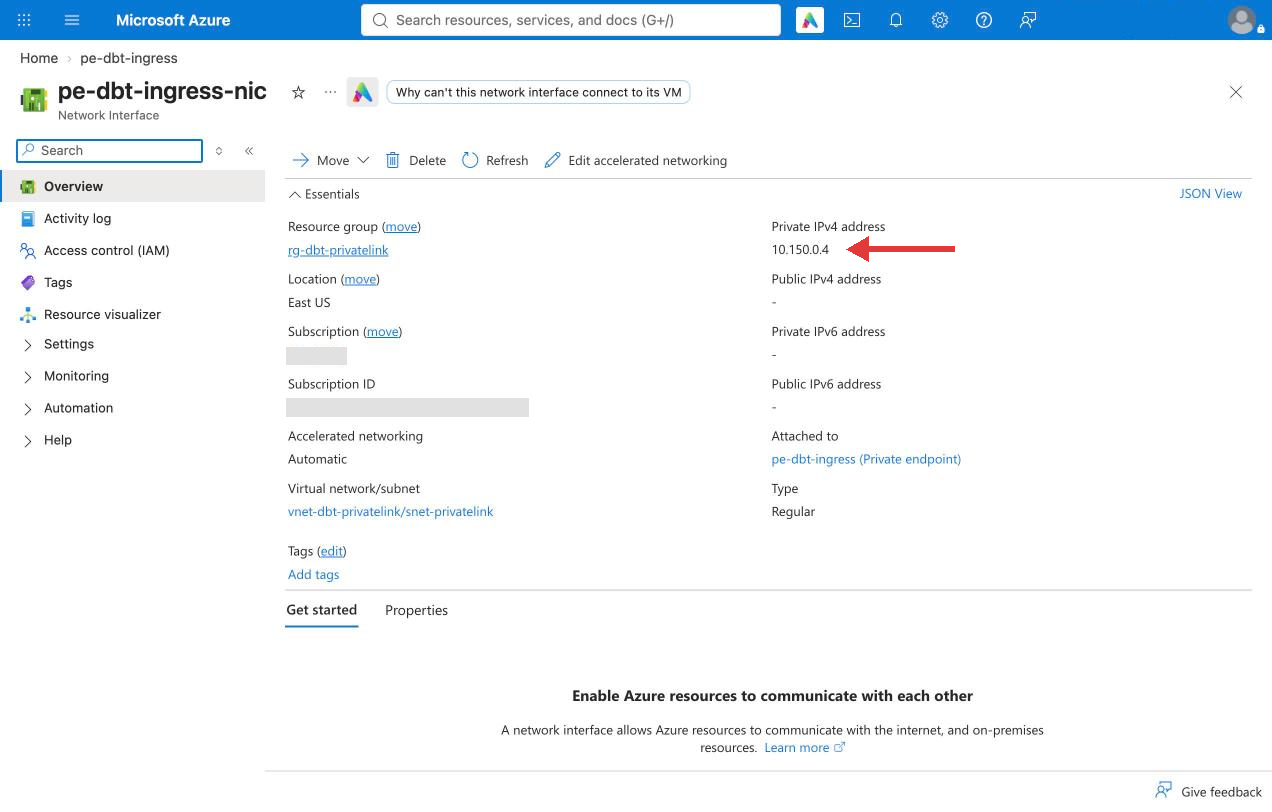 Network interface overview showing the private IPv4 address of the endpoint
Configure private DNS
Step 4: Create the private DNS zone
- In the Azure portal, go to Private DNS zones and select Create.
- Enter
<instance_label>.dbt.comas the zone Name, using the instance label dbt gave you. Don't include the account prefix. - After the zone is created, open it and go to DNS Management → Virtual Network Links.
- Select Add, choose the virtual network that contains your endpoint and workloads, and leave Enable auto registration cleared.
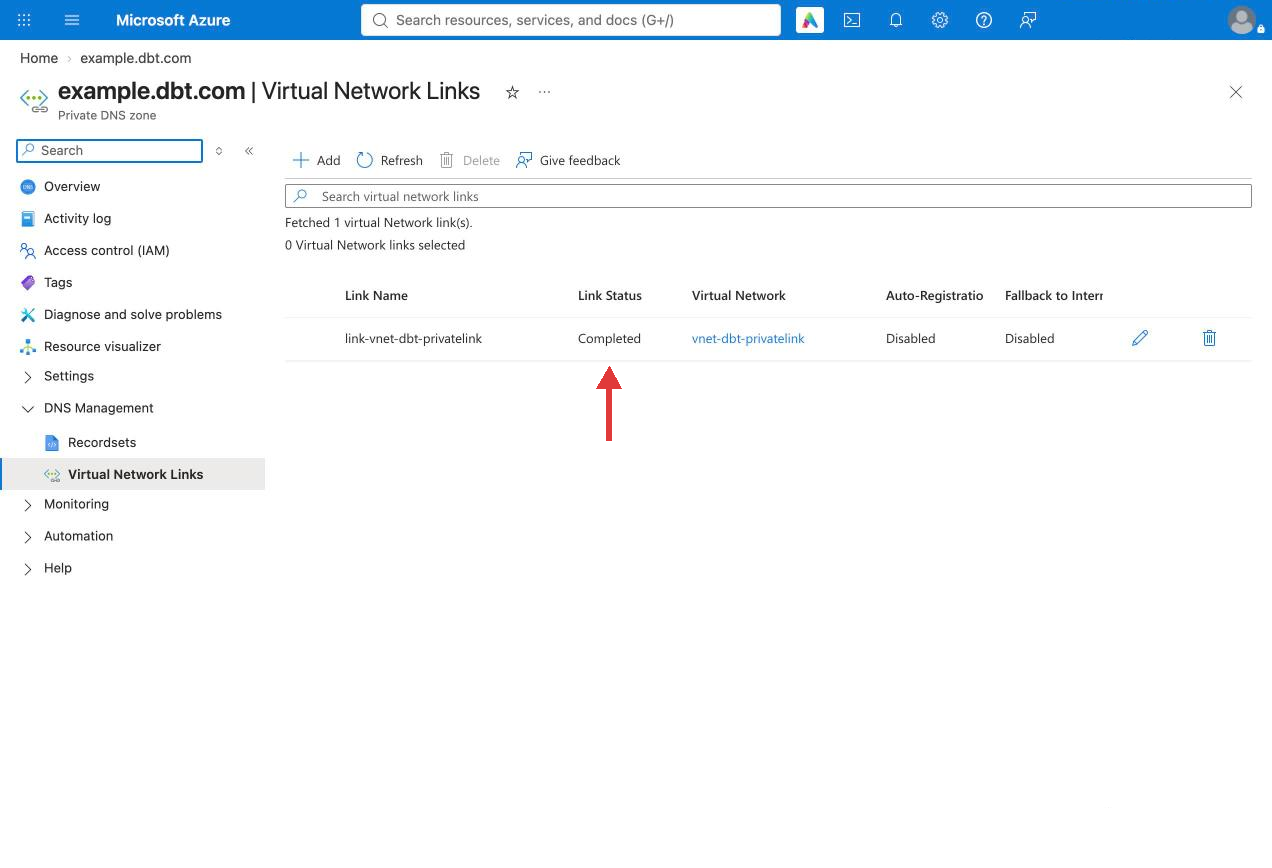 Virtual Network Links page showing a completed link to the virtual network
Link every virtual network whose workloads need to reach dbt privately.
Step 5: Add a wildcard record
In the zone, go to DNS Management → Recordsets and add one A record that points to the private IP address from Step 3:
| Name | Type | Value |
|---|---|---|
* | A | Endpoint private IP |
 Recordsets page of the private DNS zone with a single wildcard A record pointing to the endpoint's private IP address
The wildcard covers every hostname under your instance label, so it resolves the application, the Discovery (metadata) API and the Semantic Layer for every account prefix, as well as the OAuth relay host (oauth.<instance_label>.dbt.com) if it's enabled for your instance.
This approach relies on <instance_label> being unique to each single-tenant instance. If you have more than one instance, create a separate private zone for each instance label.
A private DNS zone takes over resolution for its whole name inside the linked virtual network, so every name in the zone must resolve from the zone itself. An explicit record can stop the wildcard from matching names beneath it (for example, a record named <account_prefix>.metadata stops * from matching other *.metadata hostnames). Use the single wildcard record unless dbt Labs advises otherwise.
Step 6: (Optional) Configure DNS for on-premises access
Workloads inside a linked virtual network resolve the access URL automatically. Clients connecting from on-premises networks over VPN or ExpressRoute need additional DNS configuration so they resolve the access URL to the endpoint's private IP address.
To forward DNS queries from your on-premises network into Azure, refer to the Azure documentation on Azure DNS Private Resolver. Link the private DNS zone to the virtual network that hosts the resolver's inbound endpoint.
If all your users access the instance from inside linked virtual networks, you can skip this step.
Validate connectivity
From a machine inside a linked virtual network, confirm that:
-
Your access URL resolves to the endpoint's private IP address, not a public address.
nslookup <account_prefix>.<instance_label>.dbt.com -
The TLS handshake succeeds and the certificate verifies for your access URL.
openssl s_client -connect <account_prefix>.<instance_label>.dbt.com:443 \
  -servername <account_prefix>.<instance_label>.dbt.com \
-verify_hostname <account_prefix>.<instance_label>.dbt.com </dev/null | grep "Verify return code"A healthy handshake prints
Verify return code: 0 (ok). -
The metadata and Semantic Layer hostnames behave the same way.
The endpoint selects its certificate by TLS Server Name Indication (SNI). Clients must send your access URL as the SNI. Some Private Link clients and libraries don't set SNI by default; without it, the endpoint returns a default certificate that doesn't match your access URL and the handshake fails.
Was this page helpful?
This site is protected by reCAPTCHA and the Google Privacy Policy and Terms of Service apply.
