Configuring Databricks PrivateLink
This feature is available on the following dbt Enterprise tiers:
- Enterprise+
- Virtual Private
To learn more about these tiers, contact us at sales@getdbt.com.
The following steps walk you through the setup of a Databricks AWS PrivateLink endpoint in the dbt multi-tenant environment.
Private connection endpoints can't connect across cloud providers (AWS, Azure, and GCP). For a private connection to work, both dbt and the server (like Databricks) must be hosted on the same cloud provider. For example, dbt hosted on AWS cannot connect to services hosted on Azure, and dbt hosted on Azure can’t connect to services hosted on GCP.
Configure AWS PrivateLink
You can set up a Databricks AWS PrivateLink endpoint in two ways:
- Self-serve private endpoints: Create and manage Databricks PrivateLink endpoints directly in the dbt platform user interface. Currently in beta.
- Support-led setup: Contact dbt Support to configure your Databricks PrivateLink endpoint.
Self-serve private endpoints Beta
Self-serve private endpoints are currently in beta for Databricks on AWS, and available to all eligible customers. This feature isn't available for Azure or GCP. If you don't see Private endpoints in your account settings, use the Support-led setup instead.
With self-serve, you request a Databricks PrivateLink endpoint in dbt platform without opening a support ticket. If a request fails, you can delete the endpoint in dbt platform and retry on your own.
Prerequisites
- Account admin or Project creator permission sets in dbt platform. Users with an IT license can also create private endpoints.
- Your Databricks workspace name and the AWS region where the workspace is hosted.
Request a new private endpoint
-
In dbt platform, go to Account settings → Private endpoints.
-
In the Private endpoints table, review your existing endpoints. The table shows all private endpoints in your account (including non-Databricks ones) with the following details:
- Name
- Connection type (for example, Databricks)
- URL
- Connectivity status (for example, Success or Unknown)
- Connections — the number of dbt platform connections using the endpoint
You can search by Name or URL.
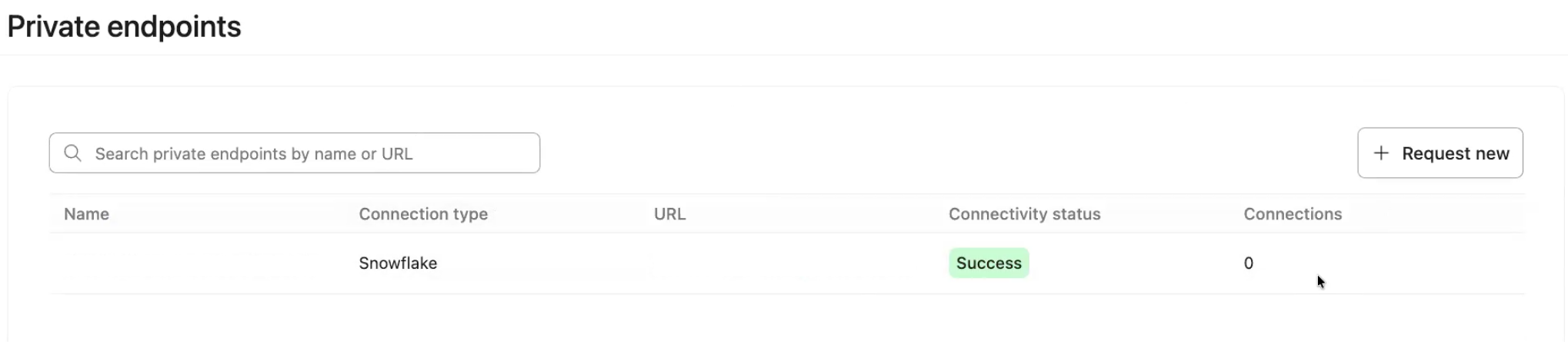 Private endpoints table showing existing endpoints, connectivity status, and the Request new button
 -
To request a new endpoint, click Request new.
-
Under Provider type, select Databricks.
-
In Step 1: Enter your workspace name, paste the full workspace URL (for example,
my-workspace.cloud.databricks.com) or just the workspace name (for example,my-workspace). -
In Step 2: Select your AWS region, choose the AWS region where your Databricks workspace is hosted. Only regions that support Databricks private connectivity are listed.
-
Click Submit request.
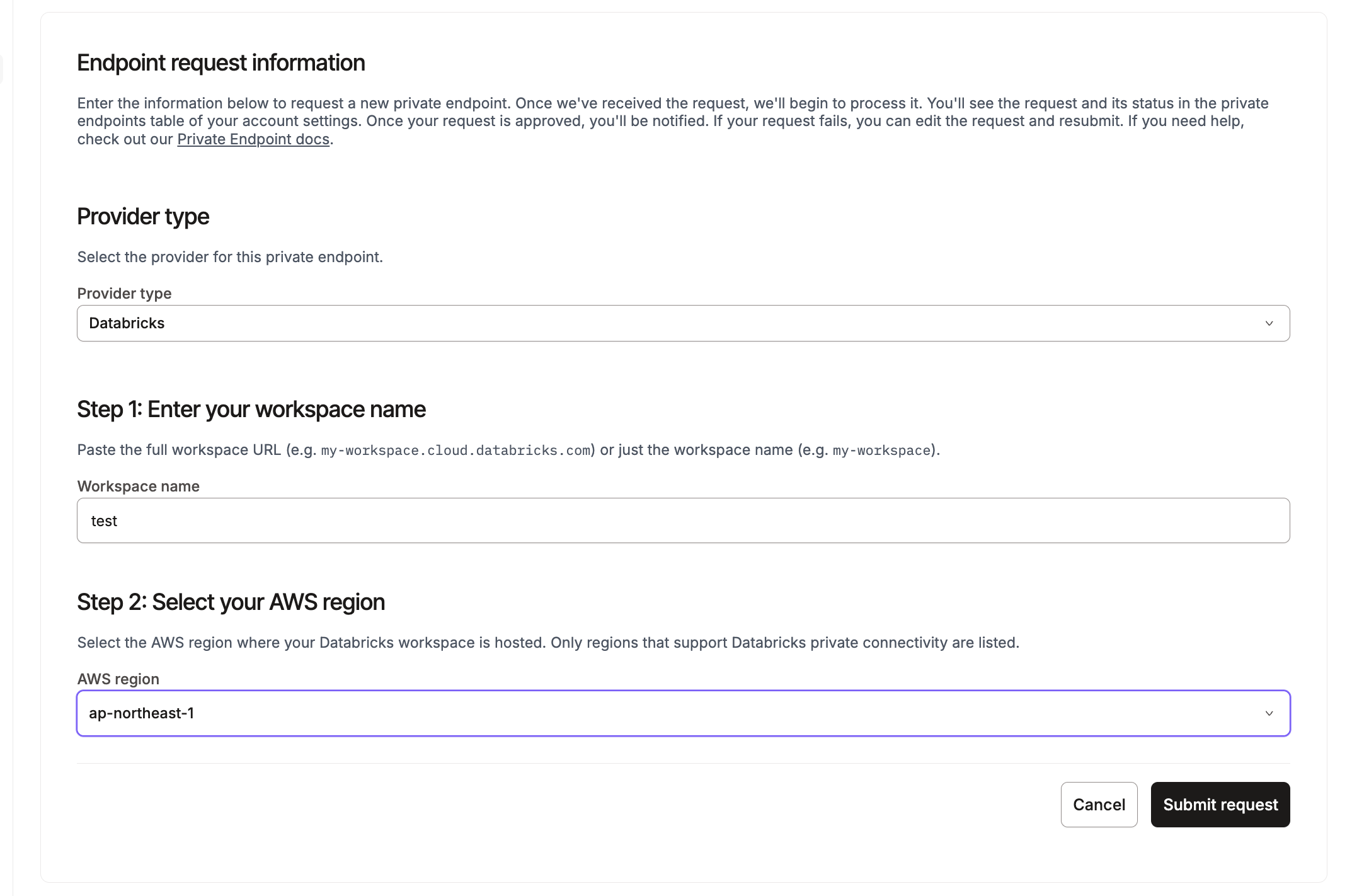 Databricks endpoint request form showing Provider type, workspace name, and AWS region fieldsWorkspace name and region can't be changed
The workspace name and AWS region are fixed once you create an endpoint. This means you can't edit them afterward. If either value is entered incorrectly, provisioning will fail. To fix it, delete the failed request and create a new one with the correct details. No support ticket is needed.
-
After submission, a confirmation popup appears. From the popup, you can request another endpoint or return to Private endpoints to track request status.
-
Proceed to the Connections page and follow the steps in the Create connection in dbt section to configure PrivateLink. Once you configure PrivateLink on the Connections page, the new endpoint appears under Private endpoints → Associated connections.
If the connection test fails immediately after setup, this is expected — it doesn't mean something is wrong. DNS changes can take a few minutes to propagate. Wait a few minutes, then test again before contacting support.
Reuse an existing endpoint
Databricks exposes one predefined endpoint service per AWS region. If you submit a request for a region that already has an interface endpoint, dbt platform displays an Endpoint already exists popup with two options:
- Re-use an existing interface endpoint (recommended) — Creates only a new private endpoint, linked to the interface endpoint you select. In most cases this is the better choice, since Databricks shares one endpoint service per region and reusing it avoids duplicating infrastructure.
- Create a new interface endpoint — Creates a new interface endpoint alongside the new private endpoint. Use this only if you need a separate interface endpoint.
Select your preferred option and click Confirm & Submit.
 Endpoint already exists popup with options to create a new interface endpoint or re-use an existing one
Edit or delete a private endpoint
Troubleshooting and errors
If an endpoint request fails, dbt platform displays error details that are safe to share externally. Because the workspace name and region are locked after creation, a failed request usually means one of those values was incorrect — delete the request and submit a new one with the correct details.
If you see a failure state without clear next steps, collect the request details (endpoint name, creation time, and status) and contact dbt Support.
Support-led setup
If Private endpoints isn't available in your account settings, configure Databricks PrivateLink by following these steps and submitting a request to dbt Support.
-
Locate your Databricks instance name.
- Example:
cust-success.cloud.databricks.com
- Example:
-
Add the required information to the following template and submit your AWS PrivateLink request to dbt Support:
dbt Labs will work on your behalf to complete the private connection setup. Please allow 3-5 business days for this process to complete. Support will contact you when the endpoint is available.
-
Once dbt Support notifies you that setup is complete, register the VPC endpoint in Databricks and attach it to the workspace:
- Register your VPC endpoint — Register the VPC endpoint using the VPC endpoint ID provided by dbt Support.
- Create a Private Access Settings object — Create a Private Access Settings (PAS) object with your desired public access settings, and setting Private Access Level to Endpoint. Choose the registered endpoint created in the previous step.
- Create or update your workspace — Create a workspace, or update an existing workspace. Under Advanced configurations → Private Link choose the private access settings object created in the previous step.
warningIf using an existing Databricks workspace, all workloads running in the workspace need to be stopped to enable Private Link. Workloads also can't be started for another 20 minutes after making changes. From the Databricks documentation:
"After creating (or updating) a workspace, wait until it’s available for using or creating clusters. The workspace status stays at status RUNNING and the VPC change happens immediately. However, you cannot use or create clusters for another 20 minutes. If you create or use clusters before this time interval elapses, clusters do not launch successfully, fail, or could cause other unexpected behavior."
Create connection in dbt
Once you've completed the setup, you can configure a private endpoint in dbt:
- Navigate to Account Settings → Projects → Create new project.
- Under the Configure your development environment step section, select Add new connection.
- You'll be directed to the Add new connection page, select Databricks.
- Under the Settings section, select PrivateLink Endpoint.
- Select the private endpoint from the dropdown (this automatically populates the hostname/account field).
- Configure the remaining data platform details.
- Test your connection and save it.
Was this page helpful?
This site is protected by reCAPTCHA and the Google Privacy Policy and Terms of Service apply.