Connect to GitHub
Connecting your GitHub account to dbt provides convenience and another layer of security to dbt:
- Import new GitHub repositories with a couple clicks during dbt project setup.
- Clone repos using HTTPS rather than SSH.
- Trigger Continuous integration(CI) builds when pull requests are opened in GitHub.
ghe.com) domainsIf your organization uses GitHub Enterprise Cloud, hosted on a ghe.com domain, the shared dbt GitHub App can't reach it. Note that ghe.com accounts are cloud-managed (not on-premises), but this limitation still applies.
Enterprise and Enterprise+ accounts can connect by registering a custom GitHub application instead. On other plans, use importing a project by git URL with SSH/deploy keys. Your organization's SSH URL configuration may require additional steps, and some native integration features are unavailable with the git URL method.
For additional help with your specific setup, contact dbt Support or your dbt account team.
Prerequisites
- GitHub permissions: You must be a GitHub organization owner to install the application. Learn more about GitHub organization roles.
- dbt permissions: Your GitHub organization owner also needs Owner or Account Admin permissions in dbt platform. If needed, create a temporary account with these permissions for the installation.
- On-premises GitHub or EU-hosted GitHub: On Enterprise and Enterprise+ plans, you can use the native integration by registering a custom GitHub application. On other plans, connect using a Git URL, which supports fewer Git features.
When specifying a GitHub repository in the dbt platform using the UI, API, or Terraform provider, the repository name must exactly match the case used in the GitHub URL to avoid cloning errors or job failures. For example, if the URL of your repository is github.com/my-org/MyRepo, enter the name as MyRepo, not myrepo.
Choose your GitHub application
dbt connects to GitHub through a GitHub App. You have two options:
- Shared dbt application (default), available to any org connecting to
github.com. - Your own custom GitHub application, available in private beta to Enterprise and Enterprise+ accounts on MT or ST using GitHub Enterprise Server or GitHub with EU data residency. Reach out to your account manager to join the beta. Private beta
You can use one GitHub application per dbt account, not one per project.
Installing dbt in your GitHub account
You can connect your dbt account to GitHub by installing the dbt application in your GitHub organization and providing access to the right repos:
- From dbt, click on your account name in the left side menu and select Account settings.
- Select Personal profile under the Your profile section.
- Scroll down to Linked accounts.
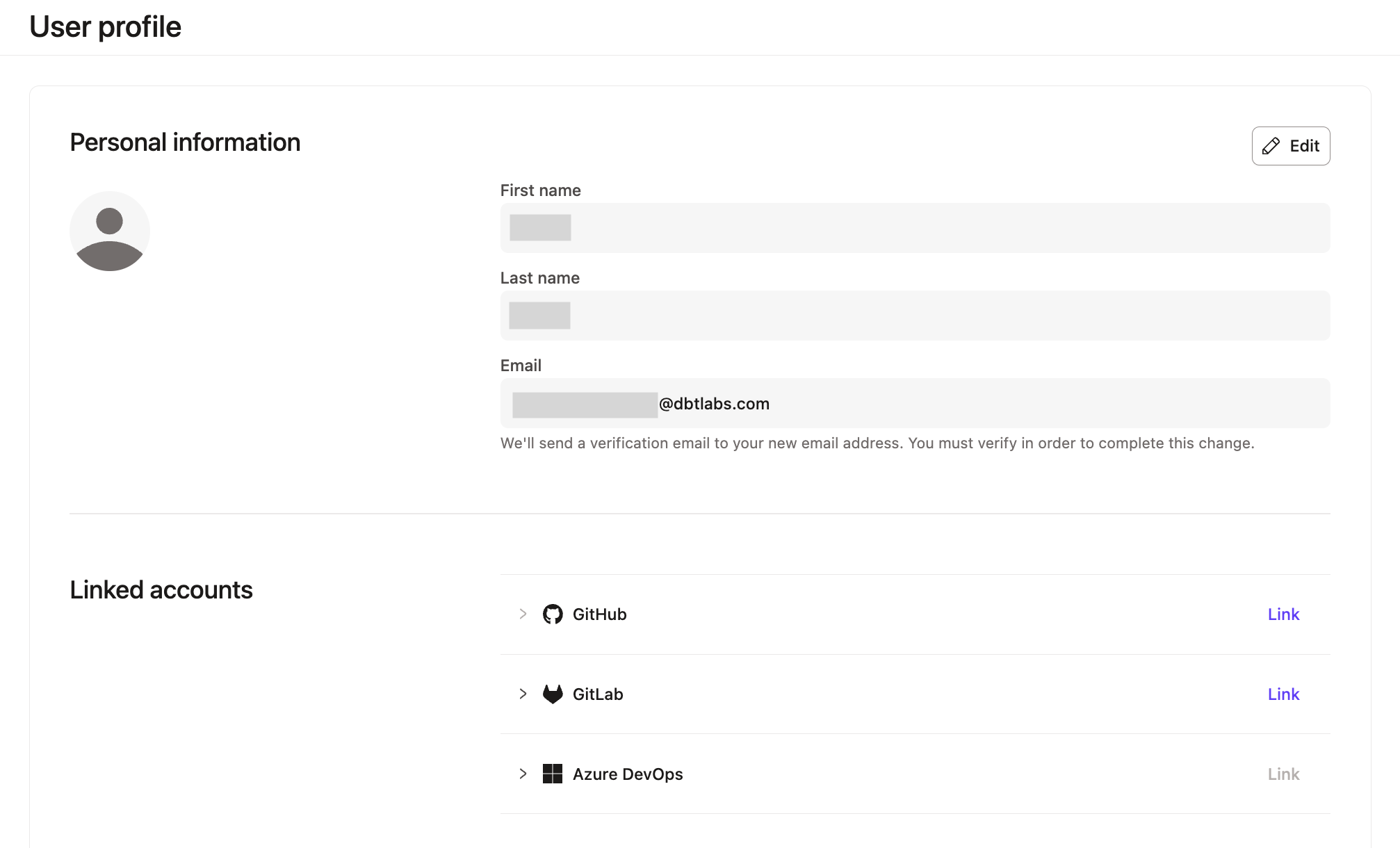 Navigated to Linked Accounts under your profile
-
In the Linked accounts section, set up your GitHub account connection to dbt by clicking Link to the right of GitHub. This redirects you to your account on GitHub where you will be asked to install and configure the dbt application.
-
Select the GitHub organization and repos dbt should access.
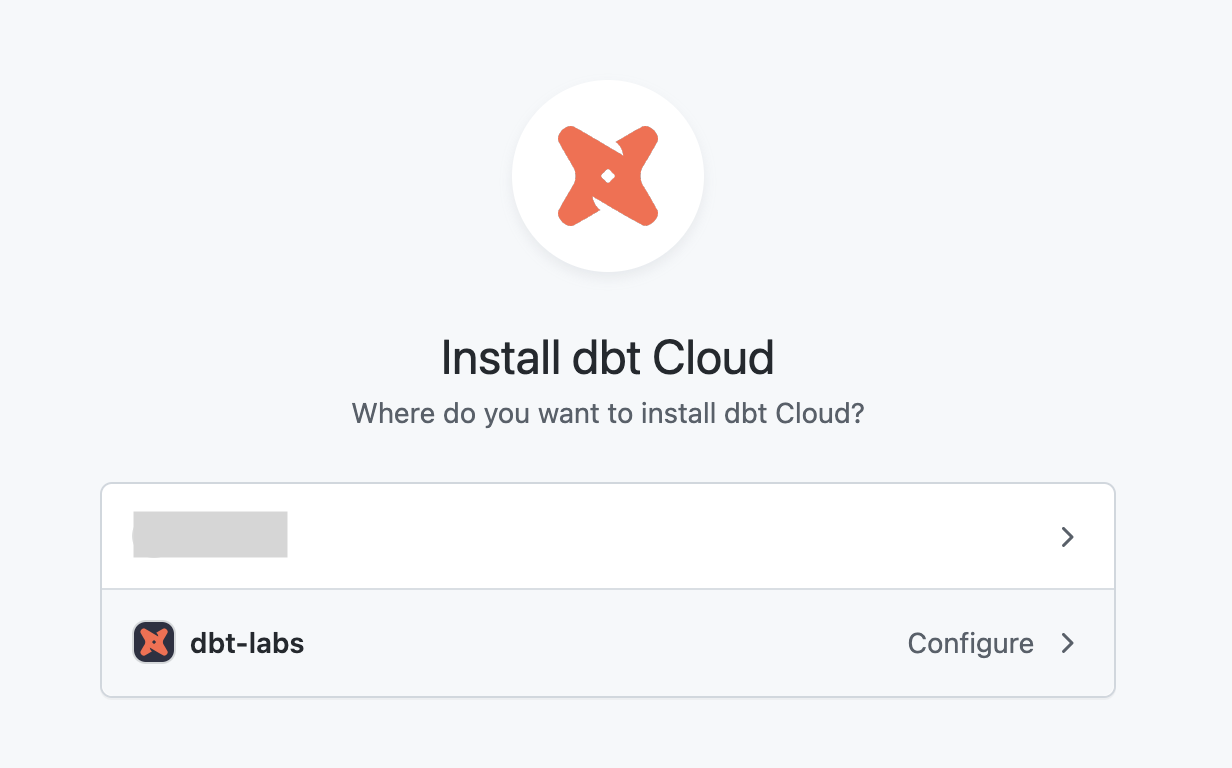 Installing the dbt application into a GitHub organization
 -
Assign the dbt GitHub App the following permissions:
- Read access to metadata
- Read and write access to Checks
- Read and write access to Commit statuses
- Read and write access to Contents (Code)
- Read and write access to Pull requests
- Read and write access to Webhooks
- Read and write access to Workflows
-
Once you grant access to the app, you will be redirected back to dbt and shown a linked account success state. You are now personally authenticated.
-
Ask your team members to individually authenticate by connecting their personal GitHub profiles.
Limiting repository access in GitHub
If you are your GitHub organization owner, you can also configure the dbt GitHub application to have access to only select repositories. This configuration must be done in GitHub, but we provide an easy link in dbt to start this process.
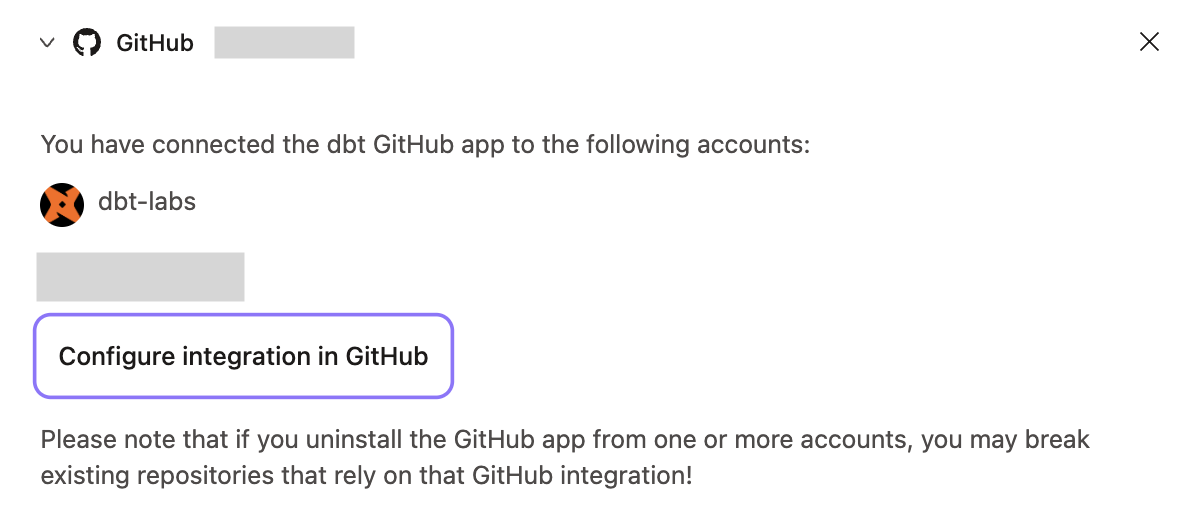 Configuring the dbt app
Custom GitHub application EnterpriseEnterprise +Private beta
Configuring a custom GitHub app is available in private beta. To join, reach out to your account manager.
The shared dbt GitHub App is hosted per region, so it can only reach repositories on github.com. If your organization runs GitHub Enterprise Server or GitHub with EU data residency, register your own GitHub application and point dbt at it.
An account admin (or security admin) can set this up once:
- Register a GitHub application in your GitHub organization
- Add your GitHub application to dbt
Then each developer on the account needs to relink their GitHub profile.
Register a GitHub application
dbt platform doesn’t support concurrent integrations with public and private GitHub repositories. To register a GitHub App, you need a private repository. Disconnect your configured public repository before you follow the steps in this section.
We recommend creating the app in your GitHub organization instead of a personal account to ensure the connection doesn't break should a person leave. For the full walkthrough on the GitHub side, check out GitHub's guide to registering a GitHub App.
-
In dbt, go to Account settings > Integrations > Git and expand the GitHub section. Select Copy next to Redirect URL — you need it in the next step.
-
In your GitHub organization, go to Settings > Developer settings > GitHub Apps and select New GitHub App.
-
Enter the following:
Field Value GitHub App name Something recognizable, such as dbt platformHomepage URL Your dbt access URL Redirect URL The Redirect URL you copied from dbt Webhook Leave Active selected and enter any placeholder URL (such as https://example.com) in the Webhook URL field. dbt doesn't use it but GitHub requires it -
Grant the app these repository permissions:
- Read access to metadata
- Read and write access to Checks
- Read and write access to Commit statuses
- Read and write access to Contents (Code)
- Read and write access to Pull requests
- Read and write access to Webhooks
- Read and write access to Workflows
-
Select Create GitHub App. GitHub generates an App ID and a Client ID.
-
Generate a Client secret and copy it somewhere safe as GitHub only shows it once.
-
Under Private keys, select Generate a private key. GitHub downloads a
.pemfile. You'll then paste its contents into dbt. -
Install the app into your organization and note its install URL. Refer to GitHub's docs on sharing your app via an install link.
If you're a Business Critical customer using IP restrictions, make sure your GitHub instance's CIDRs are allowed, or the connection will fail.
Add your GitHub application to dbt
If your account already uses the shared dbt GitHub App, switching to your own application invalidates every existing GitHub profile link. Everyone on the account has to relink their GitHub profile before they can develop or run CI. Plan the switch with your team.
-
In dbt, go back to Account settings > Integrations > Git and expand the GitHub section.
-
Enter the following:
Field Value GitHub base URL Your GitHub hostname. Use https://github.comfor GitHub.com, or your own hostname for GitHub Enterprise Server, such ashttps://github.yourgreatcompany.comApp ID The App ID from your GitHub app Client ID The Client ID from your GitHub app Client secret The client secret you generated Private key The full contents of the .pemfile you downloaded, including theBEGINandENDlinesInstall URL Optional. Your app's install link 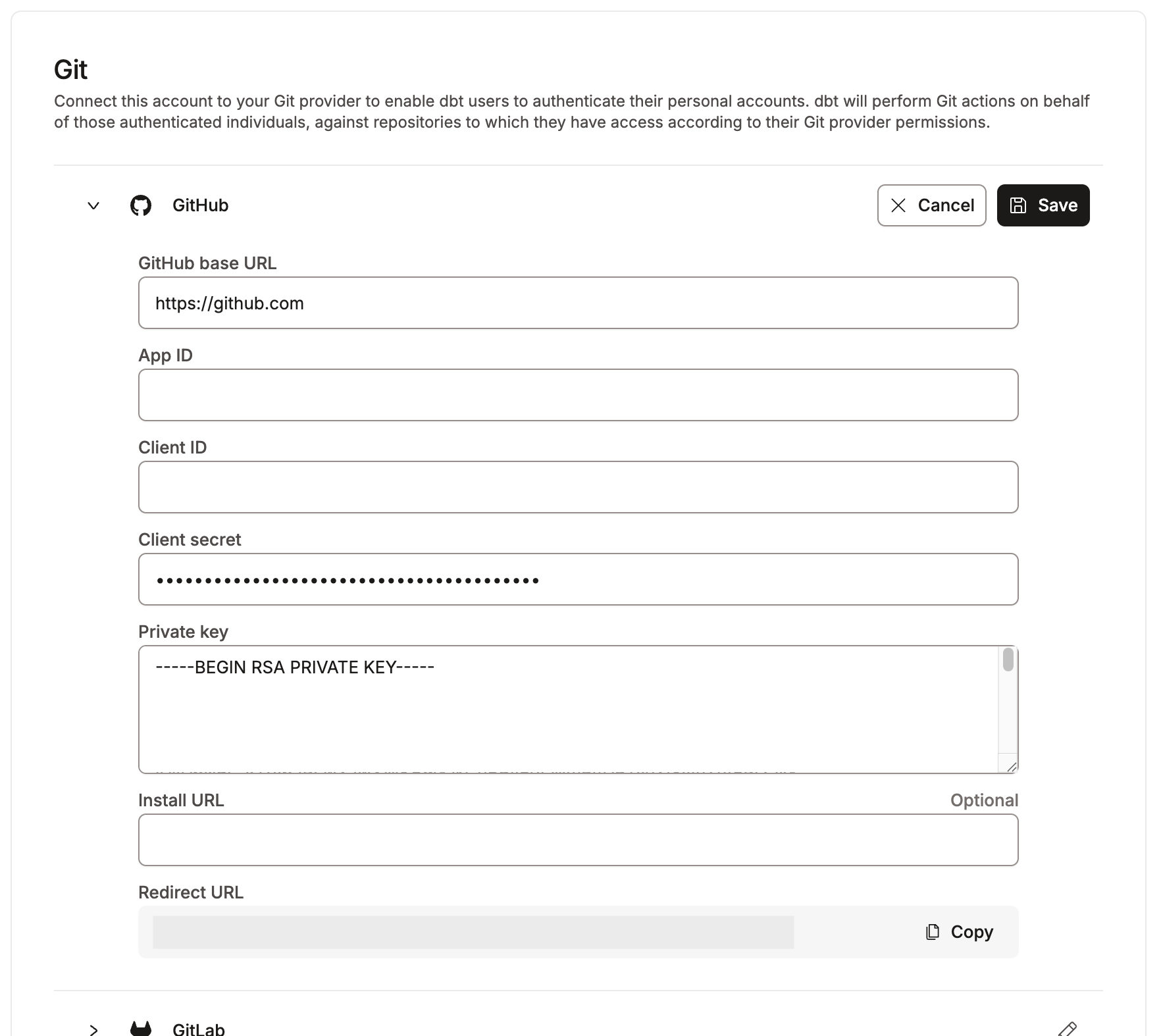 Adding your own GitHub application under Account settings, Integrations, Git
 -
Select Save. dbt validates the credentials against GitHub. If something isn't right, dbt shows an error and doesn't save the configuration.
dbt now routes all GitHub authorization for this account through your application.
Relink your GitHub profile
Every developer authenticates against the account's GitHub application, so repo access matches what your GitHub admin actually granted them. After an admin adds or changes the application, relink your profile:
- From dbt, click your account name in the left side menu and select Account settings.
- Select Personal profile under the Your profile section.
- Scroll to Linked accounts and select Unlink next to GitHub if an old connection is still listed.
- Select Link and authorize your organization's GitHub application.
For the full walkthrough, refer to Authenticate your personal GitHub account.
Remove a GitHub integration
Account admins and security admins can delete a GitHub integration from Account settings > Integrations > Git.
Deleting the integration breaks repo access and CI for the whole account until you configure a new one. You can't stage a replacement first, because an account supports only one GitHub integration at a time.
Limitations
Note that the following limitations apply:
- One GitHub application per dbt account. You can't set a different application per project.
- You can't configure multiple GitHub integrations on the same account.
- Only account admins and security admins can create, update, or delete a GitHub integration.
Authenticate your personal GitHub account
After the dbt administrator sets up a connection to your organization's GitHub account, you need to authenticate using your personal account. You must connect your personal GitHub profile to dbt to use the Studio IDE and CLI and verify your read and write access to the repository.
-
dbt developers on the Enterprise or Enterprise+ plan must each connect their GitHub profiles to dbt. This is because the Studio IDE verifies every developer's read / write access for the dbt repo.
-
dbt developers on the Starter plan don't need to each connect their profiles to GitHub, however, it's still recommended to do so.
If your account uses a custom GitHub application, you authorize that application instead of the shared dbt app, and your repository access mirrors your GitHub App installation.
To connect a personal GitHub account:
-
From dbt, click on your account name in the left side menu and select Account settings.
-
Select Personal profile under the Your profile section.
-
Scroll down to Linked accounts. If your GitHub account is not connected, you’ll see "No connected account".
-
Select Link to begin the setup process. You’ll be redirected to GitHub, and asked to authorize dbt in a grant screen.
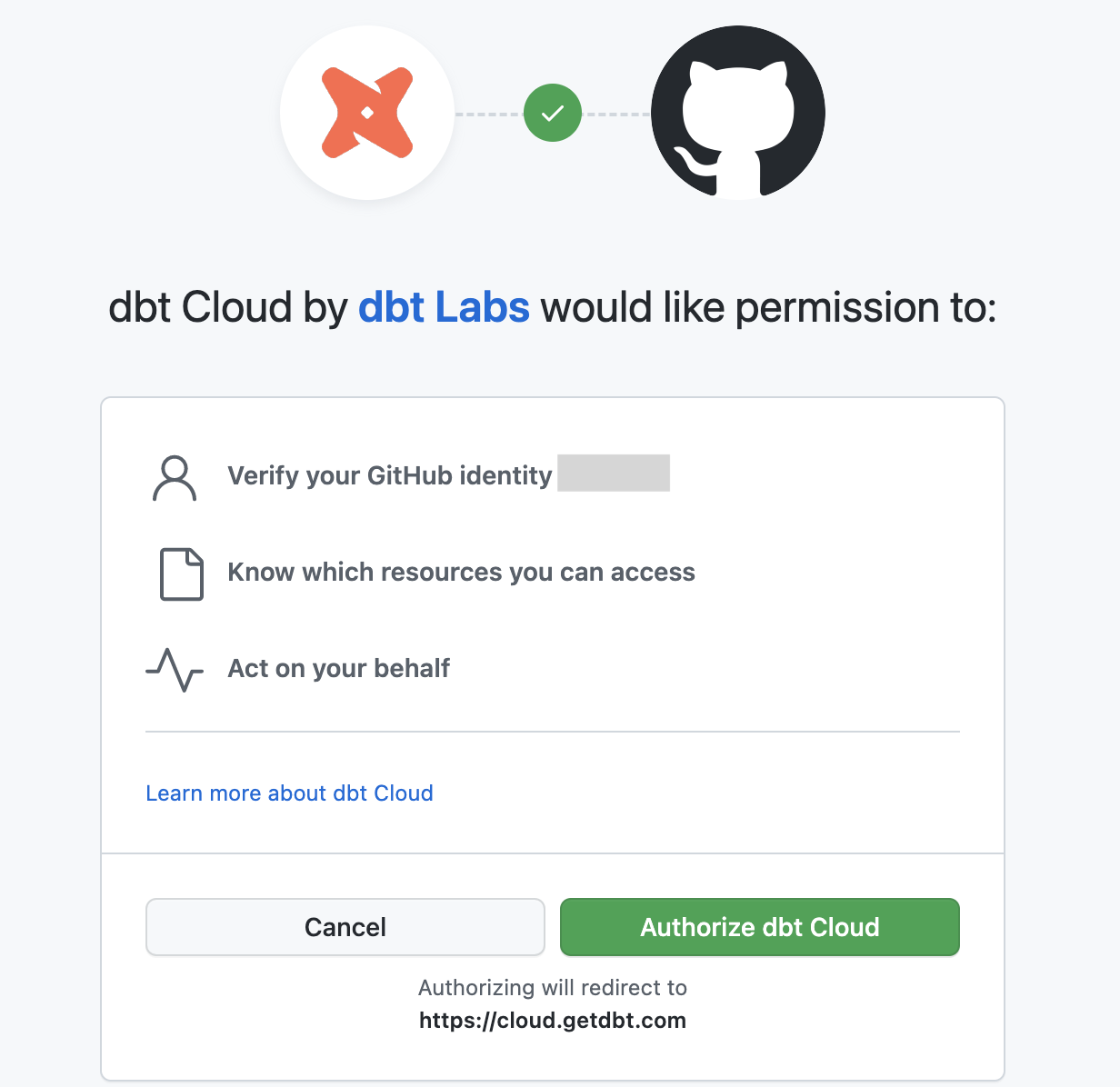 Authorizing the dbt app for developers
- Once you approve authorization, you will be redirected to dbt, and you should now see your connected account.
You can now use the Studio IDE or dbt CLI.
FAQs
Was this page helpful?
This site is protected by reCAPTCHA and the Google Privacy Policy and Terms of Service apply.