Connect Snowflake Generally available (GA) dbt v2 compatible
Snowflake plans to increase the default column size for string and binary data types in September 2026. dbt-snowflake versions below v1.10.6 may fail to build certain incremental models when this change is deployed.
dbt platform connections and credentials inherit the permissions of the accounts configured. You can customize roles and associated permissions in Snowflake to fit your company's requirements and fine-tune access to database objects in your account.
Refer to Snowflake permissions for more information about customizing roles in Snowflake. To see which Snowflake functions are supported in dbt v2 in strict mode, refer to Snowflake function support.
Warehouse permissions for dbt v2
The Snowflake user or service account that dbt v2 connects as must be able to run dbt workloads (queries, metadata, and typical materializations). Grant privileges through a Snowflake role assigned to that user.
Required Snowflake objects
Before connecting, these objects must exist:
| Object | Purpose |
|---|---|
| Account | Your Snowflake account identifier |
| User | Service account or user for dbt v2 |
| Role | Role assigned to the user with required privileges |
| Warehouse | Virtual warehouse for compute |
| Database | Target database or databases for dbt models |
| Schema | Target schema or schemas within the database |
Core operations
The following are required permissions for fundamental dbt operations:
| Permission | Object | Purpose |
|---|---|---|
USAGE | Warehouse | Execute queries |
USAGE | Database | Access the database |
USAGE | Schema | Access schemas |
SELECT | Tables or views | Read existing data and sources |
CREATE TABLE | Schema | Create models materialized as tables |
CREATE VIEW | Schema | Create models materialized as views |
INSERT | Tables | Load data into tables |
UPDATE | Tables | Incremental model updates |
DELETE | Tables | Incremental models using delete and insert |
TRUNCATE | Tables | Full refresh of incremental models |
DROP | Tables or views | Replace existing objects |
Metadata operations
The following are required permissions for dbt metadata operations:
| Permission | Object | Purpose |
|---|---|---|
USAGE | INFORMATION_SCHEMA | Query table and column metadata |
DESCRIBE TABLE | Tables | Get schema information |
SHOW OBJECTS | Schema | List relations in schema |
SHOW USER FUNCTIONS | Schema | Discover UDFs (if used) |
Schema and database management
The following are conditional permissions for schema and database management:
| Permission | Object | When required |
|---|---|---|
CREATE SCHEMA | Database | dbt should auto-create schemas |
CREATE DATABASE | Account | dbt should auto-create databases |
Advanced features
The following are optional permissions for advanced features:
| Permission | Object | Feature |
|---|---|---|
CREATE STAGE | Schema | File staging for seeds or snapshots |
CREATE FILE FORMAT | Schema | Custom file formats |
CREATE SEQUENCE | Schema | Sequences |
EXECUTE TASK | Schema | Snowflake tasks |
For role examples in Snowflake, see Snowflake permissions.
Connection fields
The following fields are required when creating a Snowflake connection:
| Field | Description | Examples |
|---|---|---|
| Account | The Snowflake account to connect to. Take a look here to determine what the account field should look like based on your region. | |
| Role | A mandatory field indicating what role should be assumed after connecting to Snowflake | transformer |
| Database | The logical database to connect to and run queries against. | analytics |
| Warehouse | The virtual warehouse to use for running queries. | transforming |
Authentication methods
This section describes the different authentication methods for connecting dbt to Snowflake. Configure deployment environment (Production, Staging, General) credentials globally in the Connections area of Account settings. Individual users configure their user credentials in the Credentials area of their user profile.
You cannot create new Snowflake credentials with username and password in dbt platform. New development and deployment credentials default to key pair authentication. For user credentials on Enterprise-tier plans, Snowflake OAuth is also available when configured on the connection. To update existing password credentials, refer to Username and password with MFA.
Key pair
Available in: Development environments, Deployment environments
If you are creating Snowflake credentials for the first time in dbt platform, key pair is the default authentication method. Use it for both development and deployment credentials. The Keypair auth method uses Snowflake's Key Pair Authentication to authenticate development or deployment credentials for a dbt project.
-
After generating an encrypted key pair, be sure to set the
rsa_public_keyfor the Snowflake user to authenticate in dbt:alter user jsmith set rsa_public_key='MIIBIjANBgkqh...'; -
Finally, set the Private Key and Private Key Passphrase fields in the Credentials page to finish configuring dbt to authenticate with Snowflake using a key pair.
- Note: Unencrypted private keys are permitted. Use a passphrase only if needed. dbt can specify a
private_keydirectly as a string instead of aprivate_key_path. Thisprivate_keystring can be in either Base64-encoded DER format, representing the key bytes, or in plain-text PEM format. Refer to Snowflake documentation for more info on how they generate the key. - Specifying a private key using an environment variable (for example,
{{ env_var('DBT_PRIVATE_KEY') }}) is not supported.
- Note: Unencrypted private keys are permitted. Use a passphrase only if needed. dbt can specify a
-
To successfully fill in the Private Key field, you must include commented lines. If you receive a
Could not deserialize key dataorJWT tokenerror, refer to Troubleshooting for more info.
Example:
-----BEGIN ENCRYPTED PRIVATE KEY-----
< encrypted private key contents here - line 1 >
< encrypted private key contents here - line 2 >
< ... >
-----END ENCRYPTED PRIVATE KEY-----
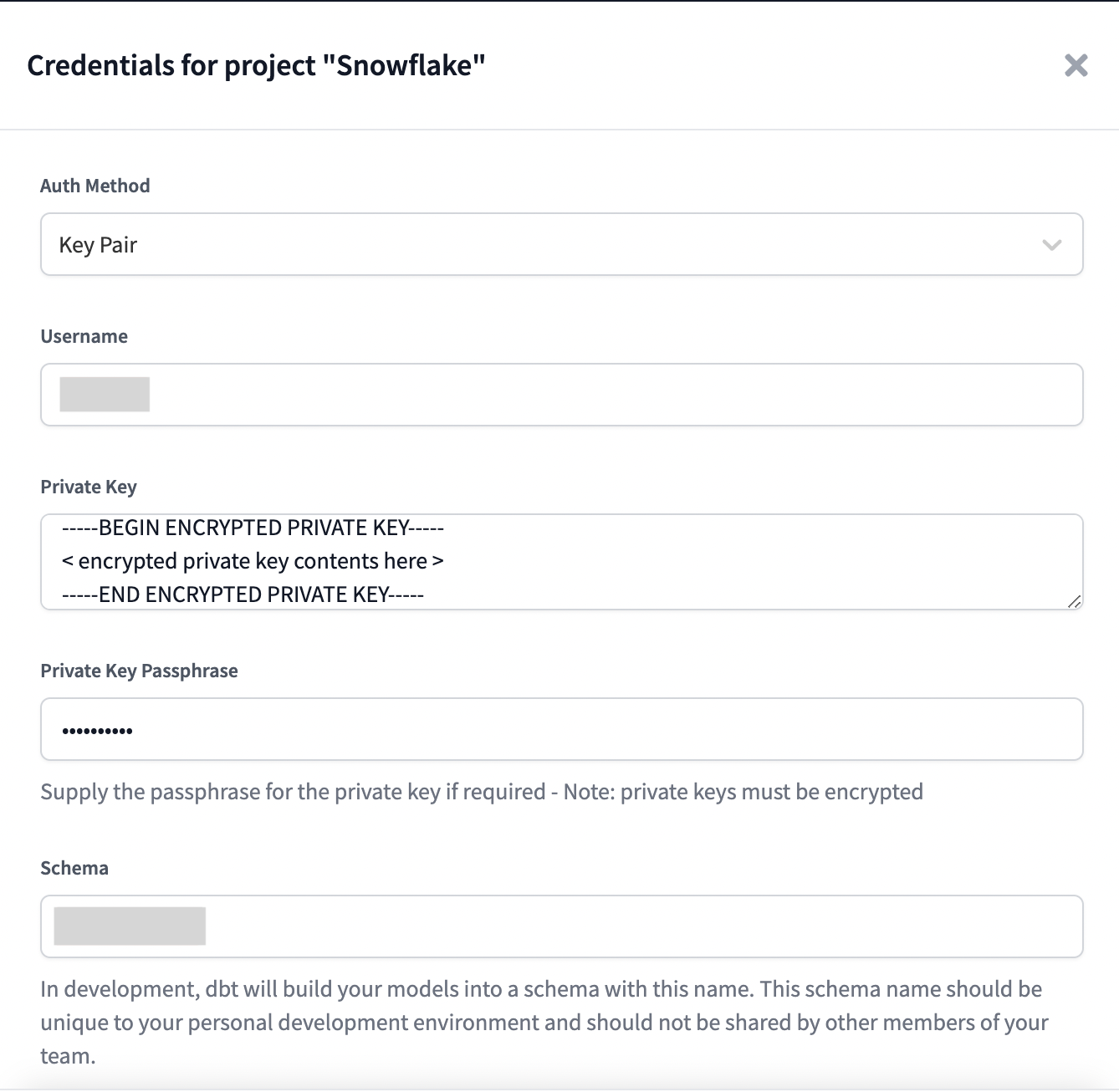 Snowflake keypair authentication
dbt v2 key pair
We recommend using PKCS#8 format with AES-256 encryption for key pair authentication with dbt v2. dbt v2 doesn't support legacy 3DES encryption or headerless key formats. Using older key formats may cause authentication failures.
If you encounter the Key is PKCS#1 (RSA private key). Snowflake requires PKCS#8 error, then your private key is in the wrong format. You have two options:
-
(Recommended fix) Re-export your key with modern encryption:
# Convert to PKCS#8 with AES-256 encryption
openssl genrsa 2048 | openssl pkcs8 -topk8 -v2 aes-256-cbc -inform PEM -out rsa_key.p8 -
(Temporary workaround) Add the
BEGINheader andENDfooter to your PEM body:-----BEGIN ENCRYPTED PRIVATE KEY-----
< Your existing encrypted private key contents >
-----END ENCRYPTED PRIVATE KEY-----
Snowflake OAuth
Available in: Development environments, Enterprise-tier plans only
The OAuth auth method permits dbt to run development queries on behalf of a Snowflake user without the configuration of Snowflake password in dbt.
For more information on configuring a Snowflake OAuth connection in dbt, please see the docs on setting up Snowflake OAuth.
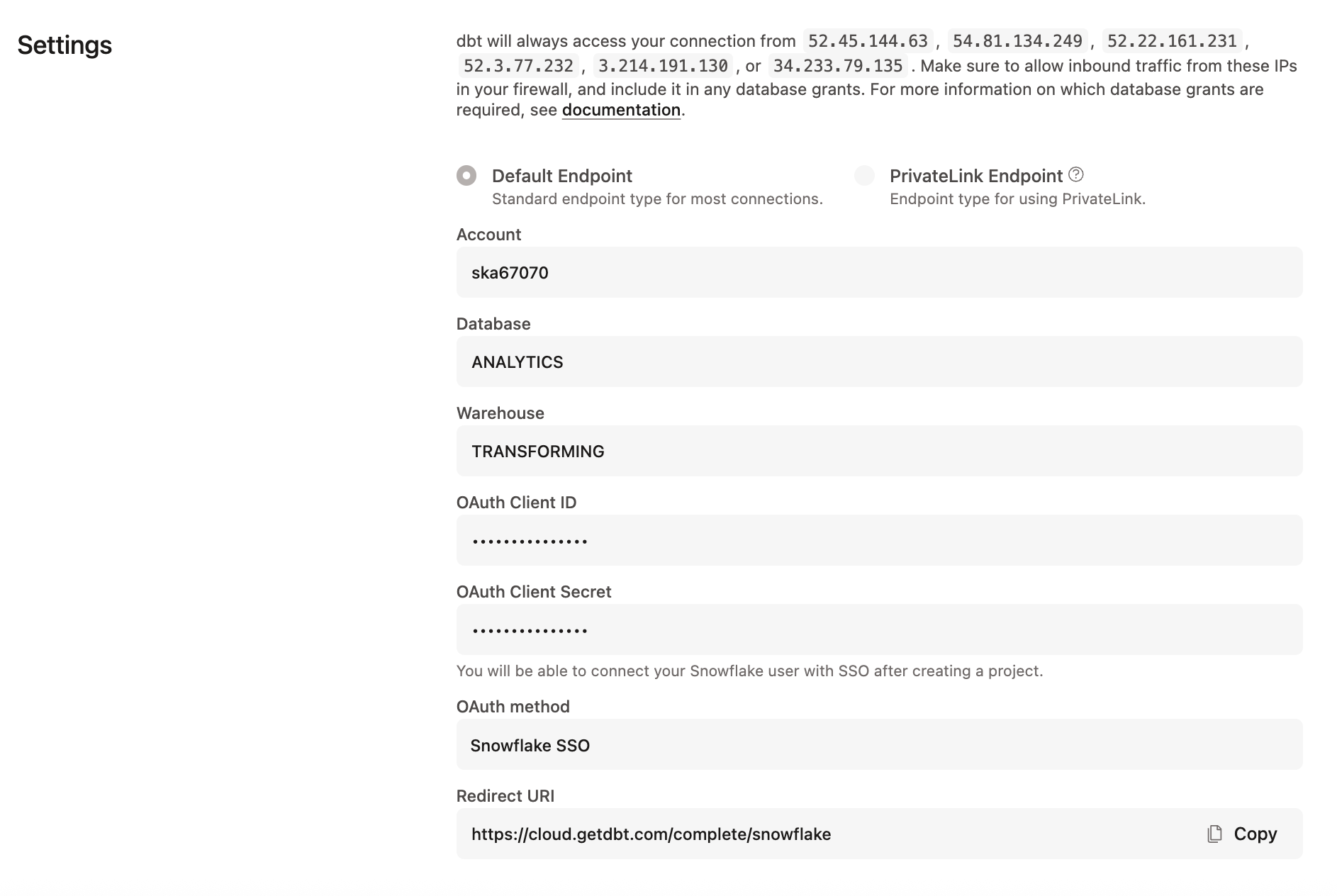 Configuring Snowflake OAuth connection
If your credentials still use username and password, you can view the existing configuration in Credentials, connection profiles, or deployment credential forms, but you cannot save changes until you switch Auth method to key pair or OAuth. A warning banner may also appear at the top of your account when password credentials are still in use.
To migrate off of username and password, follow the steps in Key pair or Snowflake OAuth.
Username and password with MFA
Available in: Existing development and deployment credentials only
If you are still on username and password while you plan your migration, MFA is required by Snowflake for all password logins. Snowflake's MFA support is powered by the Duo Security service.
-
In dbt, set the following extended attribute in the development environment General settings page, under the Extended attributes section:
authenticator: username_password_mfa -
To reduce the number of user prompts when connecting to Snowflake with MFA, enable token caching in Snowflake.
-
Optionally, if users miss prompts and their Snowflake accounts get locked, you can prevent automatic retries by adding the following in the same Extended attributes section:
connect_retries: 0
 Configure the MFA username and password, and connect_retries in the development environment settings.
Configuration
To learn how to optimize performance with data platform-specific configurations in dbt, refer to Snowflake-specific configuration.
Custom domain URL
To connect to Snowflake through a custom domain (vanity URL) instead of the account locator, use extended attributes to configure the host parameter with the custom domain:
host: https://custom_domain_to_snowflake.com
This configuration may conflict with Snowflake OAuth when used with PrivateLink. IF users can't reach Snowflake authentication servers from a networking standpoint, please contact dbt Support to find a workaround with this architecture.
Troubleshooting
If you're receiving a Could not deserialize key data or JWT token error, refer to the following causes and solutions:
Was this page helpful?
This site is protected by reCAPTCHA and the Google Privacy Policy and Terms of Service apply.
