Build with dbt Copilot
Use dbt Copilot to build visual models in the Canvas with natural language prompts.
dbt Copilot integrates with Canvas, a drag-and-drop experience for building visual models with natural language prompts.
Considerations
dbt Copilot in Canvas has setup and AI requirements. Confirm the following before you begin.
- dbt Copilot is available in the Canvas interface. Refer to About Canvas for setup instructions.
- Natural language prompts in Canvas are available on Enterprise and Enterprise+ plans.
- Your development environment must be on a supported release track.
- Refer to Billing for dbt Copilot usage limits.
dbt Wizard is the recommended AI agent for governed data development in dbt. It handles the full development lifecycle — investigation, building, validation, and shipping — grounded in your dbt project's lineage, tests, contracts, and metric definitions.
Refer to dbt AI FAQs, Billing, and dbt's Terms of Use for more information.
To begin building models with natural language prompts in the Canvas:
- Click on the dbt Copilot icon in Canvas menu.
- In the dbt Copilot prompt box, enter your prompt in natural language for dbt Copilot to build the model(s) you want. You can also reference existing models using the
@symbol. For example, to build a model that calculates the total price of orders, you can enter@ordersin the prompt and it'll pull in and reference theordersmodel. - Click Generate and dbt Copilot generates a summary of the model(s) you want to build.
- To start over, click on the + icon. To close the prompt box, click X.
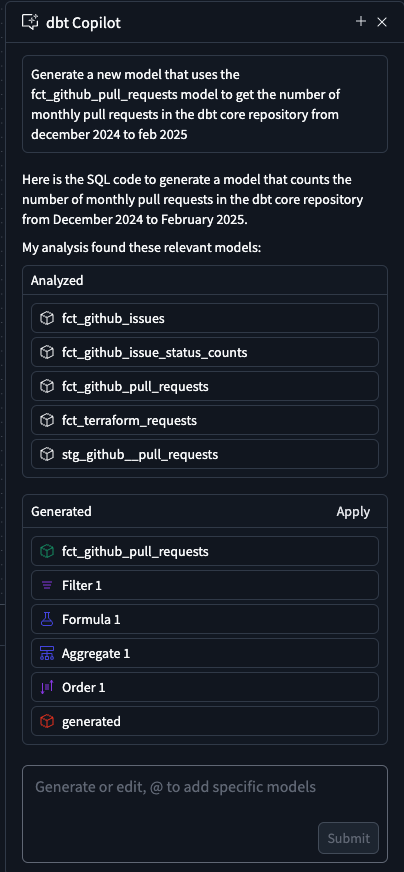 Enter a prompt in the dbt Copilot prompt box to build models using natural language
 - Click Apply to generate the model(s) in the Canvas.
- dbt Copilot displays a visual "diff" view to help you compare the proposed changes with your existing code. Review the diff view in the canvas to see the generated operators built by dbt Copilot:
- White: Located in the top of the canvas and means existing set up or blank canvas that will be removed or replaced by the suggested changes.
- Green: Located in the bottom of the canvas and means new code that will be added if you accept the suggestion.
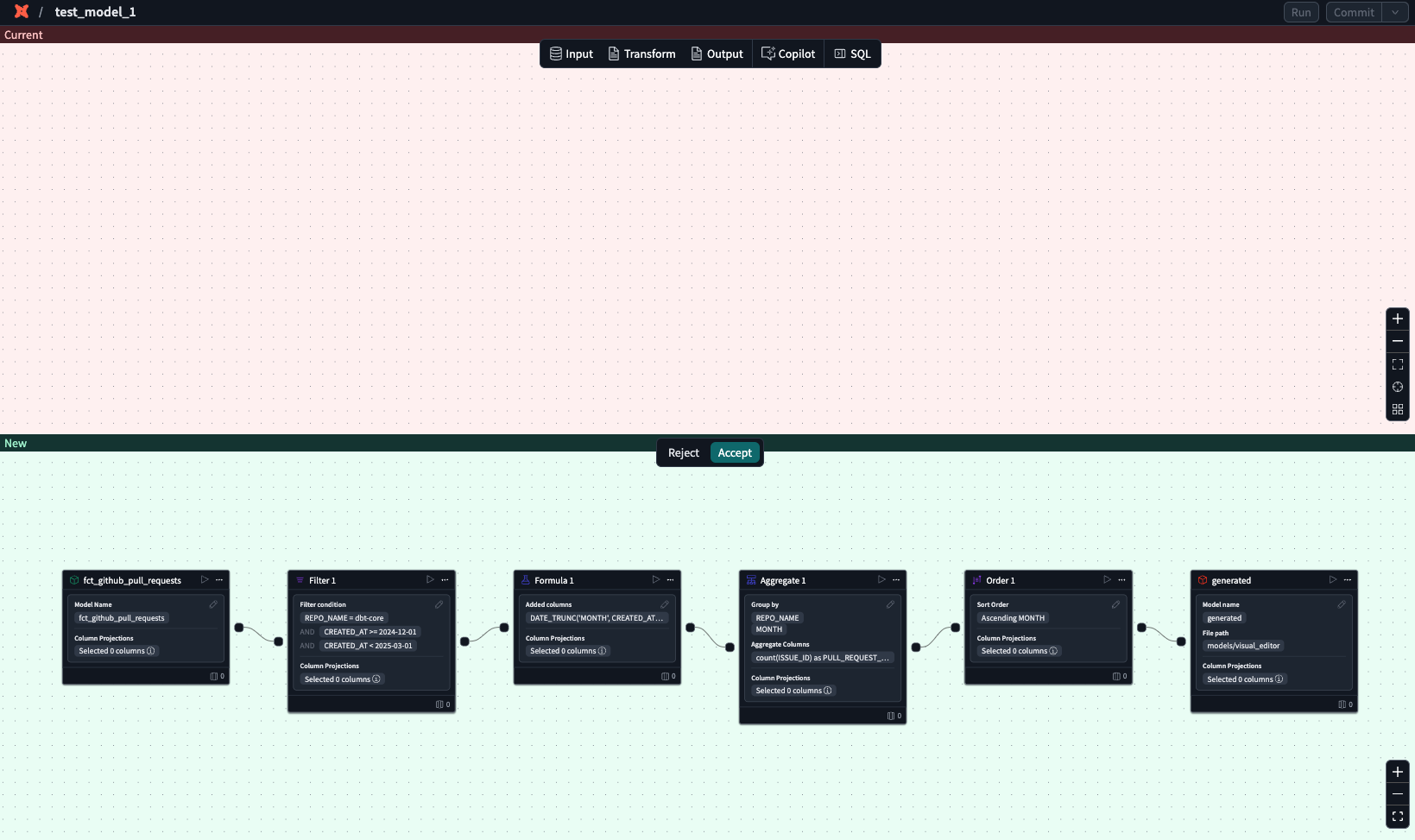 Visual diff view of proposed changes
 - Reject or accept the suggestions
- In the generated operator box, click the play icon to preview the data
- Confirm the results or continue building your model.
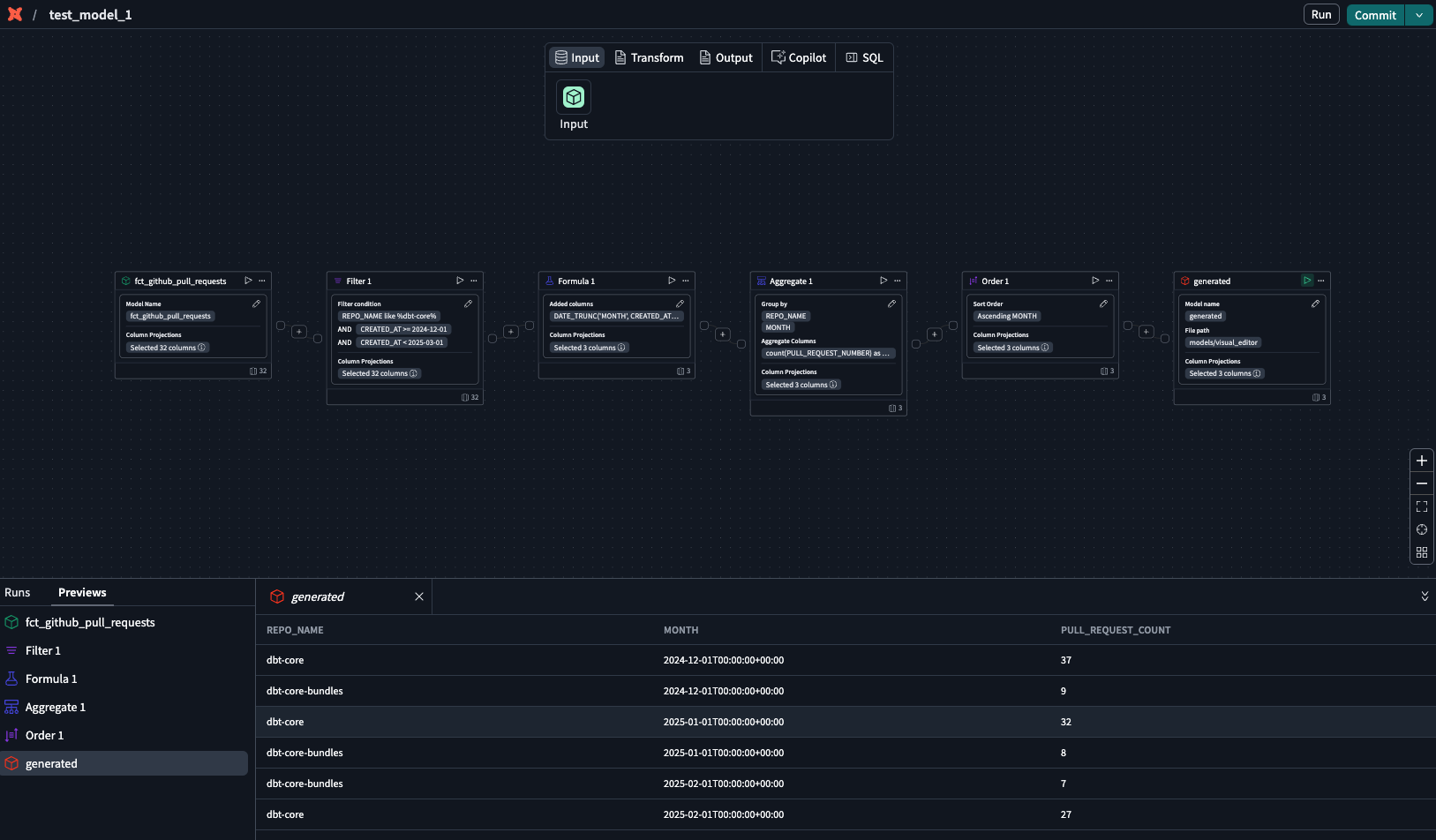 Use the generated operator with play icon to preview the data
 - To edit the generated model, open dbt Copilot prompt box and type your edits.
- Click Submit and dbt Copilot will generate the revised model. Repeat steps 5-8 until you're happy with the model.
Was this page helpful?
This site is protected by reCAPTCHA and the Google Privacy Policy and Terms of Service apply.
