Set up automatic exposures in Tableau
Set up and automatically populate downstream exposures for supported BI tool integrations, like Tableau. Visualize and orchestrate them through dbt Catalog and the dbt job scheduler for a richer experience.
As a data team, it’s critical that you have context into the downstream use cases and users of your data products. By leveraging automatic downstream exposures, you can:
- Gain a better understanding of how models are used in downstream analytics, improving governance and decision-making.
- Reduce incidents and optimize workflows by linking upstream models to downstream dependencies.
- Automate exposure tracking for supported BI tools, ensuring lineage is always up to date.
- Orchestrate exposures to refresh the underlying data sources during scheduled dbt jobs, improving timeliness and reducing costs. Orchestrating exposures is a way to ensure that your BI tools are updated regularly using the dbt job scheduler. See the previous page for more information.
In dbt, you can configure downstream exposures in two ways:
- Manually — Declared explicitly in your project’s YAML files.
- Automatic — dbt creates and visualizes downstream exposures automatically for supported integrations, removing the need for manual YAML definitions. These downstream exposures are stored in dbt’s metadata system, appear in Catalog, and behave like manual exposures. However, they don’t exist in YAML files.
If you're using Tableau Server, you need to add the dbt IP addresses for your region to your allowlist.
Prerequisites
To configure automatic downstream exposures, you should meet the following:
- Your environment and jobs are on a supported dbt release track.
- You have a dbt account on the Enterprise or Enterprise+ plan.
- You have set up a production deployment environment for each project you want to explore, with at least one successful job run.
- You have proper permissions to edit dbt project or production environment settings.
- Use Tableau as your BI tool and enable metadata permissions or work with an admin to do so. Compatible with Tableau Cloud or Tableau Server with the Metadata API enabled.
- You have configured a Tableau personal access token (PAT) whose creator has permission to view data sources. The PAT inherits the permissions of its creator, so ensure the Tableau user who created the token has Connect permissions.
Considerations
Configuring automatic downstream exposures with Tableau have the following considerations:
-
You can only connect to a single Tableau site on the same server.
-
If you're using Tableau Server, you need to allowlist dbt's IP addresses for your dbt region.
-
Tableau dashboards built using custom SQL queries aren't supported.
-
Downstream exposures sync automatically once per day or when a user updates the selected collections.
-
The database fully qualified names (FQNs) in Tableau must match those in the dbt build.
Tableau's database FQNs (fully qualified names) must match those in the dbt build. To view all expected dependencies in your exposure, the FQNs must match but aren't case-sensitive. For example:
Tableau FQN dbt FQN Resultanalytics.dbt_data_team.my_modelanalytics.dbt_data_team.my_model✅ Matches and dependencies will display as expected. analytics.dbt_data_team.my_modelprod_analytics.dbt_data_team.my_model❌ Doesn't match and not all expected dependencies will display. To troubleshoot this:
-
In dbt, download the
manifest.jsonfrom the most recent production run that includes the missing dependencies by clicking on the Artifacts tab and scrolling tomanifest.json. -
Run the following GraphiQl query. Make sure to run the query at
your_tableau_server/metadata/graphiql, whereyour_tableau_serveris the value you provided for the Server URL when setting up your Tableau integration:query {
workbooks {
name
uri
id
luid
projectLuid
projectName
upstreamTables {
id
name
schema
database {
name
connectionType
}
}
}
} -
Compare database FQNs between
manifest.jsonand the GraphiQL response. Make sure that{database}.{schema}.{name}matches in both. The following images are examples of FQNs that match in bothmanifest.jsonand the GraphiQL response and aren't case-sensitive:
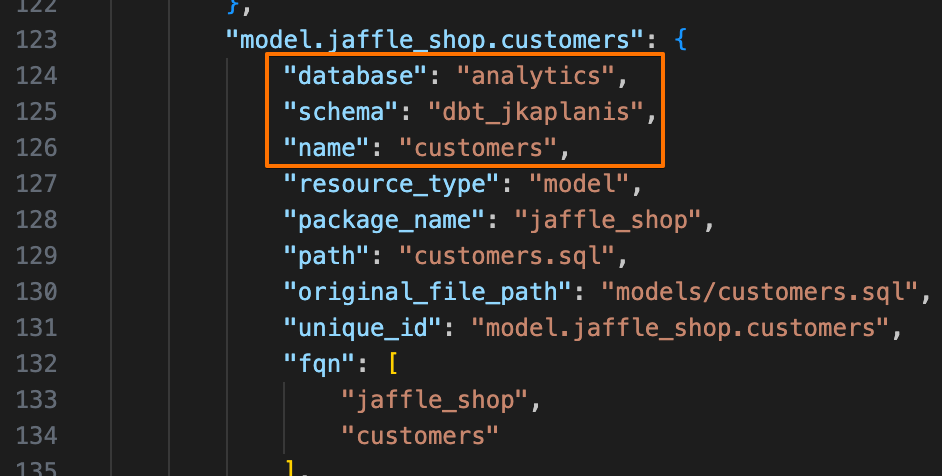 manifest.json example with lowercase FQNs.
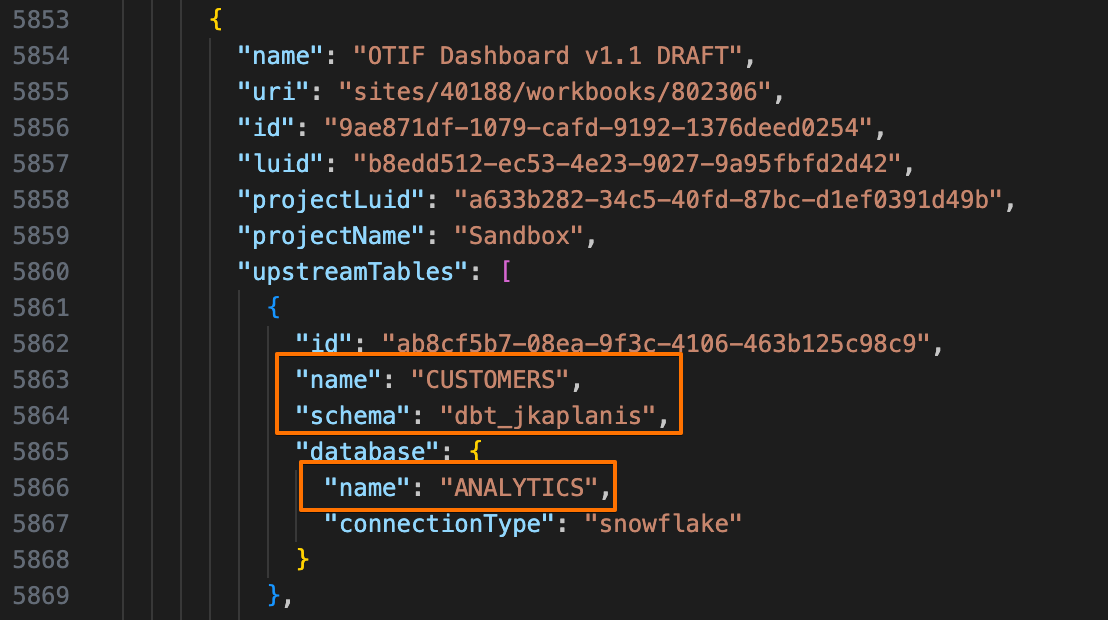 GraphiQl response example with uppercase FQNs.
- If the FQNs don't match, update your Tableau FQNs to match the dbt FQNs.
- If you're still experiencing issues, please contact dbt Support and share the results with them.
-
Set up downstream exposures
Set up downstream exposures in Tableau and dbt to ensure that your BI tool's extracts are updated automatically.
Set up in Tableau
This section explains the steps to configure the integration in Tableau. A Tableau site admin must complete these steps.
Once configured in both Tableau and dbt, you can view downstream exposures in Catalog.
-
Enable personal access tokens (PATs) for your Tableau account.
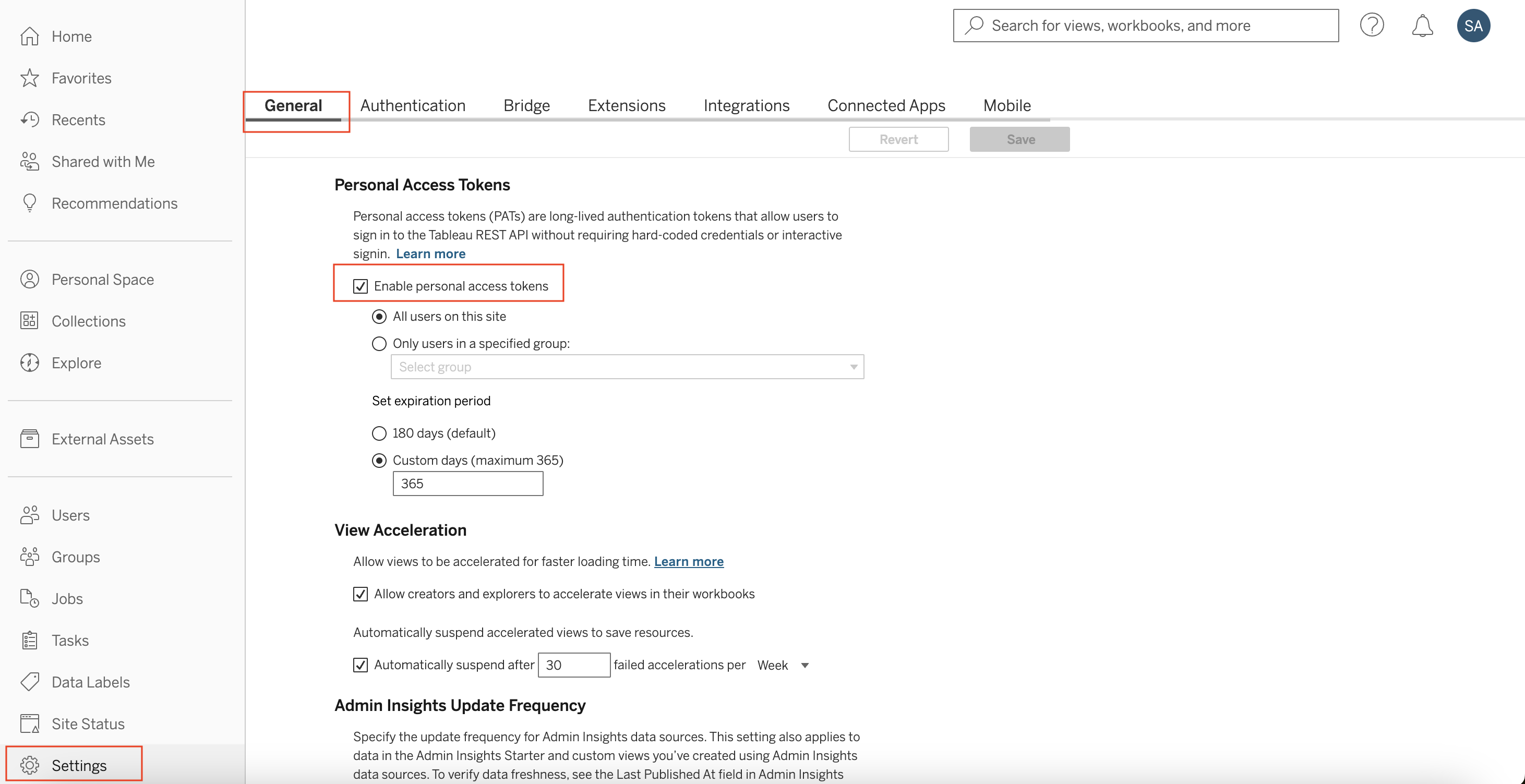 Enable PATs for the account in Tableau
 -
Create a PAT to add to dbt to pull in Tableau metadata for the downstream exposures. When creating the token, you must have permission to access collections/folders, as the PAT only grants access matching the creator's existing privileges.
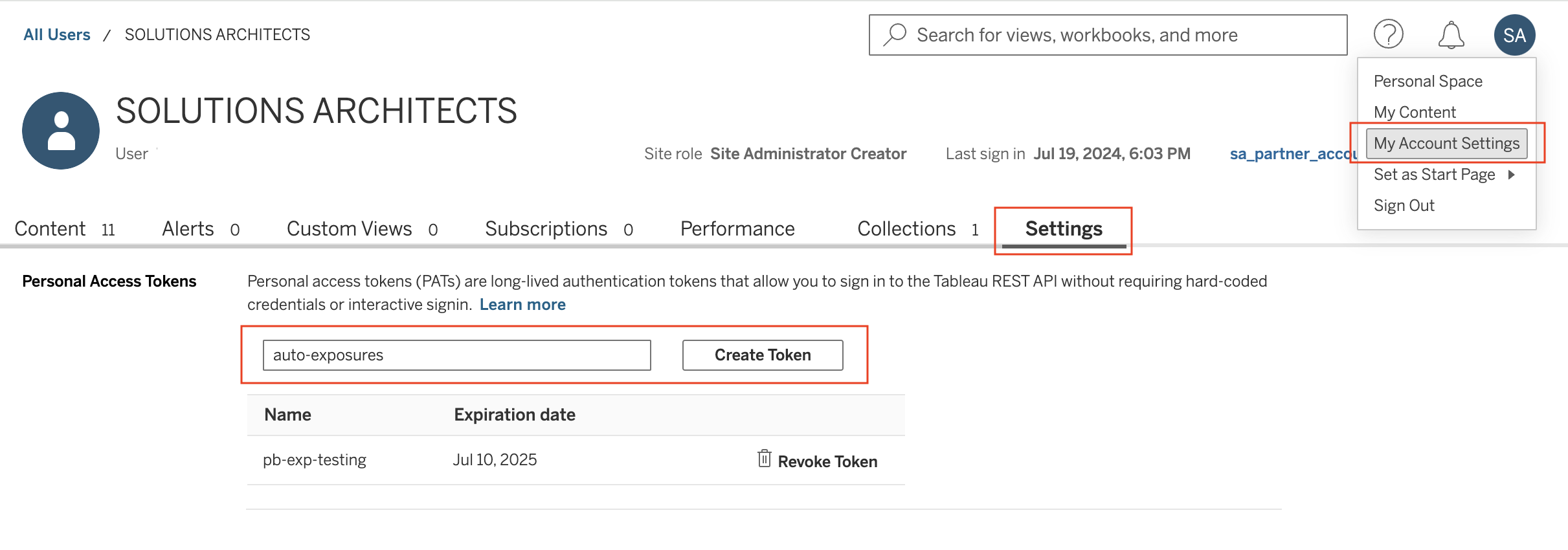 Create PATs for the account in Tableau
 -
Copy the Secret and the Token name for use in a later step in dbt. The secret is only displayed once, so store it in a safe location (like a password manager).
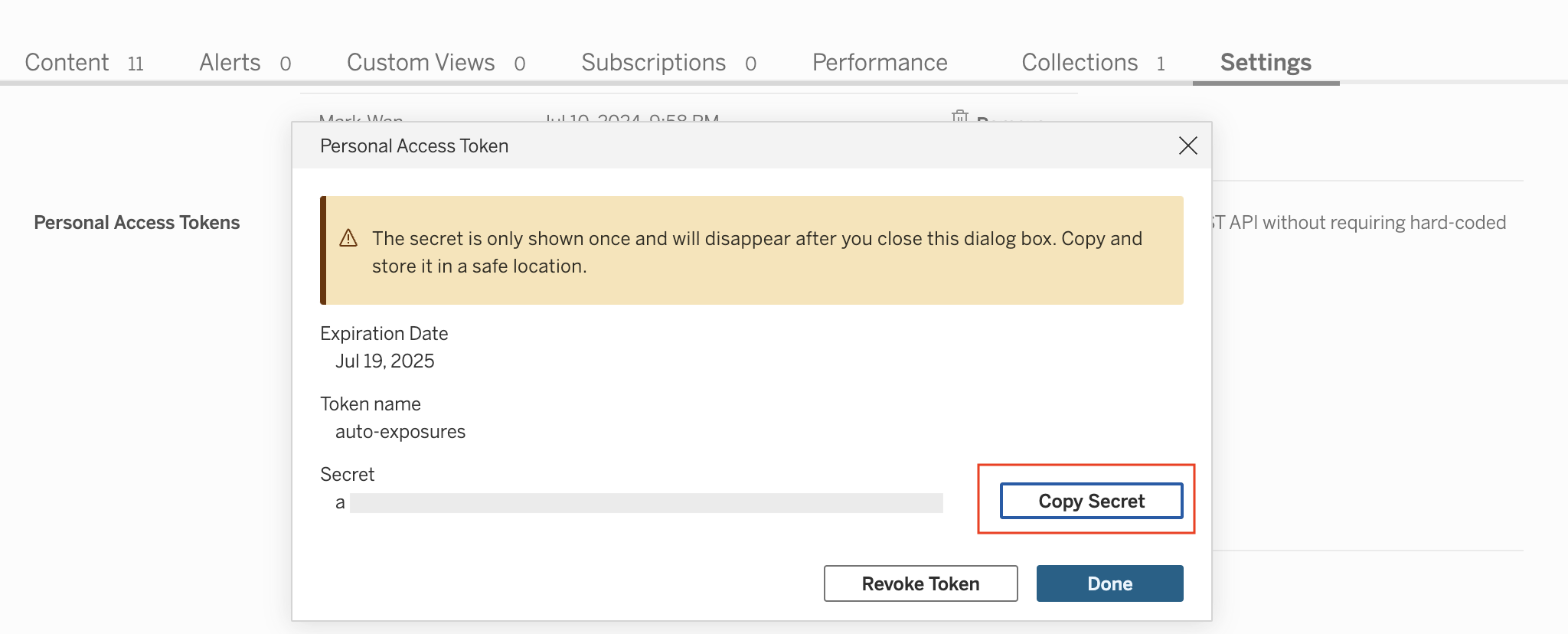 Copy the secret and token name to enter them in dbt
 -
Copy the Server URL and Sitename. You can find these in the URL while logged into Tableau.
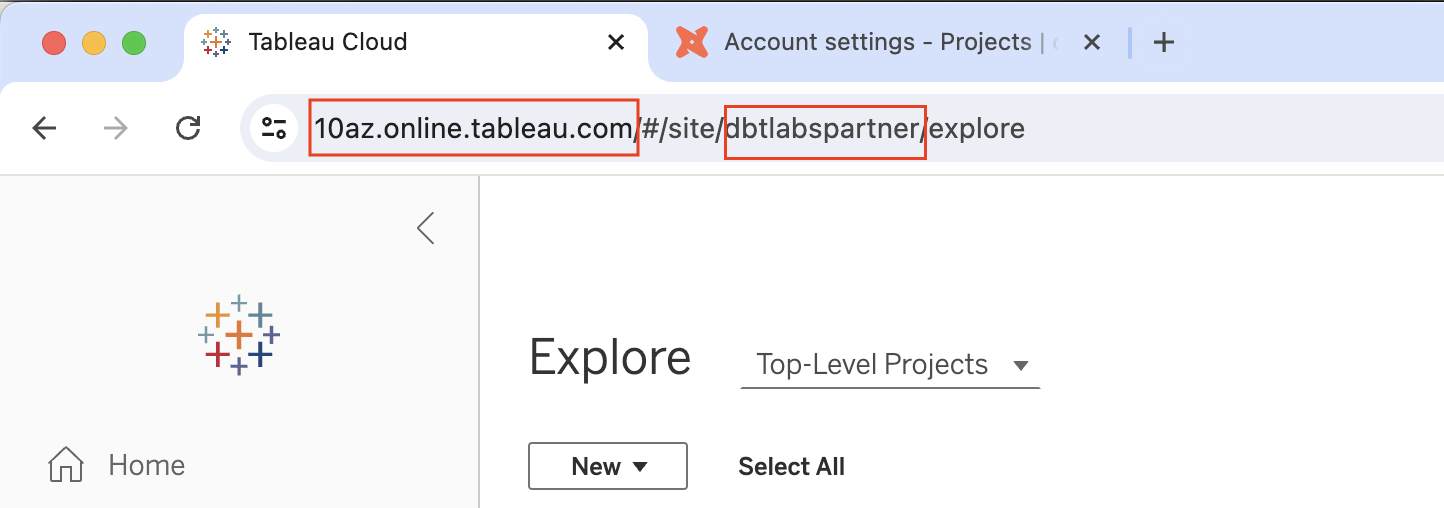 Locate the Server URL and Sitename in Tableau
For example, if the full URL is:
10az.online.tableau.com/#/site/dbtlabspartner/explore:- The Server URL is the fully qualified domain name, in this case:
10az.online.tableau.com - The Sitename is the path fragment right after
sitein the URL, in this case:dbtlabspartner
- The Server URL is the fully qualified domain name, in this case:
-
With the following items copied, you are now ready to set up downstream exposures in dbt:
- ServerURL
- Sitename
- Token name
- Secret
Set up in dbt
-
In dbt, navigate to the Dashboard of the project you want to add the downstream exposure to and then select Settings.
-
Under the Exposures section, select Add lineage integration to add the Tableau connection.
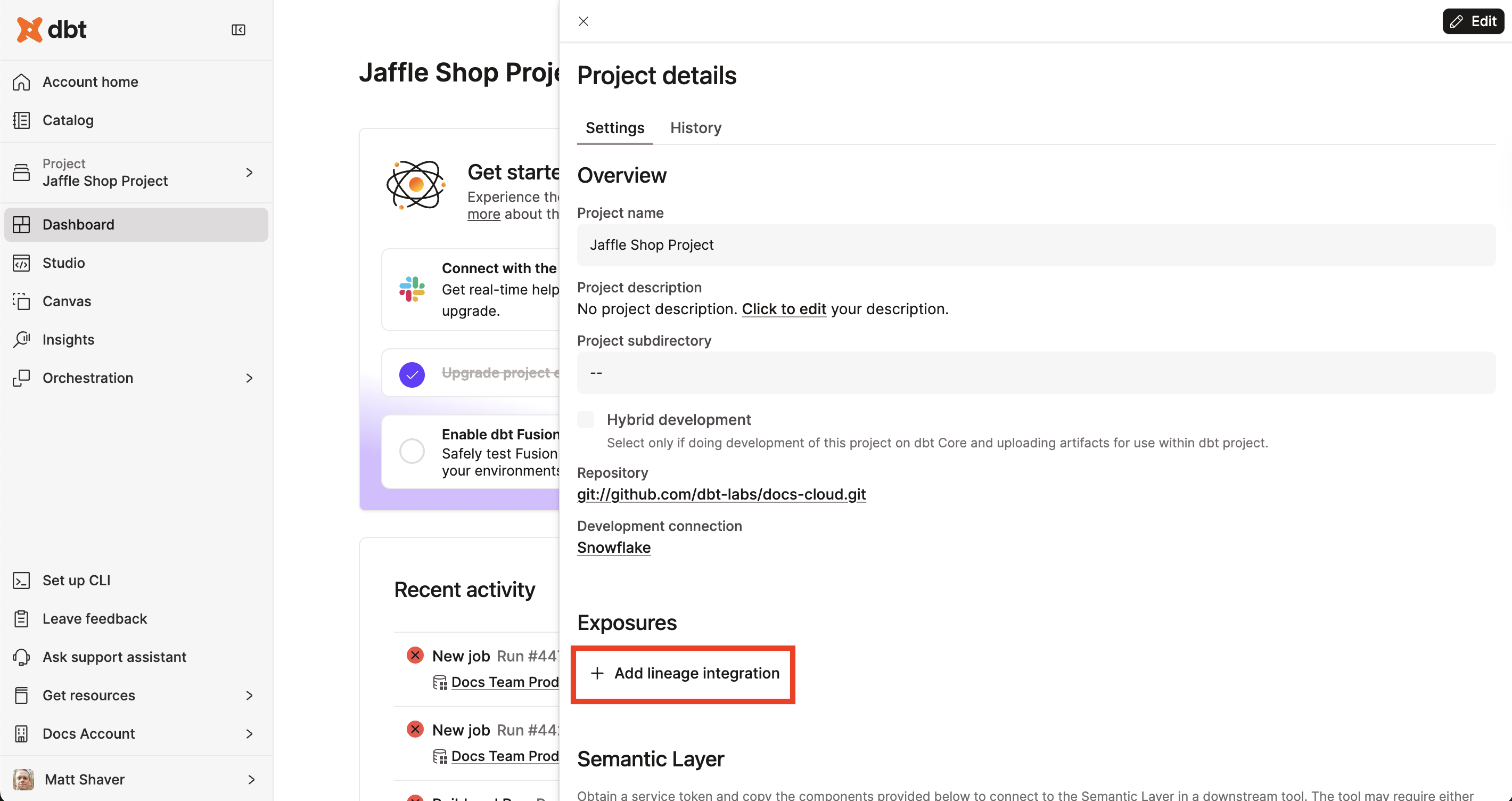 Select Add lineage integration to add the Tableau connection.
 -
Enter the details for the exposure connection you collected from Tableau in the previous step and click Continue. Note that all fields are case-sensitive.
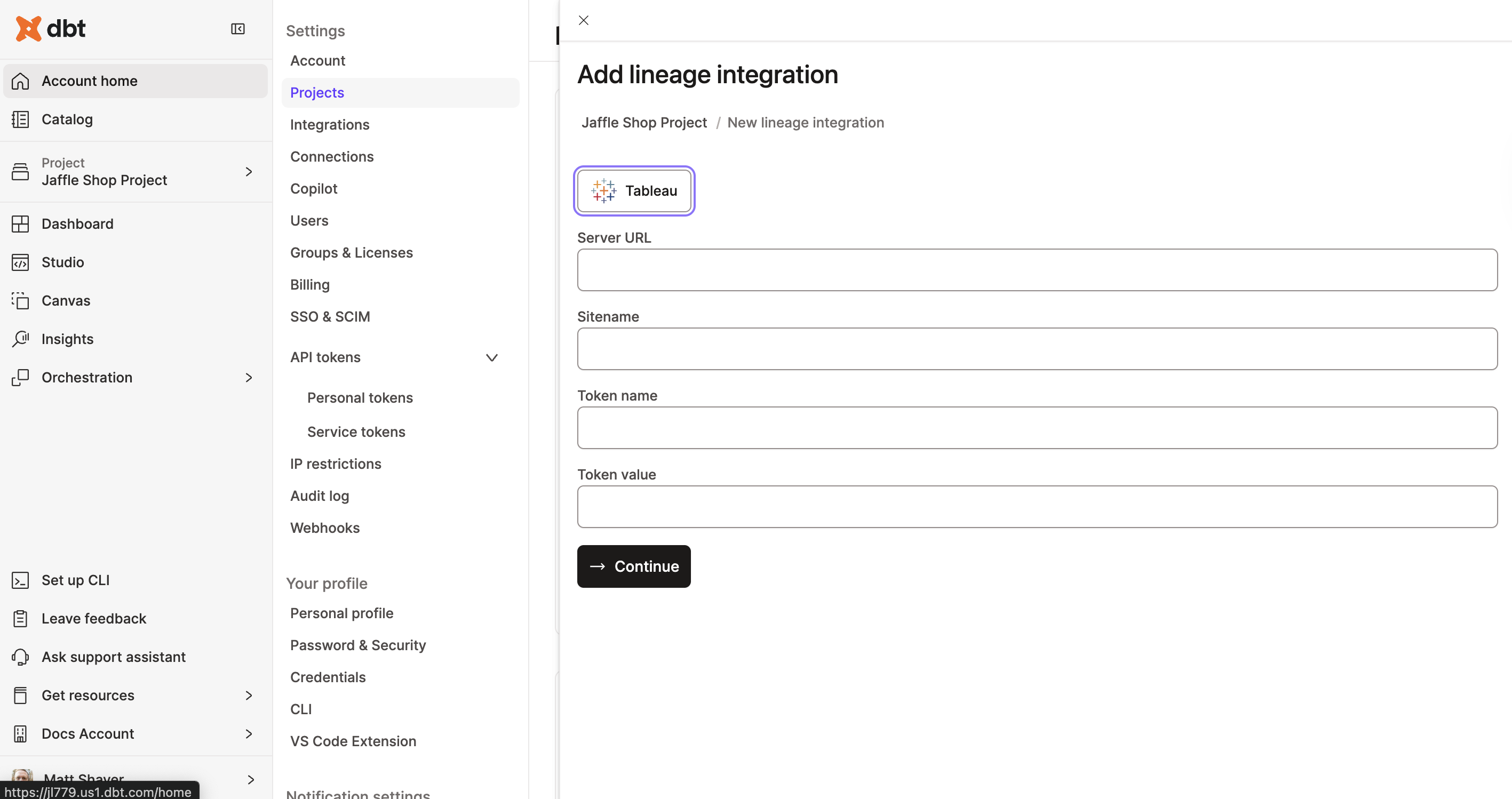 Enter the details for the exposure connection.
 -
Select the collections you want to include for the downstream exposures and click Save.
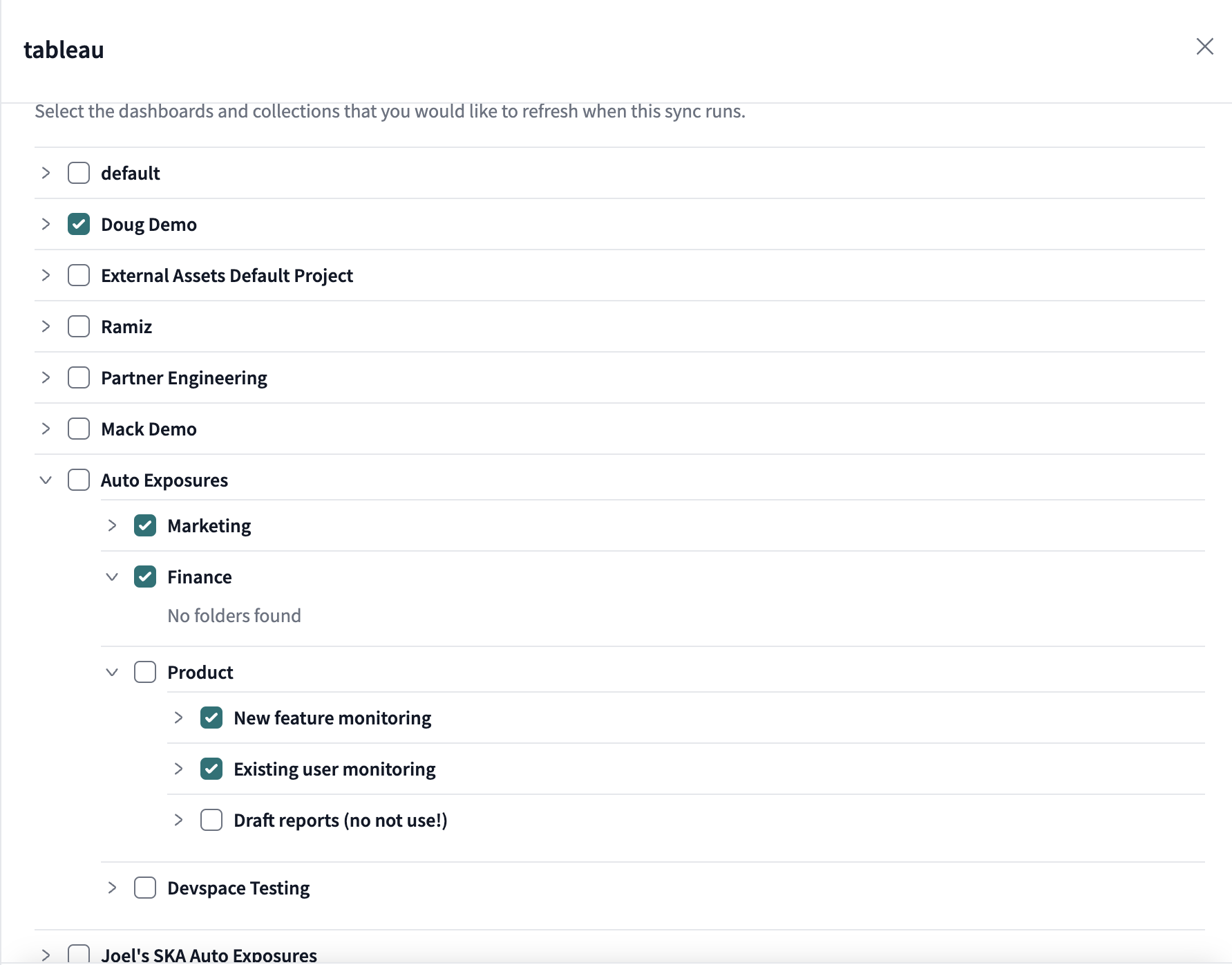 Select the collections you want to include for the downstream exposures.info
dbt automatically imports and syncs any workbook within the selected collections. New additions to the collections will appear in the lineage in dbt once per day — after the daily sync and a job run.
dbt immediately starts a sync when you update the selected collections list, capturing new workbooks and removing irrelevant ones.
-
dbt imports everything in the collection(s) and you can continue to view them in Catalog.
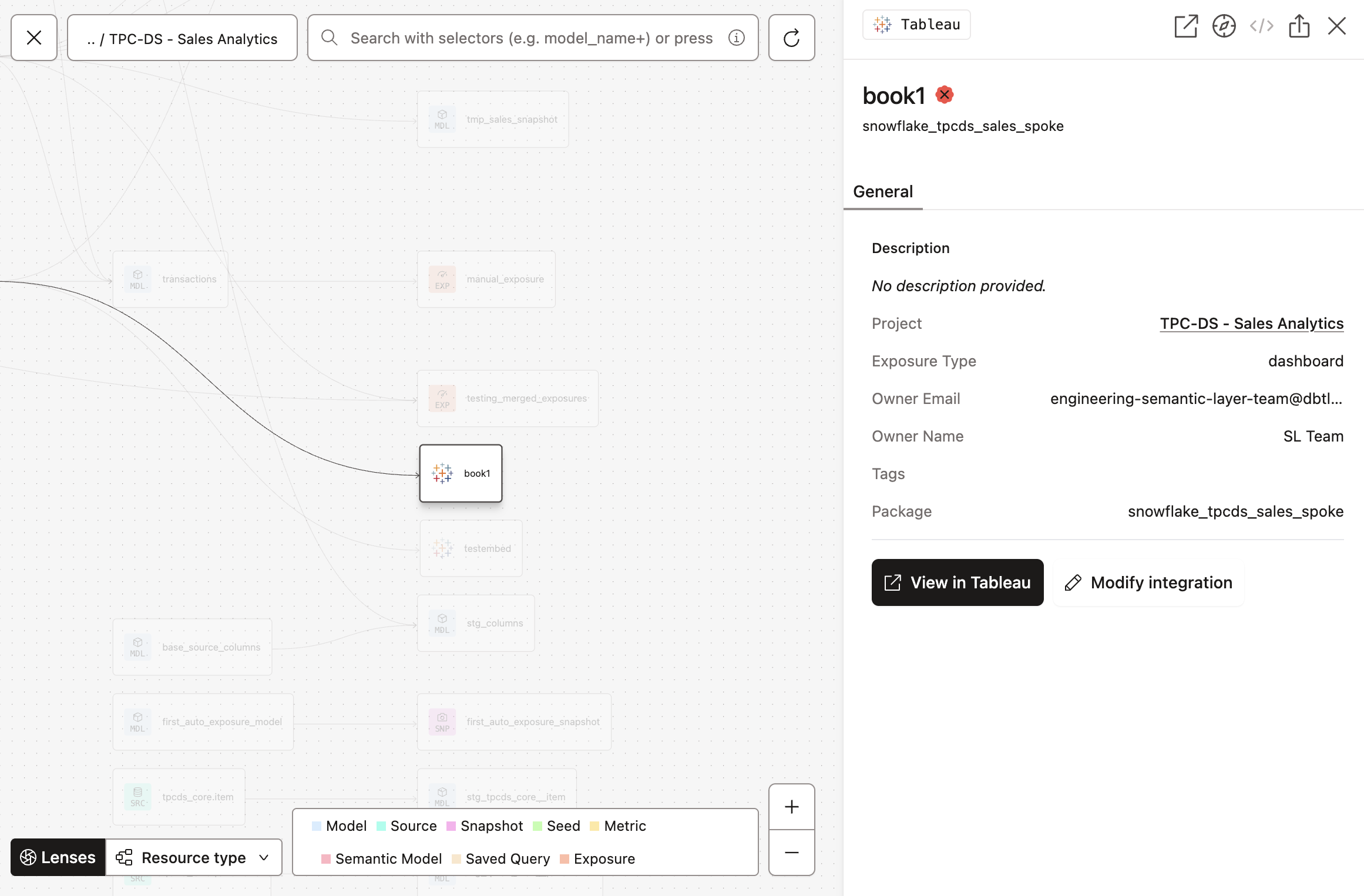 View from the dbt Catalog in your Project lineage view, displayed with the Tableau icon.
View downstream exposures
After setting up downstream exposures in dbt, you can view them in Catalog for a richer experience.
Navigate to Catalog by selecting Catalog from the top-level navigation. You can view downstream exposures from a couple of places:
Exposures menu
View all downstream exposures for a project from the Catalog sidebar:
- In the sidebar, select your project.
- Under the project, select Exposure. You will only see this option if you set up downstream exposures in Tableau and dbt.
The Exposures table lists every exposure in the project so you can quickly access and manage them:
- Name: The name of the exposure.
- Health: The data health signal of the exposure.
- Type: The type of exposure, such as
dashboardornotebook. - Owner: The owner of the exposure.
- Owner email: The email address of the owner of the exposure.
- Integration: The BI tool that the exposure is integrated with.
- Exposure mode: The type of exposure defined: Auto or Manual. Auto exposures from Tableau appear alongside manual exposures
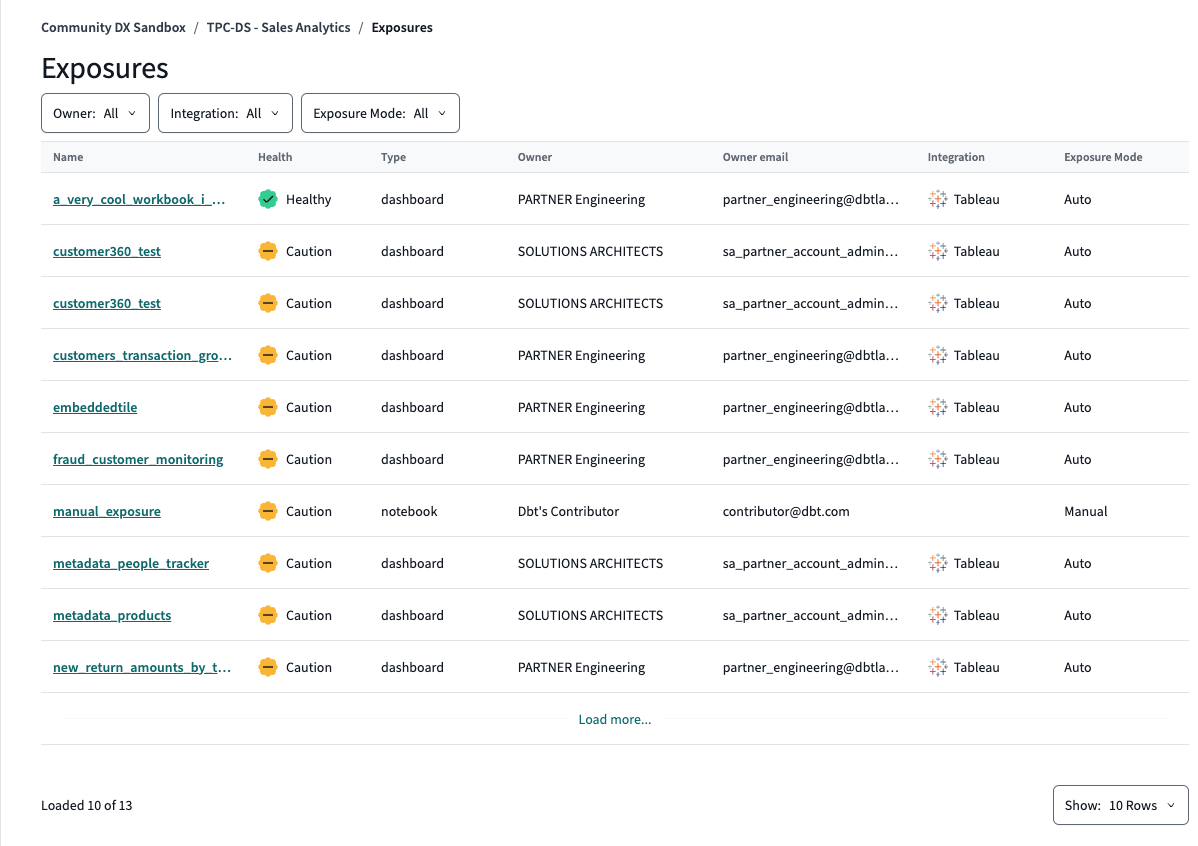 View the Exposures table from the Catalog sidebar.
Exposure detail page
After you open the Exposures table (previous section), select an exposure name to open its detail page.
On the exposure detail page, you can review metadata, data health signals, description, and lineage. For Tableau auto exposures, use Open in Dashboard to open the workbook in Tableau, or Modify integration to update your Tableau connection settings.
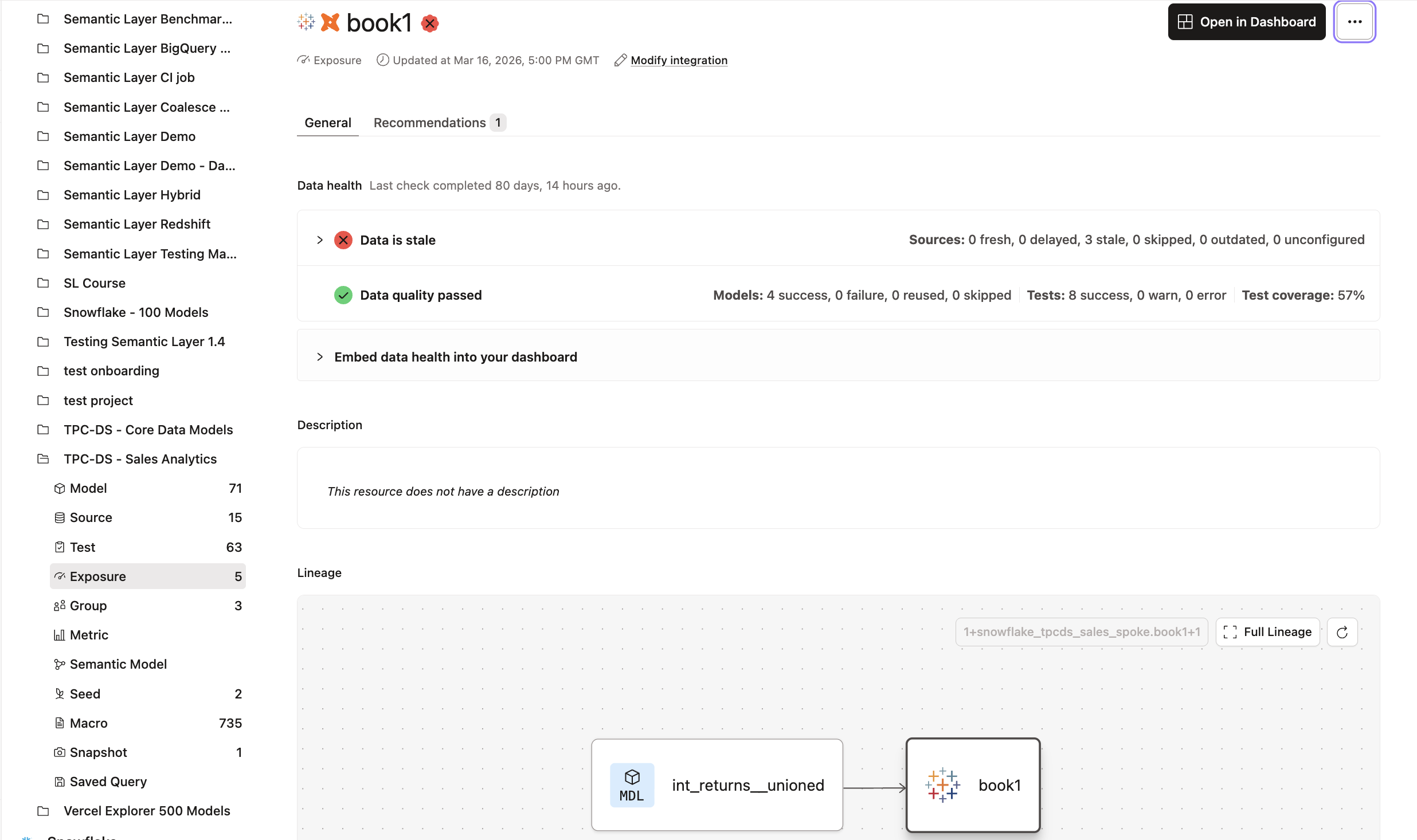 View an exposure detail page in Catalog.
Project lineage
You can also view exposures from the Project lineage view, separate from the Exposures table:
- In the sidebar, select your project.
- Click View lineage.
- Select an exposure node with the Tableau icon to view its details in the side panel.
This view visualizes the dependencies and relationships in your project. For Tableau auto exposures, use View in Tableau or Modify integration from the side panel.
View from the dbt Catalog in your Project lineage view, displayed with the Tableau icon.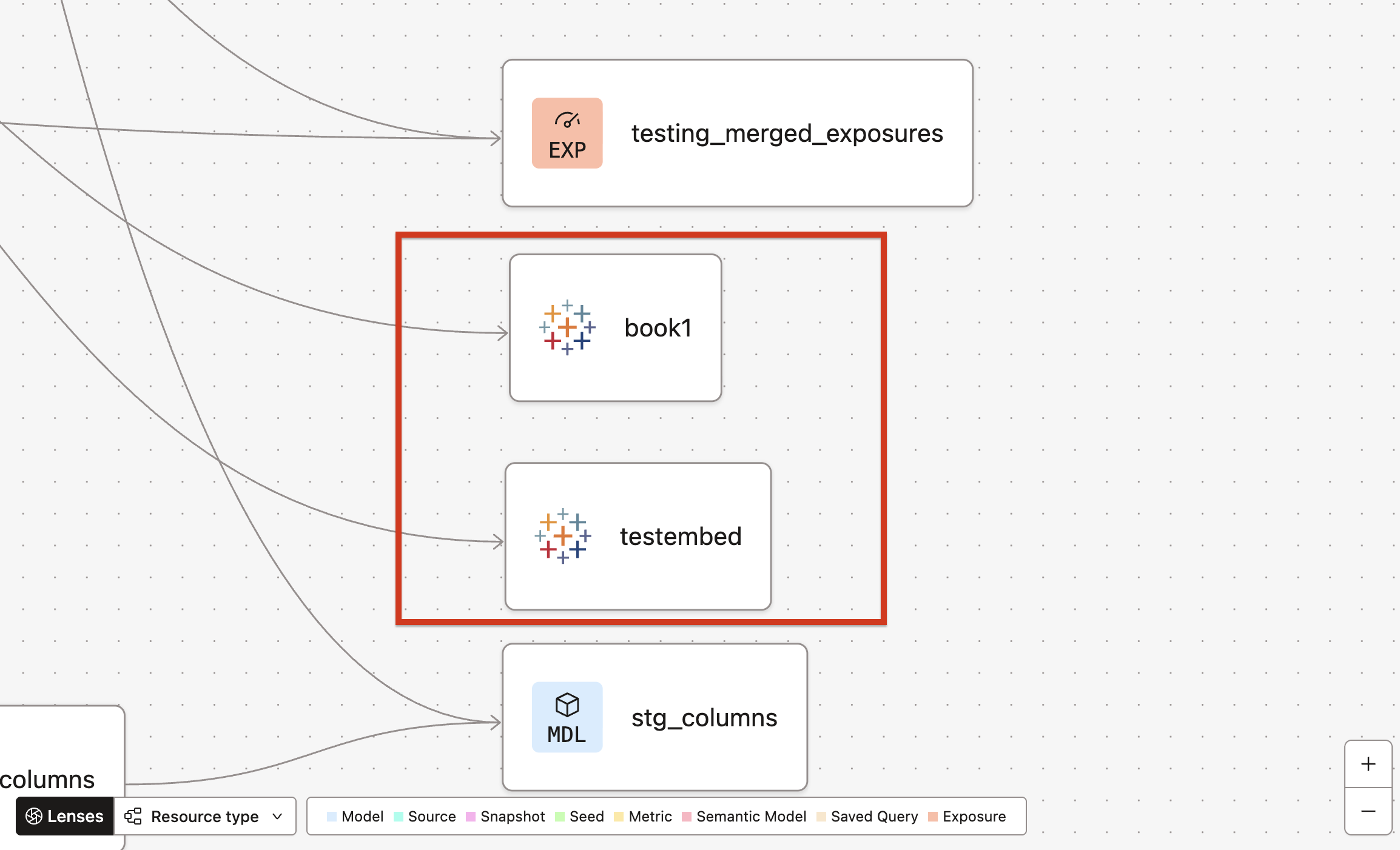 View from the dbt Catalog in your Project lineage view, displayed with the Tableau icon.
Orchestrate exposures BetaEnterpriseEnterprise +
Orchestrate exposures using the dbt Cloud job scheduler to proactively refresh the underlying data sources (extracts) that power your Tableau Workbooks.
This beta capability requires deployment jobs on v1 Latest with dbt v1 and isn't available on v2 Stable. For setup details, refer to Orchestrate exposures.
- Orchestrating exposures with a
dbt buildjob ensures that downstream exposures, like Tableau extracts, are updated regularly and automatically. - You can control the frequency of these refreshes by configuring environment variables.
To set up and proactively run exposures with the dbt job scheduler, refer to Orchestrate exposures.
Was this page helpful?
This site is protected by reCAPTCHA and the Google Privacy Policy and Terms of Service apply.
