Connect Snowflake to dbt v2
You can configure the Snowflake adapter by running dbt init in your CLI or manually providing the profiles.yml file with the fields configured for your authentication type. To check out which Snowflake functions are supported in dbt v2 in strict mode, refer to Snowflake function support.
The Snowflake adapter for dbt v2 supports the following authentication methods:
- Password
- Key pair
- Single sign-on (SSO)
- Password with MFA
- Workload Identity Federation
Snowflake is deprecating single-access password login. Individual developers should use MFA or SSO instead of password authentication. Password-based login remains supported for service users (Snowflake user type: LEGACY_SERVICE).
Warehouse permissions
The Snowflake user or service account that dbt v2 connects as must be able to run dbt workloads (queries, metadata, and typical materializations). Grant privileges through a Snowflake role assigned to that user.
Required Snowflake objects
Before connecting, these objects must exist:
| Object | Purpose |
|---|---|
| Account | Your Snowflake account identifier |
| User | Service account or user for dbt v2 |
| Role | Role assigned to the user with required privileges |
| Warehouse | Virtual warehouse for compute |
| Database | Target database or databases for dbt models |
| Schema | Target schema or schemas within the database |
Core operations
The following are required permissions for fundamental dbt operations:
| Permission | Object | Purpose |
|---|---|---|
USAGE | Warehouse | Execute queries |
USAGE | Database | Access the database |
USAGE | Schema | Access schemas |
SELECT | Tables or views | Read existing data and sources |
CREATE TABLE | Schema | Create models materialized as tables |
CREATE VIEW | Schema | Create models materialized as views |
INSERT | Tables | Load data into tables |
UPDATE | Tables | Incremental model updates |
DELETE | Tables | Incremental models using delete and insert |
TRUNCATE | Tables | Full refresh of incremental models |
DROP | Tables or views | Replace existing objects |
Metadata operations
The following are required permissions for dbt metadata operations:
| Permission | Object | Purpose |
|---|---|---|
USAGE | INFORMATION_SCHEMA | Query table and column metadata |
DESCRIBE TABLE | Tables | Get schema information |
SHOW OBJECTS | Schema | List relations in schema |
SHOW USER FUNCTIONS | Schema | Discover UDFs (if used) |
Schema and database management
The following are conditional permissions for schema and database management:
| Permission | Object | When required |
|---|---|---|
CREATE SCHEMA | Database | dbt should auto-create schemas |
CREATE DATABASE | Account | dbt should auto-create databases |
Advanced features
The following are optional permissions for advanced features:
| Permission | Object | Feature |
|---|---|---|
CREATE STAGE | Schema | File staging for seeds or snapshots |
CREATE FILE FORMAT | Schema | Custom file formats |
CREATE SEQUENCE | Schema | Sequences |
EXECUTE TASK | Schema | Snowflake tasks |
For role examples and SQL grants in Snowflake, you can also refer to Snowflake permissions.
Snowflake configuration details
The information required for configuring the Snowflake adapter can be found conveniently in your Snowflake account menu:
- Click on your name from the Snowflake sidebar.
- Hover over the Account field.
- In the field with your account name, click View account details.
- Click Config file and select the appropriate Warehouse and Database.
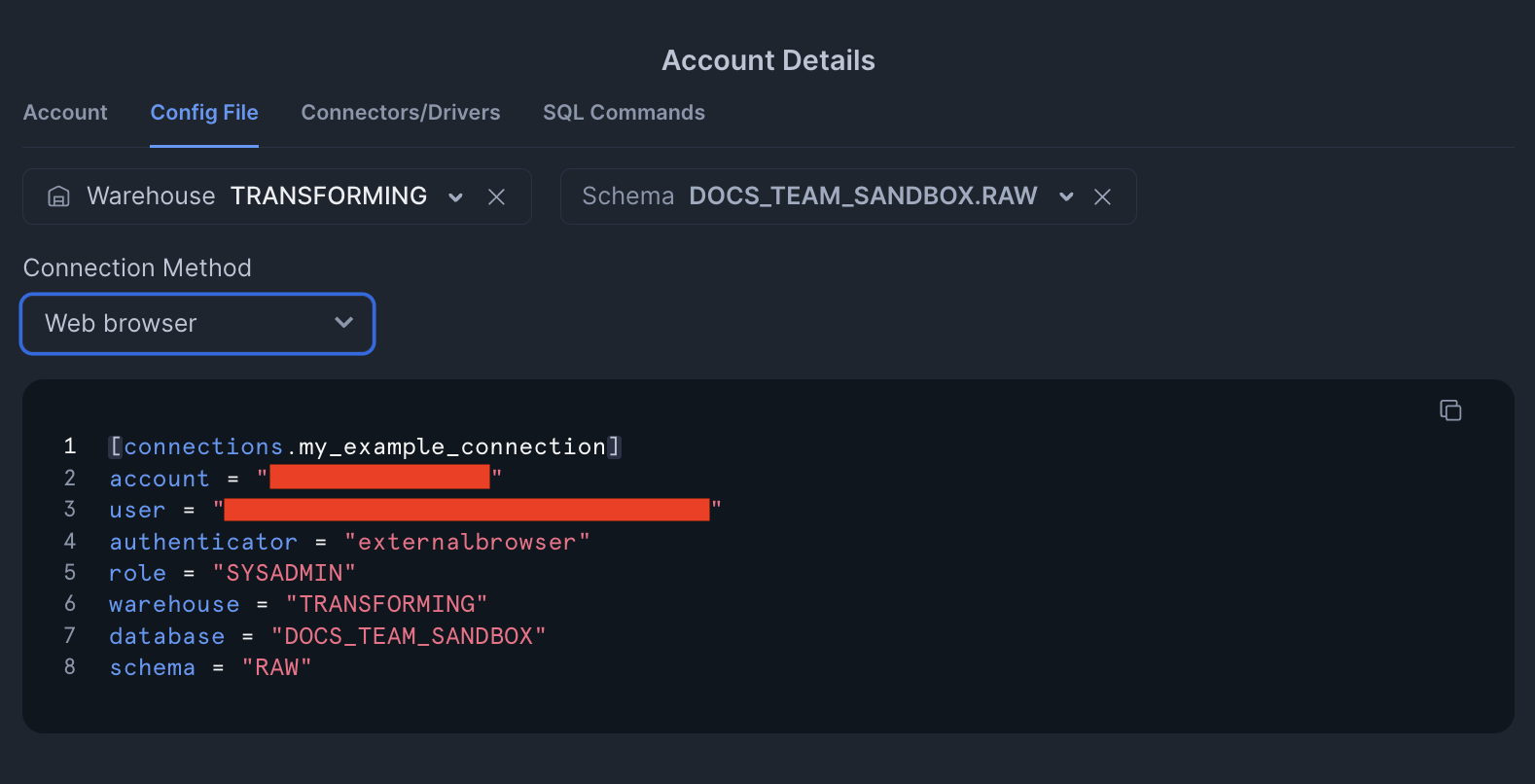 Sample config file in Snowflake.
Configure dbt v2
Executing dbt init in your CLI will prompt for the following fields:
- Account: Snowflake account number
- User: Your Snowflake username
- Database: The database within your Snowflake account to connect to your project
- Warehouse: The compute warehouse that will handle the tasks for your project
- Schema: The development/staging/deployment schema for the project
- Role (Optional): The role dbt should assume when connecting to the warehouse
Alternatively, you can manually create the profiles.yml file and configure the fields. See examples in authentication section for formatting. If there is an existing profiles.yml file, you are given the option to retain the existing fields or overwrite them.
Next, select your authentication method. Follow the on-screen prompts to provide the required information.
Supported authentication types
- Password
- Key pair
- Single sign-on
- Workload Identity Federation
Password authentication prompts for your Snowflake account password. This is becoming an increasingly less common option as organizations opt for more secure authentication.
Selecting Password with MFA redirects you to the Snowflake account login to provide your passkey or authenticator password.
Example password configuration
default:
  target: dev
  outputs:
    dev:
      type: snowflake
      threads: 16
      account: ABC123
      user: JANE.SMITH@YOURCOMPANY.COM
      database: JAFFLE_SHOP
      warehouse: TRANSFORM
      schema: JANE_SMITH
      password: THISISMYPASSWORD
Example password with MFA configuration
default:
  target: dev
  outputs:
    dev:
      type: snowflake
      threads: 16
      authenticator: username_password_mfa
      account: ABC123
      user: JANE.SMITH@YOURCOMPANY.COM
      database: JAFFLE_SHOP
      warehouse: TRANSFORM
      schema: JANE_SMITH
Key pair authentication gives you the option to:
- Define the path to the key.
- Provide the plain-text PEM format key inline.
We recommend using PKCS#8 format with AES-256 encryption for key pair authentication with dbt v2. dbt v2 doesn't support legacy 3DES encryption or headerless key formats. Using older key formats may cause authentication failures.
If you encounter the Key is PKCS#1 (RSA private key). Snowflake requires PKCS#8 error, then your private key is in the wrong format. You have two options:
-
(Recommended fix) Re-export your key with modern encryption:
# Convert to PKCS#8 with AES-256 encryption
openssl genrsa 2048 | openssl pkcs8 -topk8 -v2 aes-256-cbc -inform PEM -out rsa_key.p8 -
(Temporary workaround) Add the
BEGINheader andENDfooter to your PEM body:-----BEGIN ENCRYPTED PRIVATE KEY-----
< Your existing encrypted private key contents >
-----END ENCRYPTED PRIVATE KEY-----
Once the key is configured, you will be given the option to provide a passphrase, if required.
Example key pair configuration
default:
  target: dev
  outputs:
    dev:
      type: snowflake
      threads: 16
      account: ABC123
      user: JANE.SMITH@YOURCOMPANY.COM
      database: JAFFLE_SHOP
      warehouse: TRANSFORM
      schema: JANE_SMITH
      private_key: '<Your existing encrypted private key contents>'
      private_key_passphrase: YOURPASSPHRASEHERE
Single sign-on will leverage your browser to authenticate the Snowflake session.
By default, every connection that dbt opens will require you to re-authenticate in a browser. The Snowflake connector package supports caching your session token, but it currently only supports Windows and Mac OS.
Refer to the Snowflake docs for information on enabling this feature in your account.
Example SSO configuration
default:
  target: dev
  outputs:
    dev:
      type: snowflake
      threads: 16
      authenticator: externalbrowser
      account: ABC123
      user: JANE.SMITH@YOURCOMPANY.COM
      database: JAFFLE_SHOP
      warehouse: TRANSFORM
      schema: JANE_SMITH
Workload Identity Federation (WIF) lets you authenticate to Snowflake from a cloud workload using that platform's identity. Snowflake maps that identity to a service user, so you don't store a password or key. You can use an OpenID Connect (OIDC) token, such as one issued to a GitHub Actions workflow, or a native identity from AWS, Azure, or GCP.
Before you configure dbt, create a Snowflake service user with workload identity. For that setup, refer to the Snowflake documentation.
To authenticate with WIF, configure the following fields in your profiles.yml file:
| Config | Required? | Description |
|---|---|---|
method | Yes | Set to workload_identity. |
workload_identity_provider | Yes | The identity provider. Must be one of OIDC, AWS, AZURE, or GCP. |
token | No | Required for OIDC; pass it with env_var(). Omit this field for AWS, Azure, or GCP. |
workload_identity_entra_resource | No | Azure only. Leave this unset unless Snowflake expects a custom Entra app as the token audience. Set it to that app's application ID URI (for example api://APPLICATION_ID). |
Do not set the authenticator field. Setting both method and authenticator will prevent the profile from working.
The user field is optional. Snowflake uses the service user mapped to this cloud identity.
The following example uses OIDC:
default:
  target: dev
  outputs:
    dev:
      type: snowflake
      threads: 16
      account: ACCOUNT_ID  # Snowflake account identifier
      role: USER_ROLE  # Snowflake role to assume
      database: DATABASE_NAME  # Snowflake database
      warehouse: WAREHOUSE_NAME  # Snowflake warehouse
      schema: SCHEMA_NAME  # dbt schema

      method: workload_identity
      workload_identity_provider: OIDC  # Or AWS, AZURE, or GCP
      token: "{{ env_var('SNOWFLAKE_TOKEN') }}"  # OIDC token
For AWS, Azure, or GCP, use the same configuration, but change the workload_identity_provider value and omit token. AWS, Azure, and GCP only work when dbt is running in that cloud environment.
More information
Find Snowflake-specific configuration information in the Snowflake adapter reference guide.
Was this page helpful?
This site is protected by reCAPTCHA and the Google Privacy Policy and Terms of Service apply.