Compare changes during development Beta
This feature is in beta. All dbt VS Code extension users can use compare changes during the 14-day trial. After the trial, sign in or register for a dbt platform account to keep using it.
The dbt VS Code extension previews and compares how your local edits affect your data in your dbt platform account — including added/removed rows and join verification — without waiting on CI.
Use compare changes to check impact early and validate changes before you open a PR or run a CI job:
- Validate outputs are correct when refactoring logic, adding or removing columns, or implementing join modifications.
- It compares your current working copy against your
manifest.json(for example, your last production state) and shows changes to primary keys, rows, and columns in the Compare tab.
The dbt VS Code extension's compare changes feature is different from the Advanced CI compare changes feature, which runs at the PR stage in deployment rather than locally during development.
Compare changes in development is available for models only. Support for seeds, snapshots, ephemeral models, and Python models is coming soon.
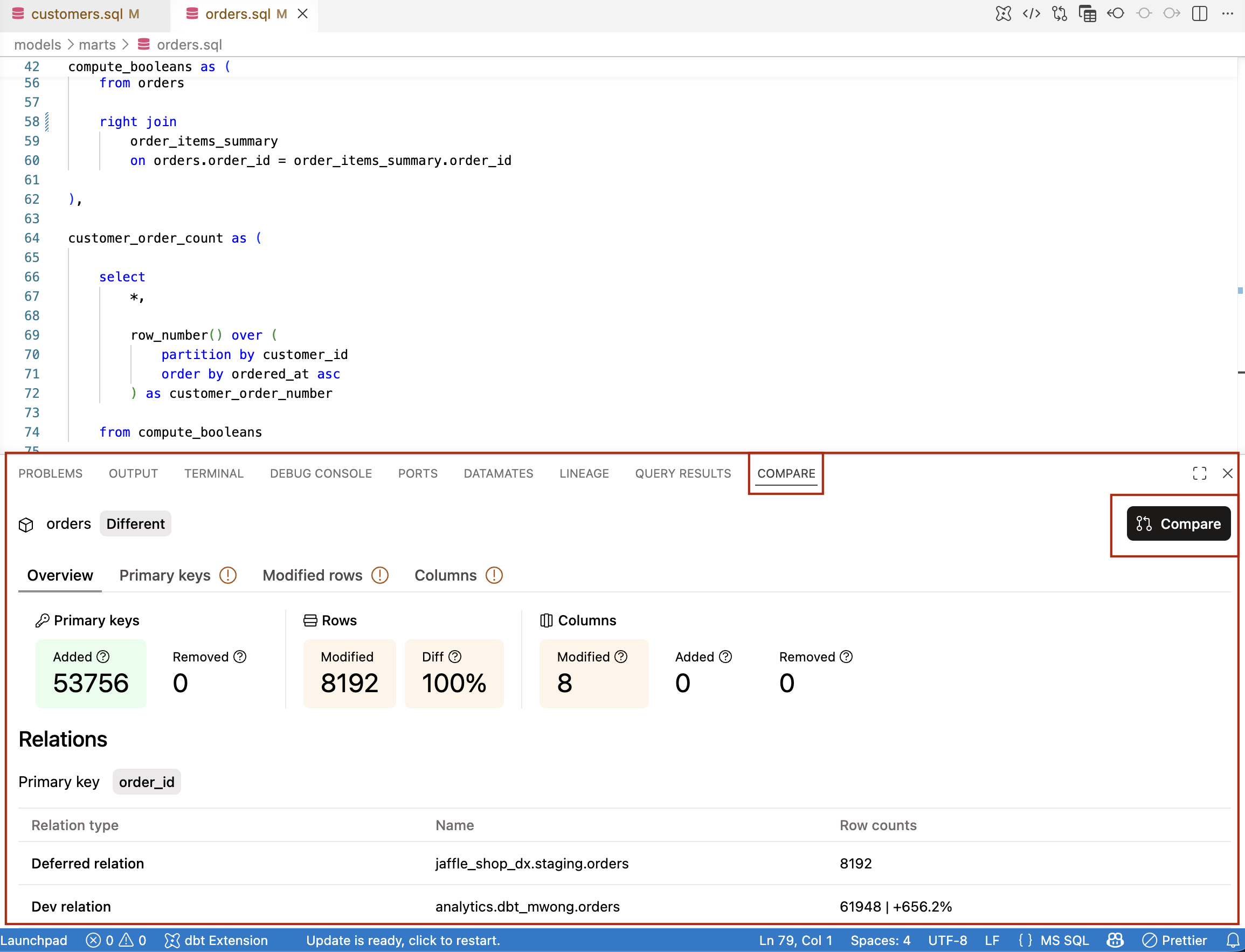 Make changes to a model and see the changes in the Compare tab
Prerequisites
To use the dbt VS Code extension compare changes feature, you need:
- A Fusion supported data platform (BigQuery, Databricks, Redshift, or Snowflake)
- The dbt VS Code extension installed with a self-hosted installation of the dbt Fusion engine
- A baseline state to compare your changes against — refer to How it works to choose between automatic deferral or
manifest.jsonmanual setup.
Sign-in and authentication
Compare changes is available to all dbt VS Code extension users during the 14-day trial. After the trial:
- If you use dbt platform deferral (recommended): Sign in or register for a free dbt platform account. You'll also need a
dbt_cloud.ymlfile in your local.dbtdirectory (~/.dbt/dbt_cloud.ymlon macOS/Linux) so the extension can fetch the deferred manifest from your environment. - If you set the baseline manually with a
manifest.json: No dbt platform account is required. Point the extension at a localmanifest.jsonand compare changes runs against it.
How it works
Compare changes in development works by comparing two materialized models in your warehouse. Specifically, it compares the model built in your dev schema (determined by your active profile) against the model referenced in your manifest.json (for example, your last production state). Both sides of the comparison are always warehouse tables; it does not compare SQL file contents.
The path you choose determines whether you need a dbt platform account:
- dbt platform deferral (recommended): Requires a dbt platform account and at least one successful job run in the environment you're deferring to (usually staging or production). Fusion auto-downloads the deferred manifest and uses it as your baseline state.
- Manual
statedirectory: Point the extension at a localmanifest.json(for example, copied from another environment). No dbt platform account is required; no job run is required.
Use compare changes
To use compare changes in development, follow these steps:
- Open a SQL model file in your editor.
- Make some changes to the model, like adding a new column or modifying an existing one (for example,
left_join_customerstoright_join_customers). - Run compare changes in the VS Code interface:
- Command palette: Open the VS Code command palette (Shift + Command + P (Mac) / Ctrl + Shift + P (Windows/Linux)) and search for the dbt: Compare changes
- Bottom panel: Click the Compare tab and then click the Compare button.
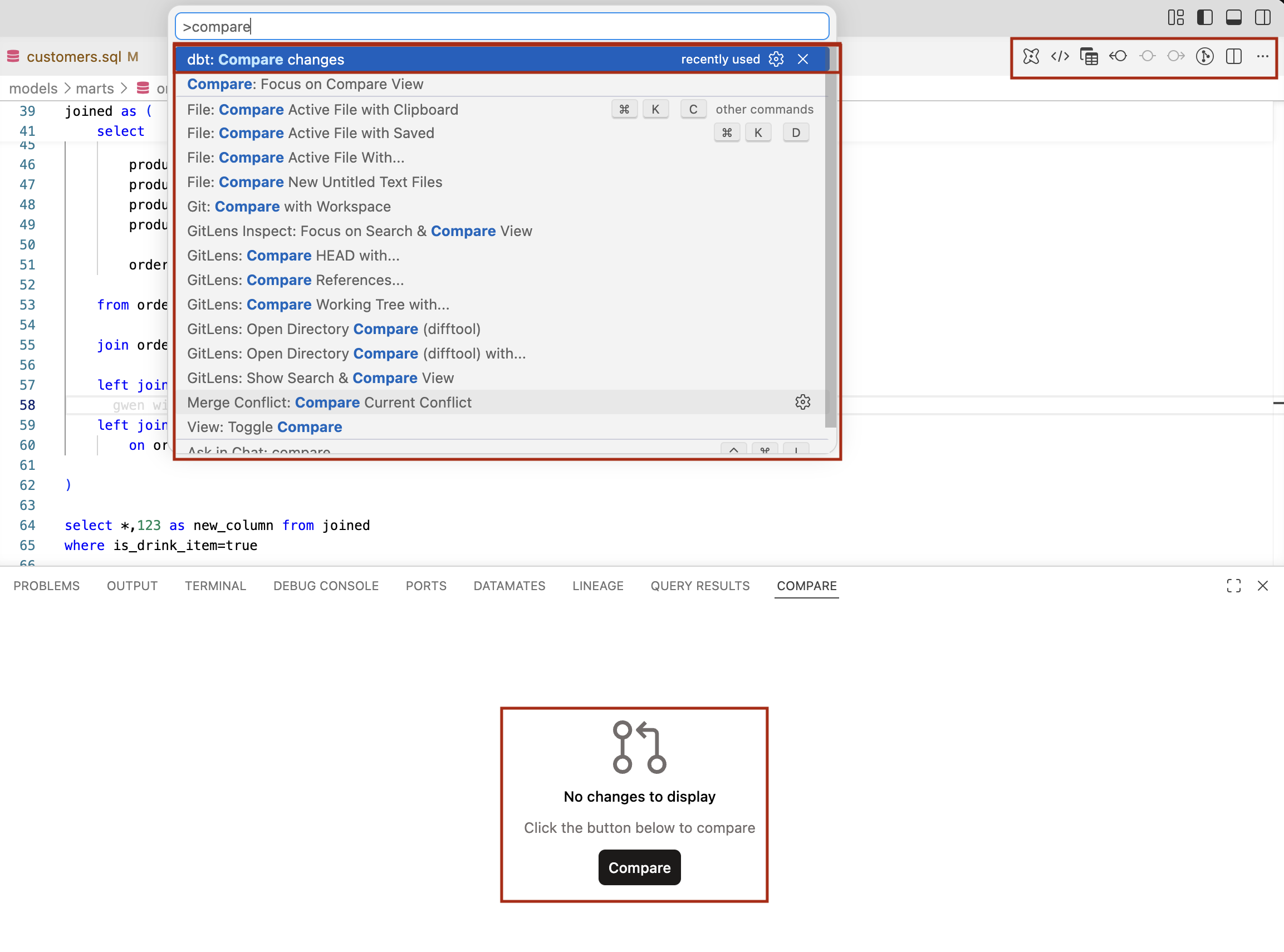 Compare changes in development
 - Once you click the Compare button, the extension will execute a
dbt buildcommand to build the model you're working on and then runs the comparison. The Compare tab displays the changes to the data's primary keys, rows, and columns. Clicking the tabs will display more details about the changes, like specific columns that were added or modified. - Once you've compared changes and see the changes in the Compare tab, you can then decide to commit your changes or continue editing.
Compare tab results
The Compare tab displays the changes to the data's primary keys, rows, and columns. Clicking the tabs will display more details about the changes, like specific columns that were added or modified.
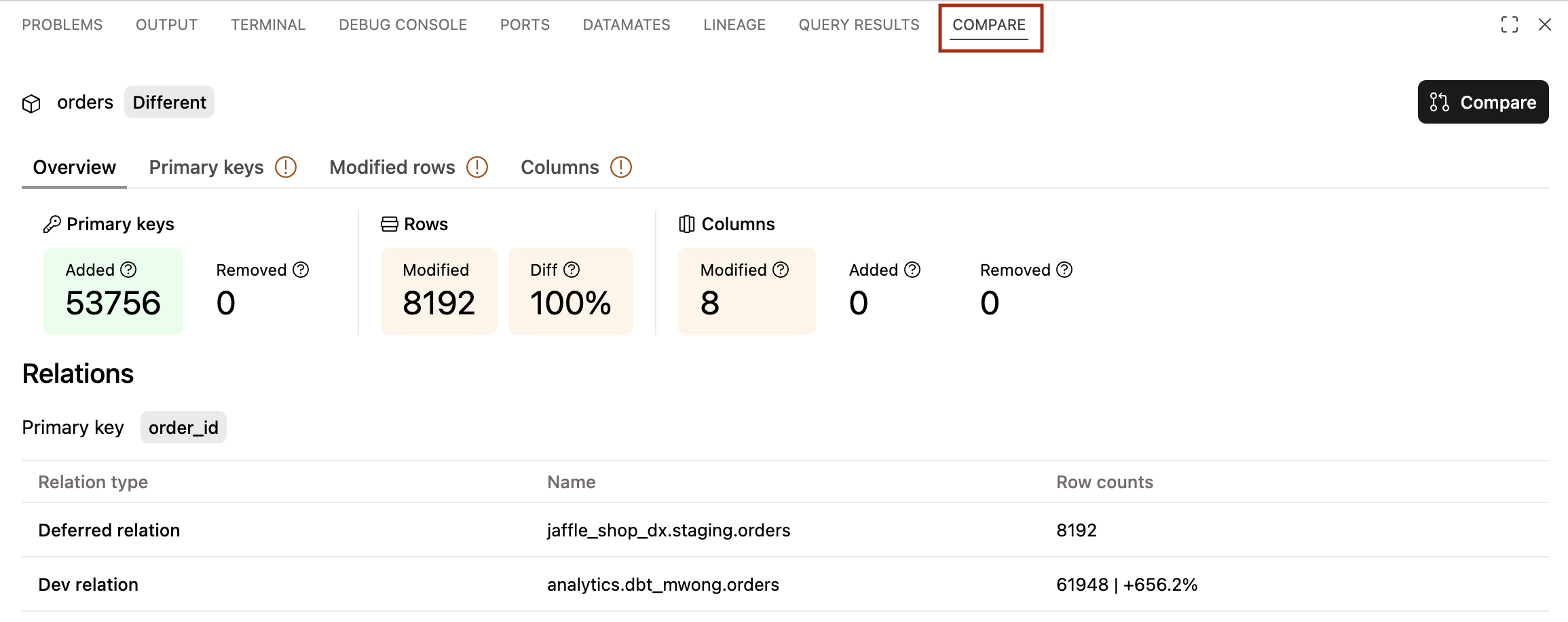 Example of the Compare tab
- Overview tab: High-level summary about the changes to the models, such as the number of primary keys that were added or removed, rows modified, and so on. It will also include the relation between models that were added or modified.
- Primary keys tab: Details about the changes to the records.
- Modified rows tab: Details about the modified rows.
- Columns tab: Details about the changes to the columns.
FAQs
Related docs
Was this page helpful?
This site is protected by reCAPTCHA and the Google Privacy Policy and Terms of Service apply.
