Build and view your docs with dbt
dbt enables you to generate documentation for your project and data platform. The documentation is automatically updated with new information after a fully successful job run, ensuring accuracy and relevance.
The default documentation experience in dbt is Catalog, available on Starter, Enterprise, or Enterprise+ plans. Use Catalog to view your project's resources (such as models, tests, and metrics) and their lineage to gain a better understanding of its latest production state.
Refer to documentation for more configuration details.
(Applies to dbt v2.0 and later)To build a self-hosted static documentation site, use dbt Docs v2 locally. dbt Docs v2 isn't available in the dbt platform.
Set up a documentation job
(Applies to dbt v2.0 and later)Catalog uses the metadata from each job run in your production or staging environment. Jobs running v2 generate this metadata automatically on every job run, so you don't need a separate documentation job, a dbt docs generate step, or a docs checkbox.
To keep Catalog up to date:
- In the top left, click Deploy and select Jobs.
- Create a new job or select an existing job in a production or staging environment and click Settings.
- Under Execution settings, add the commands you want to run, such as
dbt build, and click Save. - After the job runs, click Catalog in the navigation to explore your project.
If you add dbt docs generate as a run step, dbt runs dbt compile --write-catalog instead and displays a banner directing you to Catalog. For more info, refer to platform behavior.
To refresh Catalog metadata without building models, add dbt compile --write-catalog in the Commands section.
View your project documentation
Catalog is where you view your project's documentation in the dbt platform. It always shows your project's latest production state, so there's nothing to deploy or host. In Catalog, you can:
- Search and filter your project's resources, such as models, sources, and metrics.
- Explore the lineage graph to see how your resources connect.
- Open a resource's details to see its description, columns, tests, and recent run results.
To open it, click Catalog in the navigation. To explore a model in the lineage graph, select your project in the left sidebar, click View lineage, and then click a model to view its description.
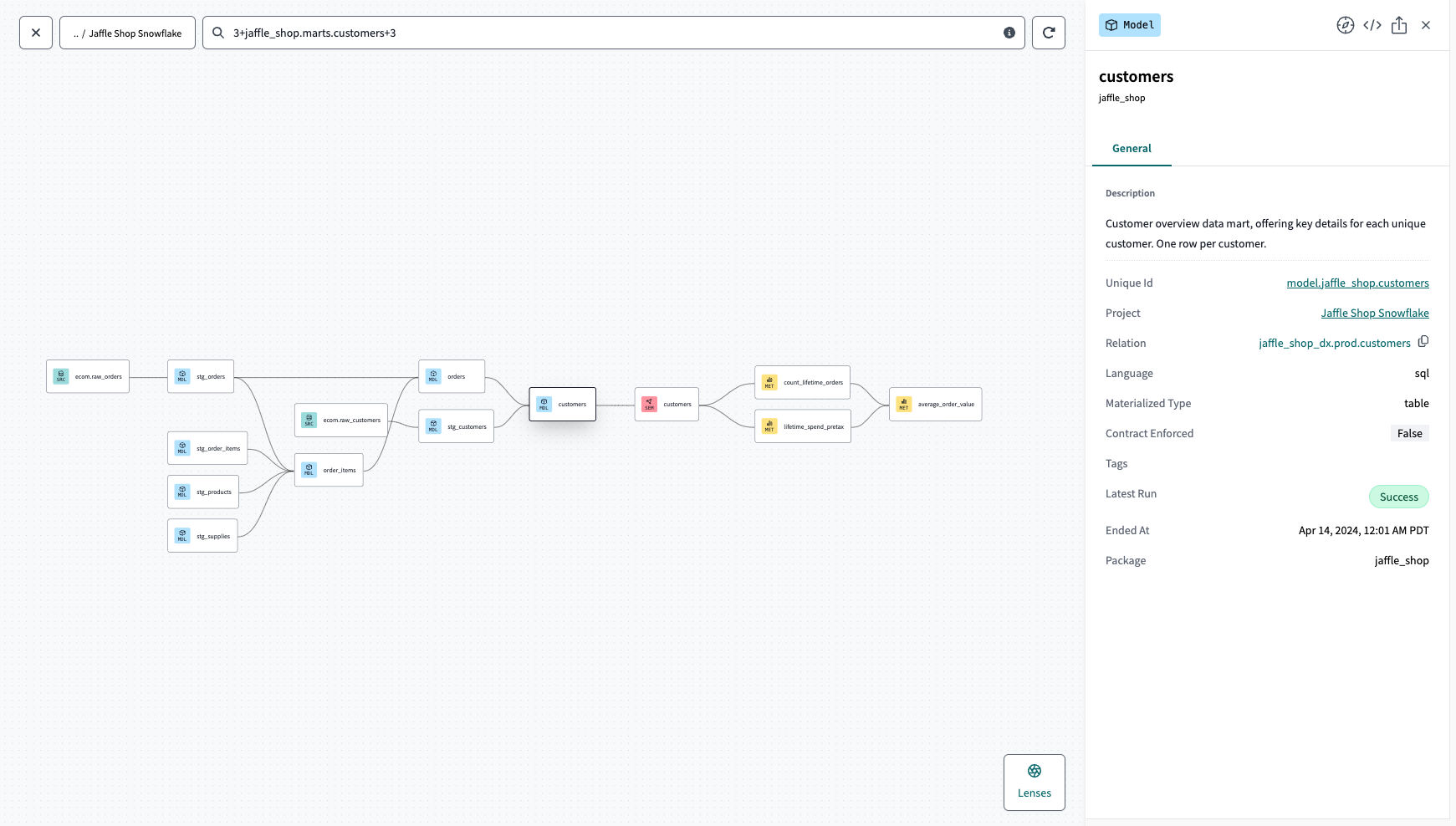 Example of the full lineage graph in Catalog
Catalog is available to Developer and read-only users. To share your project with stakeholders who don't develop in dbt, give all your applicable users read-only access to Catalog without restrictions.
Related docs
Was this page helpful?
This site is protected by reCAPTCHA and the Google Privacy Policy and Terms of Service apply.