dbt job notifications for Slack
Get job run updates from dbt platform in Slack. Choose which jobs to follow and send alerts to the public channels where your team works. Alerts show what happened and link to the run in dbt.
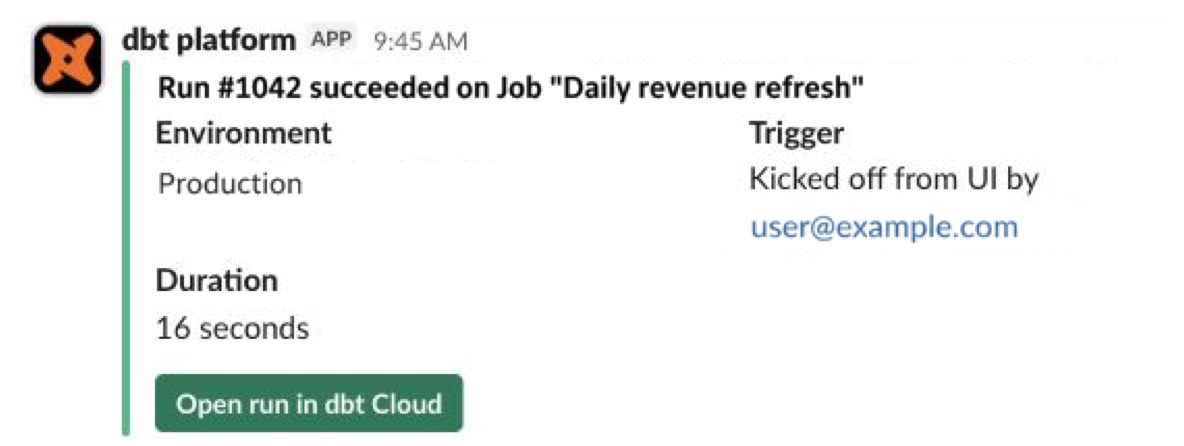 The dbt platform app reports a successful daily revenue refresh in Slack and links to the job run.
Connect your Slack workspace
You need a dbt platform account and a Slack workspace that allows app installation. A dbt account admin connects the workspace. Your workspace may also require approval from a Slack admin.
- Sign in to your dbt platform account.
- Open Account settings and select Integrations.
- In the OAuth section, select Link next to Slack.
- In Slack, select your workspace, review the permissions, and select Allow.
- When you return to Integrations, confirm that Slack shows your workspace name.
If your account already uses the legacy Slack integration, confirm that your Slack admin can approve the app before following the migration steps.
Choose where alerts go
- In dbt, open your profile menu and select Notification settings, then Slack notifications.
- Select a public Notification channel and the Environment you want to monitor.
- Select Edit. For each job you want to follow, choose Succeeds, Warns, Fails, or Is canceled to set which outcomes send alerts.
- Select Save.
When a job reaches an outcome you selected, the dbt platform app posts to your channel. Open the run from the notification to see the results in dbt.
Support and privacy
For more details, see account-level Slack notifications. If you need help, contact dbt Support.
See the Fivetran Privacy Notice for information about how Fivetran handles personal data.
Was this page helpful?
This site is protected by reCAPTCHA and the Google Privacy Policy and Terms of Service apply.
