Hybrid setup
Set up Hybrid projects to upload dbt v1 artifacts into dbt for better collaboration and visibility.
Hybrid projects is available in public preview to dbt Enterprise accounts.
Set up Hybrid projects
In a hybrid project, you use dbt v1 locally and can upload artifacts of that dbt v1 project to dbt for central visibility, cross-project referencing, and easier collaboration.
This setup requires connecting your dbt v1 project to a dbt project and configuring a few environment variables and access settings.
Follow these steps to set up a dbt Hybrid project and upload dbt v1 artifacts into dbt:
- Make dbt models public (optional)
- Create hybrid project
- Generate service token and artifact upload values
- Configure dbt v1 project and upload artifacts
- Review artifacts in dbt
Make sure to enable the hybrid projects toggle in dbt’s Account settings page.
Make dbt models public (optional)
This step is optional and only needed if you want to share your dbt v1 models with other dbt projects using the cross-project referencing feature.
Before connecting your dbt v1 project to a dbt project, make sure models that you want to share have access: public in their model configuration. This setting makes those models visible to other dbt projects for better collaboration, such as cross-project referencing.
-
The easiest way to set this would be in your
dbt_project.ymlfile, however you can also set this in the following places:dbt_project.yml(project-level)properties.yml(for individual models)- A model's
.sqlfile using aconfigblock
Here's an example using a
dbt_project.ymlfile where the marts directory is set as public so they can be consumed by downstream tools:dbt_project.ymlmodels:
define_public_models: # This is my project name, remember it must be specified
marts:
+access: public -
After defining
access: public, rerun a dbt execution in the dbt v1 command line interface (CLI) (likedbt run) to apply the change. -
For more details on how to set this up, see access modifier and
accessconfig.
Create hybrid project
Create a hybrid project in dbt to allow you to upload your dbt v1 artifacts to dbt.
A dbt account admin should perform the following steps and share the artifacts information with a dbt v1 user:
- To create a new project in dbt, navigate to Account home.
- Click on +New project.
- Fill out the Project name. Name the project something that allows you to recognize it's a dbt v1 project.
- You don't need to set up a data warehouse or Git connection, however to upgrade the hybrid project to a full dbt project, you'd need to set up data warehouse and Git connection.
- Select the Advanced settings toggle and then select the Hybrid development checkbox. Click Continue.
- The hybrid project will have a visible Hybrid indicator in the project list to help you identify it.
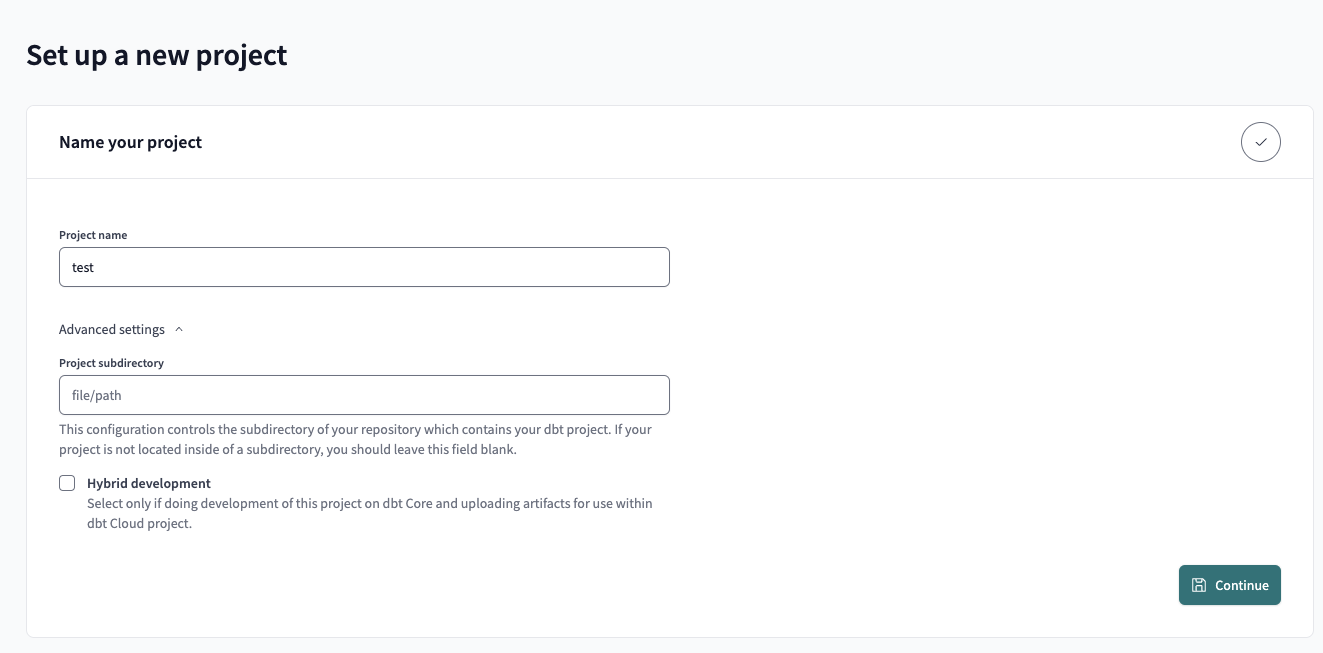 Hybrid project new project
- After creating a project, create a corresponding production environment and click Save. You will need to create a placeholder profile and assign it to the environment to save.
- (Optional) To update an existing dbt project to a hybrid project, navigate to Account settings and then select the Project. Click Edit and then check the Hybrid development checkbox.
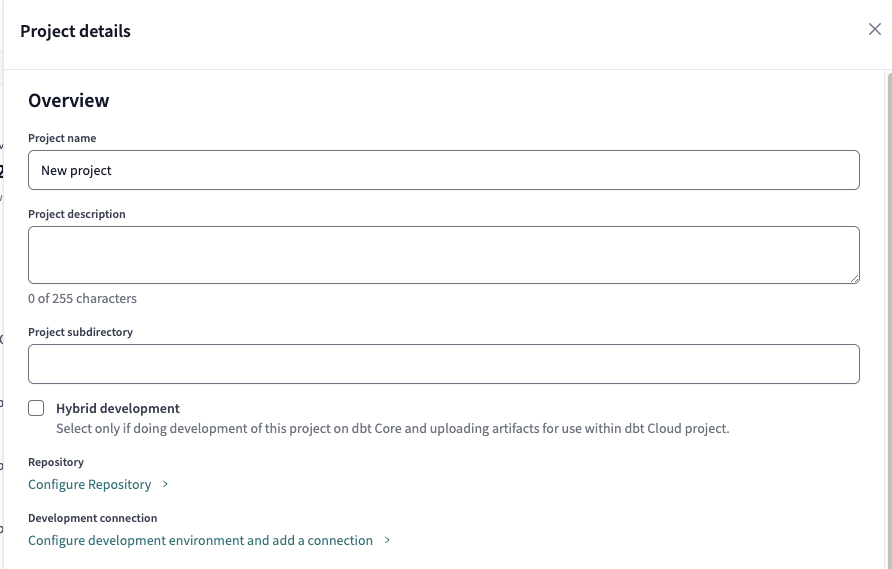 Hybrid project for an existing project
Generate service token and artifact upload values
A dbt admin should perform these steps to generate a service token (with both Job Runner and Job Viewer permissions) and copy the values needed to configure a dbt v1 project so it's ready to upload generated artifacts to dbt.
The dbt admin should share the values with a dbt v1 user.
- Go to the Hybrid project environment you created in the previous step by navigating to Deploy > Environments and selecting the environment.
- Select the Artifact upload button and copy the following values, which the dbt v1 user will need to reference in their dbt v1's
dbt_project.ymlconfiguration:- Tenant URL
- Account ID
- Environment ID
- Create a service token
- dbt creates a service token with both Job Runner and Job Viewer permissions.
- Note if you don't see the Create service token button, it's likely you don't have the necessary permissions to create a service token. Contact your dbt admin to either get the necessary permissions or create the service token for you.
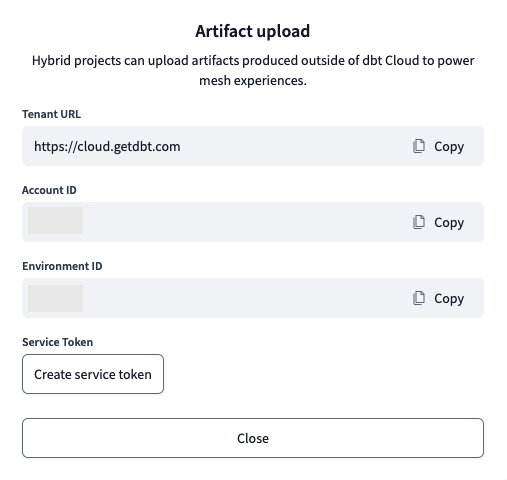 Generate hybrid project service token
- Make sure to copy and save the values as they're needed to configure your dbt v1 project in the next step. Once the service token is created, you can't access it again.
Configure dbt project and upload artifacts
Once you have the values from the previous step, you can prepare your dbt v1 project for artifact upload by following these steps:
-
Check your dbt version by running
dbt --versionand you should see the following:Core:
- installed: 1.11.0
- latest: 1.11.0 - Up to date! -
If you don't have the latest supported version, upgrade your dbt v1 project by running
python -m pip install --upgrade dbt-core. -
Set the following environment variables in your dbt v1 project by running the following commands in the CLI. Replace the
your_account_id,your_environment_id, andyour_tokenwith the actual values in the previous step.export DBT_CLOUD_ACCOUNT_ID=your_account_id
export DBT_CLOUD_ENVIRONMENT_ID=your_environment_id
export DBT_CLOUD_TOKEN=your_token
export DBT_ENGINE_UPLOAD_TO_ARTIFACTS_INGEST_API=True- Set the environment variables in whatever way you use them in your project.
- To unset an environment variable, run
unset environment_variable_name, replacingenvironment_variable_namewith the actual name of the environment variable.
-
In your local dbt v1 project, add the following items you copied in the previous section to the dbt v1's
dbt_project.ymlfile:tenant_hostname
name: "jaffle_shop"
version: "3.0.0"
require-dbt-version: ">=1.5.0"
....rest of dbt_project.yml configuration...

dbt-cloud:
tenant_hostname: cloud.getdbt.com # Replace with your Tenant URL -
Once you set the environment variables using the
exportcommand in the same dbt CLI session, you can execute adbt runin the CLI.dbt runTo override the environment variables set, execute a
dbt runwith the environment variable prefix. For example, to use a different account ID and environment ID:DBT_CLOUD_ACCOUNT_ID=1 DBT_CLOUD_ENVIRONMENT_ID=123 dbt run -
After the run completes, you should see a
Artifacts uploaded successfully to artifact ingestion API: command run completed successfullymessage and a run in dbt under your production environment.
Review artifacts in the dbt platform
Now that you've uploaded dbt v1 artifacts into the dbt platform and executed a dbt run, you can view the artifacts job run:
- Navigate to Deploy
- Click on Jobs and then the Runs tab.
- You should see a job run with the status Success with a
</> Artifact ingestionindicator. - Click on the job run to review the logs to confirm a successfully artifacts upload message. If there are any errors, resolve them by checking out the debug logs.
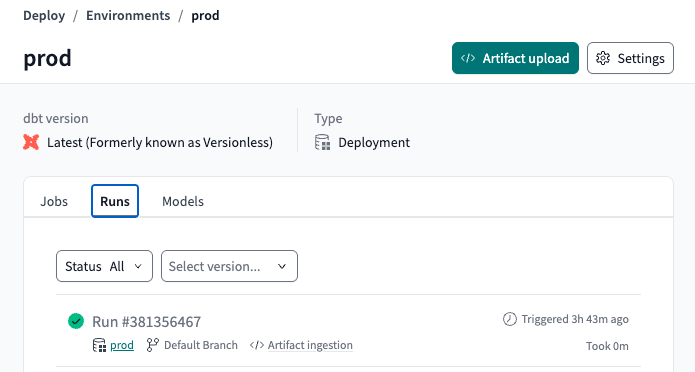 Hybrid project job run with artifact ingestion
Benefits of using Hybrid projects
Now that you've integrated dbt v1 artifacts with your dbt project, you can now:
- Collaborate with dbt users by enabling them to visualize and perform cross-project references to dbt models that live in dbt v1 projects.
- (Coming soon) New users interested in the Canvas can build off of dbt models already created by a central data team in dbt v1 rather than having to start from scratch.
- dbt v1 users can navigate to Catalog and view their models and assets. To view Catalog, you must have a read-only seat.
Was this page helpful?
This site is protected by reCAPTCHA and the Google Privacy Policy and Terms of Service apply.