Wizard Desktop settings Private beta
Open Settings from the bottom left of the app to change how dbt Wizard behaves. Settings are grouped into General, Account, AI providers, Connectors, Appearance, Shortcuts, and version control.
Settings that also exist in the Wizard CLI are shared. Changing them here changes them for wizard in your terminal too. Refer to the config reference for the underlying files.
Wizard Desktop is in private beta. Sign up to get an invite, and dbt Labs emails you the download page to get started!
Available on macOS, Linux, or Windows.
General
Controls what appears alongside a chat while you work.
| Setting | What it does |
|---|---|
| Replay onboarding | Walks you through first-run setup again. Your existing theme and project settings are kept unless you change them during setup. |
| Application updates | Shows the version you're on, checks for new versions, and installs them. |
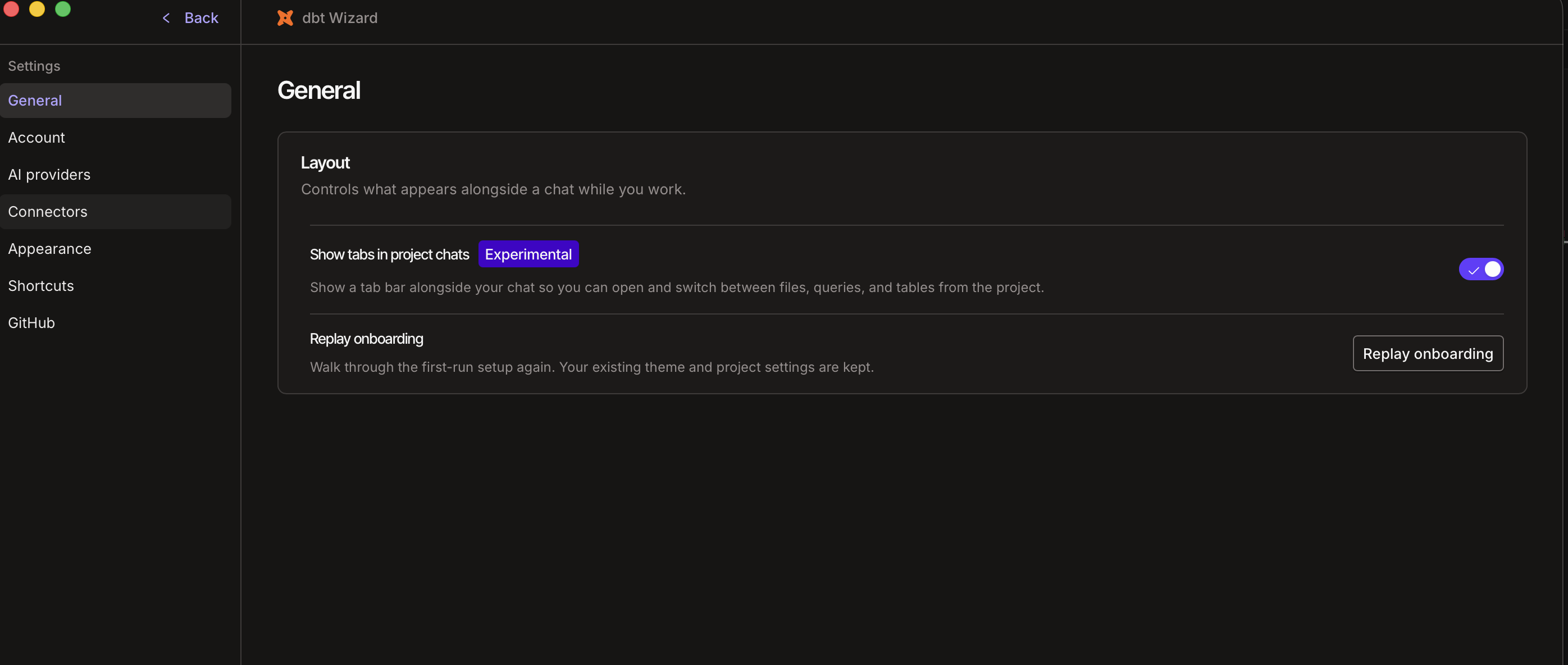 General settings in Wizard Desktop
Account
Shows the dbt accounts dbt Wizard uses for hosted models and platform access, and gives you the tools to clean up what the app has written to disk.
-
Connected dbt accounts lists each dbt platform account you've connected, with the platform account hostname, such as
abc123.us1.dbt.com. Connect more than one account by clicking on +Add account and switch between them without signing in again. Each account has its own Sign out. To pick which account powers AI models, go to AI providers. -
Maintenance reclaims disk space or returns dbt Wizard to a clean state. This will affect the Wizard CLI too:
Action What it does Clean up environments Deletes archived environment directories from disk. The pane tells you whether any are there to remove Clean up app data Drops orphaned records, and shows what the app is tracking, such as 4 environments, 1 project, 4 journal rowsReset app Permanently deletes your environments, projects, and chat history, plus cached files. It doesn't clear your configuration file at $DBT_WIZARD_HOME, which defaults to~/.dbt/wizard/config.toml
When you select Reset app, it can't be undone which means chat history goes with it when you delete it. Make sure you export or open a pull request for any work you want to keep first before taking this action.
AI providers
Choose how dbt Wizard reaches a model. Come here if you selected Skip for now during onboarding, or to switch approaches later. Select Refresh to re-check which providers and models are available. If you've connected more than one dbt platform account, choose which one powers AI models here by clicking Configure.
| Option | What it means |
|---|---|
| Managed by dbt Labs | No setup. dbt Labs manages the keys and keeps you on the latest models, and usage is metered against your dbt usage credits. The dbt provider shows as Active when it's in use |
| Managed by you | Bring your own key for Amazon Bedrock, Anthropic, Azure OpenAI, Databricks, Google Gemini, OpenAI, or an OpenAI subscription, and more. That provider's API charges apply. Refer to BYOK |
Each provider lists how many of its models are enabled, such as 6/6 models enabled. Select Manage to add credentials and turn individual models on or off. You then pick the model and reasoning effort per chat from the chat composer, not here.
Connectors
MCP connectors give dbt Wizard context about your pipelines, BI tools, and orchestration.
If your project is connected to dbt platform, dbt Wizard connects to the remote dbt MCP server by default and asks you to sign in with OAuth. This adds platform tools like job management, run status, and run errors. Use the toggle on this pane to turn it on or off for each dbt account.
The remote dbt MCP server is available to dbt platform users only. dbt Wizard still uses its local dbt Information Schema for project metadata.
Browsing and enabling other connectors from this pane is planned for future releases. Until then, add MCP servers from the terminal:
- Start a project chat and send your first message, which starts the terminal.
- Run
wizardfrom the terminal. - Run
/mcpto add a connector or manage the ones you've already added.
Appearance
Sets how the app looks and how much detail inline widgets show.
| Setting | What it does |
|---|---|
| Theme | Switches between Light, Dark, and System. Same choice you made during onboarding. Cycle it with ⌘ + ⌥ + T |
| Transcript density | Controls how much tool activity shows in chat. Choose Verbose to see everything, Focused to see the least, or Balanced for somewhere in between. Back-to-back tool calls collapse into one card, and you can fine-tune what shows per category |
| Inspector rail labels | Shows the surface names beneath the pane rail icons, so you get Explorer and Lineage as text rather than icons alone |
| Terminal font family | The font the integrated terminals use. Enter the name exactly as it's installed, for example FiraCode Nerd Font. Your preferred family is used first, with Geist Mono, monospace as the fallback |
| Terminal font size | A whole number from 8 to 32 |
Shortcuts
Lists the app's keyboard shortcuts, grouped by what they act on.
| Shortcut | What it does |
|---|---|
| ⌘ + , | Open Settings |
| ⌘ + K | Open the command palette |
| ⌘ + / | Show the keyboard shortcuts |
| ⌘ + L | Focus the chat |
| Esc | Close an overlay, or go back to the app |
| ⌘ + T | Open a new chat |
| ⌘ + ⇧ + \ | Toggle the right sidebar |
| ⌘ + ⌥ + T | Cycle the theme |
Version control
Only GitHub is supported at this time. Support for more version control providers coming soon.
Set how dbt Wizard authenticates with GitHub to read repos and open pull requests with Create PR. Refer to Review and validate changes.
| Method | When to use it |
|---|---|
| GitHub CLI integration | The default. When the GitHub CLI is installed and authenticated, the pane shows a green status dot and the account you're signed in as |
| Personal access token | Optional, and used when the GitHub CLI isn't available. Select Create one to generate a token on GitHub, paste it in, then select Save |
Related docs
- Get started with Wizard Desktop
- Use Wizard Desktop
- dbt Wizard config reference
- Configure BYOK
- Use MCP servers
Want to see dbt Wizard in action? Check out the demo video.
We'd love to hear how dbt Wizard is working for you. Share your feedback by either running the /feedback slash command in your interactive terminal session or by going to the #dbt-wizard channel in the dbt Community Slack.
Thanks so much for your help in improving dbt Wizard and dbt data development!
Was this page helpful?
This site is protected by reCAPTCHA and the Google Privacy Policy and Terms of Service apply.