Configure BYOK in Wizard Desktop Beta
Bring your own key (BYOK) means you use credentials from your own AI provider instead of dbt Labs-managed models. Add them in dbt Wizard Desktop under Settings → AI providers.
With BYOK, dbt Wizard calls your provider directly, so usage costs show up on your provider account, not your dbt account.
Using the CLI or dbt platform instead? Refer to Configure BYOK for the CLI or Configure BYOK in dbt platform.
Add a provider
- Open Settings (⌘ + ,) and select AI providers.
- Under Managed by you, find your provider and select Configure.
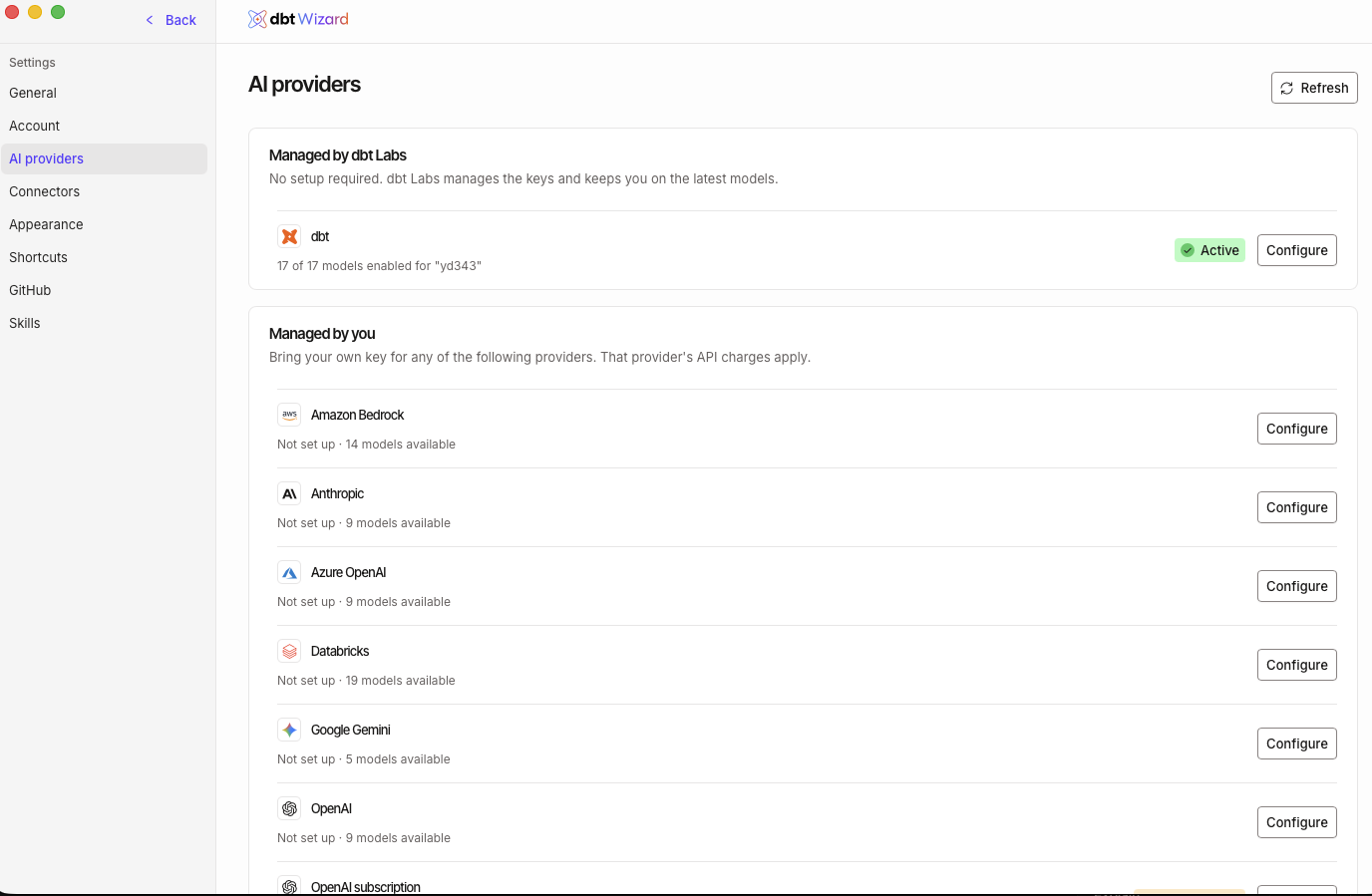 AI providers settings in Wizard Desktop
- Select the models you want to use or select Use provider defaults (if available) to use the recommended selection.
- Fill in the fields shown for your provider. The app explains each one as you go.
- Select Save.
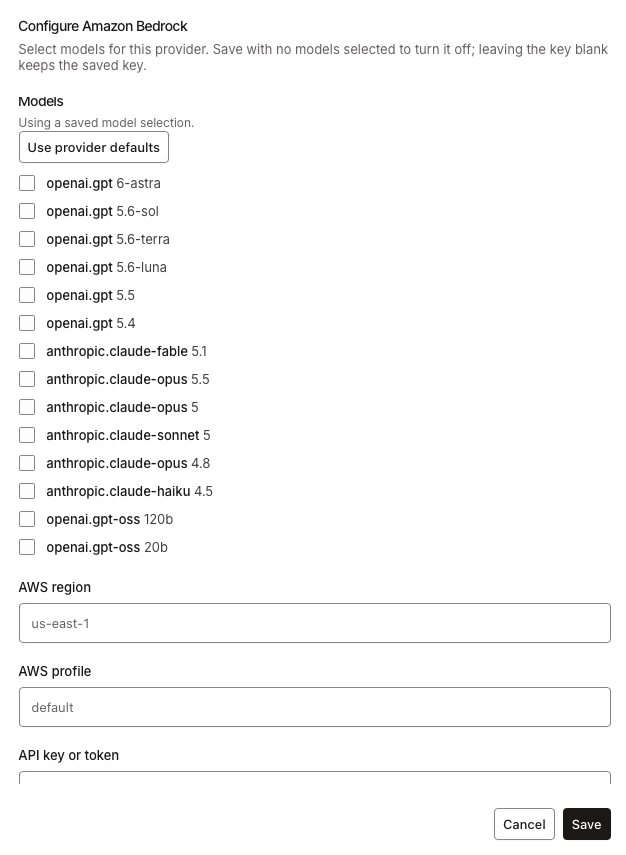 Configure a provider, using Amazon Bedrock as an example
Each provider shows whether it's set up and how many models are available. You can click Refresh if a provider or model you expect isn't listed.
You can pick the model and reasoning effort for each chat from the chat composer.
Supported providers
dbt Wizard supports managed models (billed by dbt Labs, no key to manage) and bring-your-own-key (BYOK) models (billed directly by your provider).
Here are the following AI providers supported depending on where you work. Refer to Model Provider Rate table for the full list of available models.
- dbt platform
- Locally (Desktop and CLI)
| Provider | Access |
|---|---|
| OpenAI (default) | dbt managed or BYOK |
| Anthropic† | dbt managed or BYOK |
| Open weight models (like DeepSeek, Kimi, and so on). | dbt managed |
| Azure AI Foundry / Azure OpenAI | BYOK |
Wizard Desktop and the Wizard CLI share the same providers and config.
| Provider | Access |
|---|---|
| OpenAI | dbt managed or BYOK |
| Anthropic† | dbt managed or BYOK |
| Open weight models (like DeepSeek, Kimi, and so on). | dbt managed |
| Azure AI Foundry / Azure OpenAI | BYOK |
| AWS Bedrock | BYOK |
| Google Gemini | BYOK |
| Snowflake Cortex | BYOK |
| Databricks Unity AI Gateway | BYOK |
You can also connect a personal OpenAI ChatGPT subscription instead of a key.
†Anthropic enterprise and subscription licenses (such as Claude Enterprise) aren't supported per Anthropic's terms of service.
Update or turn off a provider
You can update or disable a provider directly in Wizard Desktop's Settings → AI providers page:
- To update credentials: Select Configure, enter the new key, and select Save. Leave the key blank to keep the saved one.
- To turn a provider off: Select Configure, clear every model, and select Save.
Switch the dbt account for managed models
Under Managed by dbt Labs, select Configure on the dbt provider to:
- Choose which dbt account dbt Wizard uses for hosted models and billing. This doesn't change which accounts dbt Wizard can import projects from.
- Turn individual dbt-managed models on or off.
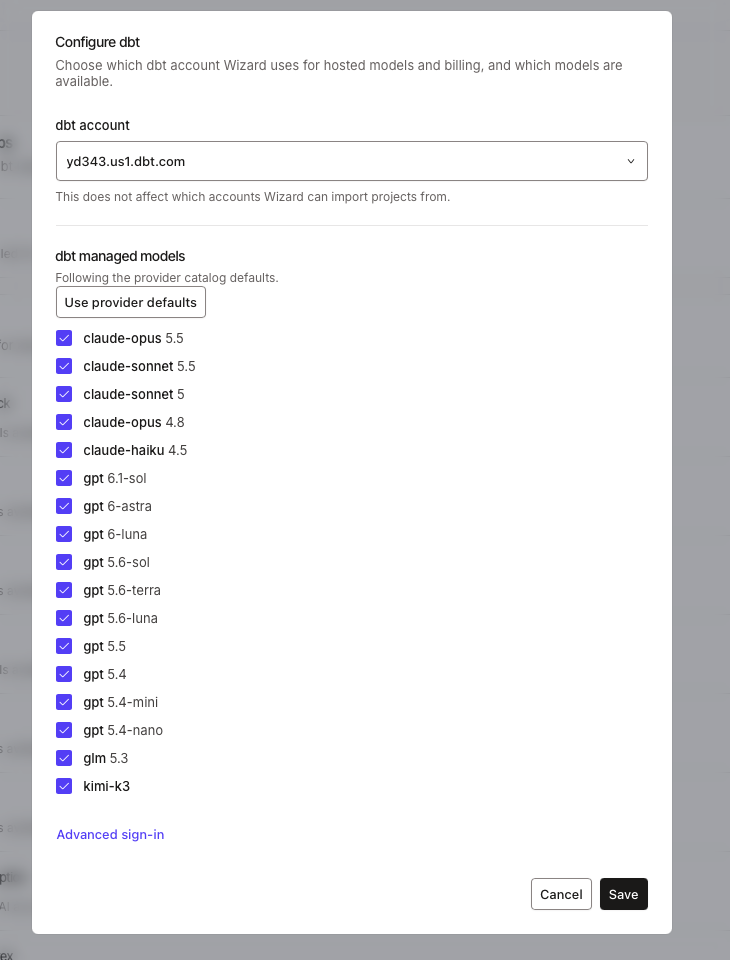 Configure dbt-managed models and the dbt account
Related docs
- Wizard Desktop settings
- Get started with Wizard Desktop
- Configure BYOK for the CLI
- dbt Labs-managed providers and billing
Want to see dbt Wizard in action? Check out the demo video.
We'd love to hear how dbt Wizard is working for you. Share your feedback by either running the /feedback slash command in your interactive terminal session or by going to the #dbt-wizard channel in the dbt Community Slack.
Thanks so much for your help in improving dbt Wizard and dbt data development!
Was this page helpful?
This site is protected by reCAPTCHA and the Google Privacy Policy and Terms of Service apply.
