Trial and billing
Start a dbt Wizard trial, set a spend limit, and manage paid access for both the dbt platform and local CLI.
This page covers how to get dbt Wizard access and pay for it. For the models dbt Wizard can use and how tokens and credits work, refer to Models and pricing.
Billing and spend controls are shared across the dbt platform and local CLI. Both surfaces draw from the same account-level balance.
Prerequisites
- Account admin or billing admin permissions to start a trial or change a spend limit.
- A dbt account to manage usage, billing, spend limits, and more.
- If you don't have one, you can create one during setup. No paid dbt platform plan required. This is generally useful for users on self-hosted dbt running the CLI.
- A business email address. Personal domains such as Gmail aren't eligible for a trial.
What you get by plan
Every new account gets free dbt Wizard usage credits to start. What you get, and how you keep going, depends on your plan.
| Plan | What you get | How it renews | When it runs out |
|---|---|---|---|
| Developer and Starter, or self-hosted dbt with a free dbt account | 30-day trial with $100 in usage credits per account | One-time | Add a credit card and set a monthly spend limit or contact your account team. |
| Enterprise, including legacy Enterprise | $100/month in usage credits per account | Resets each billing month | Contact your account team to add committed spend |
| Enterprise+ | $200/month in usage credits per account | Resets each billing month | Contact your account team to add committed spend |
| Legacy Team | No access to dbt Wizard | — | Move to a Starter, Enterprise, or Enterprise+ plan |
- On Developer and Starter plans, the trial is opt-in, so it won't start automatically. It ends when you use up the $100 in credits or after 30 days, whichever comes first, and unused credits don't carry over.
- Legacy Enterprise plans get the same dbt Wizard access and monthly usage credits as current Enterprise. Only legacy Team has no access.
- Enterprise and Enterprise+ usage credits are granted automatically — there's no trial to start and no credit card required. Credits don't roll over or get prorated, and if you downgrade out of Enterprise or Enterprise+, any unused credits are removed at the plan change.
- Enterprise and Enterprise+ accounts should add a committed spend amount to their contract to keep using dbt Wizard. You may lose access to dbt Wizard without this commit in place. If you've set an optional monthly dbt Wizard spend limit, that still applies and pauses usage once reached.
- If you bring your own key (BYOK), you don't need a dbt account or a trial. Your AI provider bills you directly.
The trial is opt-in here too. In the CLI, running dbt login (or wizard login) is how you opt in. In Wizard Desktop, signing in to a dbt acount during onboarding does the same. Either way, you get a free dbt account and the same 30-day trial, and that account is where you manage usage and spend limits.
Everything on this page describes dbt managed billing — usage that dbt Labs bills through your dbt account. If you bring your own key, your AI provider bills you directly and none of this applies. Refer to BYOK for dbt platform or BYOK for the CLI instead.
Start your trial
Start your trial from anywhere in the dbt platform or from the dbt Wizard CLI. Note, Enterprise-tiered plans automatically have a spend limit set
- dbt platform
- Wizard CLI
Start from Billing & Usage, or from the dbt Wizard prompt in Studio IDE or the home tab as they all take you to the same flow.
- Click your account name, then select Account settings. (Or click on any button that says "Start trial" to start your Wizard trial.)
- Under Settings, click Billing & Usage.
- On the Overview tab, find the dbt Wizard card and click Start trial.
No credit card is required. Your 30-day trial with $100 in usage credits starts right away. The $100 is per account and shared by everyone on it, and you can track how much you've used anytime in Billing & Usage.
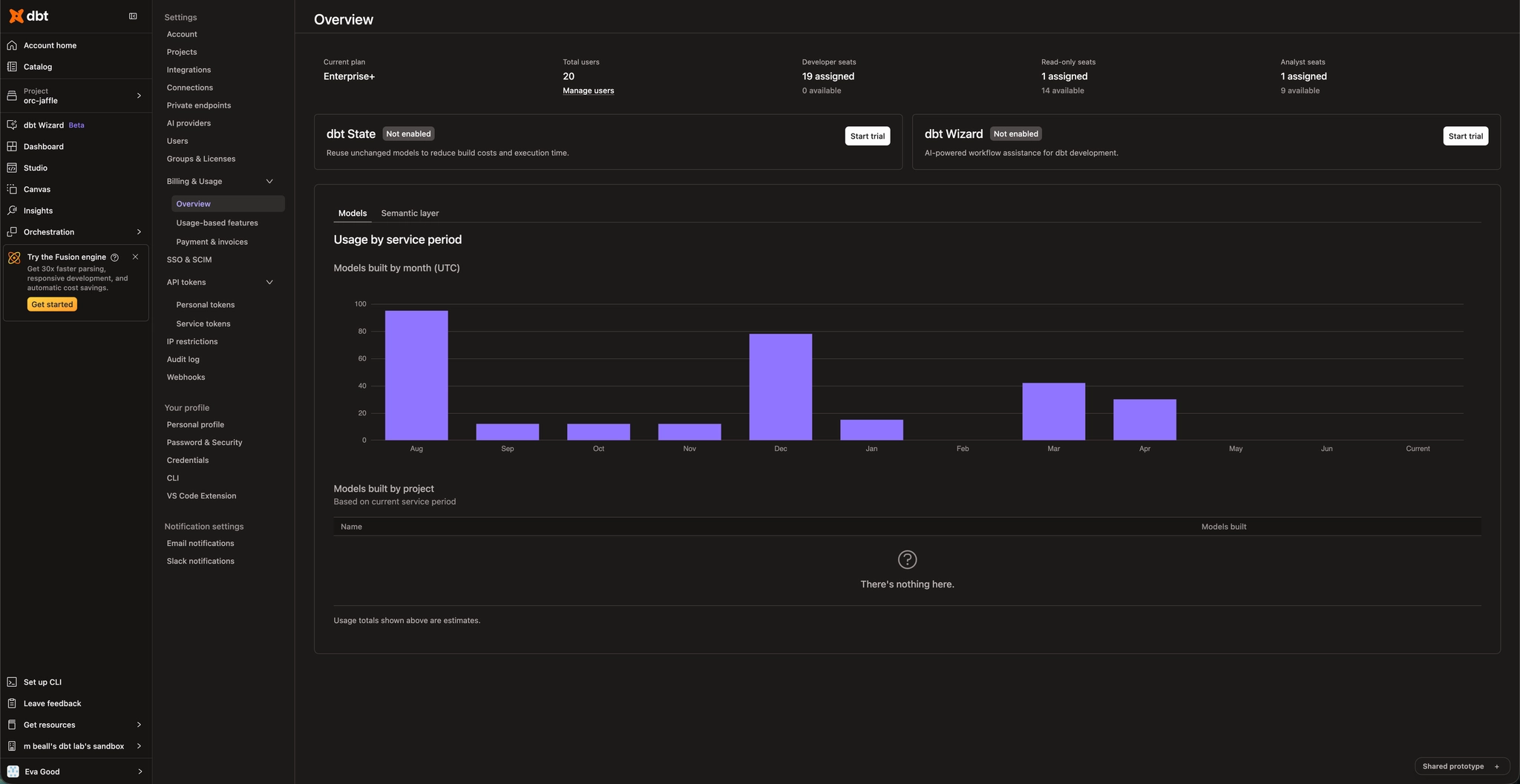 The Billing & Usage Overview page, showing dbt State and dbt Wizard cards with Start trial buttons, plus a usage-by-month chart
There's no Start trial button in the CLI. Logging in is what starts your trial — one command creates your free dbt account, if you don't have one, and provisions the 30-day trial with $100 in usage credits for your account at the same time. The $100 is per account, not per user, so it's shared with anyone else on your account.
-
Run
dbt loginand complete the browser sign-in, or create a new account to manage your dbt Wizard spend limits:dbt login -
Run
wizardin your project and choose dbt-managed when onboarding asks how AI usage is billed. You don't need an AI provider key.
You don't need a paid dbt platform plan, so this path is the same whether you're on a dbt platform plan or running against a self-hosted dbt project. Refer to Use dbt Wizard locally for the full onboarding walkthrough.
Set up paid usage
What you do next depends on your plan.
Developer, Starter, or self hosted
- Go to Billing & Usage > Usage-based features.
- Click Set up billing.
- Add a credit card and fill in your payment details. Click Save card.
- Complete your setup to choose a preset monthly spend limit, or set your own with the Custom option.
- Optionally, turn on automatic increases for when you're close to your limit.
- Click Continue.
- Review and confirm your spend limit. Click Activate dbt Wizard to start your billing. You won't be charged today and will be billed monthly for actual usage, up to the limit you set. Usage then pauses if you reach that limit.
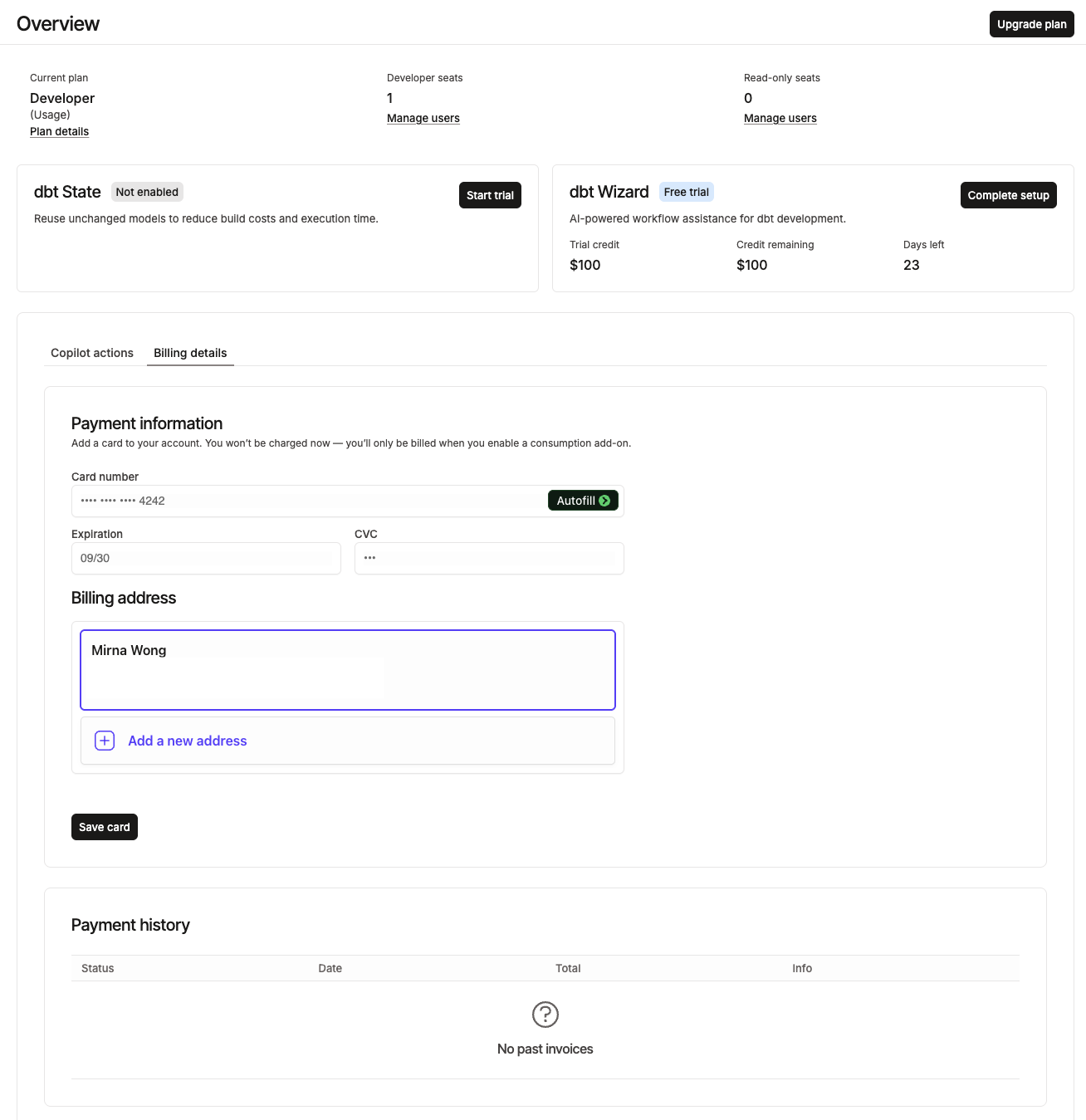 The Add billing page, showing a credit card form and a complete billing setup flow
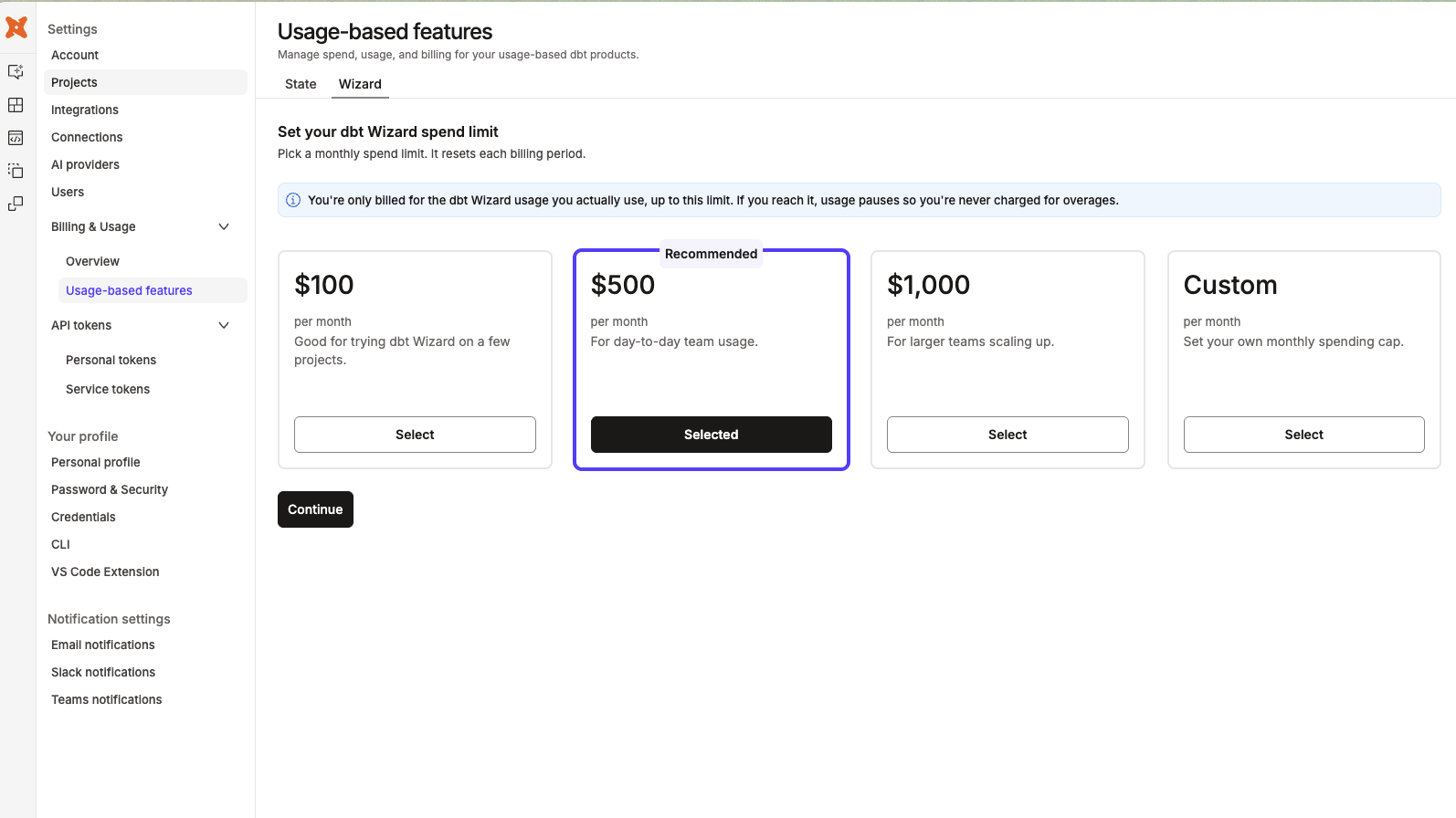 The Set your dbt Wizard spend limit page, showing pre-set monthly options, a Custom option, and an auto-raise toggle
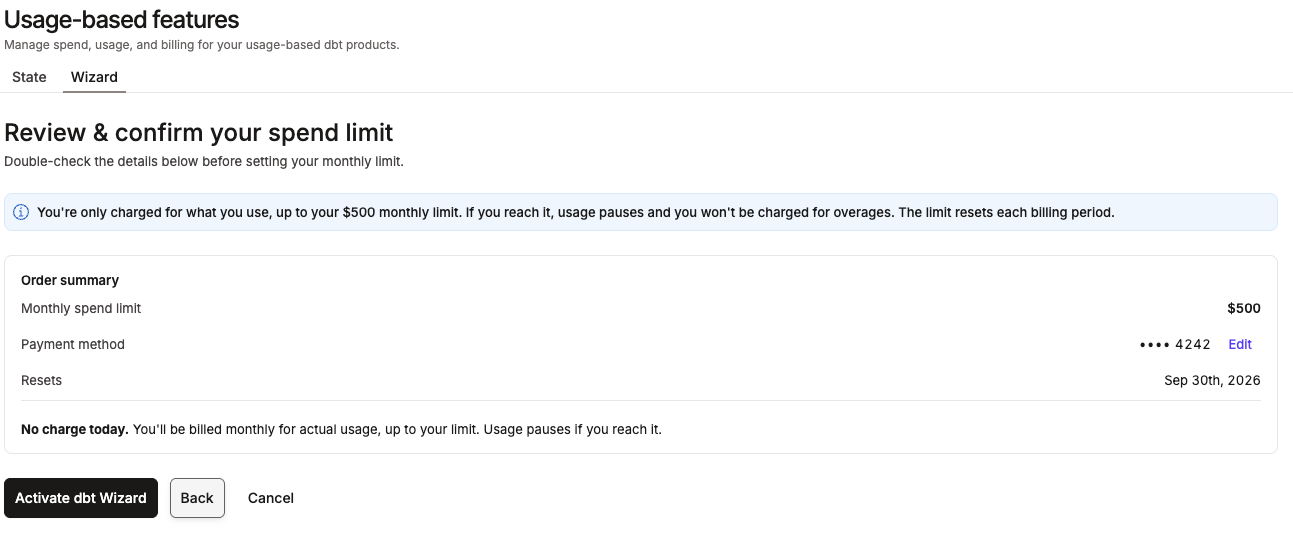 The Activate dbt Wizard page where you can review and confirm your spend limit and a button to activate dbt Wizard
Enterprise and Enterprise+ plans
There's no trial to start and no self-serve credit card flow. Your monthly usage credits — $100/month on Enterprise and $200/month on Enterprise+ — are granted automatically per account, not per user, and shared by everyone on the account. Contact your account team to set up or adjust committed spend.
Enterprise and Enterprise+ accounts should add a committed spend amount to their contract to keep using dbt Wizard. You may lose access to dbt Wizard without this commit in place. If you've set an optional monthly dbt Wizard spend limit, that still applies and pauses usage once reached.
Manage your spend limit
Your spend limit caps how much dbt managed dbt Wizard usage your account can consume in a billing period, across both the dbt platform and local development.
- You only pay for actual usage, up to the limit you choose. The limit is a cap, not a prepaid charge.
- If you reach your limit, dbt Wizard usage pauses until you raise it or the next billing cycle starts. This applies on every plan, including Enterprise-tiered plans that set the optional limit. Enterprise-tiered accounts that don't have a committed spend amount will be prompted to connect with their account rep about adding a spend amount.
- Limits are set separately for dbt Wizard and dbt State, but both draw from your account's overall usage-based spend.
To view or update your limit, go to Billing & Usage > Usage-based features > Wizard. Enterprise-tiered plans can contact their account team to adjust their limit.
The Manage your dbt Wizard spend limit page, showing pre-set monthly options and a Custom option.View your usage and costs
To see what you've spent, go to Account settings > Billing & Usage > Usage-based features and open the Wizard tab. From there you can check:
- How much of your included monthly usage you've used, what's left, and when it resets.
- Your current dbt Wizard spend limit, with an Edit button to change it.
- dbt Wizard usage by model, which breaks down your usage (in UTC) so you can see which models are driving your costs.
How usage is measured
dbt Wizard usage is measured in tokens, then converted into dollar-based usage based on the model and the token type, such as input, cached read, cache write, or output. Refer to Key terms for what a token is, and the Model Provider Rate Table for current rates.
Related docs
- dbt Wizard billing FAQs for common billing questions
- Models and pricing for model options and token pricing
- BYOK for dbt platform or BYOK for the CLI for bring-your-own-key setup
- Billing for general dbt platform billing
Was this page helpful?
This site is protected by reCAPTCHA and the Google Privacy Policy and Terms of Service apply.