Integrate Gemini Enterprise with dbt MCP
Gemini Enterprise can call external MCP servers as tools. This guide walks you through connecting it to the remote dbt MCP server, so you can explore your projects, jobs, lineage, and metrics in plain English from a Gemini Enterprise web app.
The connection uses OAuth. You register an app integration in the dbt platform, then add it to Gemini Enterprise as a custom MCP server. Each person authorizes with their own dbt platform account, so Gemini’s scope is limited to the data each user already has access to.
Remote MCP OAuth is available in public beta for Starter, Enterprise, and Enterprise+ accounts.
Prerequisites
- A dbt platform account with an active deployed production environment. Remote MCP reads your production metadata, so with no models or jobs, you get very little back. Refer to Set up the remote MCP server.
- A dbt platform plan that includes the tools you need. The remote MCP server works on all plans, but its tools rely on dbt APIs (like the Discovery API and Semantic Layer APIs) that vary by plan. An Enterprise or Enterprise+ plan gives you every tool.
- Permission to manage app integrations. You have it with the Account Admin, Security Admin, or Project creator permission set, or an IT license. Refer to Enterprise permissions and Connect apps with OAuth.
- A Google Cloud account with access to Gemini Enterprise, where you can create data stores and apps. You can get started by contacting Google Cloud sales, or try Gemini Enterprise Plus edition at no cost for 30 days without sales assistance.
Register the app in dbt platform
Add your Gemini app integration in dbt platform by following these steps:
- In dbt platform, go to Account settings → Integrations → App integrations.
- Copy your MCP Endpoint URL and note your host, for example
abc123.us1.dbt.com. You use both in the next section. - Select + Add integration.
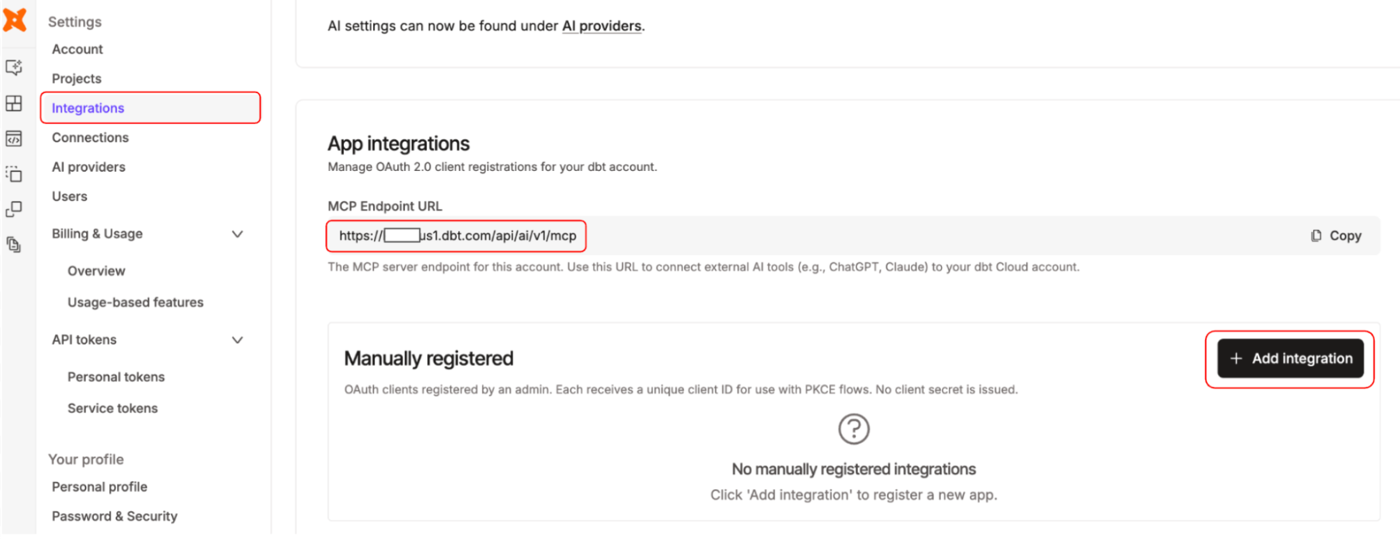 The App integrations page with the MCP Endpoint URL and the Add integration button
- Enter an integration name, such as
Gemini Enterprise connector. - Set the Redirect URI to
https://vertexaisearch.cloud.google.com/oauth-redirect, then select Create integration. - Copy the Client ID. The integration uses PKCE, so there's no client secret.
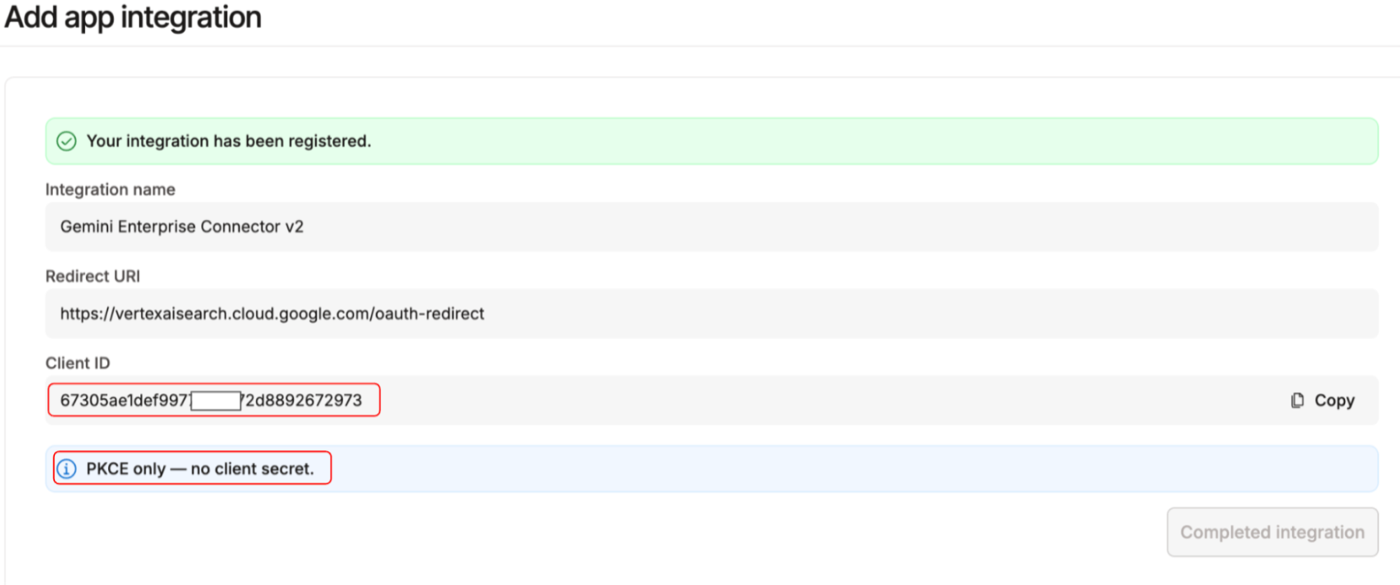 The registered integration with its Client ID and the PKCE only note
Add dbt MCP as a data store
In Gemini Enterprise, the MCP server lives in a data store.
-
In the Google Cloud console, go to Gemini Enterprise → Data stores, then select Create data store.
-
Under MCP servers, find Custom MCP Server and select Add MCP server.
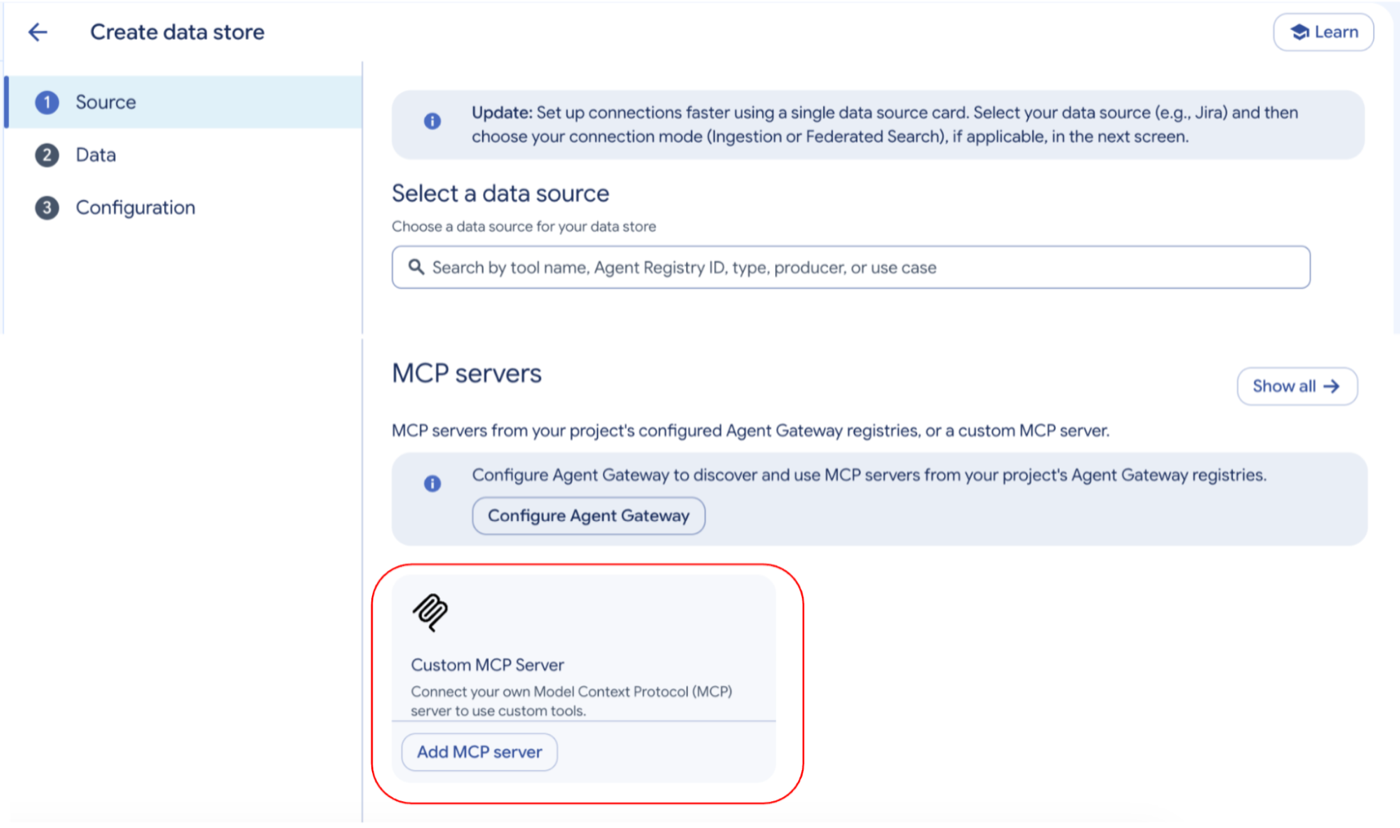 The Custom MCP Server card on the 'Create data store' page
-
Select OAuth 2.0, then fill in the fields. Replace
YOUR_DBT_HOST_URLwith your host, for exampleabc123.us1.dbt.com. The table already addshttps://.Field Value MCP Server URL Your MCP Endpoint URL from the previous section Authorization URL https://YOUR_DBT_HOST_URL/oauth/authorizeToken URL https://YOUR_DBT_HOST_URL/oauth/tokenClient ID The Client ID you copied Client Secret Leave empty Scopes user_accessEnable PKCE Support Select the checkbox Use HTTP Basic Authentication Leave the checkbox cleared 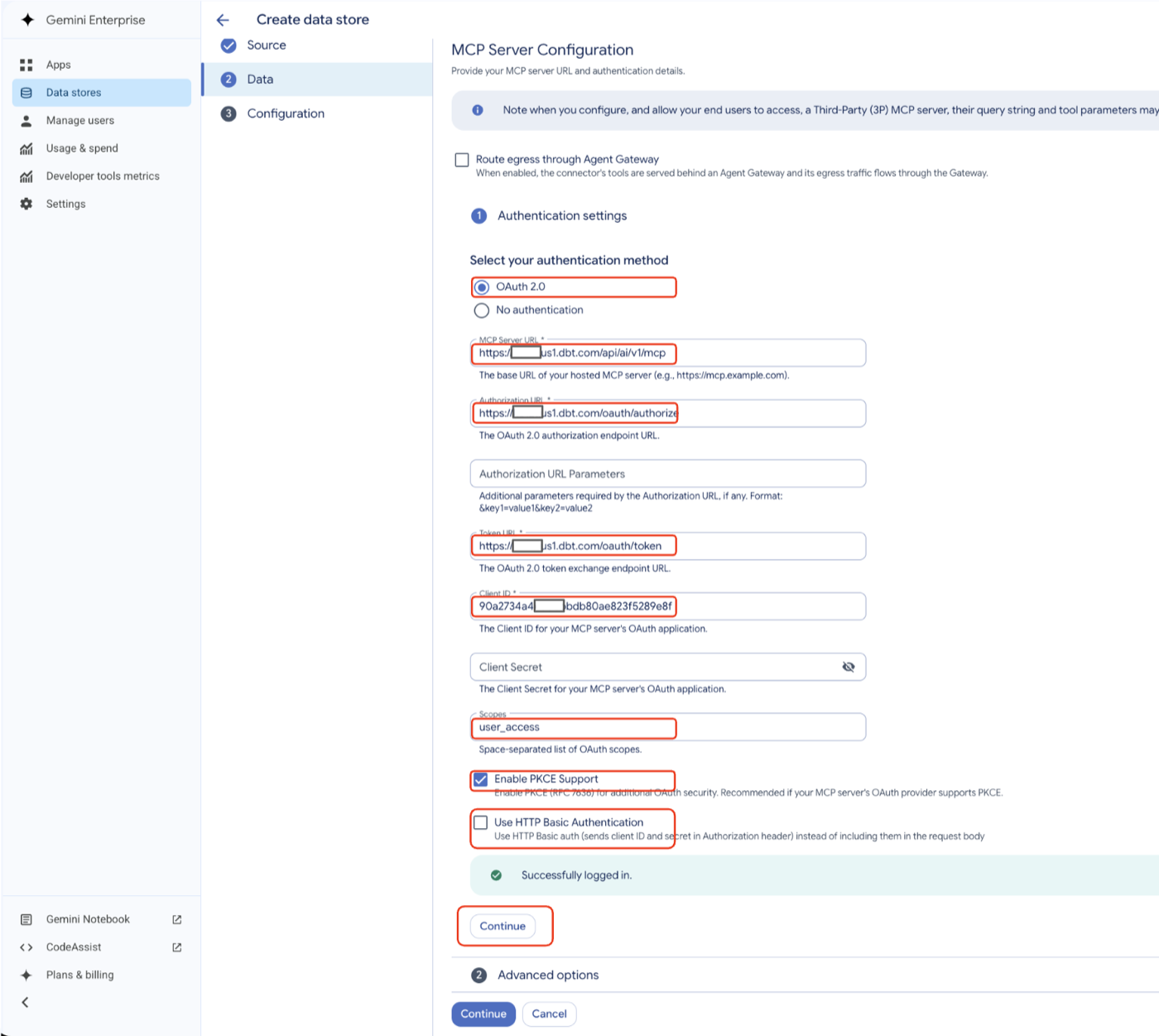 The MCP Server Configuration form filled in for dbt
-
Once you click Authorize, it will open a separate window for you to allow Gemini access to dbt platform to perform the tasks and skills needed when communicating to the MCP. Select Allow access.
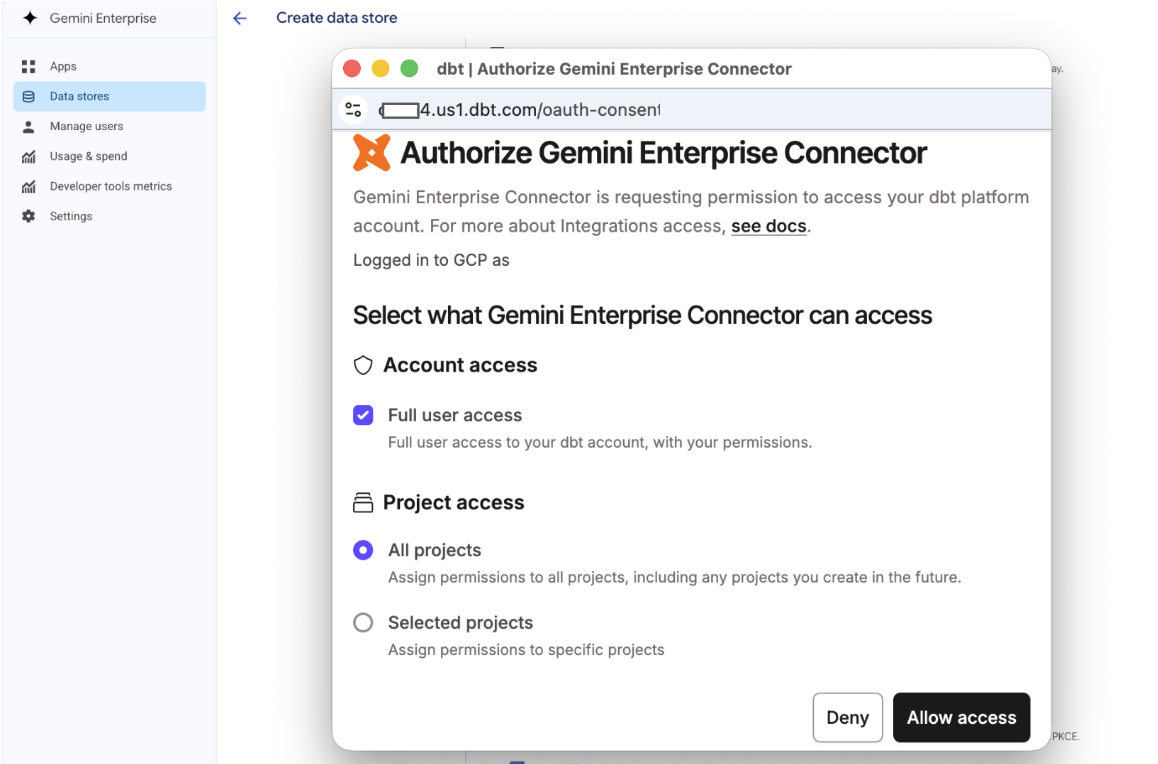 The dbt platform window asking you to authorize the Gemini Enterprise connector
-
When you see Successfully logged in, select Continue.
-
Click Allow access then Continue.
-
Under Advanced options, add a description for the server. Gemini Enterprise uses it to decide when to call the server. Select Continue.
-
On the next page, choose a
regionandnamethe connector, then select Create.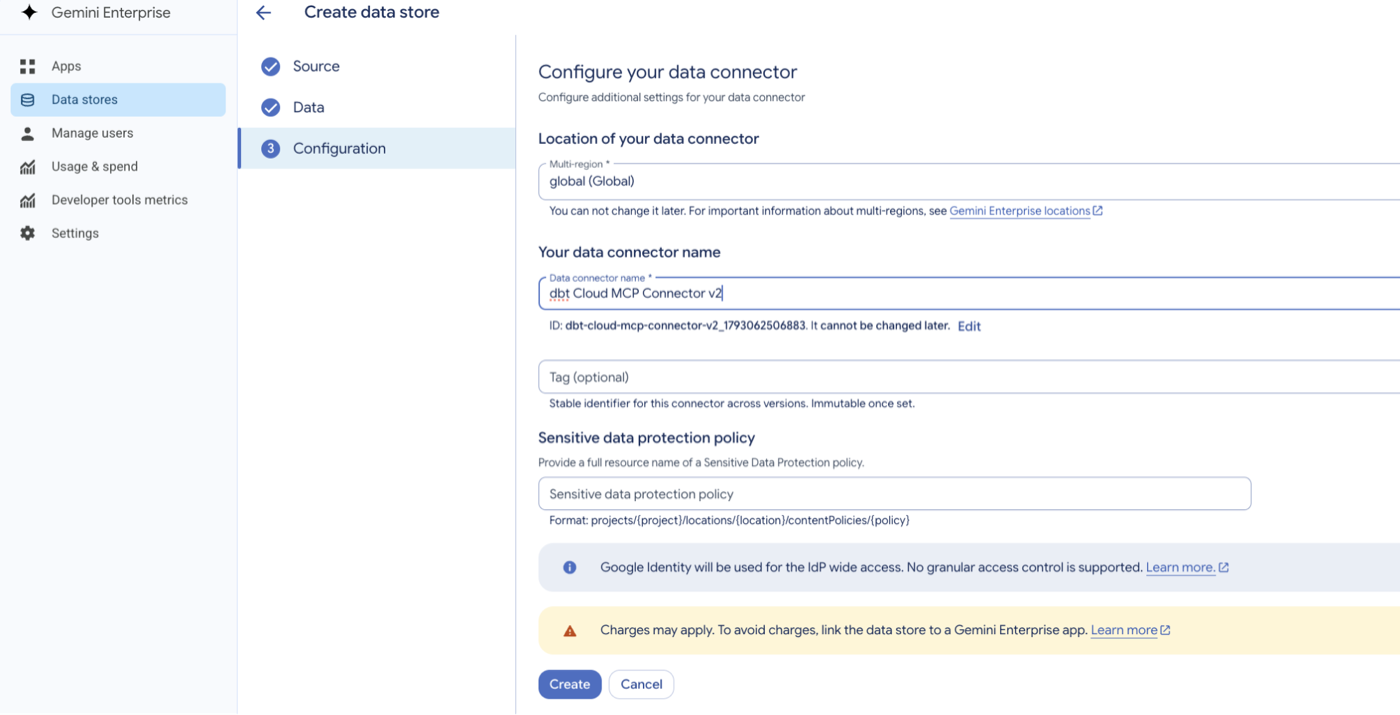 The data connector configuration with the region and connector name
Once the connector is created, Connector state shows Active.
Enable the dbt actions
Your Gemini connectors actions remain disabled until you manually enable them:
- In Gemini Enterprise, go to the connector and then the Actions tab.
- Select Reload custom actions, which will prompt an authorization request.
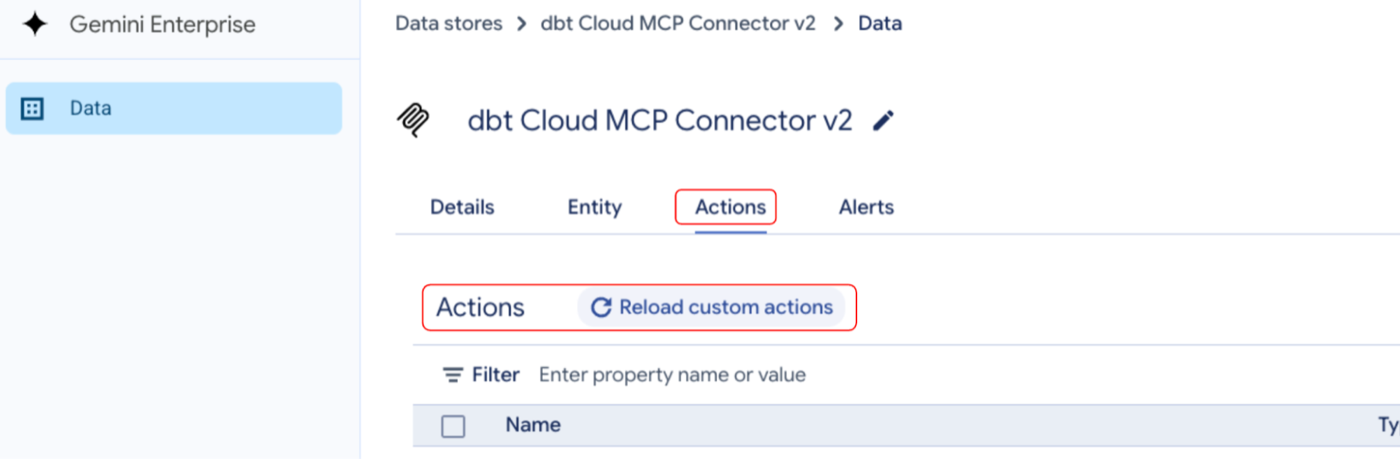 The Actions tab with the Reload custom actions button
- A dbt platform window will open. Select Allow access. The dbt MCP tools will then load with the status set as Disabled.
- Select the actions you want, then select Enable actions. Once enabled, your MCP connector is ready to be used within a Gemini App.
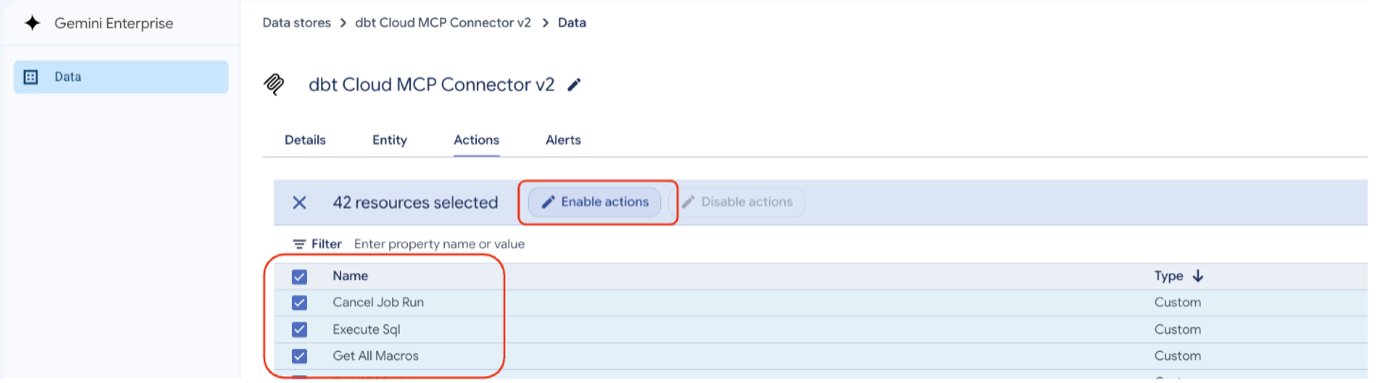 Selecting dbt MCP actions and enabling them
Gemini Enterprise calls MCP tools actions. Refer to Google's docs on enabling actions. For what each tool does, refer to Available MCP tools.
Create a Gemini Enterprise app
Create Gemini Enterprise app by following these steps:
-
In Gemini Enterprise, go to Apps and select Create app.
-
Enter an app name, choose a location (global works if you have no preference), and enter your company's external name (optional). Select Create.
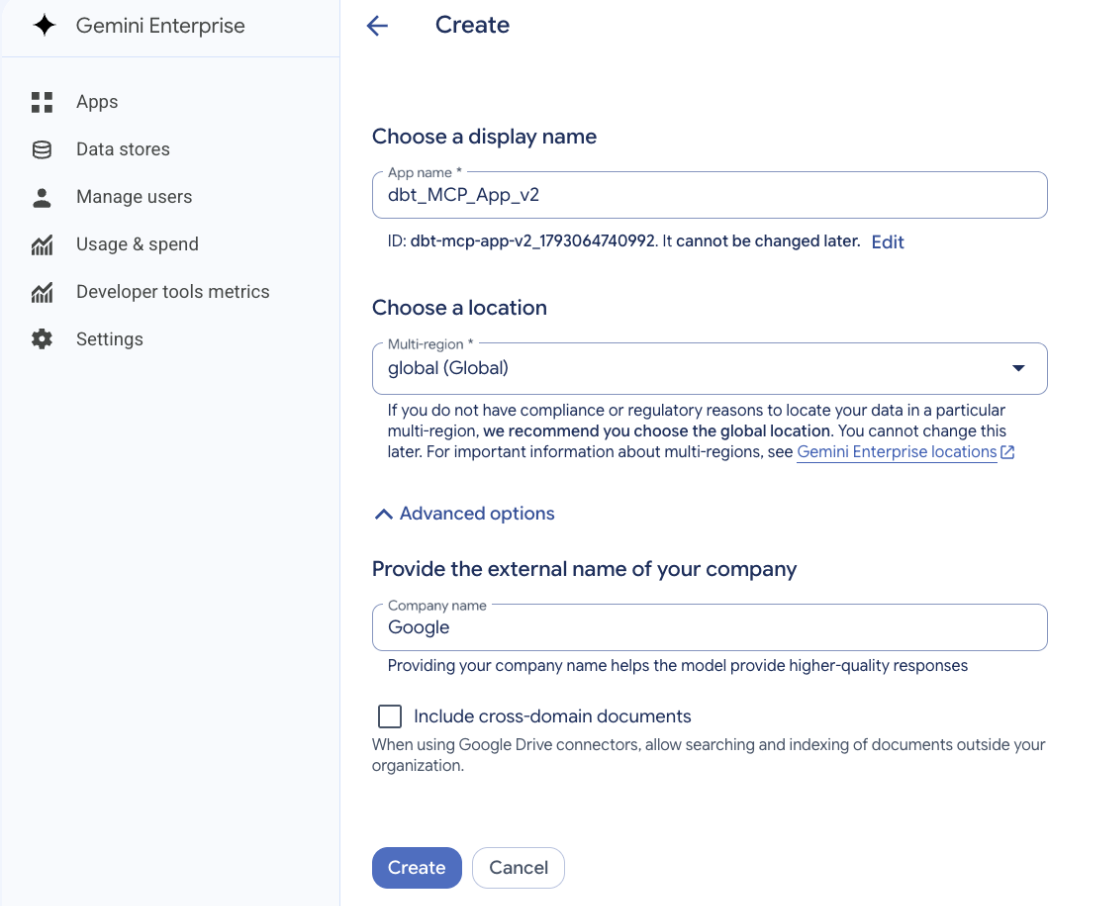 The 'Create app' form with the app name, location, and company name
-
On the Overview page, bookmark or save the web app URL. You use it each time you chat with Gemini.
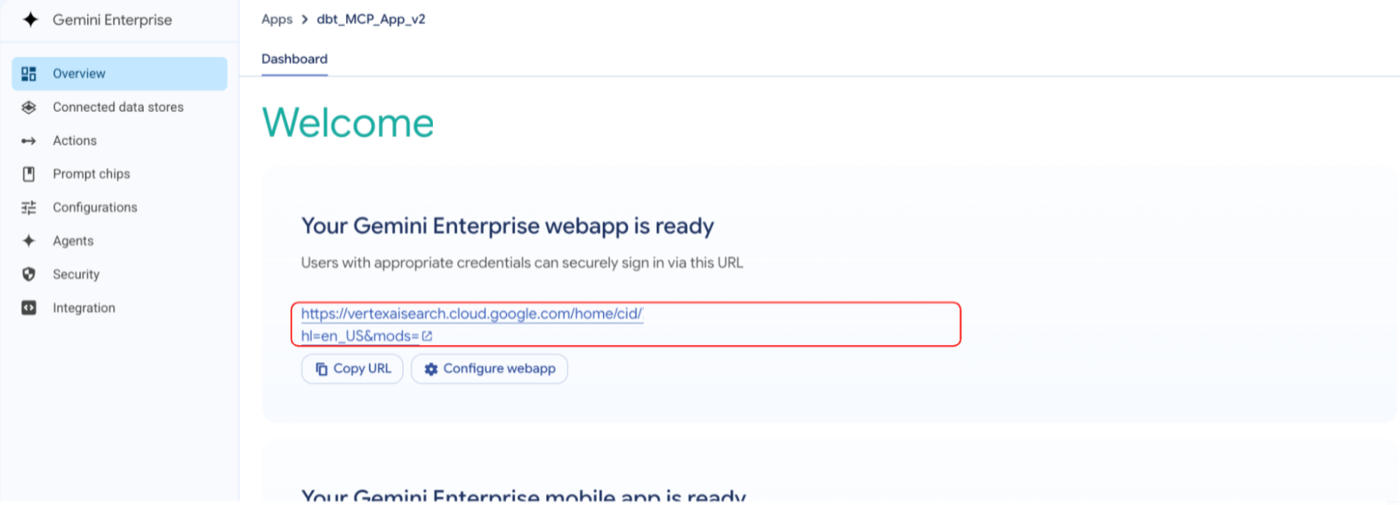 The app Overview page with the web app URL
-
Go to Connected data stores and select Add existing data stores.
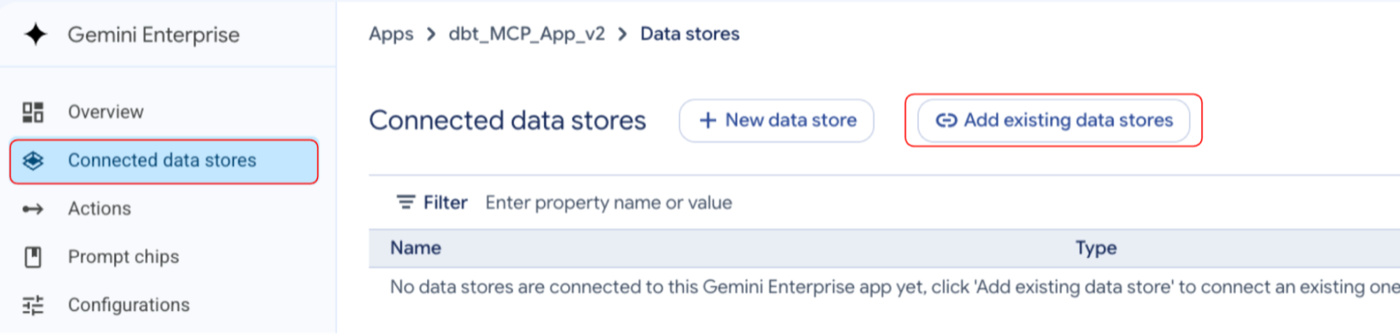 The 'Connected data stores' page with the Add existing data stores button
-
Select the dbt MCP connector, then select Connect.
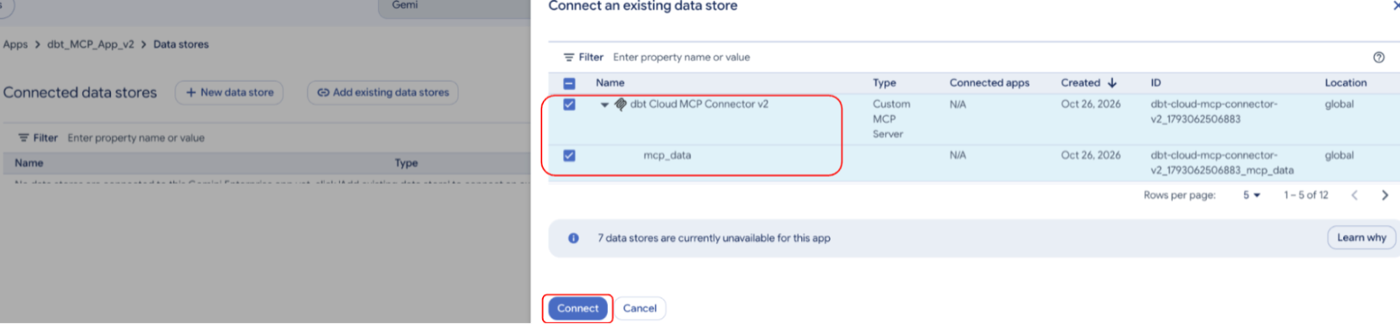 Selecting the dbt MCP connector in the 'Connect an existing data store' dialog
Use dbt MCP from Gemini
Connect the dbt MCP server in your Gemini app by following these steps:
- Open your web app URL.
- Select the connectors icon, then select Authorize next to the dbt connector and Allow access in the dbt platform window. Each user needs to do this only once.
- Ask a question, such as "List all of the dbt projects".
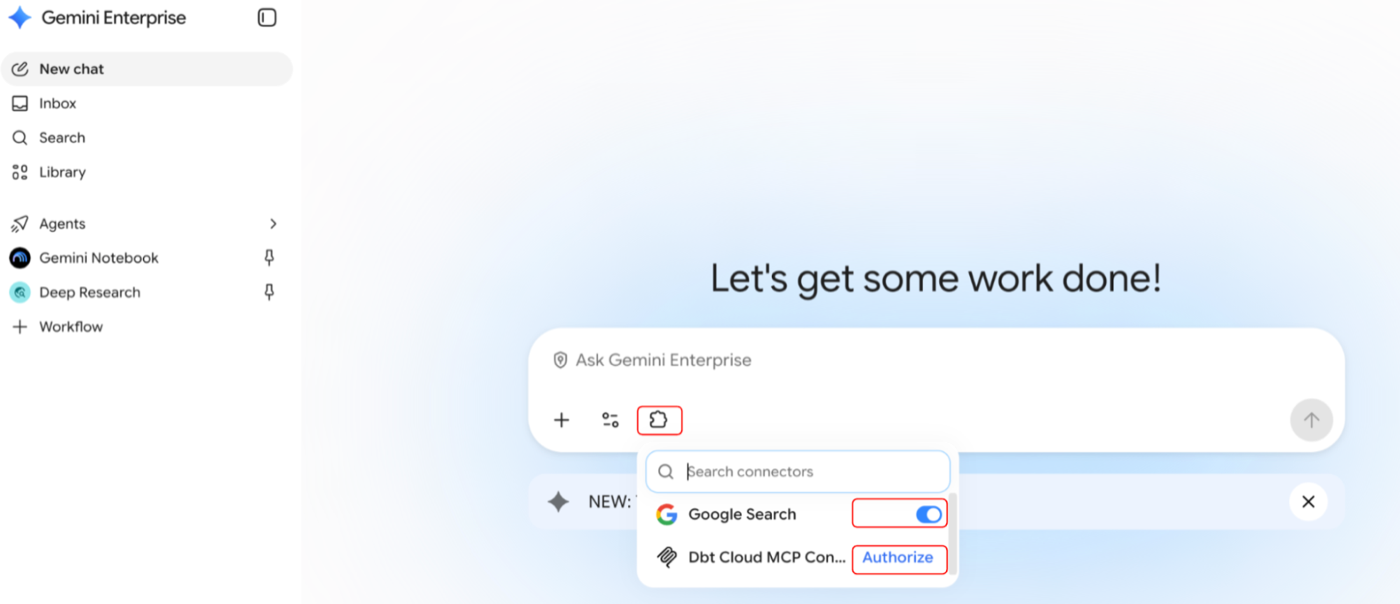 Authorizing the dbt connector from the connectors menu in Gemini Enterprise
Gemini calls the dbt MCP tools and returns your projects and environments, with follow-up questions to try next.
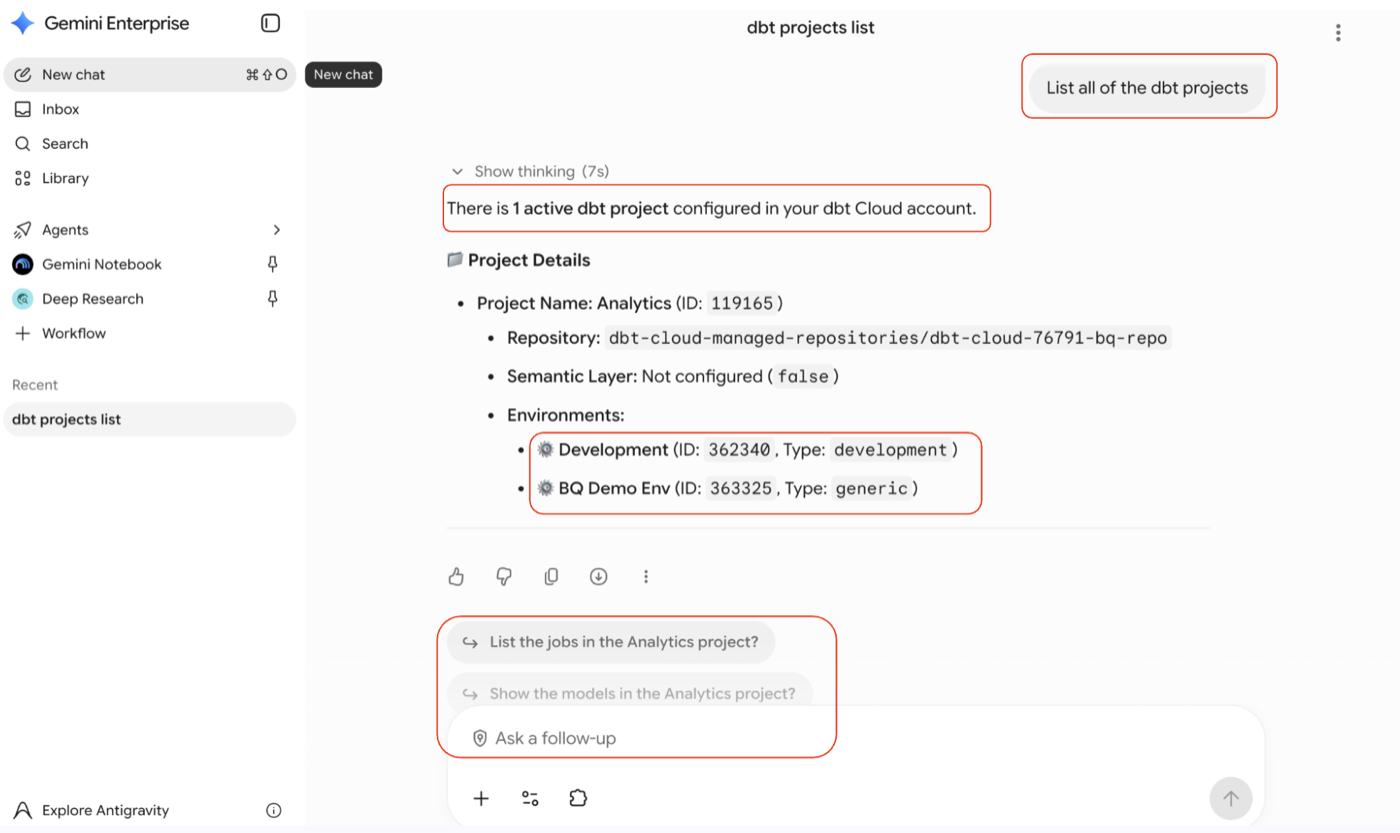 Gemini Enterprise listing dbt projects and environments through the dbt MCP connector
You can now use 42+ different tools supported by dbt through this Gemini app, depending on your plan.
Related docs
Was this page helpful?
This site is protected by reCAPTCHA and the Google Privacy Policy and Terms of Service apply.
