About dbt platform profiles
dbt platform profiles define the connections, credentials, and attributes you use to connect to a data warehouse.
Assign profiles to deployment environments and reuse those profiles in other deployment environments within the same project. You can manage profiles programmatically using our API documentation.
Environment profiles table
On an environment's Settings page, the Connection profiles section lists the profiles assigned to that environment:
- Profile name: Click a profile name to open the view/edit drawer. In view mode, there’s no separate action column, so use the profile name to open and view a profile.
- Connection: Click the connection to open the connection details page in a new tab.
- Edit mode: Click Edit to switch to edit mode. Use the swap icon
 next to a profile row to assign a different profile.
Considerations
- Profiles don't apply to development environments because of the unique configurations and individual credentials applied.
- The Semantic Layer configuration isn't supported with profiles yet.
Create a profile
dbt automatically creates a new project-level profile for each deployment environment and populates it with your existing connection, credentials, and extended attributes. You don't need to take any action to create profiles for your existing projects.
You can create profiles from either the project or the environment settings. No matter which approach you take, dbt creates the profile at the project level. Profiles you create in one project won't be visible in others.
To create a new profile:
- From project settings
- From environment settings
- From the main menu, navigate to your project's Dashboard.
- Click Settings.
- Scroll down to the Profiles section and click Create new profile.
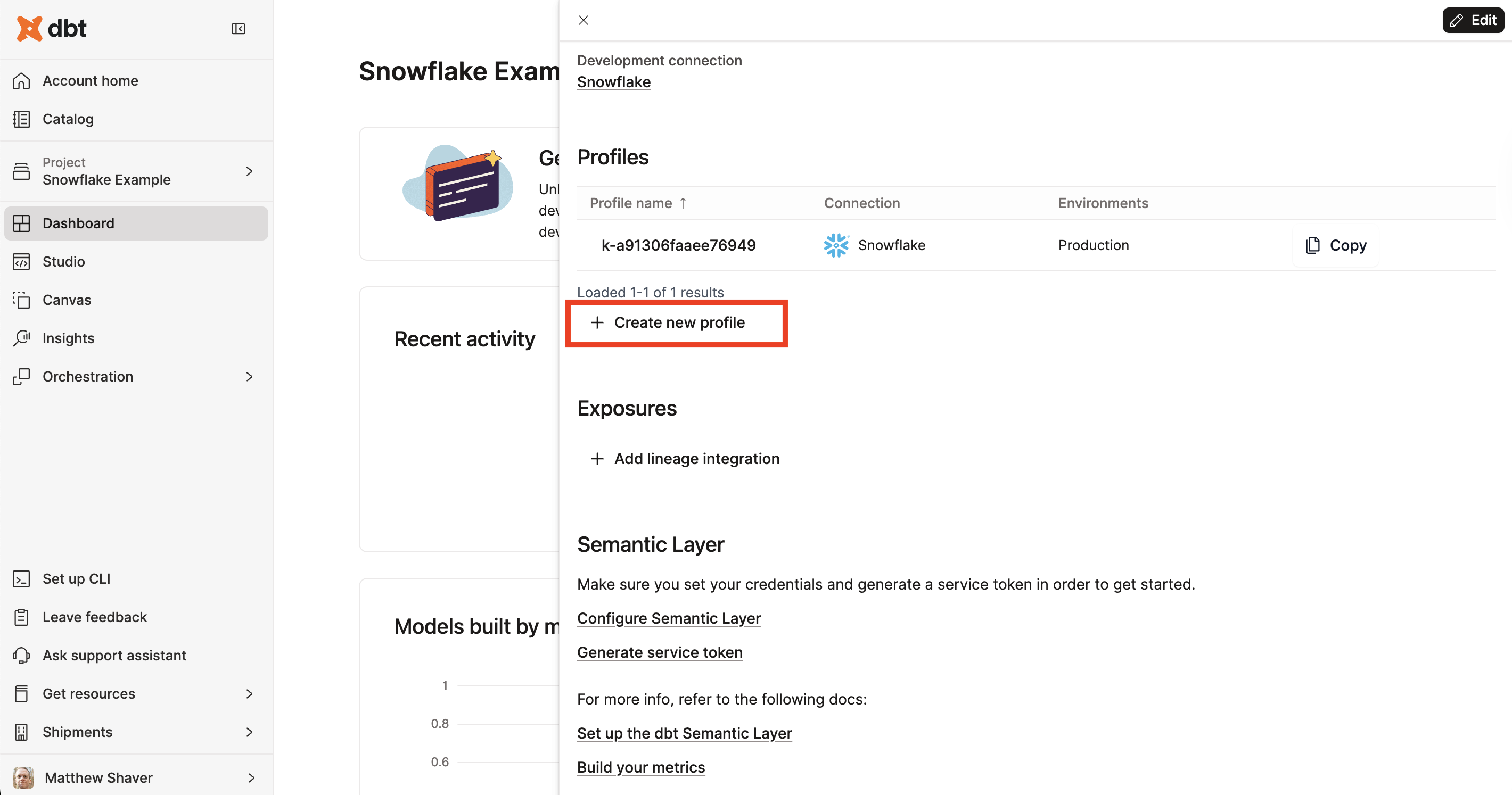 Creating a profile from project settings.
- From the main menu, click Orchestration and select Environments.
- Click an available deployment environment.
- Click Settings.
- Click Edit to switch to edit mode, then scroll to the Connection profiles section.
- Click the swap icon next to the profile row you want to change.
- Select Add new profile from the Profile dropdown.
- Click Create profile.
- Click Save.
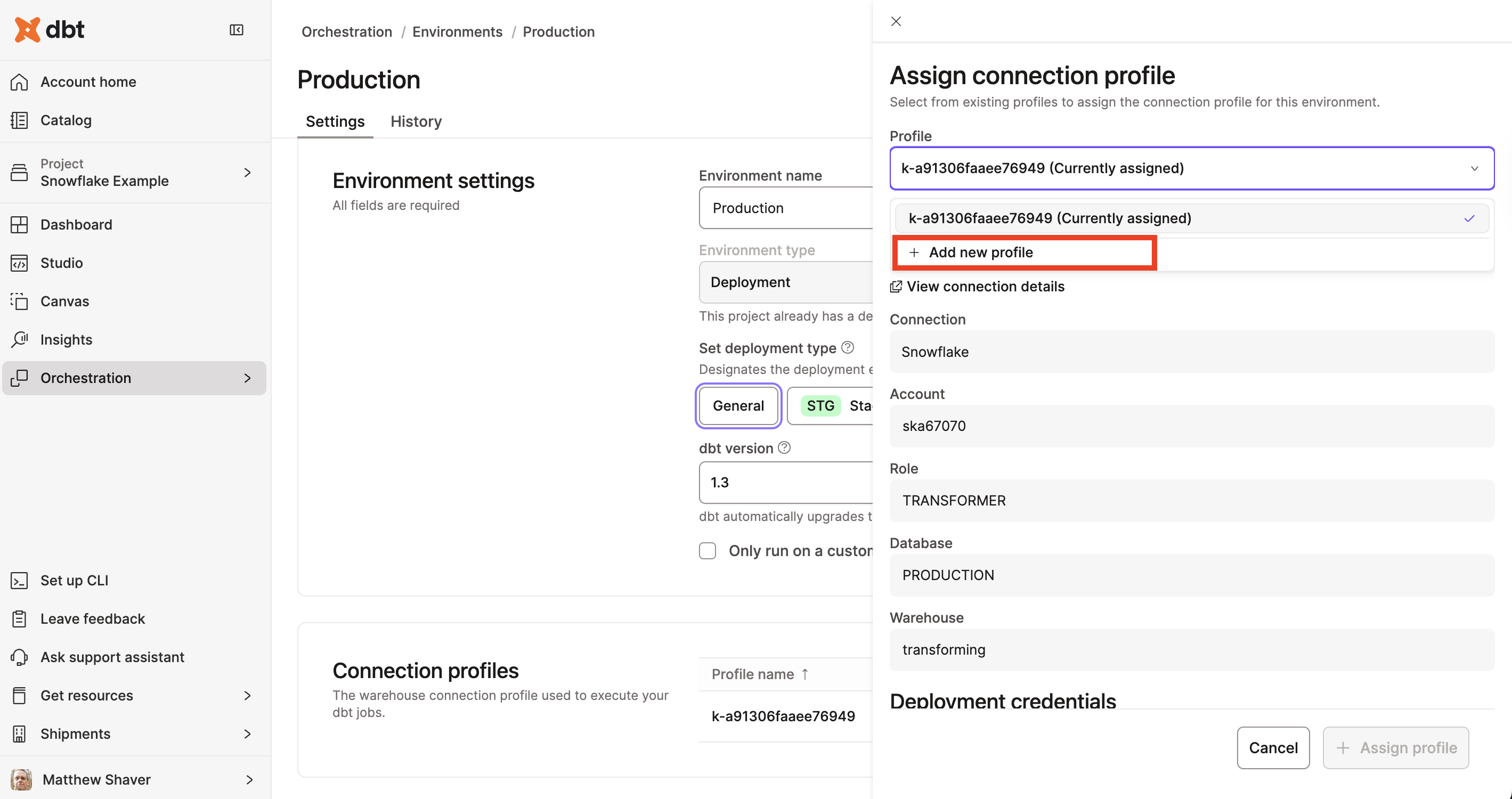 Creating a profile from the environment settings.
The following steps are the same regardless of which approach you take:
-
Give the profile a name that's unique across all projects in the account, easy to identify, and adheres to the naming policy:
- Starts with a letter
- Ends with a letter or number
- Contains only letters, numbers, dashes, or underscores
- Has no consecutive dashes or underscores
-
From Connection details, select a connection from the list of available global connections or add a new connection.
-
Configure the Deployment credentials for your warehouse connection.
-
Add any Extended attributes you need. If you use
env_var()in Extended Attributes, the referenced environment variables must be project-scoped in order to work with connection tests. Since profiles are environment-agnostic, environment-scoped variables are not available during connection tests.To set a project-scoped variable, go to Orchestration > Environments > Environment variables, and enter a value in the Project default column. Learn more in environment variables.
-
Click Save at the top of the screen.
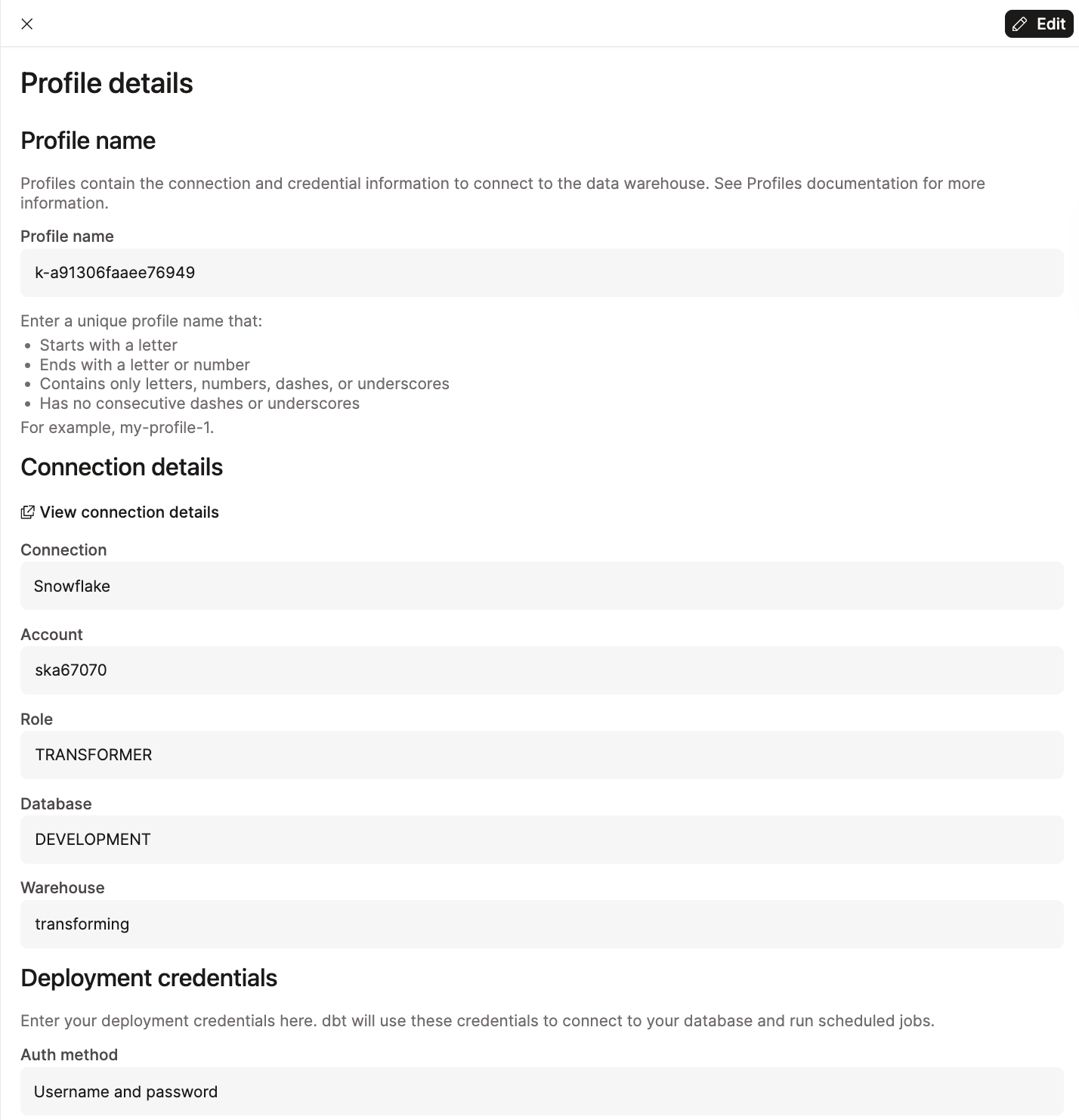 Sample of a configured profile.
Repeat these steps until you've created all the profiles you need for your project's deployment environments.
Assign a profile
You configure profiles when you create a deployment environment. For accounts that already have environments configured when you enable profiles, dbt automatically creates and assigns a default profile to all projects.
To assign a different profile, update the deployment environment settings:
- From the left navigation, click Orchestration and select Environments.
- Click an available deployment environment.
- Click Settings.
- Click Edit to switch to edit mode, then scroll to the Connection profiles section.
- Click the swap icon next to the profile row you want to change.
- Select the new profile from the Profile dropdown.
- Click Assign profile.
- Click Save.
Permissions and access to profiles
Profiles are created at the project level. Only users with permission to edit the project can create profiles and anyone with permission to create or edit deployment environments in that project can assign that profile and its credentials to those environments.
To avoid unintended access, only grant permission sets like Job Admin or Project Admin to users who should have access to all credentials in a project. Be mindful that profiles created at the project level can be used to configure credentials for any deployment environment in that project.
For more information on permission sets, see Enterprise permissions.
FAQs
Was this page helpful?
This site is protected by reCAPTCHA and the Google Privacy Policy and Terms of Service apply.
