# About the Studio IDE
dbt platform
The dbt integrated development environment (Studio IDE) is a single web-based interface for building, testing, running, and version-controlling dbt projects. It compiles dbt code into SQL and executes it directly on your database.
The Studio IDE offers several [keyboard shortcuts](./keyboard-shortcuts.md) and [editing features](./ide-user-interface.md#editing-features) for faster and efficient development and governance:
* Agentic development: [dbt Wizard](../../dbt-ai/wizard-ide.md) is the new and recommended AI agent for governed data development in dbt. It uses your project context to help you develop governed dbt changes faster.
* [dbt Copilot](./develop-studio-ai.md#dbt-copilot-in-studio-ide) is separate from dbt Wizard and is dbt's inline AI assistance experience, providing single-click generation of SQL, documentation, tests, and semantic models in Studio IDE, Canvas, and Insights.
* Auto-completion: Suggests tables, arguments, and columns as you type.
* Code [formatting and linting](./lint-format.md): Standardizes and fixes SQL code.
* Navigation tools: Jump to lines, find and replace text, and navigate project files.
* Version control: Manage code versions with a few clicks.
* Project documentation: Generate and view [project documentation](#build-and-document-your-projects) in real time.
* Build, test, and run button: Build, test, and run your project from a button or the Studio IDE command bar.
* Syntax highlighting for SQL: Improves readability and helps reduce syntax errors.
These [features](#studio-ide-features) create a powerful editing environment for efficient SQL coding, suitable for both experienced and beginner developers.
[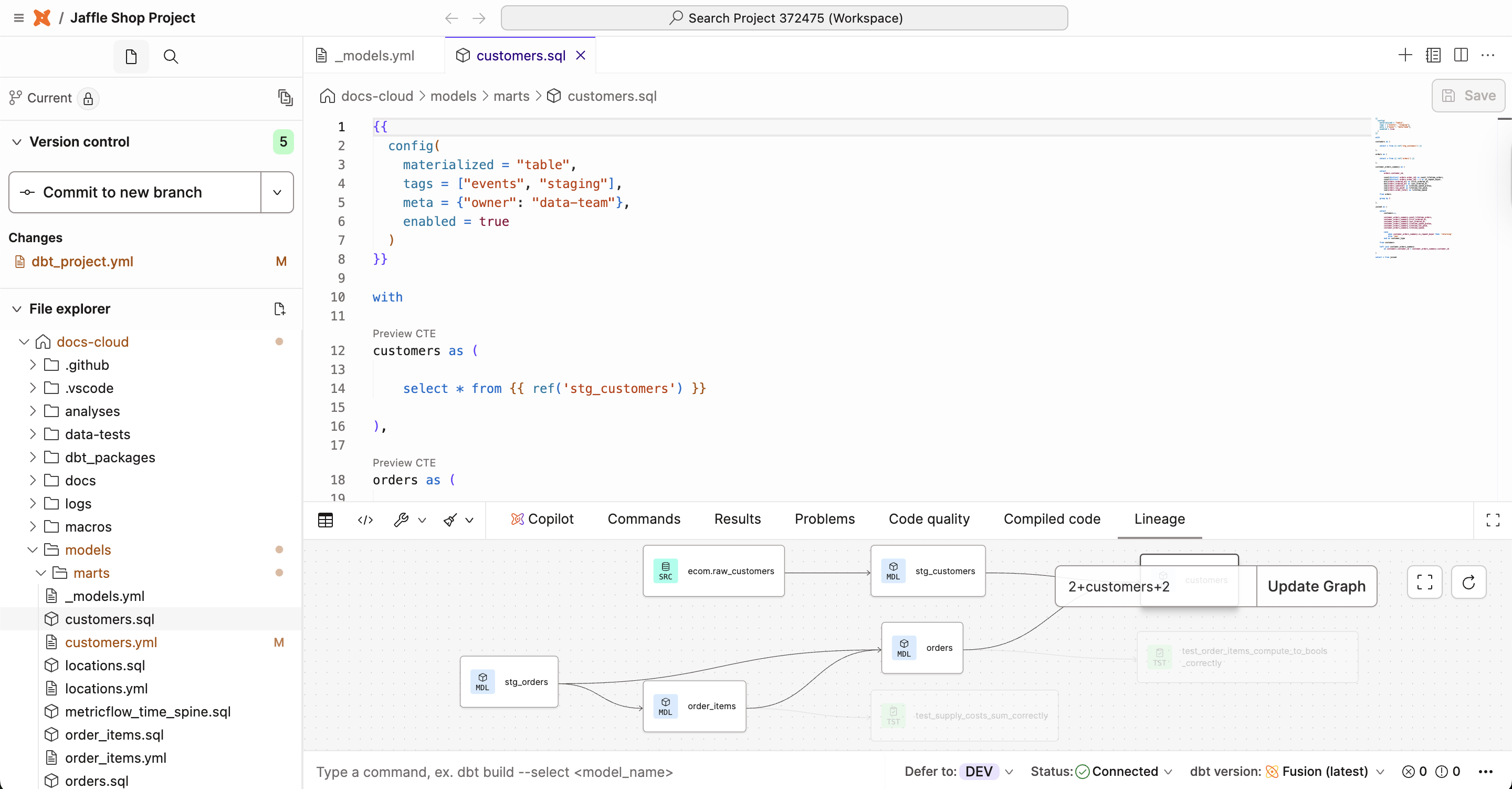](#)The Studio IDE includes version control, files/folders, an editor, a command/console, and more.
[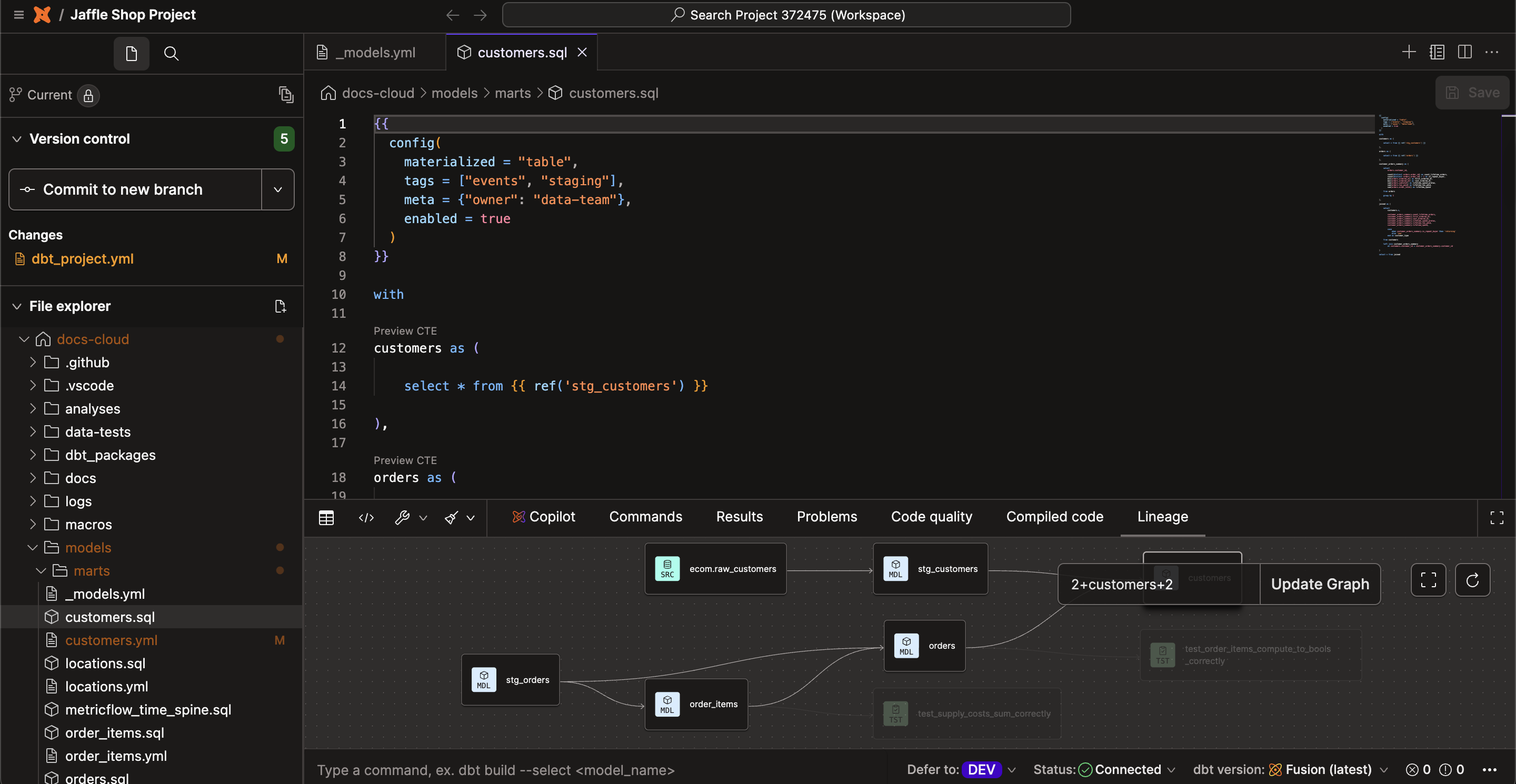](#)Enable dark mode for a great viewing experience in low-light environments.
Disable ad blockers
To improve your experience using dbt, we suggest that you turn off ad blockers. This is because some project file names, such as `google_adwords.sql`, might resemble ad traffic and trigger ad blockers.
## Prerequisites
* A [dbt account](https://www.getdbt.com/signup) and [Developer seat license](../manage-access/seats-and-users.md)
* A git repository set up and git provider must have `write` access enabled. See [Connecting your GitHub Account](../git/connect-github.md) or [Importing a project by git URL](../git/import-a-project-by-git-url.md) for detailed setup instructions
* A dbt project connected to a [data platform](../connect-data-platform/about-connections.md)
* A [development environment and user credentials](#get-started-with-the-studio-ide) set up
* The environment must be on dbt version 1.0 or higher
## Studio IDE features
The Studio IDE comes with features that make it easier for you to develop, build, compile, run, and test data models.
To understand how to navigate the Studio IDE and its user interface elements, refer to the [Studio IDE user interface](./ide-user-interface.md) page.
| Feature | Description |
| -------------------------------------------------------------------------------------------------- | ------------------------------------------------------------------------------------------------------------------------------------------------------------------------------------------------------------------------------------------------------------------------------------------------------------------------------------------------------------------------------------------------------------------------------------------------------------------------------------------------------------------------------------------------------------------------------------------------------------------------------------------------------------------------------------------------------------------------------------------------------------------------------------------------------------------------------------------------------------------------------------------------------------------------------------------------------------------------------------------------------------------------------------------------------------------------------------------------------------------------------------------------------------------------------------------------------------------------------------------------------------------------------------------------------------------------------------------------------ |
| [**Studio IDE shortcuts**](./keyboard-shortcuts.md) | You can access a variety of [commands and actions](./keyboard-shortcuts.md) in the Studio IDE by choosing the appropriate keyboard shortcut. Use the shortcuts for common tasks like building modified models or resuming builds from the last failure. |
| **IDE version control** | The Studio IDE version control section and git button allow you to apply the concept of [version control](../git/version-control-basics.md) to your project directly into the Studio IDE.
- Create or change branches, execute git commands using the git button.
- Commit or revert individual files by right-clicking the edited file
- [Resolve merge conflicts](../git/merge-conflicts.md)
- Link to the repo directly by clicking the branch name
- Edit, format, or lint files and execute dbt commands in your primary protected branch, and commit to a new branch.
- Use Git diff view to view what has been changed in a file before you make a pull request.
- Use the **Prune branches** [button](./ide-user-interface.md#prune-branches-modal) to delete local branches that have been deleted from the remote repository, keeping your branch management tidy.
- Sign your [git commits](./git-commit-signing.md) to mark them as 'Verified'. [Enterprise](https://www.getdbt.com/pricing "Go to https://www.getdbt.com/pricing")[Enterprise +](https://www.getdbt.com/pricing "Go to https://www.getdbt.com/pricing") |
| **Preview and Compile button** | You can [compile or preview](./ide-user-interface.md#console-section) code, a snippet of dbt code, or one of your dbt models after editing and saving. |
| [**dbt Wizard**](../../dbt-ai/wizard-ide.md) | Governed agentic development in the Studio IDE. Ask project-aware questions, generate resources, and write or refactor models from natural language — grounded in your project’s lineage, tests, and model health. [Starter](https://www.getdbt.com/pricing "Go to https://www.getdbt.com/pricing")[Enterprise](https://www.getdbt.com/pricing "Go to https://www.getdbt.com/pricing")[Enterprise +](https://www.getdbt.com/pricing "Go to https://www.getdbt.com/pricing") |
| **Build, test, and run button** | Build, test, and run your project with the click of a button or by using the command bar. |
| **Command bar** | You can enter and run commands from the command bar at the bottom of the Studio IDE. Use the [rich model selection syntax](../../../reference/node-selection/syntax.md) to execute [dbt commands](../../../reference/dbt-commands.md) directly within dbt. You can also view the history, status, and logs of previous runs by clicking History on the left of the bar. |
| **Drag and drop** | Drag and drop files located in the file explorer, and use the file breadcrumb on the top of the Studio IDE for quick, linear navigation. Access adjacent files in the same file by right-clicking on the breadcrumb file. |
| **Organize tabs and files** | - Move your tabs around to reorganize your work in the IDE
- Right-click on a tab to view and select a list of actions, including duplicate files
- Close multiple, unsaved tabs to batch save your work
- Double click files to rename files |
| **Find and replace** | - Press Command-F or Control-F to open the find-and-replace bar in the upper right corner of the current file in the IDE. The IDE highlights your search results in the current file and code outline
- You can use the up and down arrows to see the match highlighted in the current file when there are multiple matches
- Use the left arrow to replace the text with something else |
| **Multiple selections** | You can make multiple selections for small and simultaneous edits. The below commands are a common way to add more cursors and allow you to insert cursors below or above with ease.
- Option-Command-Down arrow or Ctrl-Alt-Down arrow
- Option-Command-Up arrow or Ctrl-Alt-Up arrow
- Press Option and click on an area or Press Ctrl-Alt and click on an area
|
| **Lint and Format** | [Lint and format](./lint-format.md) your files with a click of a button, powered by SQLFluff, sqlfmt, Prettier, and Black. |
| **dbt autocomplete** | Autocomplete features to help you develop faster:
- Use `ref` to autocomplete your model names
- Use `source` to autocomplete your source name + table name
- Use `macro` to autocomplete your arguments
- Use `env var` to autocomplete env var
- Start typing a hyphen (-) to use in-line autocomplete in a YAML file
- Automatically create models from dbt sources with a click of a button. |
| **DAG in the IDE** | You can see how models are used as building blocks from left to right to transform your data from raw sources into cleaned-up modular derived pieces and final outputs on the far right of the DAG. The default view is 2+model+2 (defaults to display 2 nodes away), however, you can change it to +model+ (full DAG). Note the `--exclude` flag isn't supported. |
| **Status bar** | This area provides you with useful information about your Studio IDE and project status. You also have additional options like enabling light or dark mode, restarting the Studio IDE, or [recloning your repo](../git/version-control-basics.md). |
| **Dark mode** | From the status bar in the Studio IDE, enable dark mode for a great viewing experience in low-light environments. |
### Code generation
The Studio IDE comes with **CodeGenCodeLens**, a powerful feature that simplifies creating models from your sources with a click of a button. To use this feature, click on the **Generate model** action next to each table in the source YAML file(s). It automatically creates a basic starting staging model for you to expand on. This feature helps streamline your workflow by automating the first steps of model generation.
### dbt YAML validation
The Studio IDE uses JSON Schema from the open source [dbt-jsonschema](https://github.com/dbt-labs/dbt-jsonschema) project to power YAML completion, structure checks, and inline diagnostics. These schemas are aligned with the dbt Fusion engine specification and apply across [dbt platform release tracks](../../dbt-versions/dbt-release-tracks.md), even when your development environment is running dbt Core.
If a warning looks wrong but dbt commands succeed, trust your project commands and report the discrepancy so the schema can be improved. For background on the latest Semantic Layer YAML shape, see [Migrate to the latest YAML spec](../../build/latest-metrics-spec.md).
### dbt Wizard
[dbt Wizard](../../dbt-ai/wizard-ide.md) helps you develop trusted dbt projects faster in the Studio IDE. It understands more than the file you’re editing. It uses dbt's native metadata engine to understand your project’s lineage, model health, test coverage, and semantic definitions, so it can provide answers and suggestions based on your *full* project context.
With dbt Wizard, you can:
* **Build and refactor models:** Describe what you want to create or change, then review the proposed diff before any files are updated.
* **Validate changes as you work:** Compile changes with dbt Fusion engine and run them against your warehouse to catch issues early.
* **Understand downstream impact:** See affected models, tests, and metrics *before* making changes.
* **Generate YAML resources:** Create documentation, tests, semantic models, and metrics from the Studio IDE console.
For data practitioners, this means less time context-switching between files, less manual YAML writing, and faster iteration on complex modeling work — all inside the environment where you already work
To get started, refer to [dbt Wizard in the Studio IDE](../../dbt-ai/wizard-ide.md).
info
dbt Wizard is the new and recommended AI agent for governed data development in dbt. It handles the full development lifecycle — investigation, building, validation, and shipping — grounded in your dbt project's lineage, tests, contracts, and metric definitions.
dbt Copilot is separate from dbt Wizard and is dbt's inline AI assistance experience, providing single-click generation of SQL, documentation, tests, and semantic models in Studio IDE, Canvas, and Insights.
Refer to [dbt AI FAQs](../../dbt-ai/dbt-ai-faqs.md#is-dbt-wizard-the-same-as-dbt-copilot), [Billing](../billing.md), and [dbt's Terms of Use](https://www.getdbt.com/terms-of-use) for more information.
## Get started with the Studio IDE
In order to start experiencing the great features of the Studio IDE, you need to first set up a [dbt development environment](../../dbt-platform-environments.md). In the following steps, we outline how to set up user credentials and access the Studio IDE. If you're creating a new project, you will automatically configure this during the project setup.
The Studio IDE uses user credentials to connect to your data platform. These user credentials should be specific to your user and they should *not* be super user credentials or the same credentials that you use for your production deployment of dbt.
Set up your user credentials:
1. Navigate to your **Credentials** under **Your Profile** settings, which you can access at `https://YOUR_ACCESS_URL/settings/profile#credentials`, replacing `YOUR_ACCESS_URL` with the [appropriate Access URL](../about-platform/access-regions-ip-addresses.md) for your region and plan.
2. Select the relevant project in the list.
3. Click **Edit** on the bottom right of the page.
4. Enter the details under **User credentials**.
5. Click **Save.**
[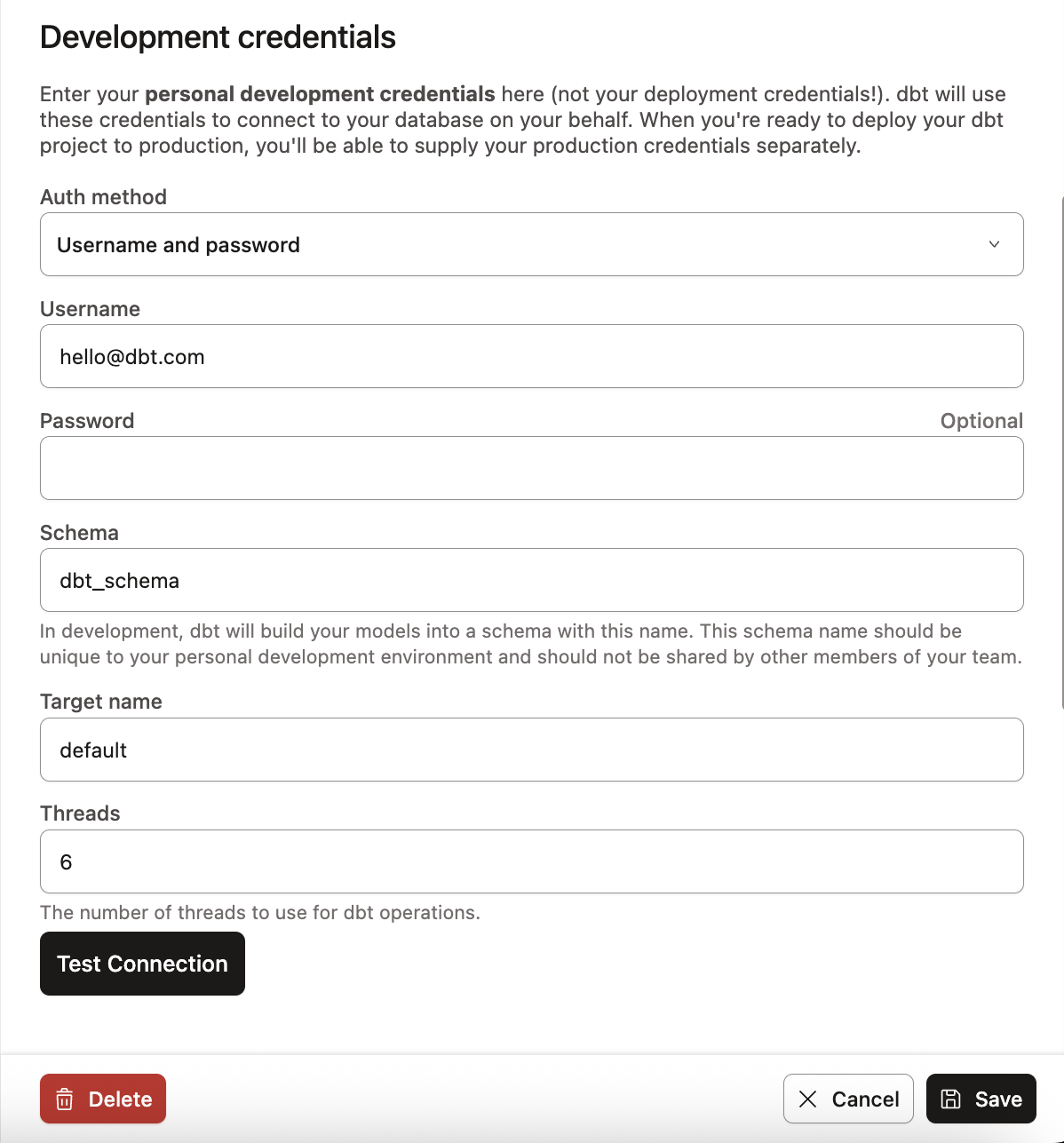](#)Configure user credentials in your profile
6. Navigate to the Studio IDE by clicking **Studio** in the left menu.
7. Initialize your project and familiarize yourself with the Studio IDE and its delightful [features](#studio-ide-features).
Nice job, you're ready to start developing and building models 🎉!
### Considerations
* To improve your experience using dbt, we suggest that you turn off ad blockers. This is because some project file names, such as `google_adwords.sql`, might resemble ad traffic and trigger ad blockers.
* To preserve performance, there's a file size limitation for repositories over 6 GB. If you have a repo over 6 GB, please contact [dbt Support](mailto:support@getdbt.com) before running dbt.
* The Studio IDE's idle session timeout is one hour.
* About the start up process and work retention
The following sections describe the start-up process and work retention in the Studio IDE.
* #### Start-up process
There are three start-up states when using or launching the Studio IDE:
* **Creation start —** This is the state where you are starting the IDE for the first time. You can also view this as a *cold start* (see below), and you can expect this state to take longer because the git repository is being cloned.
* **Cold start —** This is the process of starting a new develop session, which will be available for you for one hour. The environment automatically turns off one hour after the last activity. This includes compile, preview, or any dbt invocation, however, it *does not* include editing and saving a file.
* **Hot start —** This is the state of resuming an existing or active develop session within one hour of the last activity.
* #### Work retention
The Studio IDE needs explicit action to save your changes. There are three ways your work is stored:
* **Unsaved, local code —** The browser stores your code only in its local storage. In this state, you might need to commit any unsaved changes in order to switch branches or browsers. If you have saved and committed changes, you can access the "Change branch" option even if there are unsaved changes. But if you attempt to switch branches without saving changes, a warning message will appear, notifying you that you will lose any unsaved changes.
[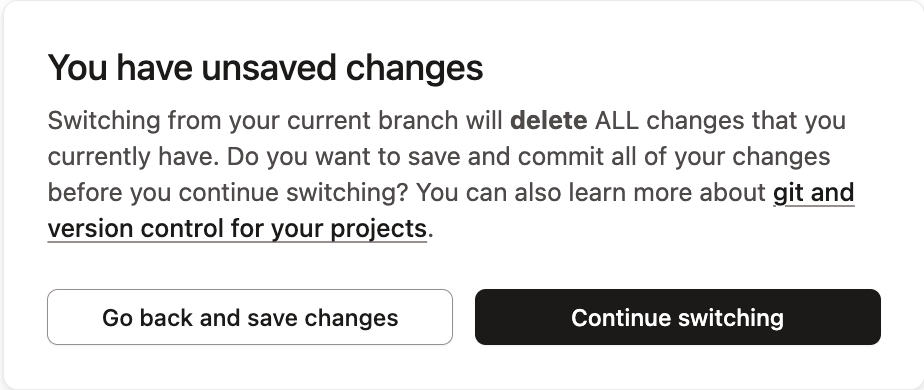](#)If you attempt to switch branches without saving changes, a warning message will appear, telling you that you will lose your changes.
* **Saved but uncommitted code —** When you save a file, the data gets stored in durable, long-term storage, but isn't synced back to git. To switch branches using the **Change branch** option, you must "Commit and sync" or "Revert" changes. Changing branches isn't available for saved-but-uncommitted code. This is to ensure your uncommitted changes don't get lost.
* **Committed code —** This is stored in the branch with your git provider and you can check out other (remote) branches.
## Build and document your projects
* **Build, compile, and run projects** — You can *build*, *compile*, *run*, and *test* dbt projects using the command bar or **Build** button. Use the **Build** button to quickly build, run, or test the model you're working on. The Studio IDE will update in real time when you run models, tests, seeds, and operations.
* If a model or test fails, dbt makes it easy for you to view and download the run logs for your dbt invocations to fix the issue.
* Use dbt's [rich model selection syntax](../../../reference/node-selection/syntax.md) to [run dbt commands](../../../reference/dbt-commands.md) directly within dbt.
* Leverage [environments variables](../../build/environment-variables.md#special-environment-variables) to dynamically use the Git branch name. For example, using the branch name as a prefix for a development schema.
* Run [MetricFlow commands](../../build/metricflow-commands.md) to create and manage metrics in your project with the [Semantic Layer](../../use-dbt-semantic-layer/dbt-sl.md).
* **Develop with dbt Wizard:** [dbt Wizard](../wizard-platform.md) is the new and recommended AI agent for governed data development in dbt. It uses your project context to help you develop governed dbt changes faster. [Starter](https://www.getdbt.com/pricing "Go to https://www.getdbt.com/pricing")[Enterprise](https://www.getdbt.com/pricing "Go to https://www.getdbt.com/pricing")[Enterprise +](https://www.getdbt.com/pricing "Go to https://www.getdbt.com/pricing")
[dbt Copilot](./develop-studio-ai.md#dbt-copilot-in-studio-ide) is separate from dbt Wizard and is dbt's inline AI assistance experience, providing single-click generation of SQL, documentation, tests, and semantic models in Studio IDE, Canvas, and Insights.
* **Build and view your project's docs** — The Studio IDE makes it possible to [build and view](../../explore/build-and-view-your-docs.md) documentation for your dbt project while your code is still in development. With this workflow, you can inspect and verify what your project's generated documentation will look like before your changes are released to production.
## Related docs
* [How we style our dbt projects](../../../best-practices/how-we-style/0-how-we-style-our-dbt-projects.md)
* [User interface](./ide-user-interface.md)
* [Version control basics](../git/version-control-basics.md)
* [dbt commands](../../../reference/dbt-commands.md)
## FAQs
Is there a cost to using the Studio IDE?
Not at all! You can use dbt when you sign up for the [Free Developer plan](https://www.getdbt.com/pricing/), which comes with one developer seat. If you'd like to access more features or have more developer seats, you can upgrade your account to the Starter, Enterprise, or Enterprise+ plan.
Refer to [dbt pricing plans](https://www.getdbt.com/pricing/) for more details.
What should I do if the Studio IDE freezes when I open the Lineage tab?
If the Studio IDE freezes with two or more models open and the **Lineage** tab active, especially when a model has a large or slow-loading DAG, refer to [Studio IDE freezes when opening the Lineage tab](../../../faqs/Troubleshooting/studio-ide-freezes-lineage-tab.md) for workarounds and troubleshooting steps.
Can I be a contributor to dbt
As a proprietary product, dbt's source code isn't available for community contributions. If you want to build something in the dbt ecosystem, we encourage you to review [this article](../../../community/contributing/contributing-coding.md) about contributing to a dbt package, a plugin, dbt-core, or this documentation site. Participation in open-source is a great way to level yourself up as a developer, and give back to the community.
What is the difference between developing on the Studio IDE, the dbt CLI, and dbt Core?
You can develop dbt using the web-based IDE in dbt or on the command line interface using the dbt CLI or open-source dbt Core, all of which enable you to execute dbt commands. The key distinction between the dbt CLI and dbt Core is the dbt CLI is tailored for dbt's infrastructure and integrates with all its features:
* Studio IDE: [dbt](https://docs.getdbt.com/docs/platform/about-platform/dbt-platform-features) is a web-based application that allows you to develop dbt projects with the IDE, includes a purpose-built scheduler, and provides an easier way to share your dbt documentation with your team. The IDE is a faster and more reliable way to deploy your dbt models and provides a real-time editing and execution environment for your dbt project.
* dbt CLI: [The dbt CLI](https://docs.getdbt.com/docs/platform/dbt-cli-installation) allows you to run dbt commands against your dbt dbt development environment from your local command line or code editor. It supports cross-project ref, speedier, lower-cost builds, automatic deferral of build artifacts, and more.
* dbt Core: dbt Core is an [open-sourced](https://github.com/dbt-labs/dbt) software that's freely available. You can build your dbt project in a code editor, and run dbt commands from the command line
## Was this page helpful?
YesNo
[Privacy policy](https://www.getdbt.com/cloud/privacy-policy)[Create a GitHub issue](https://github.com/dbt-labs/docs.getdbt.com/issues)
This site is protected by reCAPTCHA and the Google [Privacy Policy](https://policies.google.com/privacy) and [Terms of Service](https://policies.google.com/terms) apply.