# Users and licenses
dbt platform
In dbt, *licenses* are used to allocate users to your account.
There are four license types in dbt:
* **Analyst**\* — Available on [Enterprise and Enterprise+ plans only](https://www.getdbt.com/pricing).
* User can be granted *any* permission sets.
* \* The [Analyst license type](./about-user-access.md?version=1.12#licenses) is not available for new purchase.
* **Developer** — User can be granted *any* permission sets.
* **IT** — Available on [Starter, Enterprise, and Enterprise+ plans only](https://www.getdbt.com/pricing). User has Security Admin and Billing Admin [permissions](./enterprise-permissions.md#permission-sets) applied, as well as permissions to edit **Connections** in the **Account settings** page.
* Can manage users, groups, connections, and licenses, among other permissions.
* *IT licensed users do not inherit rights from any permission sets*.
* Every IT licensed user has the same access across the account, regardless of the group permissions assigned.
* **Read-Only** — Available on [Starter, Enterprise, and Enterprise+ plans only](https://www.getdbt.com/pricing).
* User has read-only permissions applied to all dbt resources.
* Intended to view the [artifacts](../../deploy/artifacts.md) and the [deploy](../../deploy/deployments.md) section (jobs, runs, schedules) in a dbt account, but can’t make changes.
* *Read-only licensed users do not inherit rights from any permission sets*.
* Every read-only licensed user has the same access across the account, regardless of the group permissions assigned.
\* The [Analyst license type](./about-user-access.md?version=1.12#licenses) is not available for new purchase.
The user's assigned license determines the specific capabilities they can access in dbt.
| Functionality | Developer or Analyst license\*\* \* | Read-Only users | IT license \* |
| ------------------------------------------------------------------------------------- | ----------------------------------- | --------------- | ------------- |
| Use the Studio IDE | ✅ | ❌ | ❌ |
| Use the dbt CLI | ✅ | ❌ | ❌ |
| Use Jobs | ✅ | ❌ | ❌ |
| Manage Account | ✅ | ❌ | ✅ |
| API access
(create personal access tokens) | ✅ | ✅ | ✅ |
| API access
(create service tokens) | ✅ | ❌ | ❌ |
| Use [Catalog](../../explore/explore-projects.md) | ✅ | ✅ | ❌ |
| Use [Source Freshness](../../deploy/source-freshness.md) | ✅ | ✅ | ❌ |
| Use [Docs](../../explore/build-and-view-your-docs.md) | ✅ | ✅ | ❌ |
| Receive [Job notifications](../../deploy/job-notifications.md) | ✅ | ✅ | ✅ |
\*The [Analyst license type](./about-user-access.md?version=1.12#licenses) is not available for new purchase.
\*\*Available on Starter, Enterprise, and Enterprise+ plans only. IT seats are limited to 1 seat per Starter or Enterprise-tier account and don't count toward developer seat usage.
## Licenses
License types override group permissions
**User license types always override their assigned group permission sets.** For example, a user with a Read-Only license cannot perform administrative actions, even if they belong to an Account Admin group.
This ensures that license restrictions are always enforced, regardless of group membership.
Each dbt plan comes with a base number of Developer, IT, and Read-Only licenses. You can add or remove licenses by modifying the number of users in your account settings.
If you have a Developer plan account and want to add more people to your team, you'll need to upgrade to the Starter plan. Refer to [dbt Pricing Plans](https://www.getdbt.com/pricing/) for more information about licenses available with each plan.
The following tabs detail steps on how to modify your user license count:
### Enterprise-tier plans
If you're on an Enterprise-tier plan and have the correct [permissions](./enterprise-permissions.md), you can add or remove licenses by adjusting your user seat count. Note, an IT license does not count toward seat usage.
* To remove a user, click on your account name in the left side menu, click **Account settings** and select **Users**.
* Select the user you want to remove, click **Edit**, and then **Delete**.
* This action cannot be undone. However, you can re-invite the user with the same info if you deleted the user in error.
* To add a user, go to **Account Settings** and select **Users**.
* Click the [**Invite Users**](./invite-users.md) button.
* For fine-grained permission configuration, refer to [Role based access control](./about-user-access.md#role-based-access-control-).
### Starter plans
If you're on a Starter plan and have the correct [permissions](./self-service-permissions.md), you can add or remove developers.
Refer to [Self-service Starter account permissions](./self-service-permissions.md#licenses) for more information on the number of each license type included in the Starter plan.
You'll need to make two changes:
* Adjust your developer user seat count, which manages the users invited to your dbt project.
* Adjust your developer billing seat count, which manages the number of billable seats.
You can add or remove developers by increasing or decreasing the number of users and billable seats in your account settings:
### Adding users
To add a user in dbt, you must be an account owner or have admin privileges.
1. From dbt, click on your account name in the left side menu and select **Account settings**.
[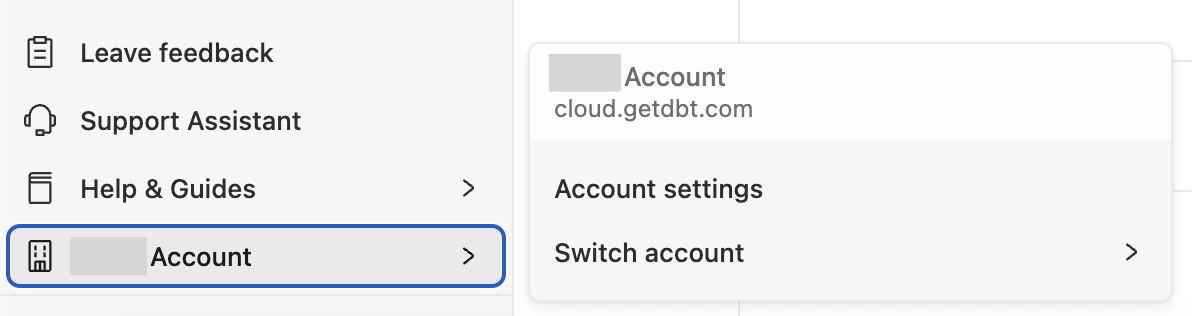](#)Navigate to Account settings
2. In **Account Settings**, select **Billing**.
3. Under **Billing details**, enter the number of developer seats you want and make sure you fill in all the payment details, including the **Billing address** section. Leaving these blank won't allow you to save your changes.
4. Press **Update Payment Information** to save your changes.
[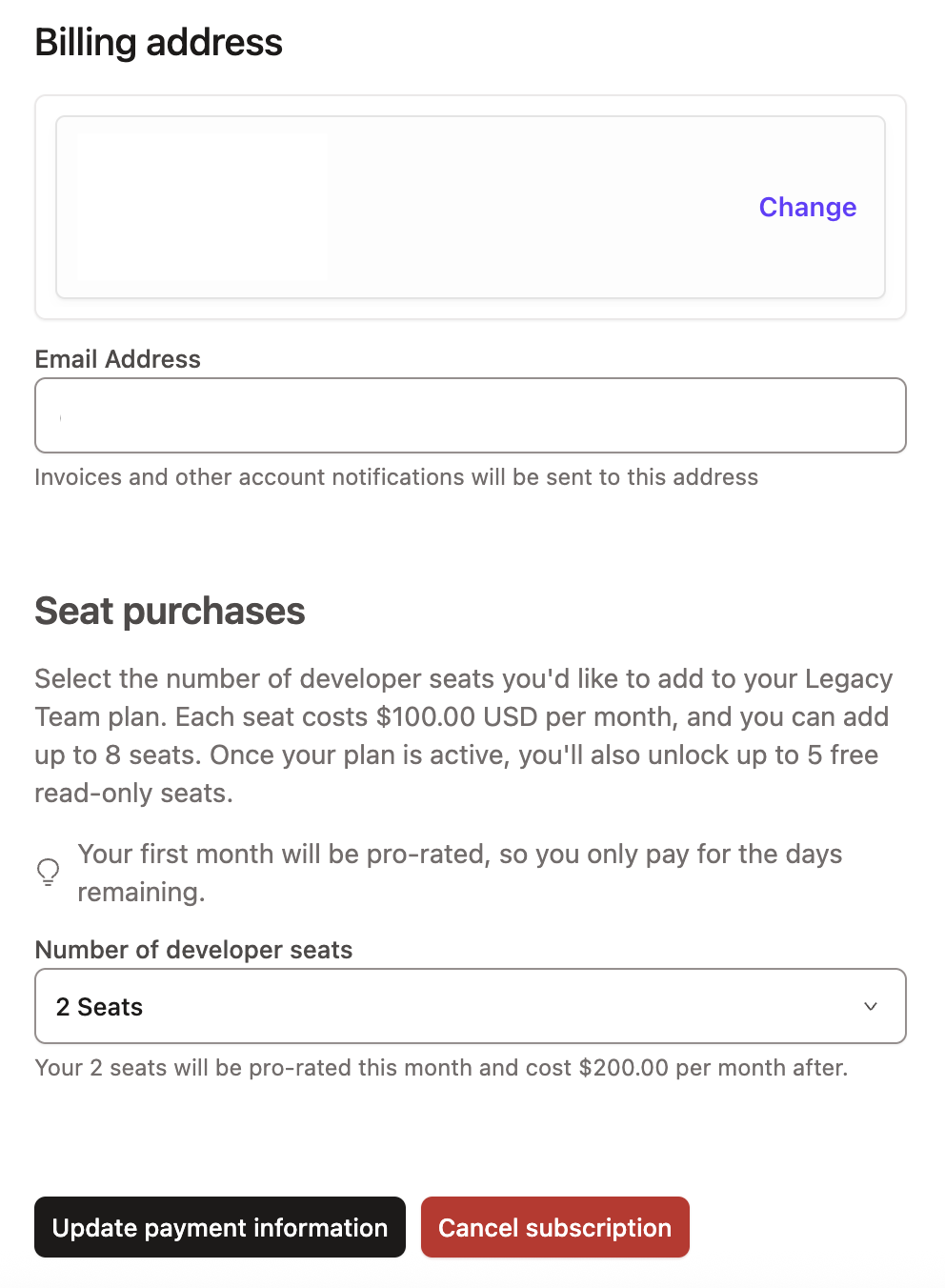](#)Navigate to Account settings -> Billing to modify billing seat count
Now that you've updated your billing, you can now [invite users](./invite-users.md) to join your dbt account:
Great work! After completing those these steps, your dbt user count and billing count should now be the same.
### Deleting users
To delete a user in dbt, you must be an account owner or have admin privileges. If the user has a `developer` license type, this will open up their seat for another user or allow the admins to lower the total number of seats.
1. From dbt, click on your account name in the left side menu and select **Account settings**.
[](#)Navigate to Account settings
2. In **Account settings**, select **Users**.
3. Select the user you want to delete, then click **Edit**.
4. Click **Delete** in the bottom left. Click **Confirm Delete** to immediately delete the user without additional password prompts. This action cannot be undone. However, you can re-invite the user with the same information if the deletion was made in error.
[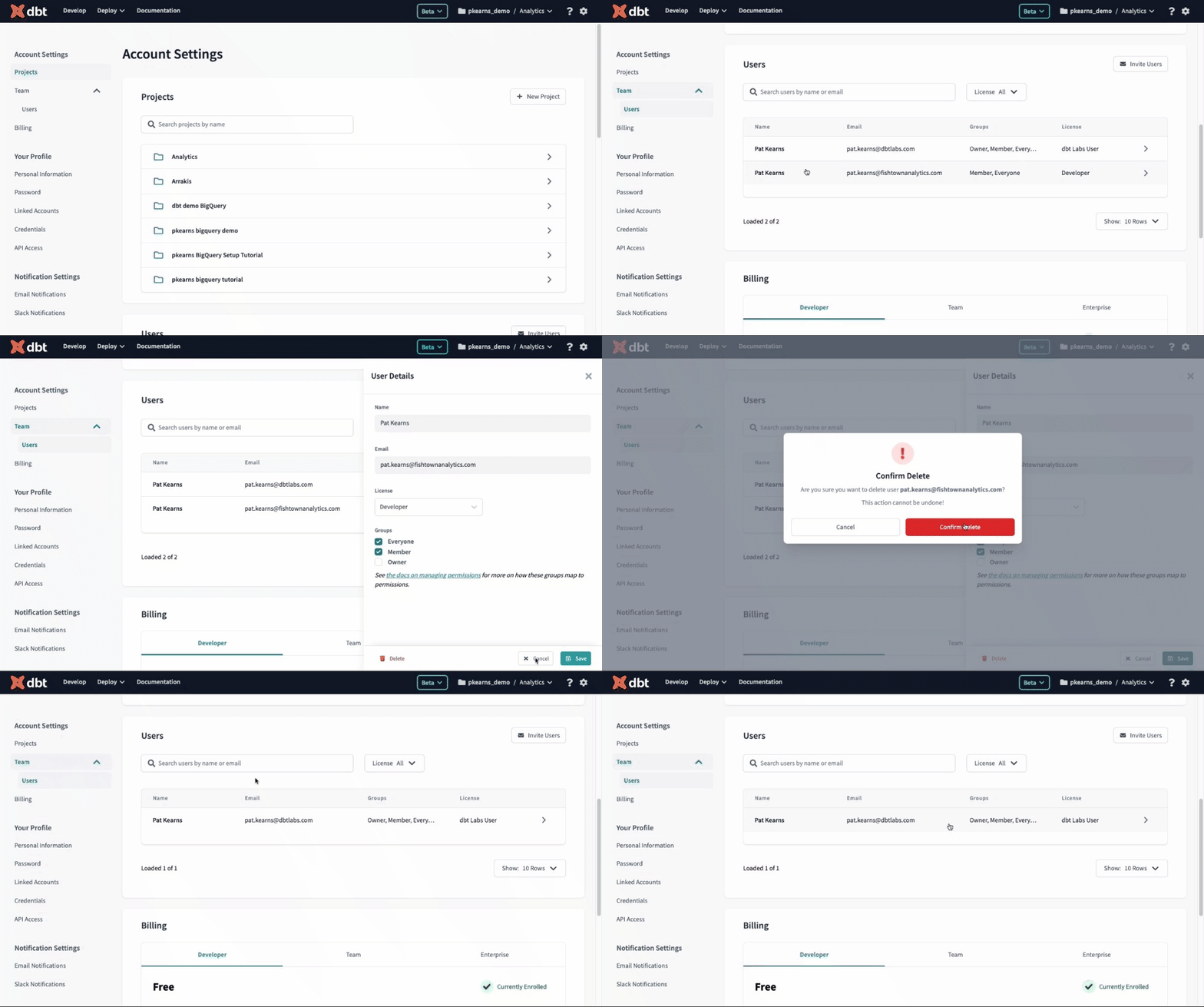](#)Deleting a user
If you are on a **Starter** plan and you're deleting users to reduce the number of billable seats, follow these steps to lower the license count to avoid being overcharged:
1. In **Account Settings**, select **Billing**.
2. Under **Billing details**, enter the number of developer seats you want and make sure you fill in all the payment details, including the **Billing address** section. If you leave any field blank, you won't be able to save your changes.
3. Click **Update Payment Information** to save your changes.
[](#)The Billing\*\* page in your \*\*Account settings
Great work! After completing these steps, your dbt user count and billing count should now be the same.
## Managing license types
Licenses can be assigned to users individually or through group membership. To assign a license via group membership, you can manually add a user to a group during the invitation process or assign them to a group after they’ve enrolled in dbt. Alternatively, with [SSO configuration](./sso-overview.md) and [role-based access control](./about-user-access.md#role-based-access-control-) (Enterprise-tier only), users can be automatically assigned to groups. By default, new users in an account are assigned a Developer license.
### Manual configuration
To manually assign a specific type of license to a user on your team:
1. Click on your account name in the left side menu and select **Account settings**.
2. Navigate to the **Users** page in your **Account settings**.
3. Select the user you want to manage and click the **Edit** button.
4. On the **User details** page, you can select the license type and relevant groups for the user.
**Note:** You will need to have an available license ready to allocate for the user. If your account does not have an available license to allocate, you will need to add more licenses to your plan to complete the license change.
[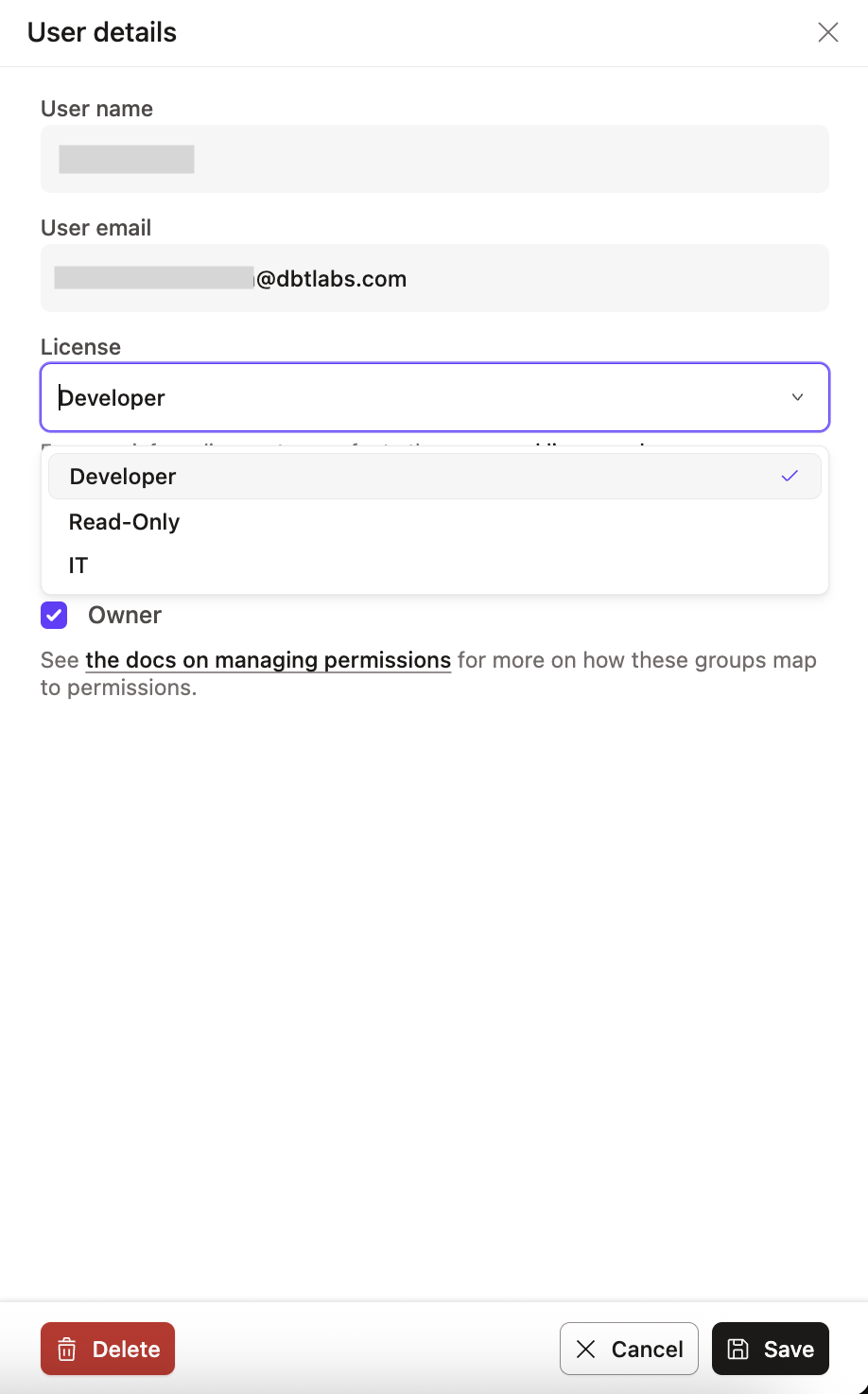](#)Manually assigning licenses
### Mapped configuration [Enterprise](https://www.getdbt.com/pricing "Go to https://www.getdbt.com/pricing")[Enterprise +](https://www.getdbt.com/pricing "Go to https://www.getdbt.com/pricing")
If your account is connected to an Identity Provider (IdP) for [Single Sign On](./sso-overview.md), you can automatically map IdP user groups to specific license types in dbt. For SCIM-based license mapping with Okta, see [Automated license mapping](./scim-manage-user-licenses.md#automated-license-mapping).
#### Configure license mappings
1. Click on your account name in the left side menu and select **Account settings**.
2. Navigate to **Groups & Licenses** and scroll to the **License mappings** section.
3. Create or edit SSO mappings for both Read-Only and Developer license types.
4. Enter a comma-separated list of **IdP group names** that should receive each license type.
[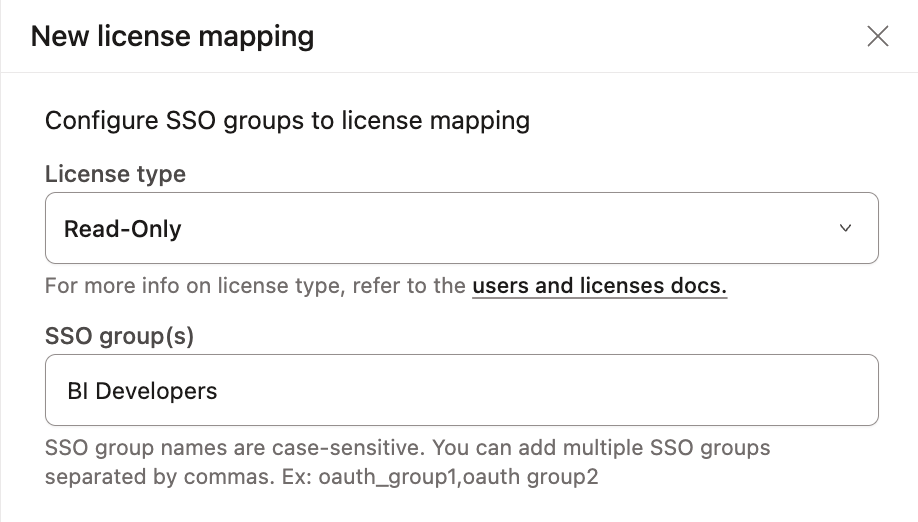](#)Configuring IdP group license mapping
#### Fundamental licensing rules
* **Default assignment**: All new members of a dbt account are assigned a Developer license unless you configure otherwise.
* **Mapping basis**: License type mappings are based on *IdP groups* (groups in your identity provider), not *dbt groups*. Check group memberships in your IdP when configuring or troubleshooting.
* **When changes take effect**: License types are adjusted when users sign into dbt using single sign-on. Changes to license type mappings take effect the next time users sign in.
#### Mapping logic and precedence
When a user belongs to multiple IdP groups, the Developer license takes precedence. The following table shows how group membership determines the assigned license:
| In a Developer license-mapped group? | In a Read-Only license-mapped group? | License assigned |
| ------------------------------------ | ------------------------------------ | -------------------------------------- |
| No | No | Developer (default) |
| No | Yes | Read-Only |
| Yes | No | Developer |
| Yes | Yes | Developer (Developer takes precedence) |
note
If a user's IdP groups do not match *any* license type mappings, dbt assigns a Developer license by default.
## Granular permissioning [Enterprise](https://www.getdbt.com/pricing "Go to https://www.getdbt.com/pricing")[Enterprise +](https://www.getdbt.com/pricing "Go to https://www.getdbt.com/pricing")
dbt Enterprise-tier plans support role-based access controls for configuring granular in-app permissions. See [access control](./about-user-access.md) for more information on Enterprise permissioning.
#### Read-Only granular permissions
dbt Enterprise-tier plans support granular permissions to help you control which projects your Read-Only users can access by assigning them to specific groups, rather than granting access to the entire account.
Enabling granular permissions is a one-time, permanent change. Before you enable this, make sure your Read-Only users are in a group with a Read-Only permission set that covers all projects. If a user isn't in a group, or their group's permission set only covers some projects, they'll lose access to the projects that aren't covered.
For complete setup instructions, refer to [How to enable granular permissions for read-only users](./about-user-access.md#enable-granular-permissions-for-read-only-users) for the full setup steps.
## Was this page helpful?
YesNo
[Privacy policy](https://www.getdbt.com/cloud/privacy-policy)[Create a GitHub issue](https://github.com/dbt-labs/docs.getdbt.com/issues)
This site is protected by reCAPTCHA and the Google [Privacy Policy](https://policies.google.com/privacy) and [Terms of Service](https://policies.google.com/terms) apply.