Connect apps with OAuth Beta
The App integrations section in dbt platform lets admins manage OAuth 2.0 client registrations — a standard that lets external apps connect to dbt securely without sharing API tokens. Use it for:
- AI tools that connect to the remote dbt MCP server.
- Your own API integrations built against dbt platform APIs, when you want end users to sign in with their dbt identity instead of distributing tokens.
- Third-party apps and IDE extensions that support OAuth for connecting to dbt.
This feature is available to Account admins on Starter, Enterprise or Enterprise+ plans.
To access this section, go to Account settings → Integrations → App integrations.
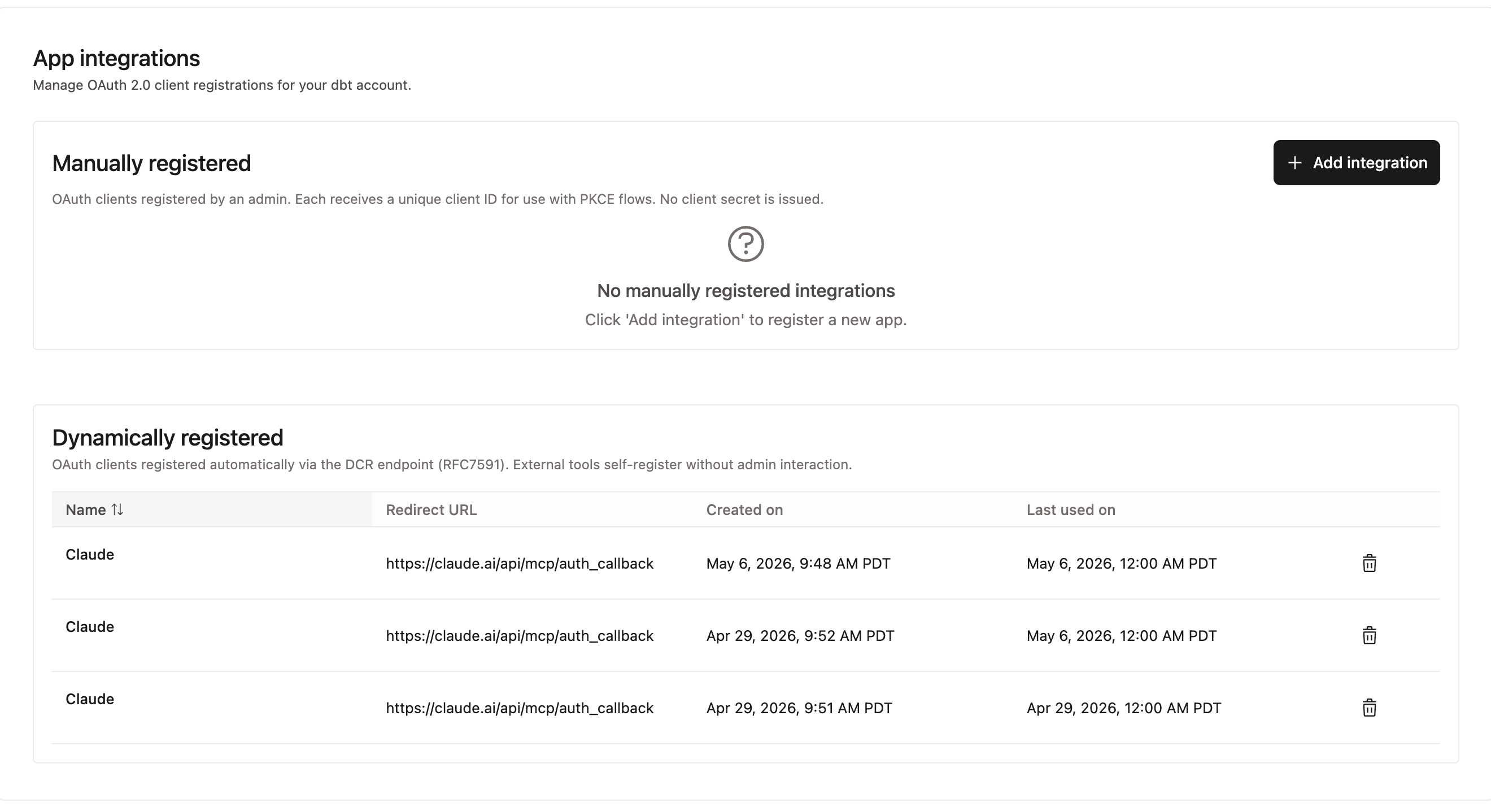 App integrations page showing manually and dynamically registered OAuth clients
Registration methods
There are two ways you can register an app as an OAuth client:
- Dynamic registration: Apps that support Dynamic Client Registration (RFC 7591) self-register automatically when a user connects them to dbt. No admin action is required.
- Manual registration: For apps that don't support dynamic registration (for example, custom-built integrations), an admin can manually register an OAuth client.
Dynamic registration
Apps that support Dynamic Client Registration (RFC 7591) self-register automatically when a user connects them to dbt. No admin action is required.
Dynamically registered apps appear in the Dynamically registered table, which shows:
| Column | Description |
|---|---|
| Name | The app name |
| Redirect URL | The OAuth callback URL the app registered |
| Created on | When the client was first registered |
| Last used on | When the client last made an authenticated request |
Manual registration
For apps that don't support dynamic registration (for example, Salesforce agent or custom-built integrations), an admin can manually register an OAuth client.
To add a manually registered integration:
- Go to Account settings → Integrations → App integrations.
- Click + Add integration.
- Complete the registration form. Each manually registered client receives a unique client ID. Note that no client secret is issued, and the client must instead support the PKCE extension (RFC 7636).
Manually registered clients appear in the Manually registered section.
When configuring your client, use the following OAuth endpoints (replace YOUR_PREFIX with your dbt platform subdomain):
| Endpoint | URL |
|---|---|
| Authorization | https://YOUR_PREFIX.dbt.com/oauth/authorize |
| Token | https://YOUR_PREFIX.dbt.com/oauth/token |
Use with remote MCP
When you connect an MCP client to the remote dbt MCP server, it authenticates using OAuth. The client needs just your dbt platform MCP URL, which you can find under Account settings → Access URLs → MCP Endpoint URL.
Clients that support dynamic registration complete the registration step automatically — you'll see them appear in the Dynamically registered table after first use.
The following steps show how to connect dbt as a custom connector in Claude Desktop. The exact UI varies by tool, but the flow is the same: add a custom connector with your MCP URL, complete the OAuth consent flow, then connect.
- In your AI tool, go to its connector settings and choose to add a custom connector (in Claude Desktop, go to Chat → Customize → Connectors, then click Add custom connector).
- Enter a name (for example,
dbt) and paste your dbt platform MCP URL (for example,https://abc123.us1.dbt.com/api/ai/v1/mcp), then click Add.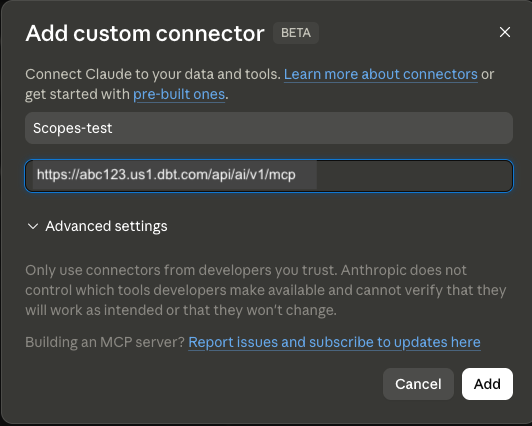 Custom connector dialog showing the dbt MCP URL
 - Click Connect. The tool redirects you to dbt to complete the OAuth consent flow, where you can approve or deny individual scopes.
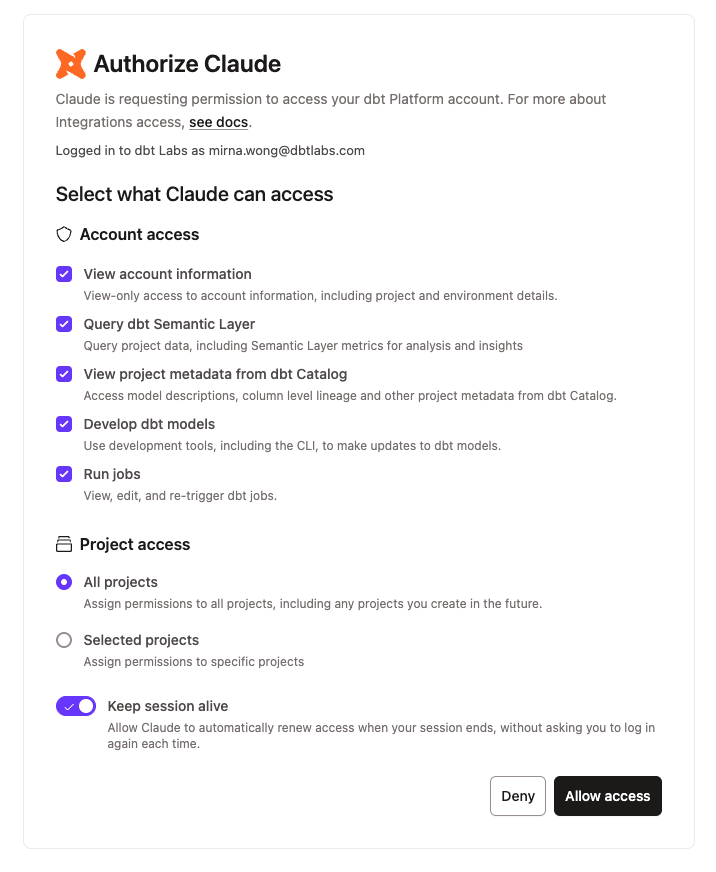 OAuth consent screen showing requested scopes and project access
 - After you approve, the connector is added to the Custom connectors table and shows as connected.
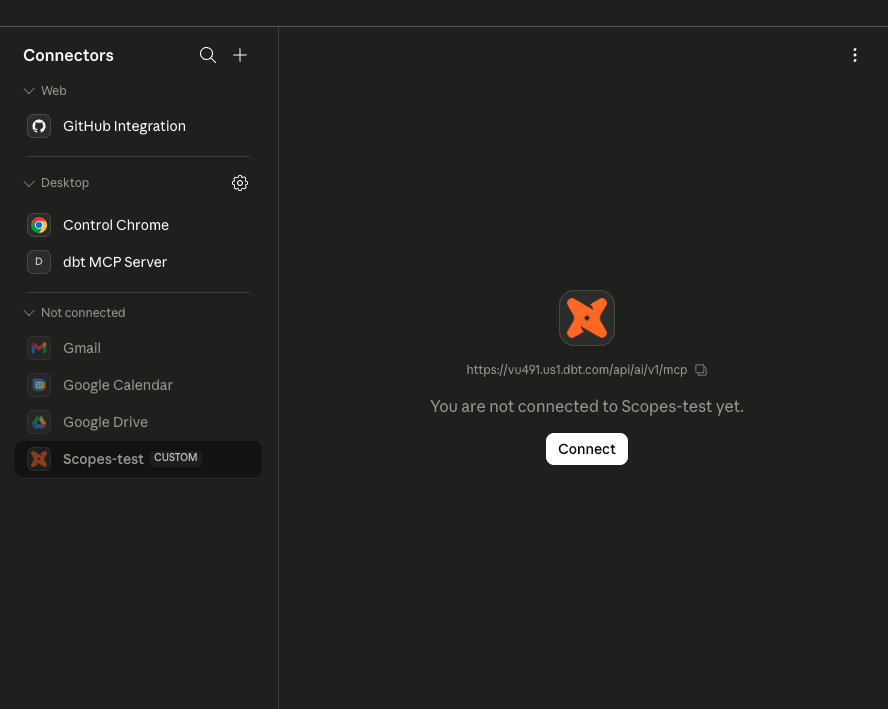 Adding a custom dbt connector in an AI tool's connector settings
 - That's it 🎉! Ask your tool a data question like "What is the total revenue for the last 30 days?" to confirm the connection.
For more information on remote MCP OAuth setup, see Use the remote dbt MCP server.
Scopes and consent
The first time a user connects a tool to dbt through OAuth, dbt shows a consent screen listing the scopes the client is requesting. Scopes act as a filter on the user's existing permissions — they don't grant any new access. A user can only consent to scopes for permissions they already have in dbt.
From the consent screen, the user can:
- Approve or deny individual scopes.
- Choose whether to grant access to all projects or only selected projects.
- Toggle Keep session alive to control whether dbt automatically refreshes their session (see Sessions and refresh tokens).
OAuth consent screen showing requested scopes and project accessThe exact scopes shown depend on what the connecting tool requests. The full list of available scopes is:
| Scope | Description |
|---|---|
offline_access | Allows the client to request a refresh token to maintain long-lived sessions |
account:read | Read-only access to account details such as project and environment settings |
projects:query | Query project data using Semantic Layer metrics |
catalog:read | Access model descriptions, column lineage, and other project metadata from dbt Catalog |
projects:develop | Use development tooling, including the CLI, to make updates to dbt models |
jobs:run | View, edit, and re-trigger dbt jobs |
For developers: handling partial scope grants
When a user unchecks one or more scopes on the consent screen, the access token is issued with only the approved subset. Your client should:
- Request only the scopes your tool actually needs — don't request scopes as a precaution.
- Handle
403responses gracefully and surface a clear message if a required scope was not granted. - Avoid assuming the full set of requested scopes was approved; always check the
scopefield in the token response.
To select the scopes your client should request, choose from the list above. Request scopes during the authorization request (/oauth/authorize). Scopes are not set during client registration.
Sessions and refresh tokens
OAuth sessions use refresh tokens with a 7-day inactivity window. As long as the client requests a new access token at least once every 7 days, the session stays alive. After 7 days of inactivity, the refresh token expires and the user has to sign in again.
Users can opt out of automatic refresh at consent time by turning off Keep session alive.
Revoke access
To revoke an OAuth grant, the user disconnects dbt from their MCP client — for example, by removing the dbt connector in the client's settings. We'll soon add the ability to revoke access in dbt platform.
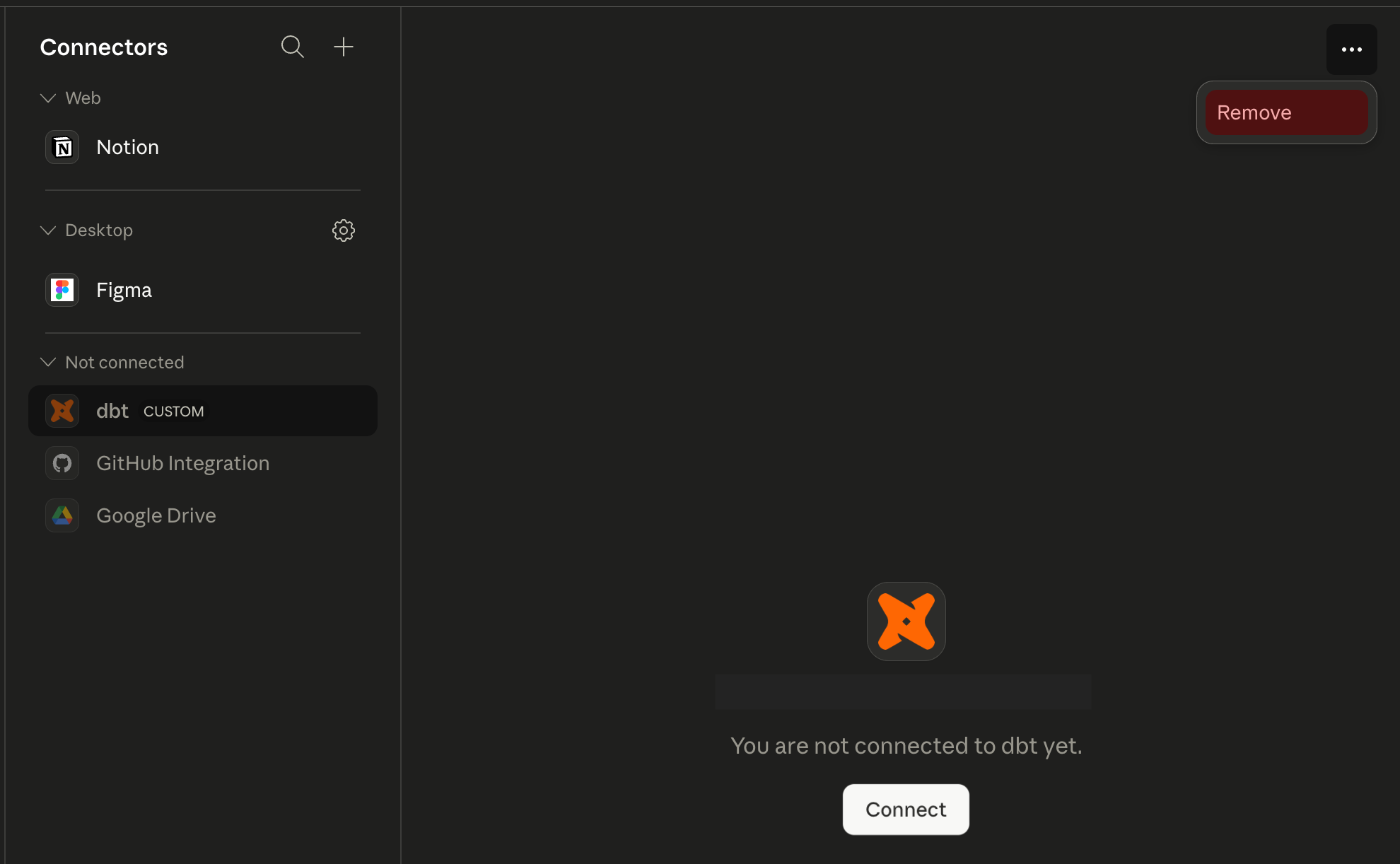 MCP client connectors page with the option to remove the dbt connector
Audit logging
OAuth-related events appear in the dbt Audit log (Account settings → Audit log), so admins can see which clients were registered, which users authorized them, and what those users did through OAuth.
Audited OAuth events include:
- Registering a client (manual or dynamic).
- Authorizing a client (a user completing the consent flow).
Actions a user performs through an OAuth-connected client — for example, creating a job or running a model — appear in the audit log with the user as the actor, the same as actions taken through the dbt UI or with a personal access token.
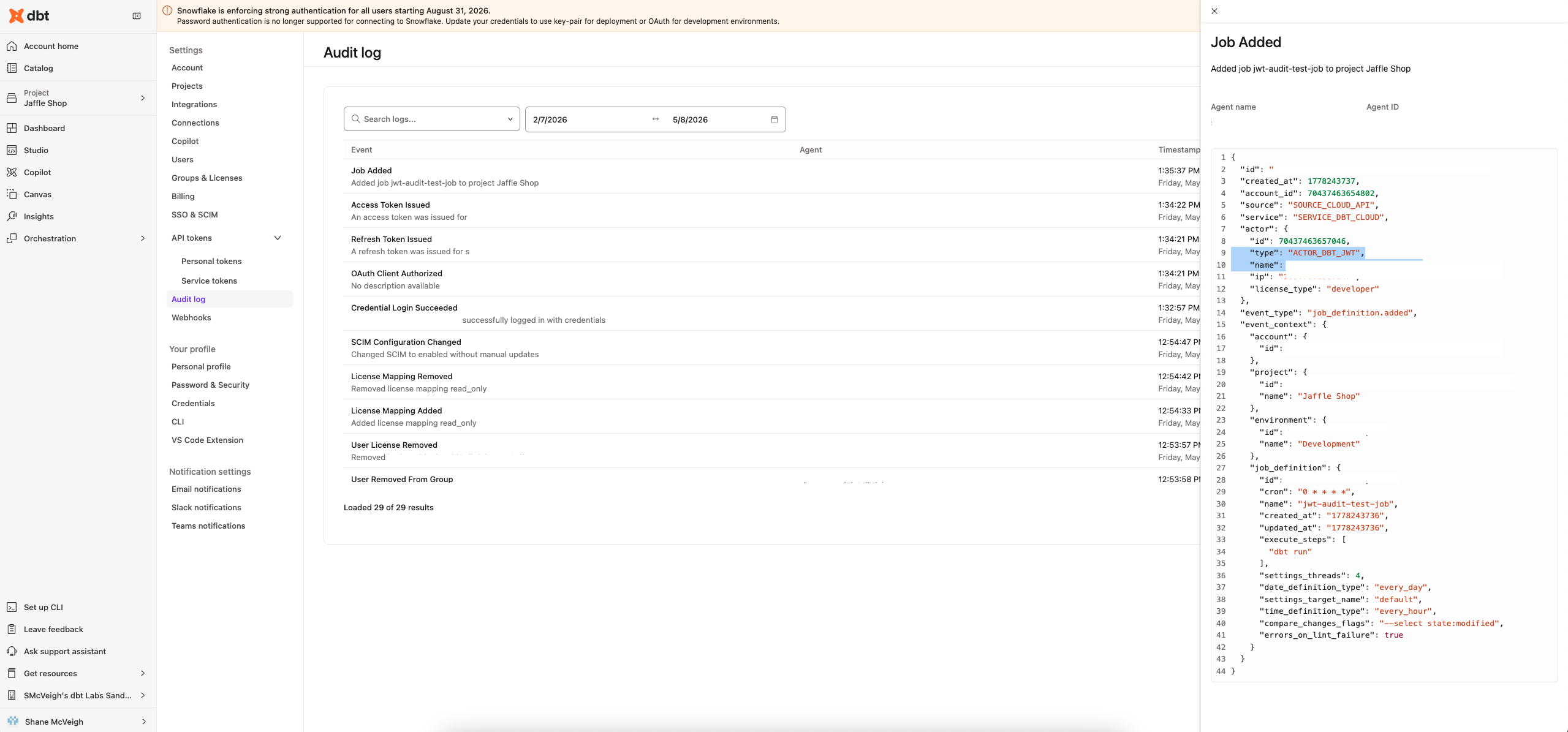 Audit log entry for an action taken through an OAuth-connected client
Was this page helpful?
This site is protected by reCAPTCHA and the Google Privacy Policy and Terms of Service apply.
