# Connect PostgreSQL, Lakebase and AlloyDB
dbt platform
dbt platform supports connecting to PostgresSQL and Postgres-compatible databases (AlloyDB, Lakebase).
The following fields are required when creating a connection:
| Field | Description | Examples |
| --------- | ---------------------------------------------------------------------------------------------------------------------------------------------------------------------------------------------------------------------------------------- | --------------------------------------- |
| Host Name | The hostname of the database to connect to. This can either be a hostname or an IP address. Refer to the [set up pages](../../local/connect-data-platform/about-dbt-connections.md) for adapter-specific details. | Postgres: `xxx.us-east-1.amazonaws.com` |
| Port | Usually 5432 | `5439` |
| Database | The logical database to connect to and run queries against. | `analytics` |
**Note**: When you set up a Postgres connection in dbt, SSL-related parameters aren't available as inputs.
[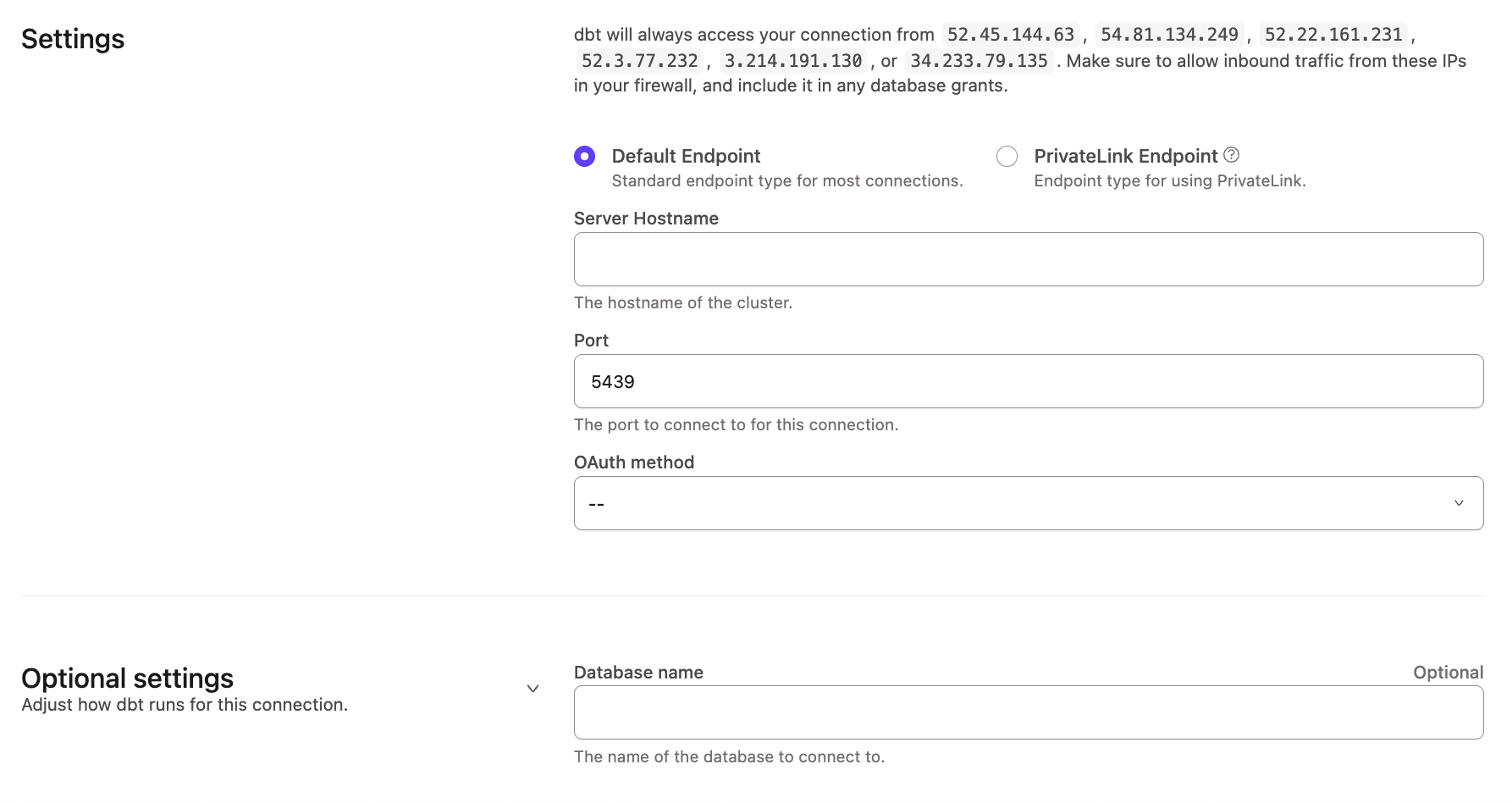](#)Configuring a Postgres connection
### Authentication Parameters
For authentication, dbt users can use **Database username and password** for Postgres and Postgres-compatible databases. For more information on what is supported, check out the database specific setup page for limitations and helpful tips.
The following table contains the parameters for the database (password-based) connection method.
| Field | Description | Examples |
| ---------- | ----------------------------------------- | ------------ |
| `user` | Account username to log into your cluster | myuser |
| `password` | Password for authentication | \_password1! |
### Connecting using an SSH Tunnel
Use an SSH tunnel when your Postgres or AlloyDB instance is not publicly accessible and must be reached through a [bastion server](./connect-redshift.md#about-the-bastion-server-in-aws). When enabled, dbt platform connects to your database by first establishing a secure connection to the bastion host, which then forwards traffic to your database.
To configure a connection using an SSH tunnel:
1. Navigate to **Account settings** (by clicking on your account name in the left side menu) and select **Connections**.
2. Select an existing connection to edit it, or click **+ New connection**.
3. In **Connection settings**, ensure **SSH Tunnel Enabled** is checked.
4. Enter the hostname, username, and port for the bastion server.
[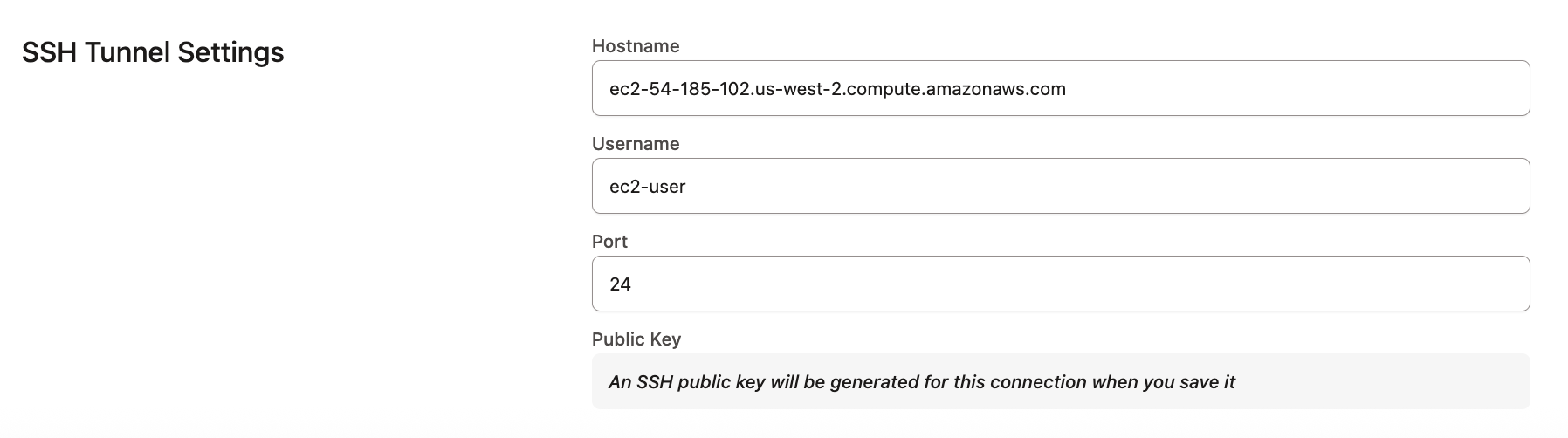](#)A public key is generated after saving
5. Click **Save**. dbt platform generates and displays a public key.
6. Copy the newly generated public key to the bastion server and add it to the server’s `authorized_keys` file to authorize dbt platform to connect through the bastion host. If the new key is not added, the SSH tunnel connection will fail.
important
Each time you create and save a new SSH tunnel connection, dbt platform generates a unique SSH key pair, even when the connection details are identical to an existing connection.
#### About the Bastion server in AWS
What is a bastion server?
A bastion server in [Amazon Web Services (AWS)](https://aws.amazon.com/blogs/security/how-to-record-ssh-sessions-established-through-a-bastion-host/) is a host that allows dbt to open an SSH connection.
dbt only sends queries and doesn't transmit large data volumes. This means the bastion server can run on an AWS instance of any size, like a t2.small instance or t2.micro.
Make sure the location of the instance is the same Virtual Private Cloud (VPC) as the Postgres instance, and configure the security group for the bastion server to ensure that it's able to connect to the warehouse port.
#### Configuring the Bastion Server in AWS
To configure the SSH tunnel in dbt, you'll need to provide the hostname/IP of your bastion server, username, and port, of your choosing, that dbt will connect to. Review the following steps:
1. Verify the bastion server has its network security rules set up to accept connections from the [dbt IP addresses](../about-platform/access-regions-ip-addresses.md) on whatever port you configured.
2. Set up the user account by using the bastion servers instance's CLI, The following example uses the username `dbtcloud`:
```shell
sudo groupadd dbtcloud
sudo useradd -m -g dbtcloud dbtcloud
sudo su - dbtcloud
mkdir ~/.ssh
chmod 700 ~/.ssh
touch ~/.ssh/authorized_keys
chmod 600 ~/.ssh/authorized_keys
```
3. Copy and paste the dbt generated public key, into the authorized\_keys file.
The bastion server should now be ready for dbt to use as a tunnel into the Postgres environment.
## Configuration
To grant users or roles database permissions (access rights and privileges), refer to the [Postgres permissions](../../../reference/database-permissions/postgres-permissions.md) page.
## FAQs
Database Error - could not connect to server: Connection timed out
When setting up a database connection using an SSH tunnel, you need the following components:
* A load balancer (like ELB or NLB) to manage traffic.
* A bastion host (or jump server) that runs the SSH protocol, acting as a secure entry point.
* The database itself (such as a Postgres cluster).
dbt uses an SSH tunnel to connect through the load balancer to the database. This connection is established at the start of any dbt job run. If the tunnel connection drops, the job fails.
Tunnel failures usually happen because:
* The SSH daemon times out if it's idle for too long.
* The load balancer cuts off the connection if it's idle.
* dbt tries to keep the connection alive by checking in every 30 seconds, and the system will end the connection if there's no response from the SSH service after 300 seconds. This helps avoid drops due to inactivity unless the Load Balancer's timeout is less than 30 seconds.
Bastion hosts might have additional SSH settings to disconnect inactive clients after several checks without a response. By default, it checks three times.
To prevent premature disconnections, you can adjust the settings on the bastion host:
* `ClientAliveCountMax `— Configures the number of checks before deciding the client is inactive. For example, `ClientAliveCountMax 10` checks 10 times.
* `ClientAliveInterval` — Configures when to check for client activity. For example, `ClientAliveInterval 30` checks every 30 seconds. The example adjustments ensure that inactive SSH clients are disconnected after about 300 seconds, reducing the chance of tunnel failures.
## Was this page helpful?
YesNo
[Privacy policy](https://www.getdbt.com/cloud/privacy-policy)[Create a GitHub issue](https://github.com/dbt-labs/docs.getdbt.com/issues)
This site is protected by reCAPTCHA and the Google [Privacy Policy](https://policies.google.com/privacy) and [Terms of Service](https://policies.google.com/terms) apply.