Install the dbt VS Code extension Preview

The dbt extension — available for VS Code, Cursor, and Windsurf — uses the dbt Fusion Engine to make dbt development smoother and more efficient.

note

This is the only official dbt Labs VS Code extension. Other extensions can work alongside the dbt VS Code extension, but they aren’t tested or supported by dbt Labs. Read the Fusion Diaries for the latest updates.

Prerequisites

Before installing, make sure to review the Limitations page as some features don't support Fusion just yet.

To use the extension, you must meet the following prerequisites:

PrerequisiteDetails
dbt Fusion EngineThe dbt VS Code extension requires the dbt Fusion Engine binary (a small executable program). The extension will prompt you to install it, or you can install it manually at any time.

Register your email within 14 days of installing the dbt extension. Free for up to 15 users.
Project files- You need a profiles.yml configuration file.

⁃ You may need to download a dbt_cloud.yml file depending on your registration path.

⁃ You don't need a dbt platform project to use the extension.
EditorVS Code, Cursor, or Windsurf code editor.
Operating systemsmacOS, Windows, or Linux-based computer.
Configure your local setup (Optional)Configure the extension to mirror your dbt environment locally and set any environment variables locally to use the VS Code extension features.
Run dbt-autofix (Optional)Run dbt-autofix to fix any errors and deprecations in your dbt project.

Install the extension

To install the dbt VS Code extension, follow these steps in your editor of choice:

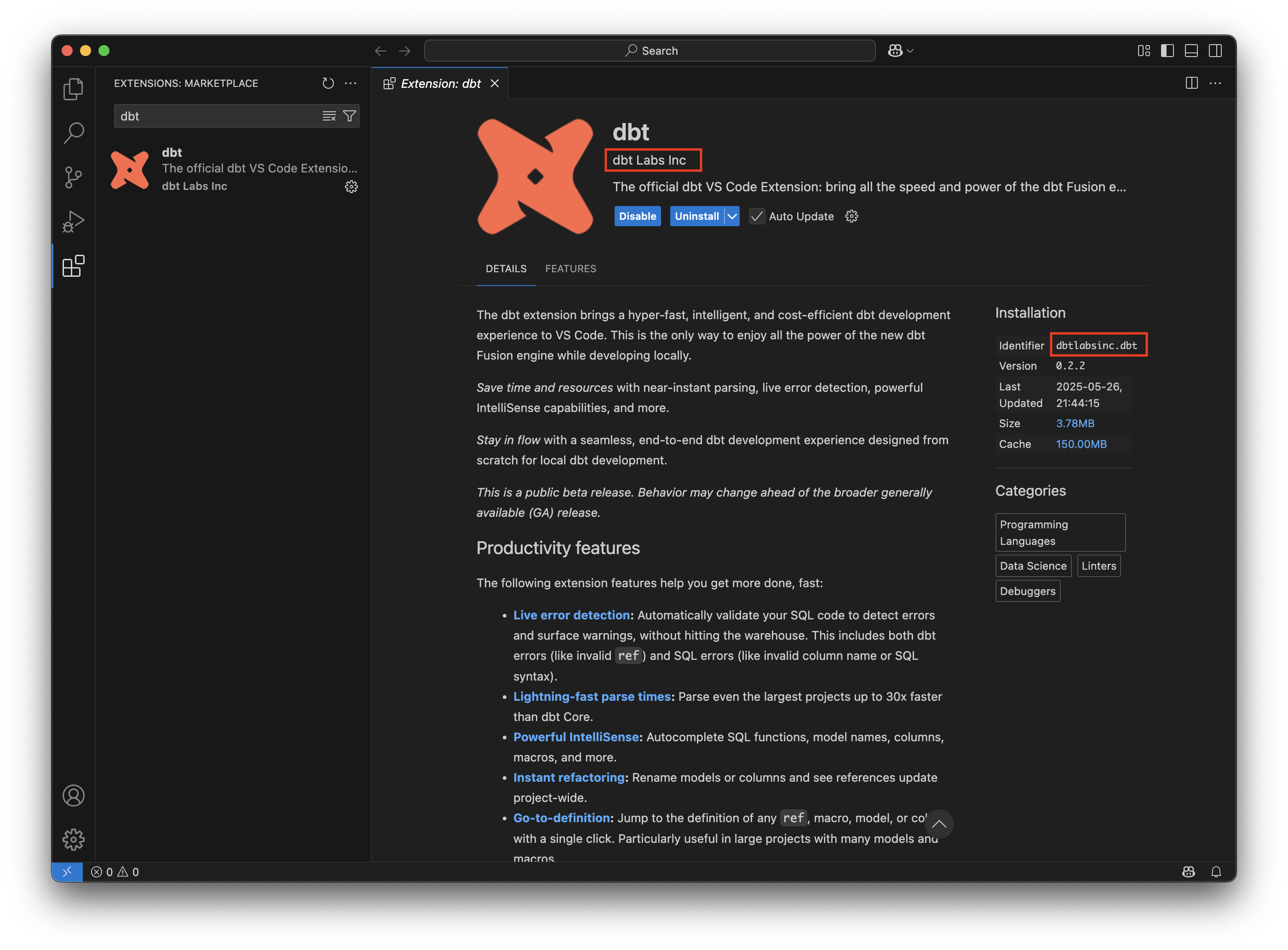
  1. Navigate to the Extensions tab of your editor and search for dbt. Locate the extension from the publisher dbtLabsInc or dbt Labs Inc. Click Install.
    Search for the extensionSearch for the extension
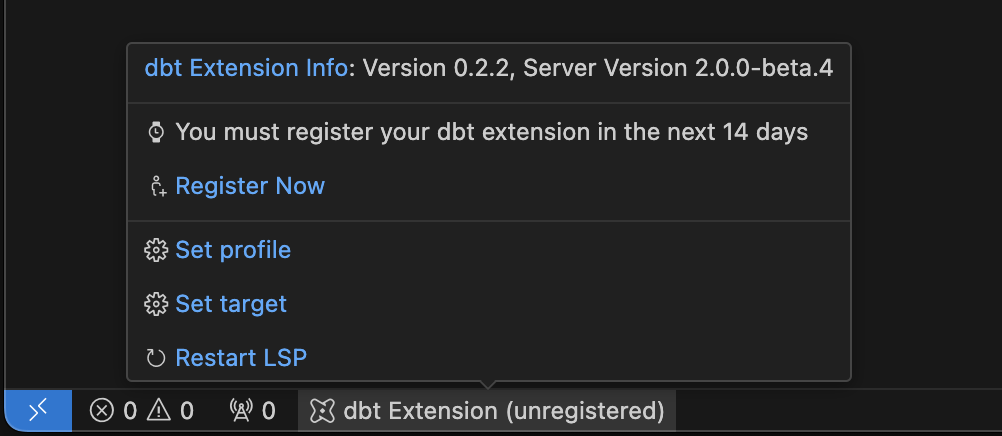
  2. Open a dbt project in your VS Code environment if you haven't already. Make sure it is added to your current workspace. If you see a dbt Extension label in your editor's status bar, then the extension has installed successfully. You can hover over this dbt Extension label to see diagnostic information about the extension.
    If you see the 'dbt Extension` label, the extension is activatedIf you see the 'dbt Extension` label, the extension is activated
  3. Once the dbt extension is activated, it will automatically begin downloading the correct dbt Language Server (LSP) for your operating system.

    The dbt Language Server will be installed automaticallyThe dbt Language Server will be installed automatically
  4. If the dbt Fusion engine is not already installed on your machine, the extension will prompt you to download and install it. Follow the steps shown in the notification to complete the installation or install it manually from the command line.
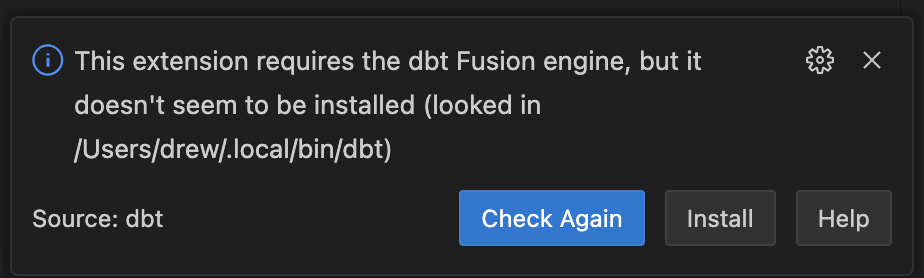
    Follow the prompt to install the dbt Fusion engineFollow the prompt to install the dbt Fusion engine
  5. Run the VS Code extension upgrade tool to ensure your dbt project is Fusion ready and help you fix any errors and deprecations.
  6. (Optional) If you're new to the extension or VS Code/Cursor, you can set your local environment to mirror your dbt platform environment and set any environment variables locally to use the VS Code extension features.

You're all set up with the dbt extension! The next steps are:

  • Follow the getting started section to begin the terminal onboarding workflow and configure your set up. If you encounter any parsing errors, you can also run the dbt-autofix tool to resolve them.

  •  Install the dbt Fusion engine from the command line, if you haven't already.

    If you already have the dbt Fusion Engine installed, you can skip this step. If you don't have it installed, you can follow these steps to install it:

    1. Open a new command-line window and run the following command to install the dbt Fusion Engine:

      Run the following command in the terminal:

      curl -fsSL https://public.cdn.getdbt.com/fs/install/install.sh | sh -s -- --update

      To use dbtf immediately after installation, reload your shell so that the new $PATH is recognized:

      exec $SHELL

      Or, close and reopen your Terminal window. This will load the updated environment settings into the new session.

    2. Run the following command to verify you've installed Fusion:

      dbtf --version

      You can use dbt or its Fusion alias dbtf (handy if you already have another dbt CLI installed). Default install path:

      • macOS/Linux: $HOME/.local/bin/dbt
      • Windows: C:\Users\<username>\.local\bin\dbt.exe

      The installer adds this path automatically, but you may need to reload your shell for the dbtf command to work.

    1. Follow the getting started guide to get started with the extension. You can get started using one of these methods:
      • Running dbtf init to use terminal onboarding.
      • Running Run dbt: Register dbt extension in the command palette.
      • Using the Get started button in the extension menu.
  • Register the extension with your email address or dbt platform account to continue using it beyond the trial period.

  • Review the limitations and unsupported features if you haven't already.

Getting started

Once the dbt Fusion Engine and dbt VS Code extension have been installed in your environment, the dbt logo will appear on the sidebar. From here, you can access workflows to help you get started, offers information about the extension and your dbt project, and provides helpful links to guide you. For more information, see the the dbt extension menu documentation.

You can get started with the extension a couple of ways:

  • Running dbtf init to use the terminal onboarding,
  • Opening dbt: Register dbt extension in the command palette,
  • Using the Get started button in the extension menu.

The following steps explain how to get started using the Get started button in the extension menu:

  1. From the sidebar menu, click the dbt logo to open the menu and expand the Get started section.
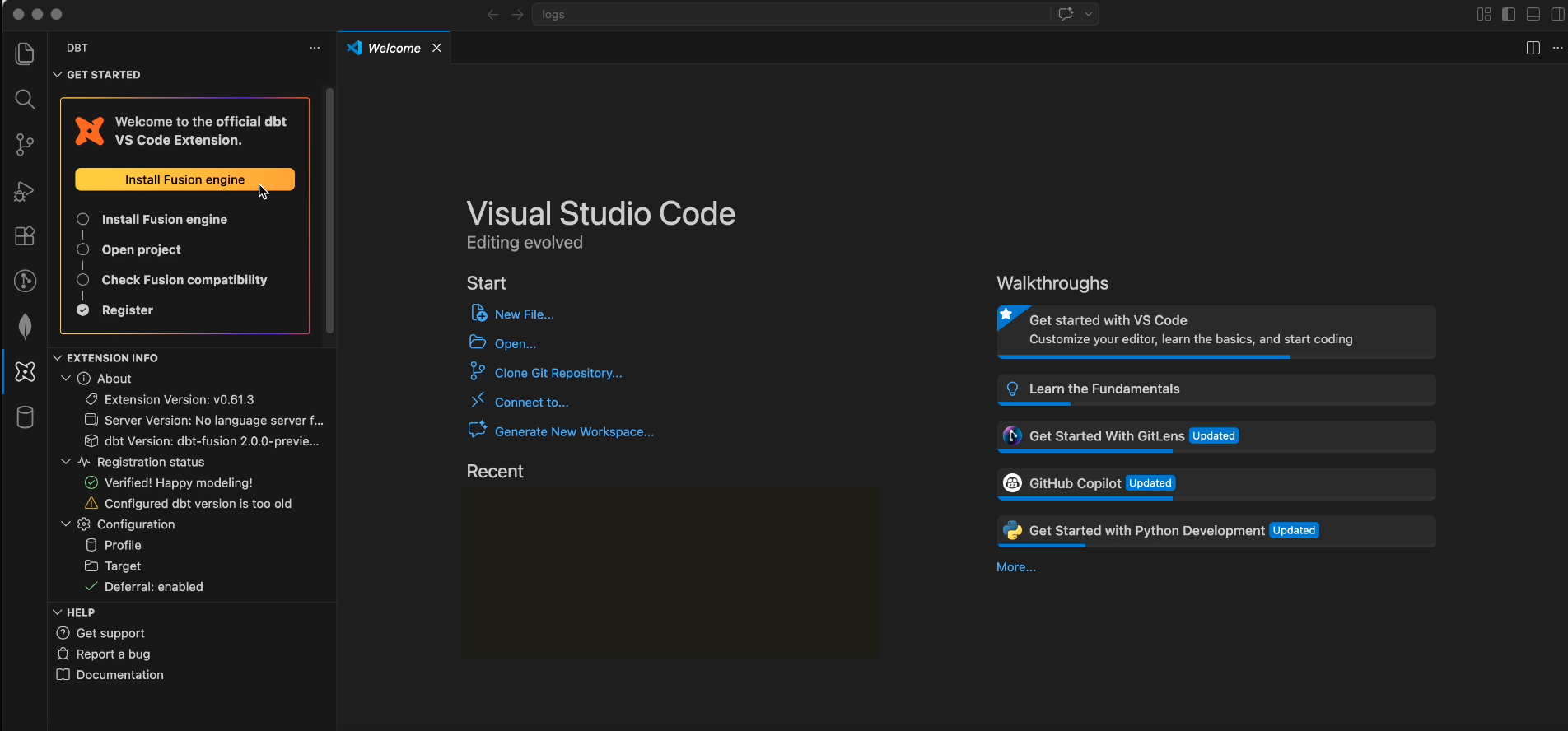
  2. Click the dbt Walkthrough status bar to view the welcome screen.
    dbt VS Code extension welcome screen.dbt VS Code extension welcome screen.
  3. Click through the items to get started with the extension:
    • Open your dbt project: Launches file explorer so you can select the dbt project you want to open with Fusion.
    • Check Fusion compatibility: Runs the Fusion upgrade workflows to bring your project up-to-date. If you encounter any parsing errors, you can also run the dbt-autofix tool to resolve them.
    • Explore features: Opens the documentation so you can learn more about all the extension has to offer.
    • Register: Launches the registration workflow so you can continue to use the extension beyond the trial period.

Upgrade to Fusion

note

If you are already running the dbt Fusion Engine, you must be on version 2.0.0-beta.66 or higher to use the upgrade tool.

The dbt extension provides a built-in upgrade tool to walk you through the process of configuring Fusion and updating your dbt project to support all of its features and fix any deprecated code. To start the process:

  1. From the VS Code sidebar menu, click the dbt logo.

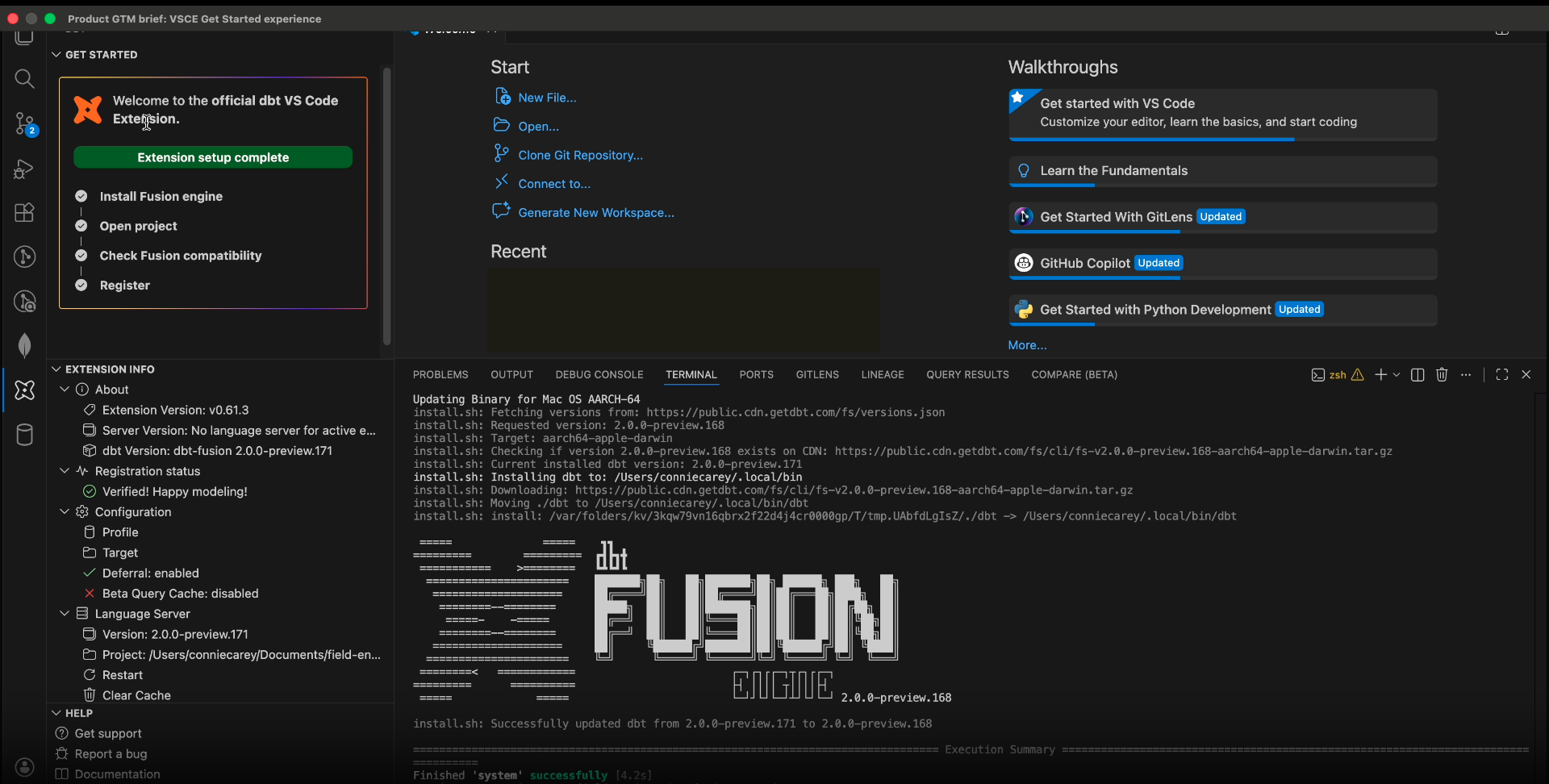
  2. In the resulting pane, open the Get started section and click the Get started button.

    The dbt extension help pane and upgrade assistant.The dbt extension help pane and upgrade assistant.

You can also manually start this process by opening a CLI window and running:

dbt init --fusion-upgrade

This will start the upgrade tool and guide you through the Fusion upgrade with a series of prompts:

  • Do you have an existing dbt platform account?: If you answer Y, you will be given instructions for downloading your dbt platform profile to register the extension. An N answer will skip to the next step.

  • Ready to run a dbtf init? (If there is no profiles.yml file present): You will go through the dbt configuration processes, including connecting to your data warehouse.

  • Ready to run a dbtf debug? (If there is an existing profiles.yml file): Validates that your project is configured correctly and can connect to your data warehouse.

  • Ready to run a dbtf parse?: Your dbt project will be parsed to check for compatibility with Fusion.

    • If any issues are encountered during the parsing, you'll be given the option to run the dbt-autofix tool to resolve the errors. If you opt to not run the tool during the upgrade processes, you can always run it later or manually fix any errors. However, the upgrade tool cannot continue until the errors are resolved.
      AI Agents

      There are cases where dbt-autofix may not resolve all errors and requires manual intervention. For those cases, the dbt-autofix tool provides an AI Agents.md file to enable AI agents to help with migration work after dbt-autofix has completed its part.

  • Ready to run a ‘dbtf compile -static-analysis off’? (Only runs once the parse passes): Compiles your project without any static analysis, mimicking dbt Core. This compile only renders Jinja into SQL, so Fusion's advanced SQL comprehension is temporarily disabled.

  • Ready to run a ‘dbtf compile’?: Compiles your project with full Fusion static analysis. It checks that your SQL code is valid in the context of your warehouse's tables and columns.

    The message received when you have completed upgrading your project to the dbt Fusion engine.The message received when you have completed upgrading your project to the dbt Fusion engine.

Once the upgrade is completed, you're ready to dive into all the features that the dbt Fusion Engine has to offer!

Register the extension

After downloading the extension and installing the dbt Fusion Engine, you must register the dbt VS Code extension within 14 days of installing it (or re-installing it).

Key points:

  • The extension is free for organizations for up to 15 users (see the acceptable use policy).
  • Registration links your editor to a dbt account so you can keep using the extension beyond the grace period.
  • This does not require a dbt platform project — just a dbt account.
  • If a valid dbt_cloud.yml file exists on your machine, the extension will automatically use it and skip login.
  • If you already have a dbt account (even from years ago), you will be directed into an OAuth sign-in flow.
 Understanding regions

Most users can sign in from the extension's browser registration page for the default US1 region. If that works, you have an account in the default region and don't need to consider other regions.

Use a credential file (dbt_cloud.yml) instead of sign-in when:

  • You can't sign in.
  • Your organization uses a non-default region (eu1, us2, and so on).
  • You prefer file-based credentials.

If you're unsure whether you have a US1 account from the past, try signing in or using Forgot password at us1.dbt.com. If nothing comes up, continue with Register with dbt_cloud.yml.

Choose your registration path

Your dbt VS Code extension registration path depends on your situation. Select the one that applies to you:

First-time registration

Use this if you've never created a dbt account before. What you'll do: Open the command, enter your name and email, verify the email, and you're done 🎉!

  1. Click the registration prompt or open the command palette (Ctrl + Shift + P (Windows/Linux) or Cmd + Shift + P (macOS)) and type: dbt: Register dbt extension.
    The extension registration prompt in VS Code.The extension registration prompt in VS Code.
  2. In the browser registration form, enter your name and email, then click Continue.
  3. Check your inbox for a verification email and click the verification link.
  4. After verification, return to the browser flow to complete sign‑in.
  5. You'll return to the editor and see Registered.
  6. Continue with the Get started onboarding workflow and get your dbt project up and running.

Note: You do not need a dbt platform project to register; this only creates your dbt account.

Existing account sign-in

Use this if you have an existing dbt account — including older or inactive accounts. dbt automatically detects your account and dbt_cloud.yml file if it exists (no file download needed). Use to easily work across machines.

  1. Click the registration prompt or open the command palette and type: dbt: Register dbt extension.
  2. In the browser registration form, select Sign in at the bottom of the form.
  3. Enter your email address associated with your dbt account and click Continue. If you don't remember your password, see Recover your login for help.
  4. You'll then have the option to select your existing dbt account.
  5. Select the account you want to use and click Continue.
  6. You should see a page confirming your successful registration. Close the tab and go back to your editor to continue the registration.

When you might still need a dbt_cloud.yml:

  • You want a file-based credential for automations.
  • You're on the free Developer plan and your workflow needs a local credential file for defer.
  • Your region requires it (for example, regions like eu1 or us2).

Recover your login

Choose this path if the registration form tells you your email already exists but you don't remember your password or your account is locked.

To reset your password and sign in through the OAuth flow:

  1. On the sign-in screen, click Forgot password.
  2. Enter the email associated with your dbt account.
  3. Check your inbox and reset your password.
  4. Return to the sign in screen in the browser and complete the sign-in process.
  5. If you've signed in, you will then have the option to select your existing dbt account.
  6. Select the account you want to use and click Continue.
  7. You should see a page confirming your successful registration. Close the tab and go back to your editor to continue the registration.

If you still can't sign in:

Register with dbt_cloud.yml

Use this if you can't sign in to your dbt account, your org uses a non-default region (eu1, us2), or your workflow requires a credential file.

What you'll do: Download the dbt_cloud.yml file, place it in your .dbt directory, and run the registration command.

  1. Log in to dbt platform and open Account settingsVS Code extension.

  2. In the Set up your credentials section, click Download credentials to get dbt_cloud.yml file.

    Download the dbt_cloud.yml file from your dbt platform account.Download the dbt_cloud.yml file from your dbt platform account.
  3. Move the file into your dbt directory:

    • macOS/Linux: ~/.dbt/dbt_cloud.yml
    • Windows: C:\Users\[username]\.dbt\

    For help creating/moving the .dbt directory, see this FAQ.

  4. Return to the VS Code editor, open the command palette and type: dbt: Register dbt extension.

  5. The extension will detect the credential file and you can continue with the registration flow.

Behavior details:

  • If the dbt_cloud.yml file exists, it takes precedence over any login flow and the extension uses it automatically.
  • If the file is missing, you'll be prompted to sign in or add the file.

Configure environment variables locally

This section is optional. You only need to configure environment variables locally if your dbt project uses environment variables that are already configured in the dbt platform.

If your dbt project uses environment variables, you can configure them to use the extension's features. See the Configure environment variables page for more information.

Troubleshooting

If you run into any issues, check out the troubleshooting section below.

 How to create a .dbt directory in root and move dbt_cloud.yml file

If you've never had a .dbt directory, you should perform the following recommended steps to create one. If you already have a .dbt directory, move the dbt_cloud.yml file into it. Some information about the .dbt directory:

  • A .dbt directory is a hidden folder in the root of your filesystem. It's used to store your dbt configuration files. The . prefix is used to create a hidden folder, which means it's not visible in Finder or File Explorer by default.
  • To view hidden files and folders, press Command + Shift + G on macOS or Ctrl + Shift + G on Windows. This opens the "Go to Folder" dialog where you can search for the .dbt directory.
  1. Clone your dbt project repository locally.
  2. Use the mkdir command followed by the name of the folder you want to create.
  • If using macOS, add the ~ prefix to create a .dbt folder in the root of your filesystem:
mkdir ~/.dbt # macOS
mkdir %USERPROFILE%\.dbt # Windows
 I can't see the lineage tab in Cursor

If you're using the dbt VS Code extension in Cursor, the lineage tab works best in Editor mode and doesn't render in Agent mode. If you're in Agent mode and the lineage tab isn't rendering, just switch to Editor mode to view your project's table and column lineage.

 dbt platform configurations

If you're a cloud-based dbt platform user who has the dbt-cloud: config in the dbt_project.yml file and are also using dbt Mesh, you must have the project ID configured:

dbt-cloud:
project-id: 12345 # Required

If you don’t configure this correctly, cross-platform references will not resolve properly, and you will encounter errors executing dbt commands.

 dbt extension not activating

If the dbt extension has activated successfully, you will see the dbt Extension label in the status bar at the bottom left of your editor. You can view diagnostic information about the dbt extension by clicking the dbt Extension button.

If the dbt Extension label is not present, then it is likely that the dbt extension was not installed successfully. If this happens, try uninstalling the extension, restarting your editor, and then reinstalling the extension.

Note: It is possible to "hide" status bar items in VS Code. Double-check if the dbt Extension status bar label is hidden by right-clicking on the status bar in your editor. If you see dbt Extension in the right-click menu, then the extension has installed successfully.

 Missing dbt LSP features

If you receive a no active LSP for this workspace error message or aren't seeing dbt Language Server (LSP) features in your editor (like autocomplete, go-to-definition, or hover text), start by first following the general troubleshooting steps mentioned earlier.

If you've confirmed the dbt extension is installed correctly but don't see LSP features, try the following:

  1. Check extension version — Ensure that you're using the latest available version of the dbt extension by:
    • Opening the Extensions page in your editor, or
    • Going to the Output tab and looking for the version number, or
    • Running dbtf --version in the terminal.
  2. Reinstall the LSP — If the version is correct, reinstall the LSP:
    1. Open the Command Palette: Command + Shift + P (macOS) or Ctrl + Shift + P (Windows/Linux).
    2. Paste dbt: Reinstall dbt LSP and enter.

This command downloads the LSP and re-activates the extension to resolve the error.

 Unsupported dbt version

If you see an error message indicating that your version of dbt is unsupported, then there is likely a problem with your environment.

Check the dbt Path setting in your VS Code settings. If this path is set, ensure that it is pointing to a valid dbt Fusion Engine executable. If necessary, you can also install the dbt Fusion Engine directly using these instructions: Install the Fusion CLI

 Addressing the 'dbt language server is not running in this workspace' error

To resolve the dbt language server is not running in this workspace error, you need to add your dbt project folder to a workspace:

  1. In VS Code, click File in the toolbar then select Add Folder to Workspace.
  2. Select the dbt project file you want to add to a workspace.
  3. To save your workspace, click File then select Save Workspace As.
  4. Navigate to the location you want to save your workspace.

This should resolve the error and open your dbt project by opening the workspace it belongs to. For more information on workspaces, refer to What is a VS Code workspace?.

More information about Fusion

Fusion marks a significant update to dbt. While many of the workflows you've grown accustomed to remain unchanged, there are a lot of new ideas, and a lot of old ones going away. The following is a list of the full scope of our current release of the Fusion engine, including implementation, installation, deprecations, and limitations:

Was this page helpful?

This site is protected by reCAPTCHA and the Google Privacy Policy and Terms of Service apply.

0