Visualize downstream exposures EnterpriseEnterprise +
Downstream exposures integrate natively with Tableau (Power BI coming soon) and auto-generate downstream lineage in Catalog for a richer experience.
As a data team, it’s critical that you have context into the downstream use cases and users of your data products. By leveraging downstream exposures automatically, data teams can:
- Gain a better understanding of how models are used in downstream analytics, improving governance and decision-making.
- Reduce incidents and optimize workflows by linking upstream models to downstream dependencies.
- Automate exposure tracking for supported BI tools, ensuring lineage is always up to date.
- Orchestrate exposures to refresh the underlying data sources during scheduled dbt jobs, improving timeliness and reducing costs. Orchestrating exposures is essentially a way to ensure that your BI tools are updated regularly by using the dbt job scheduler.
- For more info on the differences between visualizing and orchestrating exposures, see Visualize and orchestrate downstream exposures.
To configure downstream exposures automatically from dashboards in Tableau, prerequisites, and more — refer to Configure downstream exposures.
Supported plans
Downstream exposures is available on all dbt Enterprise-tier plans. Currently, you can only connect to a single Tableau site on the same server.
If you're using Tableau Server, you need to allowlist dbt's IP addresses for your dbt region.
View downstream exposures
After setting up downstream exposures in dbt, you can view them in Catalog for a richer experience.
Navigate to Catalog by selecting Catalog from the top-level navigation. You can view downstream exposures from a couple of places:
Exposures menu
View all downstream exposures for a project from the Catalog sidebar:
- In the sidebar, select your project.
- Under the project, select Exposure. You will only see this option if you set up downstream exposures in Tableau and dbt.
The Exposures table lists every exposure in the project so you can quickly access and manage them:
- Name: The name of the exposure.
- Health: The data health signal of the exposure.
- Type: The type of exposure, such as
dashboardornotebook. - Owner: The owner of the exposure.
- Owner email: The email address of the owner of the exposure.
- Integration: The BI tool that the exposure is integrated with.
- Exposure mode: The type of exposure defined: Auto or Manual. Auto exposures from Tableau appear alongside manual exposures
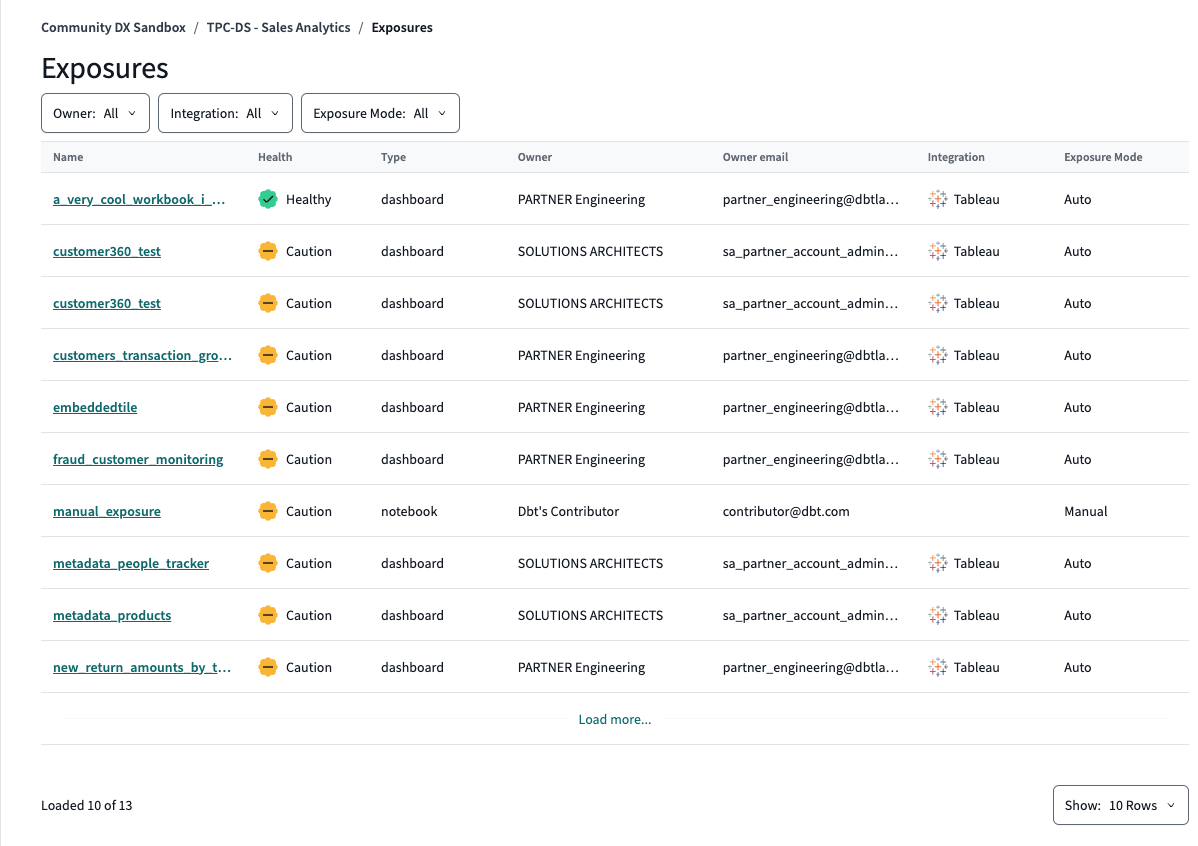 View the Exposures table from the Catalog sidebar.
Exposure detail page
After you open the Exposures table (previous section), select an exposure name to open its detail page.
On the exposure detail page, you can review metadata, data health signals, description, and lineage. For Tableau auto exposures, use Open in Dashboard to open the workbook in Tableau, or Modify integration to update your Tableau connection settings.
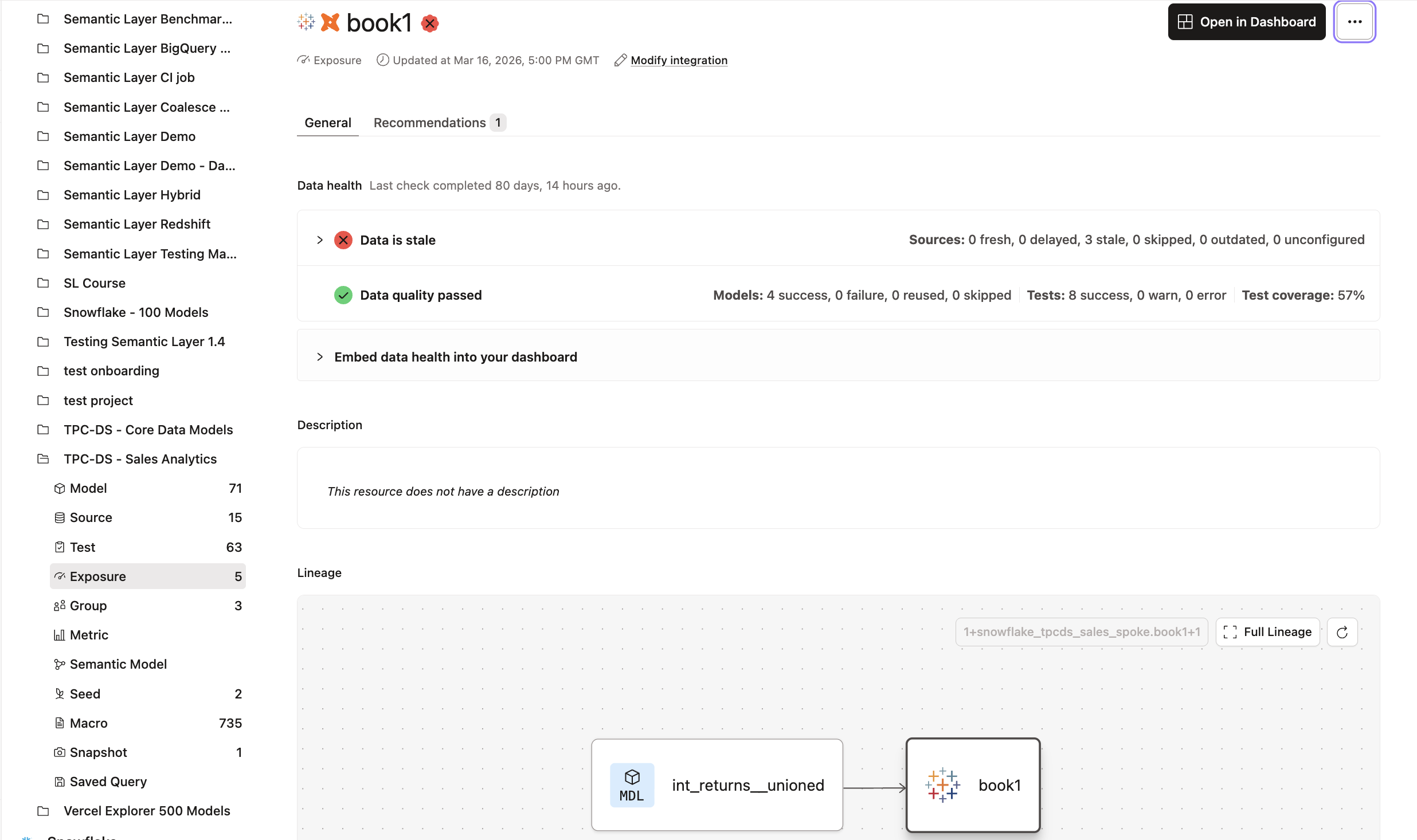 View an exposure detail page in Catalog.
Project lineage
You can also view exposures from the Project lineage view, separate from the Exposures table:
- In the sidebar, select your project.
- Click View lineage.
- Select an exposure node with the Tableau icon to view its details in the side panel.
This view visualizes the dependencies and relationships in your project. For Tableau auto exposures, use View in Tableau or Modify integration from the side panel.
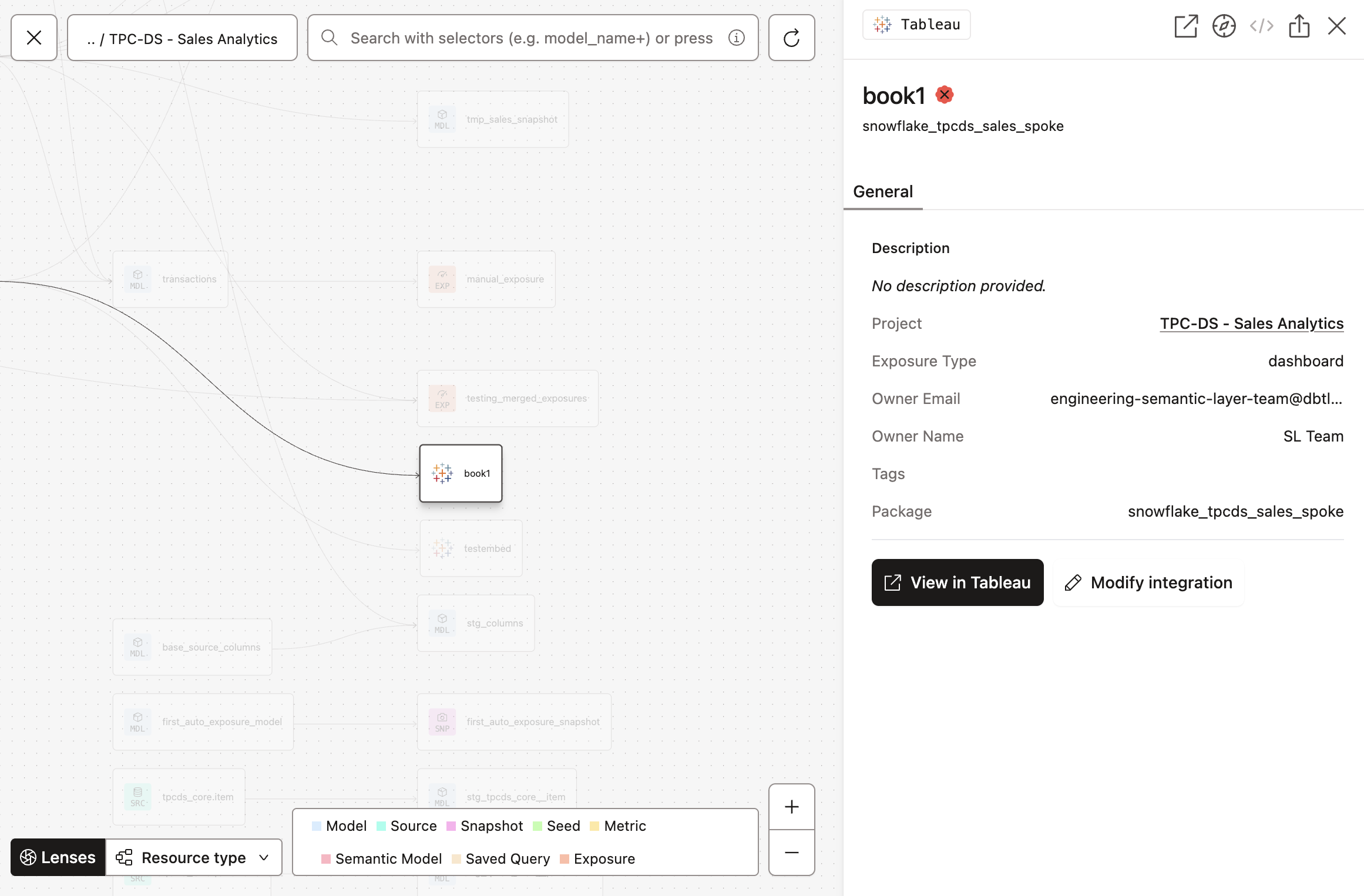 View from the dbt Catalog in your Project lineage view, displayed with the Tableau icon.
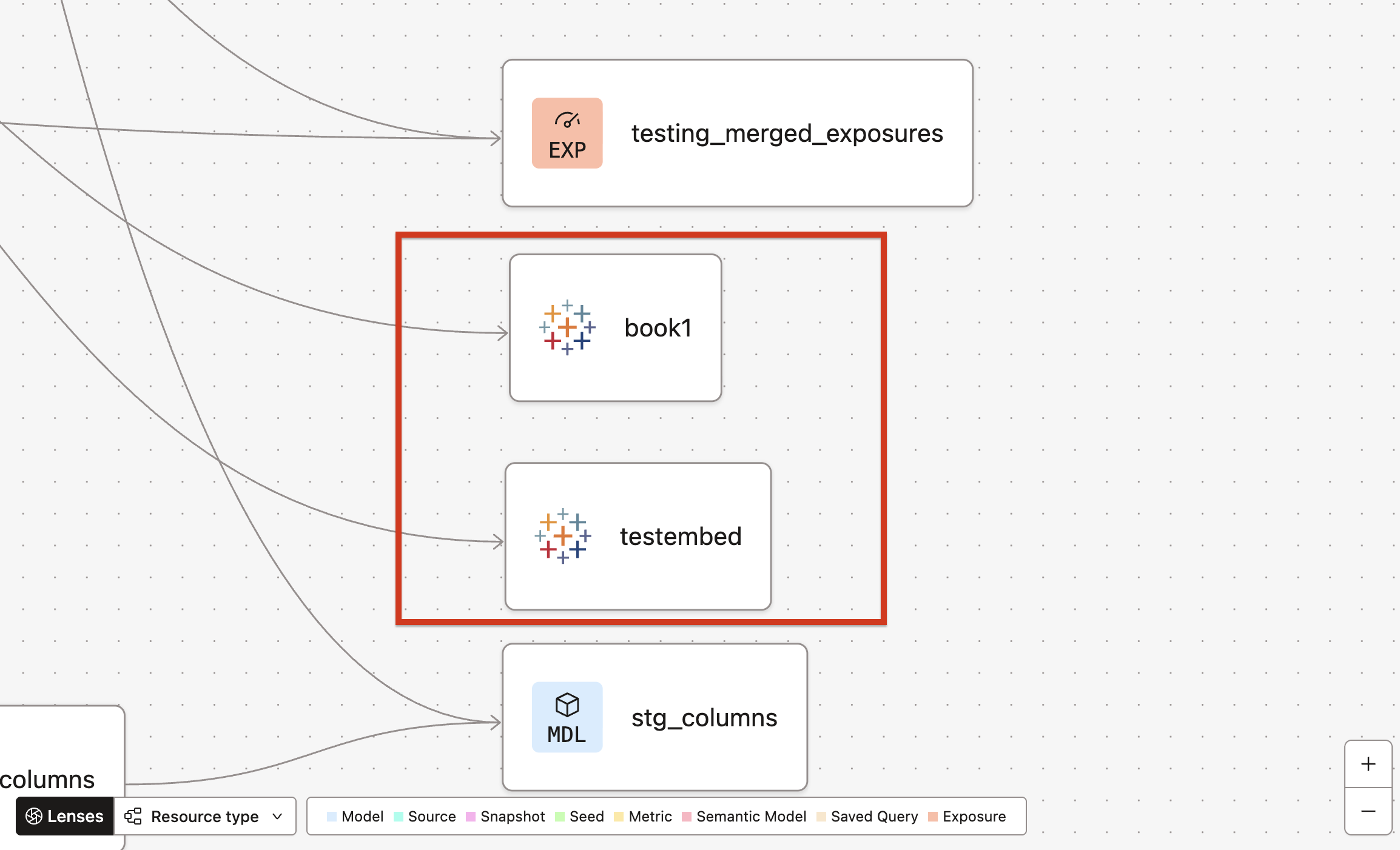 View from the dbt Catalog in your Project lineage view, displayed with the Tableau icon.
Was this page helpful?
This site is protected by reCAPTCHA and the Google Privacy Policy and Terms of Service apply.
