Model query history
Model query history helps data teams track model usage by analyzing query logs.
Model query history allows you to:
- View the count of consumption queries for a model based on the data warehouse's query logs.
- Provides data teams insight, so they can focus their time and infrastructure spend on the worthwhile used data products.
- Enable analysts to find the most popular models used by other people.
Model query history is powered by a single consumption query of the query log table in your data warehouse aggregated on a daily basis.
Model query history is supported in the following data warehouses:
- Snowflake (Enterprise-tier or higher)
- BigQuery
- Redshift
- Databricks
Prerequisites
To access the features, you should meet the following requirements:
- You have a dbt account on an Enterprise-tier plan. Single-tenant accounts should contact their account representative for setup.
- You have set up a production deployment environment for each project you want to explore, with at least one successful job run.
- You have admin permissions in dbt to edit project settings or production environment settings.
- You use Snowflake, BigQuery, Redshift, or Databricks as your data warehouse and can enable query history permissions or work with an admin to do so.
- For Snowflake users: You must have a Snowflake Enterprise-tier or higher subscription.
Enable query history in dbt
- New production environments: dbt automatically enables query history when you create a new production deployment environment in Orchestration (marked PROD). This applies to Snowflake, BigQuery, Redshift, and Databricks on Enterprise-tier plans. Development environments are not included.
- Existing production environments: You must enable query history manually in your PROD environment settings. Configure the credential permissions for your warehouse prior to starting the steps in this section.
To enable model query history in dbt, follow these steps:
- Navigate to Orchestration and then Environments.
- Select the environment marked PROD and click Settings.
- Click Edit and scroll to the Query History section.
- Click the Test Permissions button to validate the deployment credentials permissions are sufficient to support query history.
- Click the Enable query history box to enable.
- Save your settings.
If query history fails to retrieve data, dbt automatically disables it to prevent unintended warehouse costs.
- If the failure is temporary (like a network timeout), dbt may retry.
- If the problem keeps happening (for example, missing permissions), dbt turns off query history so customers don’t waste warehouse compute.
To turn it back on, click Test Permissions in Environment settings. If the test succeeds, dbt re-enables the environment.
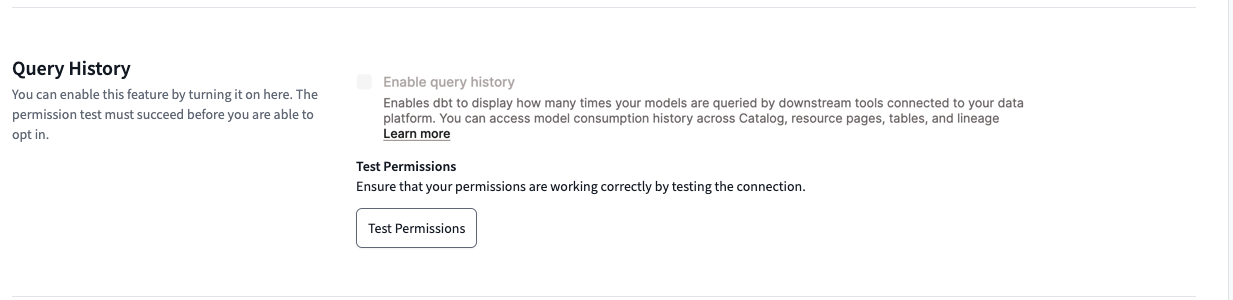 Enable query history in your environment settings.
Credential permissions
This section explains the permissions and steps you need to enable and view model query history in Catalog.
The model query history feature uses the credentials in your production environment to gather metadata from your data warehouse’s query logs. This means you may need elevated permissions with the warehouse. Before making any changes to your data platform permissions, confirm the configured permissions in dbt:
- Navigate to Orchestration and then Environments.
- Select the Environment marked PROD and click Settings.
- Click Edit.
- Click the sync icon in the Connection profiles section.
- Look at the information under Deployment credentials.
- Note: Querying query history entails warehouse costs / uses credits.
 Click the sync icon in the Connection profiles section.
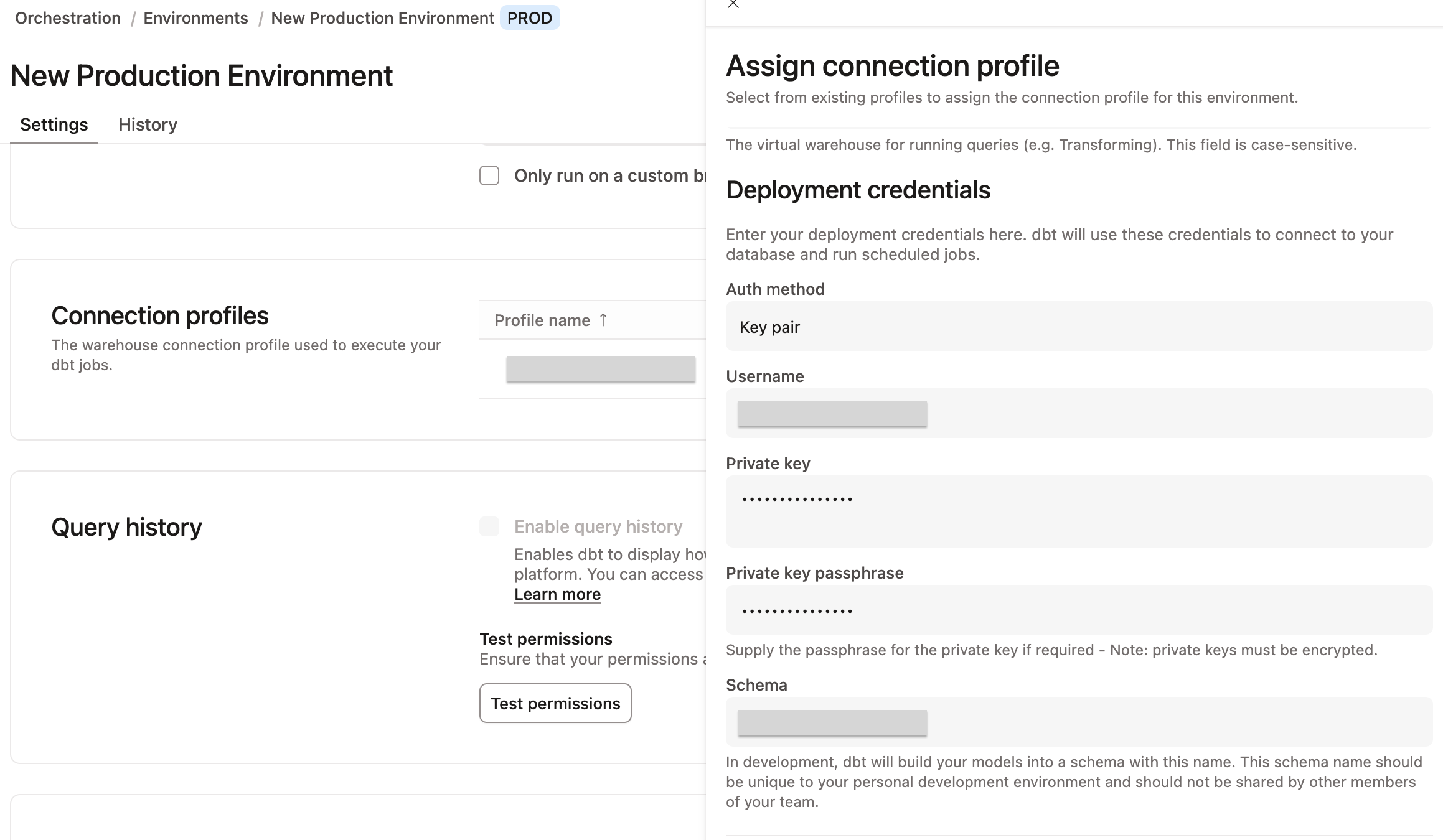 Confirm your deployment credentials in your environment settings page.
- Copy or cross reference those credential permissions with the warehouse permissions and grant your user the right permissions.
Snowflake model query history
Model query history uses metadata tables available to Snowflake Enterprise-tier accounts or higher: QUERY_HISTORY and ACCESS_HISTORY. The Snowflake user in the production environment must have the GOVERNANCE_VIEWER permission to view the data.
Before enabling model query history, your ACCOUNTADMIN must run the following grant statement in Snowflake to ensure access:
GRANT DATABASE ROLE SNOWFLAKE.GOVERNANCE_VIEWER TO ROLE <YOUR_DBT_CLOUD_DEPLOYMENT_ROLE>;
Without this grant, model query history won't display any data. For more information, refer to the Snowflake documentation.
BigQuery model query history
The model query history uses metadata from the INFORMATION_SCHEMA.JOBS view in BigQuery. To access the metadata, the production environment user must have the correct IAM role or permission to access this data:
- If you use a BigQuery provided role, we recommend
roles/bigquery.resourceViewer. - If you use a custom role, ensure it includes the
bigquery.jobs.listAll permission.
Redshift model query history
Model query history uses the SYS_QUERY_HISTORY and SYS_QUERY_DETAIL system views in Redshift. By default, users can only see their own queries in these views. To surface query history across all warehouse users, your database admin must grant the production environment credentials one of the following:
-
The
sys:monitorrole:GRANT ROLE sys:monitor TO <YOUR_DBT_USER>; -
Unrestricted syslog access on the user:
ALTER USER <YOUR_DBT_USER> SYSLOG ACCESS UNRESTRICTED;
Without one of these, model query history won't display data from other users. For more information, refer to the Redshift documentation.
Redshift considerations
Redshift model query history is derived from physical table scans (SYS_QUERY_DETAIL where step_name = 'scan'). This means usage data reflects a high-quality signal rather than an exact query count.
Because Redshift expands regular views at execution time, scans are attributed to underlying base tables and view names do not appear in scan metadata. Materialized views do not have this limitation. Keep the following in mind when reviewing usage data:
- Models materialized as
viewwill likely show zero usage. - Models materialized as
tableorincrementalare attributed correctly. ephemeralmodels cannot be attributed.
If your project relies heavily on views, usage may appear lower than expected. This is a known limitation of scan-based attribution rather than missing data.
Databricks model query history
Model query history uses two Unity Catalog system tables: system.query.history and system.access.table_lineage. Before granting access, confirm the following prerequisites are met:
- Your account has at least one Unity Catalog-enabled workspace. Users who are still on the legacy Hive Metastore cannot use model query history.
- The metastore is on Privilege Model Version 1.0. For more information, refer to Unity Catalog privileges reference.
- The
accessandqueryschemas are enabled in thesystemcatalog. A Databricks account admin can enable them under Account Console > Settings > System tables.
Grant the service principal used in your production environment the following privileges:
GRANT USE CATALOG ON CATALOG system TO `<YOUR_SERVICE_PRINCIPAL>`;
GRANT USE SCHEMA ON SCHEMA system.access TO `<YOUR_SERVICE_PRINCIPAL>`;
GRANT USE SCHEMA ON SCHEMA system.query TO `<YOUR_SERVICE_PRINCIPAL>`;
GRANT SELECT ON TABLE system.access.table_lineage TO `<YOUR_SERVICE_PRINCIPAL>`;
GRANT SELECT ON TABLE system.query.history TO `<YOUR_SERVICE_PRINCIPAL>`;
SELECT on the tables alone is not sufficient. Databricks also requires USE CATALOG on the parent catalog and USE SCHEMA on the parent schemas.
For more information, refer to the Databricks Unity Catalog privileges documentation.
Databricks considerations
Keep the following in mind when using model query history with Databricks:
- Usage data may be incomplete. Databricks does not capture lineage for all queries, so some queries may not appear in usage data. This is a known Databricks limitation. For more information, refer to Databricks lineage system tables.
- Lineage data is not real-time.
system.access.table_lineageis updated throughout the day with no guaranteed timeframe. Delays of up to 24 hours are possible. - Views may produce inconsistent lineage records. Materialized views and streaming tables are included in lineage events. Standard views may or may not produce lineage records, depending on how Databricks Unity Catalog resolves them.
- Statement text encryption affects query filtering. If statement text encryption is enabled in Databricks,
statement_textinsystem.query.historyisNULL. In this case, dbt test queries cannot be filtered and may be counted as user queries. - Serverless compute lineage may be incomplete.
system.query.historyincludes queries from SQL warehouses and serverless compute, but lineage attribution for serverless executions may not always be captured.
View query history in Catalog
To enhance your discovery, you can view your model query history in various locations within Catalog:
View from Performance charts
- Navigate to Catalog by clicking Catalog in the navigation.
- In the main Overview page, click on Performance under the Project details section. Scroll down to view the Most consumed models.
- Use the dropdown menu on the right to select the desired time period, with options available for up to the past 3 months.
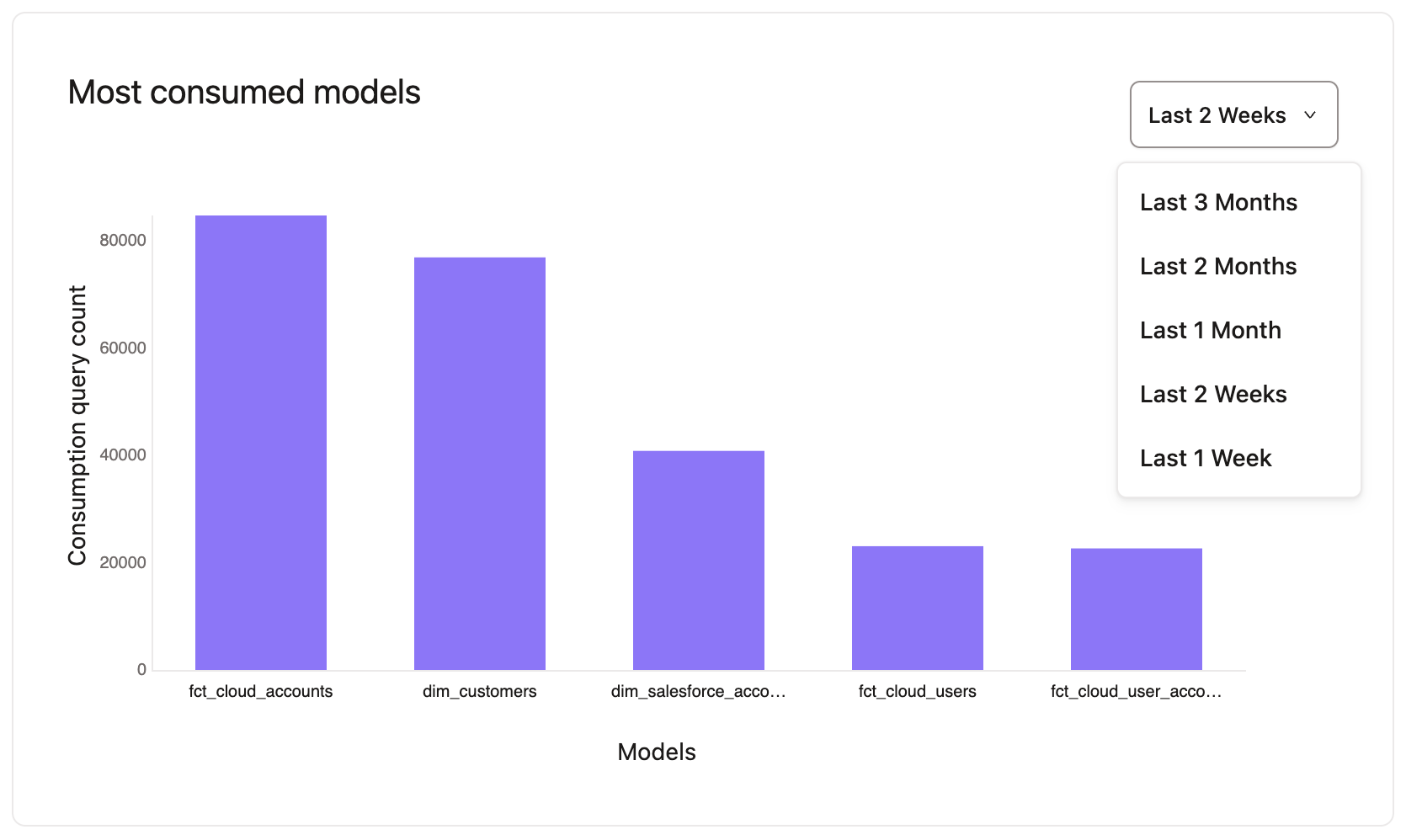 View most consumed models on the 'Performance' page in dbt Catalog.
- Click on a model for more details and go to the Performance tab.
- On the Performance tab, scroll down to the Model performance section.
- Select the Consumption queries tab to view the consumption queries over a given time for that model.
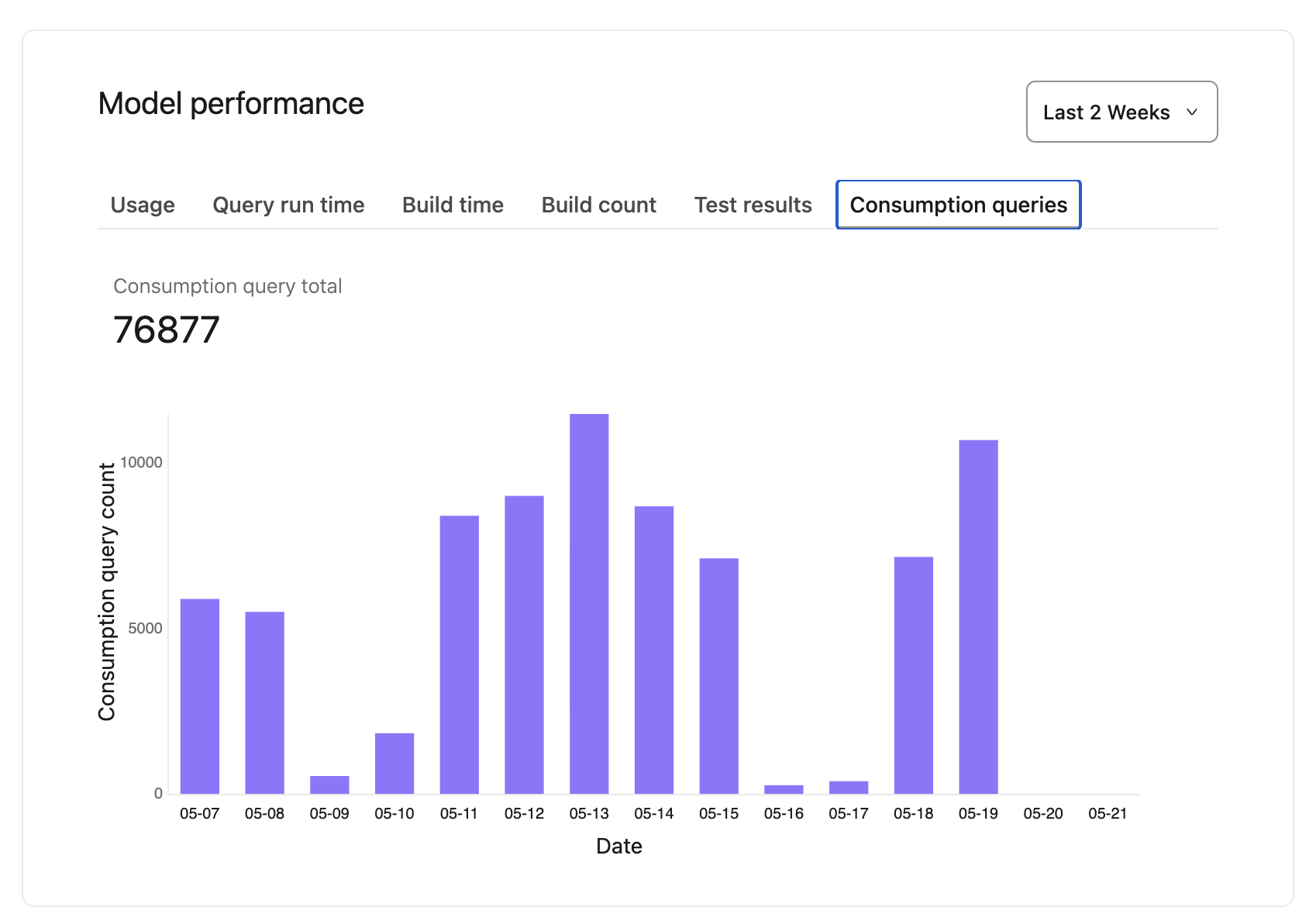 View consumption queries over time for a given model.
View from Project lineage
- To view your model in your project lineage, go to the main Overview page and click on Project lineage.
- In the lower left of your lineage, click on Lenses and select Consumption queries.
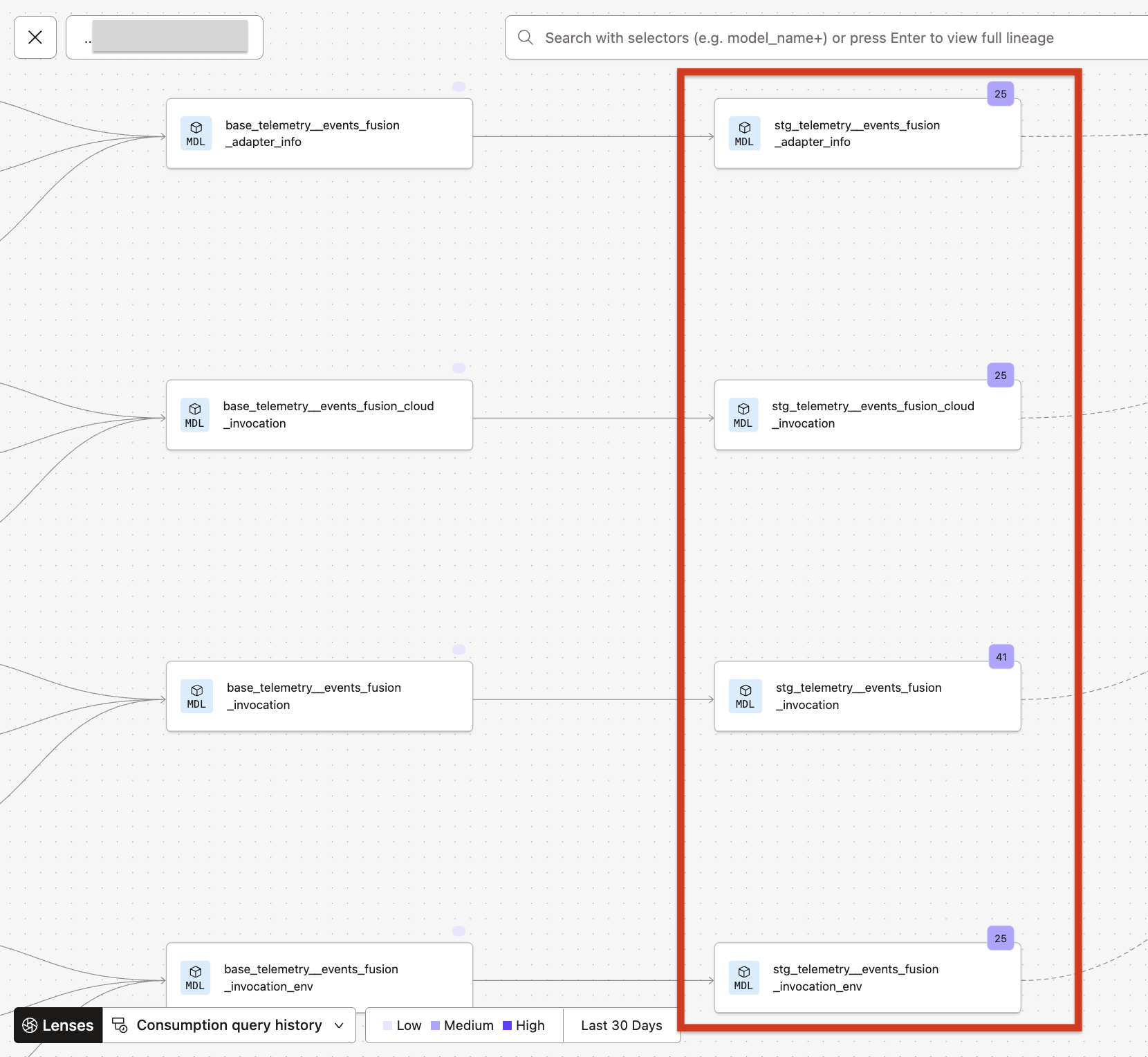 View model consumption queries in your lineage using the 'Lenses' feature.
- Your lineage should display a small purple box above each model, indicating the consumption query number. The number for each model represents the model consumption over the last 30 days.
View from Model list
- To view a list of models, go to the main Overview page.
- In the left navigation, go to the Resources tab and click on Models to view the models list.
- You can view the consumption query count for the models and sort by most or least consumed. The consumption query number for each model represents the consumption over the last 30 days.
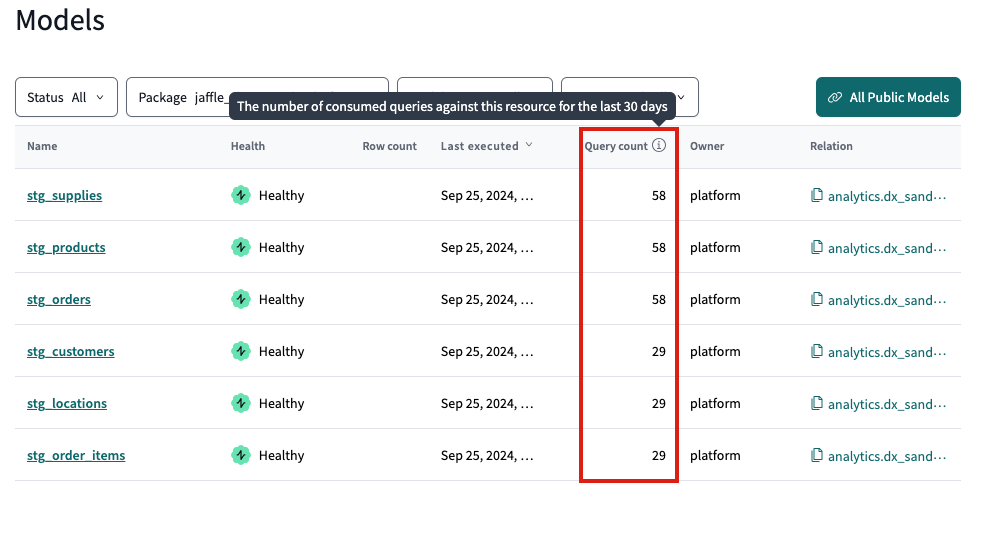 View models consumption in the 'Models' list page under the 'Consumption' column.
Was this page helpful?
This site is protected by reCAPTCHA and the Google Privacy Policy and Terms of Service apply.
