# Use Wizard Desktop [Private beta](https://docs.getdbt.com/docs/dbt-versions/product-lifecycles "Go to https://docs.getdbt.com/docs/dbt-versions/product-lifecycles")
Local development
Navigate Wizard Desktop and learn how to work in a session with dbt Wizard — with rich data visualizations, data diffs, lineage, and more rendered right in the app. Start with [Get started](./wizard-desktop.md).
This page is your map of the app: where everything lives, how a session works, what to do when dbt Wizard proposes a change, and how it conjures its magic
.
Private beta access
Wizard Desktop is in private beta. [Sign up to get an invite](https://www.getdbt.com/wizard-desktop-waitlist), and dbt Labs emails you the download page to get started!
Available on macOS and Linux, with Windows support coming soon.
## Tour the app
When you open Wizard Desktop, everything you need is in one window — you'll have your projects and sessions on the left, the chat in the middle, and panes on the right that show your project, your lineage, your changes, and your results as rendered charts and tables.
[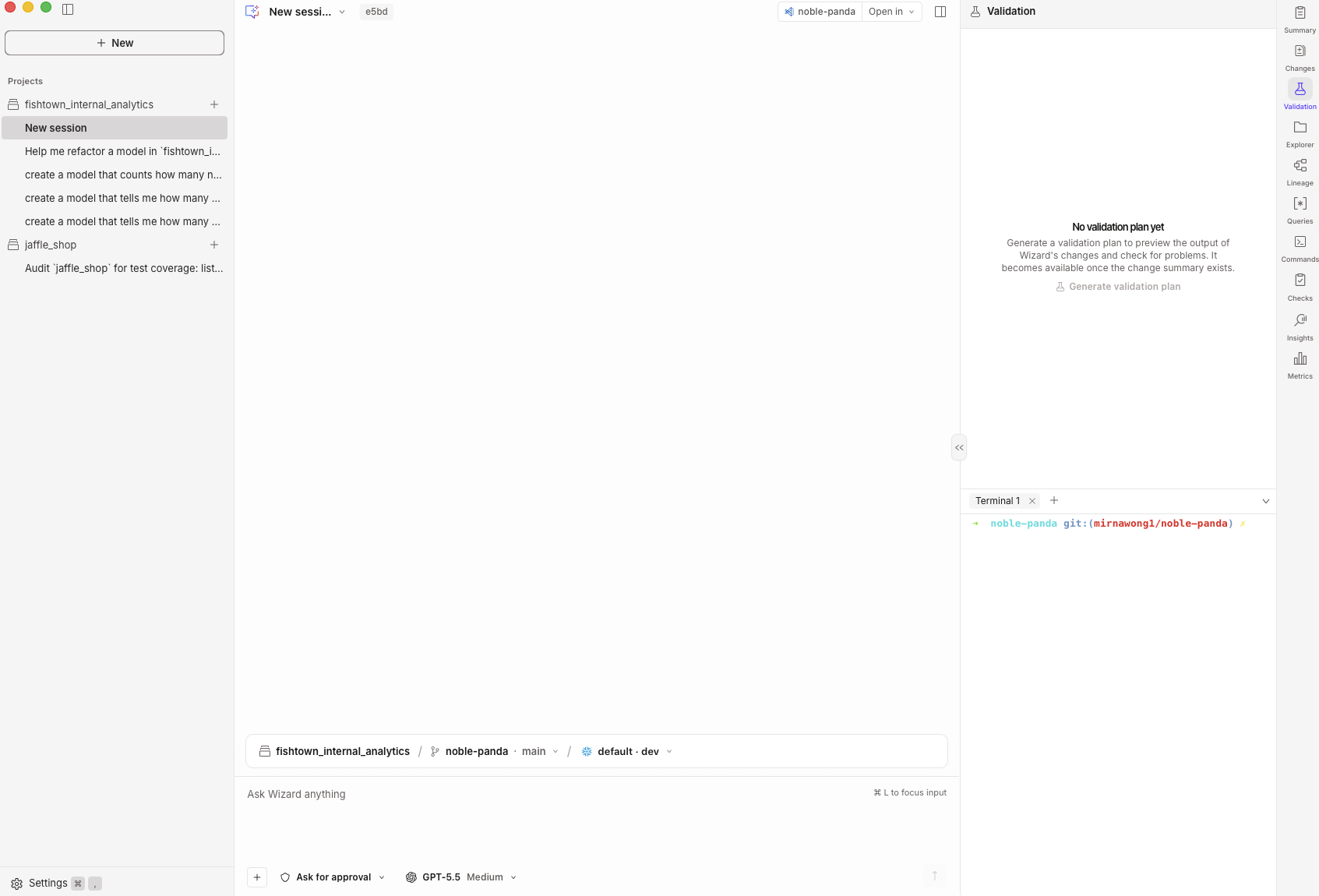](#)A new session, with the sidebar, chat composer, and Explorer pane
[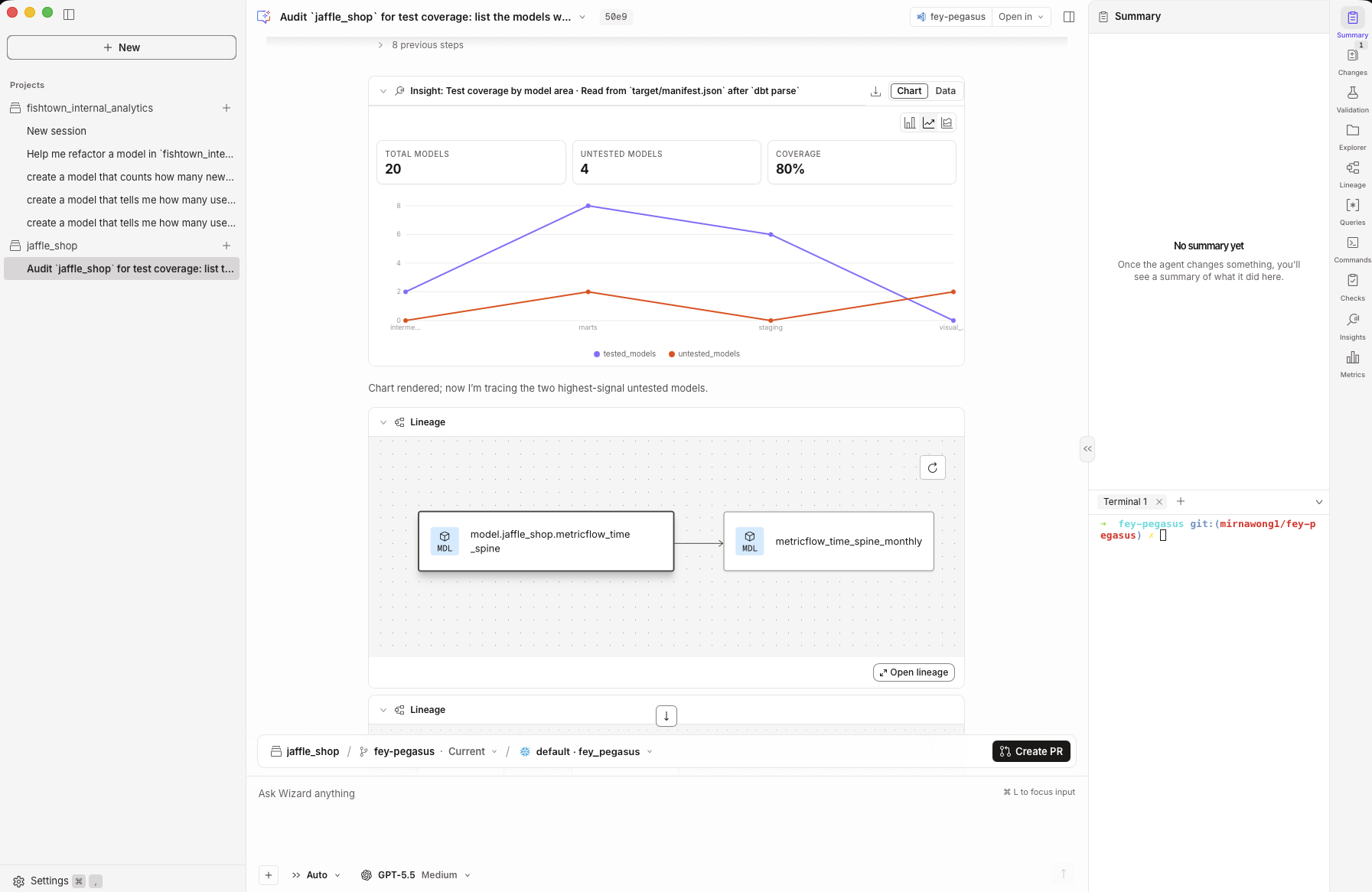](#)The same layout mid-task, with a chart in the chat and validation results in the side pane
| What you see | What it's for |
| --------------------- | ------------------------------------------------------------------------------------------------------------------------------------------------------------------------------------------- |
| Sidebar (left) | **+ New** starts a session. **Projects** lists your projects and the sessions in each one, **Chats** holds conversations that aren't tied to a project, and **Settings** sits at the bottom |
| Session header | The session name, the branch it's working on, and **Open in** to jump to the same branch in Finder, VS Code, Cursor, iTerm, or Terminal |
| Chat area (middle) | Your conversation. Replies, charts, tables, and diffs all render here |
| Wayfinder bar | Above the chat composer box: your project, branch, connection · environment, plus **Validation** and **Create PR** |
| Chat composer | Where you ask. Press `⌘` + `L` to jump to it. **+** attaches files, and the two pickers set your permission mode and AI model |
| Side pane (right) | Whichever pane you've opened, with a terminal underneath. The Explorer is read-only, so browse your files here but edit them in your own editor |
| Pane rail (far right) | Switch panes: Explorer, Lineage, Changes, Queries, Commands, Validation, Summary, Checks, Metrics, and Insights. A badge means something needs a look |
To change or remove a project, hover its name in the sidebar and select the ellipsis (**⋮**) → **Project settings** or **Remove project**.
[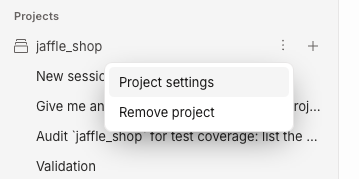](#)The project row ellipsis menu with Project settings and Remove project
### Use the panes
Select an icon in the right hand pane rail to open a pane in the side panel:
| Pane | What's in it |
| ---------- | ------------------------------------------------------------------------------------------------------------------------------- |
| Summary | A summary of the work in this chat |
| Changes | Diffs waiting for review |
| Validation | Your validation plan and its results — what passed, what failed, and what needs a look. Refer to [Validation](#validation) |
| Explorer | Your project files. Select a file path in the chat to open it here. The Explorer is read-only, so edit files in your own editor |
| Lineage | How your dbt models connect |
| Queries | Write and run ad hoc SQL against your connection. Refer to [Explore your data](#explore-your-data) |
| Commands | Queries you run and commands dbt Wizard executes, scoped to this chat |
| Checks | The checks dbt Wizard ran and their results |
| Insights | Analysis of your project and data |
| Metrics | The metrics in your project |
| Terminal | Run commands without leaving the app. Sits underneath whichever pane you've opened |
[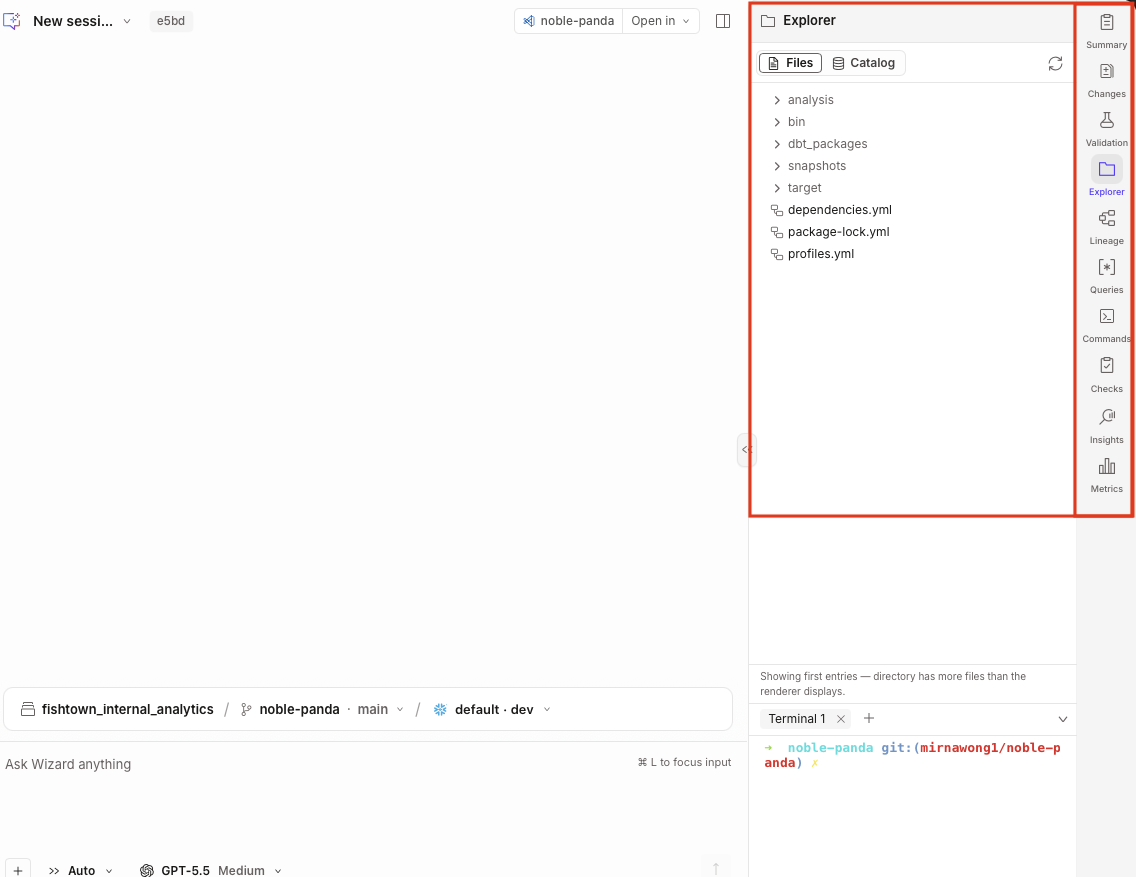](#)Select an icon in the right hand pane rail to open a pane in the side panel
Prefer your own editor? Select **Open in** to open dbt Wizard and your branch in Finder, VS Code, Cursor, iTerm, or Terminal, or copy the file path.
## Start a session
Set these in the prompt area before you send your first message. You can change the AI model and permission mode mid-session; the rest are set for the chat.
| Setting | What it does |
| ------------------------ | --------------------------------------------------------------------------------------------------------------------------------------------------------------------------------------------------------- |
| Project | The dbt project dbt Wizard works in. The app finds projects in Git repos in your home folder, and you can add a folder yourself. You can also skip adding a project — dbt Wizard can work across projects |
| Connection · environment | Which warehouse connection and environment to run against, like `default · dev`. Comes from your local [`profiles.yml`](../local/profiles.yml.md) |
| Schema suffix | Gets appended onto your target schema so this chat builds into its own tables. Refer to [Schema suffix](#schema-suffix) |
| AI model | The AI model and how hard it thinks. Refer to [dbt managed inference](./pricing-billing/overview.md#dbt-managed-providers) for more info. |
| Permission mode | How much dbt Wizard does before checking with you. Refer to [Permission modes](#permission-modes) |
Type your task, hit **Enter**, and you're off. Each chat keeps its own context, branch, and changes.
You don't have to pick a project to get started. Skip it and dbt Wizard can work across your projects — useful when you're asking a question that spans more than one, or you're not sure which project holds the answer yet. Project-less conversations live under **Chats** in the sidebar.
### Permission modes
Pick a mode from the selector next to the send button. Switch any time, even mid-run.
| Mode | What dbt Wizard does |
| ---------------- | ----------------------------------------------------------------------------- |
| Plan changes | Looks around your project and tells you what it would do. Nothing gets edited |
| Ask for approval | Asks first. You get a diff and decide, change by change |
| Auto | Just does it. Edits land and you review them after |
Start big jobs in **Plan changes** so you can sanity-check the approach, then switch to **Auto** to let it run.
### Schema suffix
Each chat builds into its own schema, so two chats (or you and a chat) never overwrite each other's tables. The suffix is what makes that schema unique — your target schema plus the suffix.
## Work in a session
This section goes over what you can do when you're working in a chat session.
### Prompt Wizard
* Type your prompt and hit **Enter**. dbt Wizard reads your files, lineage, tests, and metadata, then edits and runs things based on your permission mode.
* Select **+** next to the chat composer to attach an image, like a screenshot of the error you hit, a chart that looks wrong, or a mockup of what you want. Images are all you can attach for now. Support for adding a file is coming soon.
* Changed your mind halfway through? No worries, just stop the run, or just type the correction and send it — dbt Wizard then picks it up after the current step and adjusts.
* When dbt Wizard mentions a dbt model, select its name to:
* **Copy name**
* **Add to chat** so dbt Wizard uses it as context
* **Open code** to read the SQL in the Explorer
* **Open lineage** to see what it's connected to
[](#)Selecting a dbt model name in a Wizard response opens Copy name, Add to chat, Open code, and Open lineage
### Review and validate changes
When using Wizard, nothing gets committed without you seeing it:
* **Changes** shows the diffs, file by file.
* **Inline impact** shows which dbt models a change touches, with diffs you can open right there.
* **Comments** let you hover a line, diff, table cell, or chart and say what's wrong with that exact thing. Mark up a few and send them together. Way faster than describing it in a paragraph.
Once the changes look right, [validation](#validation) helps you preview the output of dbt Wizard's changes and check for problems before you open a pull request. It becomes available after dbt Wizard creates the change summary.
#### Validation
Generate a validation plan to see which affected resources and checks dbt Wizard proposes to validate. Review the plan, then run the checks you approve. The results show what passed, what failed, and what needs your attention.
Validation is broader than previewing or compiling:
* **Preview** lets you inspect the output of a particular change. It helps you determine whether the result looks right, but doesn't check the rest of the affected project.
* [**Compile**](../../reference/commands/compile.md) generates executable SQL from your dbt code. It can catch compilation problems, but it doesn't build the changed dbt models or compare their data.
* **Validation** assesses the affected resources and creates a plan that can combine compilation, builds, tests, previews, and data comparisons. The checks depend on your changes and on the **Validation level** you select:
* **Small** compiles and lints the modified dbt models, runs their schema and data tests, and reviews them for dbt anti-patterns, with no warehouse writes
* **Medium** also materializes those dbt models and builds their downstream dependents
* **Large** adds a comparison of prod against dev row counts, schema, and sample records.
Each level lists its checks and its warehouse impact before you select **Run validation**.
If the plan includes `dbt-compare`, you can use its results to understand how the changes affect your data. Expand a check to see what ran, or select **Re-run validation** after addressing a failure.
When the checks pass, commit from the app and select **Create PR**. Each chat works on its own branch, so the pull request only carries that chat's work.
### Explore your data
For exploratory analysis, you can use Wizard to ask it questions about your data. For ad-hoc production SQL, [Semantic Layer](../build/about-metricflow.md) queries, and business-user analytics, use [dbt platform](../platform/wizard-platform.md).
Sometimes you just want to poke at the data yourself:
1. Select **Queries** in the pane rail on the right.
2. Write your ad hoc SQL in the query editor.
3. Select **Run**. Your results render in **Results** underneath the editor.
The pane sits alongside your chat, so you can check something yourself without losing your place in the conversation. To start another conversation instead, select **+ New** in the left sidebar.
The app uses the same config as the CLI, so the skills, subagents, and MCP servers you've already set up just work:
* [Skills](./wizard-skills.md)
* [Subagents](./wizard-subagents.md)
* [MCP servers](./wizard-mcp.md)
* [Config files](./wizard-config.md)
## Chats and worktrees
Every chat on a project gets its own Git worktree.
A worktree is a second copy of your repo, sitting in its own folder, on its own branch. Same repo and same history — just a separate place to work. So when a chat edits `stg_orders`, it's editing its own copy, not the files in your other tasks so you can have Wizard work on multiple bugs in the same project at the same time.
That's what lets you run several chats at once. Refactor a model in one, chase a failing test in another, answer a data question in a third. Nothing collides, and you don't have to stash anything.
For more info on how worktrees work, refer to [git worktree](https://git-scm.com/docs/git-worktree).
### Worktree and schema names
dbt Wizard names each chat's worktree for you by pairing a random adjective with a random animal, like `docs-fox`. The name has nothing to do with your project or your data, so you won't recognize it. The branch and schema for that chat are then built from the worktree name:
| What you see | Example | Where it comes from |
| ------------------------------------------ | ------------- | ------------------------------------------------------------------------ |
| Worktree name, which is also the chat name | `docs-fox` | Generated when the chat starts |
| Branch | `oz/docs-fox` | Your `github.user` git config value, or `feature` if you haven't set one |
| Target in the worktree's `profiles.yml` | `docs-fox` | The worktree name, with hyphens swapped for underscores |
| Schema | `dbt_oz_a1b2` | Your project's schema plus a random four-character suffix |
[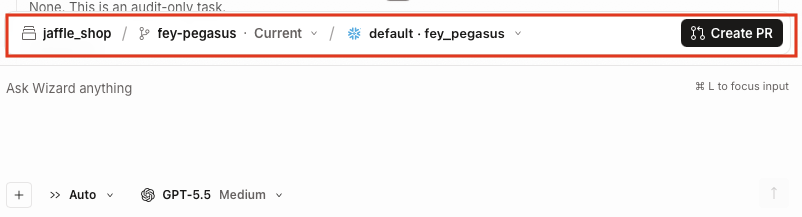](#)You can find the dbt project, git worktree name, branch, target, and schema above the chat composer
The suffix on the schema is what keeps each chat in its own schema, so two chats never write to the same tables.
dbt Wizard writes these targets to a `profiles.yml` inside the worktree folder and adds it to `.gitignore`. Your own `profiles.yml` is left alone.
## Troubleshooting
No connections found in the connection picker
The picker lists targets from your local [`profiles.yml`](../local/profiles.yml.md). If you've only ever run this project in [dbt platform](../platform/wizard-platform.md), you probably don't have one yet.
You don't need to write one by hand. A banner on the project opens a form where you pick your warehouse, enter your credentials, and let the app write the profile for you — then it runs `dbt debug` so you see the warehouse's own error instead of a silent empty picker. If you prefer to use platform-managed warehouse credentials, the same dialog walks you through connecting the project through the [dbt platform CLI](../platform/dbt-cli-installation.md) instead. Refer to [Set up your warehouse connection](./wizard-desktop.md#set-up-your-warehouse-connection).
My project isn't listed
The app only scans Git repos in your home folder. If your project lives somewhere else, add the folder from **Settings**.
## Related docs
* [Get started with Wizard Desktop](./wizard-desktop.md)
* [Wizard Desktop settings](./wizard-desktop-settings.md)
* [Use dbt Wizard locally (CLI)](./wizard-quickstart.md)
* [dbt Wizard config reference](./wizard-config.md)
* [Data use and telemetry](./wizard-telemetry.md)
See it in action and share your feedback
Want to see dbt Wizard in action? Check out the [demo video](https://www.youtube.com/watch?v=-lIzh1xQWMA).
We'd love to hear how dbt Wizard is working for you. Share your feedback by either running the `/feedback` slash command in your interactive terminal session or by going to the [#dbt-wizard](https://getdbt.slack.com/archives/C0B6KLW6T26) channel in the [dbt Community Slack](https://docs.getdbt.com/community/join?version=2.0).
Thanks so much for your help in improving dbt Wizard and dbt data development!