Set up the remote MCP server StarterEnterpriseEnterprise +
The remote MCP server uses an HTTP connection and makes calls to dbt-mcp hosted on the cloud-based dbt platform. This setup requires no local installation and is ideal for data consumption use cases.
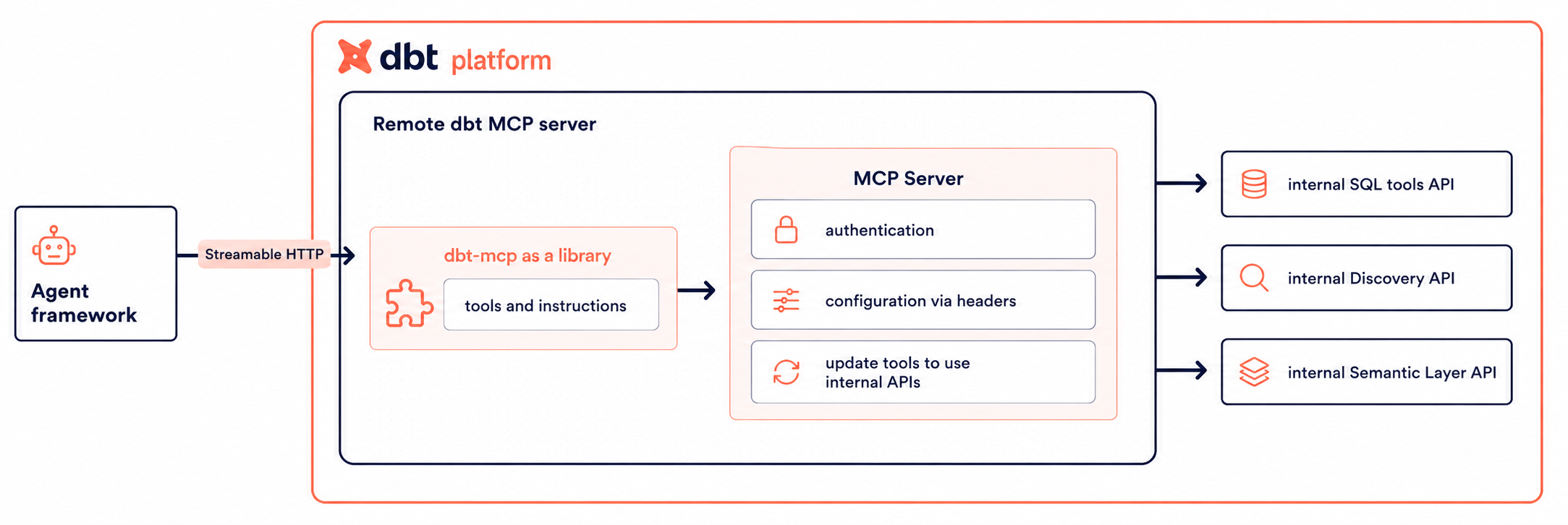 Remote dbt MCP server architecture
When to use remote MCP
The remote MCP server is the ideal choice when:
- You don't want to or are restricted from installing additional software (
uvx,dbt-mcp) on your system. - Your primary use case is consumption-based: querying metrics, exploring metadata, viewing lineage.
- You need access to Semantic Layer, Administrative, and Discovery APIs without maintaining a local dbt project.
- You don't need to execute CLI commands. Remote MCP does not support local CLI commands (
dbt run,dbt build,dbt test, and more). If you need to execute dbt commands, use the local MCP server instead.
Only text_to_sql consumes dbt Copilot credits. Other MCP tools do not.
When your account runs out of Copilot credits, the remote MCP server blocks all tools that run through it, even tools invoked from a local MCP server and proxied to remote MCP (like SQL and remote Fusion tools).
If you reach your dbt Copilot usage limit, all tools will be blocked until your Copilot credits reset. If you need help, please reach out to your account manager.
Choose your auth method
| Loading table... |
execute_sql requires a PATThe execute_sql tool does not work with service tokens. You must use a Personal Access Token (PAT) in the Authorization header when using this tool.
OAuth (remote MCP) Private betaEnterpriseEnterprise +
OAuth lets you connect to the remote MCP server without copying API tokens into your MCP client, when your client supports OAuth for HTTP-based MCP servers.
Remote MCP OAuth is available for Enterprise and Enterprise+ accounts. Contact your account manager to join the private beta.
Prerequisites
- AI features enabled for your account.
- Enterprise or Enterprise+ account and join the private beta by contacting your account manager.
- An MCP client that supports OAuth for remote (HTTP) MCP servers.
- Your MCP URL from Account settings → Access URLs → MCP Endpoint URL in dbt platform. Check out the next section MCP URL for more information.
MCP URL
You can copy your full MCP URL from Account settings → Access URLs → MCP Endpoint URL in dbt platform, and paste it directly into your AI tool.
How it works
- In your MCP client, navigate to the connector or integrations settings and add your MCP URL (see MCP URL). For example, if you used Claude or ChatGPT, you would go to:
- Claude (web): Customize → Connectors → + → Add custom connector
- ChatGPT: Settings → Apps → Create App
- For Claude Desktop and Claude Code, see Integrate Claude with dbt MCP.
- When prompted in your MCP client, complete sign-in in the browser and approve the requested scopes on the consent screen.
- Return to your MCP client; subsequent requests use the OAuth session according to your client's behavior.
Register your MCP client
OAuth requires every client to be registered with dbt platform. There are two paths:
- Dynamic registration (default) — Clients that implement Dynamic Client Registration (RFC 7591) self-register the first time a user connects. No admin action required. Most modern MCP clients (such as Claude Desktop, Claude Code, Cursor, and VS Code) support this.
- Manual registration — For clients that don't support dynamic registration, an account admin registers the client in Account settings → Integrations → App integrations. Manually registered clients use PKCE (RFC 7636) instead of a client secret. See Manual registration for the admin walkthrough.
Both types appear in App integrations in dbt platform, where admins can review and audit each connected client.
Scopes you'll consent to
The first time you connect, dbt shows a consent screen listing the scopes (the specific permissions the client is allowed to use) the MCP client is requesting. Scopes act as a filter on your existing permissions — they don't grant new access. You can also choose whether the client gets access to all projects or only selected projects.
For the full list of scopes and what each one allows, see Scopes and consent. For sessions, refresh tokens, revoking access, and audit logging, see Connect apps with OAuth.
Limitations
- Remote MCP doesn't support local dbt CLI commands (like
dbt run,dbt build,dbt test, and more) or local project access; use the local MCP server for those workflows.
For client-specific steps, see Integrate Claude with MCP, Integrate Cursor with MCP, or Integrate VS Code with MCP.
Token-based authentication
Token-based authentication lets you connect to the remote MCP server without OAuth, when your client doesn't support OAuth for HTTP-based MCP servers.
Setup instructions
- Ensure that you have AI features turned on.
- Obtain the following information from dbt platform:
- dbt platform host: Use this to form the full URL. For example, replace
YOUR_DBT_HOST_URLhere:https://YOUR_DBT_HOST_URL/api/ai/v1/mcp/. It may look like:https://cloud.getdbt.com/api/ai/v1/mcp/. If you have a multi-cell account, the host URL will be in theACCOUNT_PREFIX.us1.dbt.comformat. For more information, refer to Access, Regions, & IP addresses. - Production environment ID: You can find this on the Orchestration page in the dbt platform. Use this to set an
x-dbt-prod-environment-idheader. - Token: Generate either a personal access token or a service token. To fully utilize remote MCP, the token must have Semantic Layer and Developer permissions.
- If you plan to use
execute_sql, you must use a Personal Access Token (PAT). Service tokens do not work for this tool. For other tools that requirex-dbt-user-id, a PAT is also required.
- For the remote MCP, you will pass on headers through the JSON blob to configure required fields:
Configuration for APIs and SQL tools
| Loading table... |
Additional configuration for SQL tools
| Loading table... |
Additional configuration for Fusion tools
Fusion tools, by default, defer to the environment provided via x-dbt-prod-environment-id for model and table metadata.
| Loading table... |
Configuration to disable tools
| Loading table... |
- After establishing which headers you need, you can follow the examples to create your own agent.
Examples
The MCP protocol is programming language and framework agnostic, so use whatever helps you build agents. Alternatively, you can connect the remote dbt MCP server to MCP clients that support header-based authentication. Configuration varies by client — select your tool in the following tabs and replace the placeholder values with your own:
- Claude Code
- Cursor
- Gemini
{
  "mcpServers": {
    "dbt": {
      "type": "http",
      "url": "https://YOUR_DBT_HOST_URL/api/ai/v1/mcp/",
      "headers": {
        "Authorization": "Token YOUR_DBT_ACCESS_TOKEN",
        "x-dbt-prod-environment-id": "DBT_PROD_ENV_ID",
        "x-dbt-user-id": "DBT_USER_ID",
        "x-dbt-dev-environment-id": "DBT_DEV_ENV_ID"
      }
    }
  }
}
{
  "mcpServers": {
    "dbt": {
      "url": "https://YOUR_DBT_HOST_URL/api/ai/v1/mcp/",
      "headers": {
        "Authorization": "Token YOUR_DBT_ACCESS_TOKEN",
        "x-dbt-prod-environment-id": "DBT_PROD_ENV_ID",
        "x-dbt-user-id": "DBT_USER_ID",
        "x-dbt-dev-environment-id": "DBT_DEV_ENV_ID"
      }
    }
  }
}
{
  "mcpServers": {
    "dbt": {
      "httpUrl": "https://YOUR_DBT_HOST_URL/api/ai/v1/mcp/",
      "headers": {
        "Authorization": "Token YOUR_DBT_ACCESS_TOKEN",
        "x-dbt-prod-environment-id": "DBT_PROD_ENV_ID",
        "x-dbt-user-id": "DBT_USER_ID",
        "x-dbt-dev-environment-id": "DBT_DEV_ENV_ID"
      }
    }
  }
}
Header values like x-dbt-prod-environment-id and x-dbt-user-id expect numeric IDs, not full URLs. The host in the url field should include https://, but ID headers must be integers only:
# ✅ Correct
"url": "https://cloud.getdbt.com/api/ai/v1/mcp"
"x-dbt-prod-environment-id": "54321"
"x-dbt-user-id": "123"

# ❌ Wrong — don't paste full URLs into ID headers
"x-dbt-prod-environment-id": "https://cloud.getdbt.com/deploy/12345/projects/67890/environments/54321"
"x-dbt-user-id": "https://cloud.getdbt.com/settings/profile"
For other MCP clients (Codex, Windsurf, and so on), refer to your client's MCP configuration docs for the correct key format.
For local MCP, configuration is done via environment variables; see the Environment variables reference.
Related docs
Step-by-step client setup (including Cursor, VS Code, and Claude) is in:
Was this page helpful?
This site is protected by reCAPTCHA and the Google Privacy Policy and Terms of Service apply.
