# Set up self-hosted MCP
Local development
[The self-hosted dbt MCP server](https://github.com/dbt-labs/dbt-mcp) runs on your machine and supports dbt Core, dbt Fusion engine, and dbt CLI. You can use it with or without a dbt platform account.
No clone required
You don't need to clone the dbt-mcp repository to use self-hosted MCP. [Install uv](https://docs.astral.sh/uv/getting-started/installation/) and run `uvx dbt-mcp`, which fetches and runs dbt-mcp for you.
If you'd like to contribute to dbt MCP, clone the [dbt-mcp repo](https://github.com/dbt-labs/dbt-mcp) and contribute away!
## Tool requirements at a glance
Use this table to understand what each toolset needs and whether it works with or without a dbt platform account:
| Toolset | Required variables | Works with dbt platform | Works without dbt platform |
| ----------------------------- | -------------------------------------------------------------- | ----------------------- | -------------------------- |
| dbt CLI | `DBT_PROJECT_DIR`, `DBT_PATH` | Yes | Yes |
| Semantic Layer | `DBT_HOST`, `DBT_TOKEN`, `DBT_PROD_ENV_ID` | Yes | No |
| Discovery API | `DBT_HOST`, `DBT_TOKEN`, `DBT_PROD_ENV_ID` | Yes | No |
| Admin API | `DBT_HOST`, `DBT_TOKEN`, `DBT_ACCOUNT_ID` | Yes | No |
| SQL execution (`execute_sql`) | Personal access token, `DBT_DEV_ENV_ID`, `DBT_USER_ID` | Yes | No |
| Codegen | `DBT_PROJECT_DIR`, `DBT_PATH`, and `DISABLE_DBT_CODEGEN=false` | Yes | Yes |
| LSP / Fusion | `DBT_PROJECT_DIR`, `DBT_PATH`, and the dbt VS Code extension | Yes | Yes |
Toolsets auto-disable when required variables are missing
If a required variable is not set, dbt-mcp will automatically disable that toolset rather than error. For example, if `DBT_HOST` is not configured, the Semantic Layer, Discovery, and Admin API toolsets won't be available. To confirm which toolsets are active, set `DBT_MCP_LOG_LEVEL=DEBUG` in your environment and check the [server logs](#debug-configurations).
## Prerequisites
* [Install uv](https://docs.astral.sh/uv/getting-started/installation/) to be able to run `dbt-mcp` and [related dependencies](https://github.com/dbt-labs/dbt-mcp/blob/main/pyproject.toml) into an isolated virtual environment.
* Have a local dbt project (if you want to use dbt CLI commands).
* If you're using [OAuth with dbt platform](#oauth-authentication-with-dbt-platform), your account admin has to enable AI features on your dbt platform account. Refer to [Enable dbt AI](../platform/enable-dbt-ai.md) for more info.
## Choose your auth method
If you're connecting to dbt platform features (Semantic Layer, Discovery API, Admin API, or SQL execution), you need to authenticate. Use this table to choose the right method:
| If you need... | Use... |
| ------------------------ | ------------------------------------------------------------------------------- |
| Fastest first-time setup | **OAuth** |
| `execute_sql` tool | **Personal Access Token (PAT)**. Service tokens *do not* work for `execute_sql` |
| Shared or team setup | **Service token** |
| CI or automation | **Service token** |
`execute_sql` requires a PAT
The `execute_sql` tool does *not* work with service tokens. You must use a [Personal Access Token (PAT)](../dbt-apis/user-tokens.md) for `DBT_TOKEN` when using this tool.
## Setup options
Choose the setup method that best fits your workflow:
### OAuth authentication with dbt platform [Starter](https://www.getdbt.com/pricing "Go to https://www.getdbt.com/pricing")[Enterprise](https://www.getdbt.com/pricing "Go to https://www.getdbt.com/pricing")[Enterprise +](https://www.getdbt.com/pricing "Go to https://www.getdbt.com/pricing")
This method uses OAuth to authenticate with your dbt platform account. It's the simplest setup and doesn't require managing tokens or environment variables manually.
Static subdomains required
Only accounts with static subdomains (for example, `abc123` in `abc123.us1.dbt.com`) can use OAuth with MCP servers. Follow [these](../platform/about-platform/access-regions-ip-addresses.md) instructions to find your account subdomain. If your account does not have a subdomain, contact support for more information.
#### Configuration options
### dbt platform only
This option is for users who only want dbt platform features (Discovery API, Semantic Layer, job management) without self-hosted dbt CLI commands.
When you use only the dbt platform, the CLI tools are automatically disabled. You can find the `DBT_HOST` field value in your dbt platform account information under **Access URLs**.
```json
{
"mcpServers": {
"dbt": {
"command": "uvx",
"args": ["dbt-mcp"],
"env": {
"DBT_HOST": "YOUR-ACCESS-URL"
}
}
}
}
```
**Note:** Replace `YOUR-ACCESS-URL` with your Access URL hostname (for example, `abc123.us1.dbt.com`). Both `abc123.us1.dbt.com` and `https://abc123.us1.dbt.com` are accepted. This enables OAuth authentication without requiring self-hosted dbt installation.
### dbt platform + CLI
This option is for users who want both dbt CLI commands and dbt platform features (Discovery API, Semantic Layer, job management).
The `DBT_PROJECT_DIR` and `DBT_PATH` fields are required for CLI access. You can find the `DBT_HOST` field value in your dbt platform account information under **Access URLs**.
```json
{
"mcpServers": {
"dbt": {
"command": "uvx",
"args": ["dbt-mcp"],
"env": {
"DBT_HOST": "YOUR-ACCESS-URL",
"DBT_PROJECT_DIR": "/path/to/project",
"DBT_PATH": "/path/to/dbt/executable"
}
}
}
}
```
**Note:** Replace `YOUR-ACCESS-URL` with your Access URL hostname (for example, `abc123.us1.dbt.com`). Both `abc123.us1.dbt.com` and `https://abc123.us1.dbt.com` are accepted. This enables OAuth authentication.
Once configured, your session connects to the dbt platform account, starts the OAuth authentication workflow, and then opens your account where you can select the project you want to reference.
[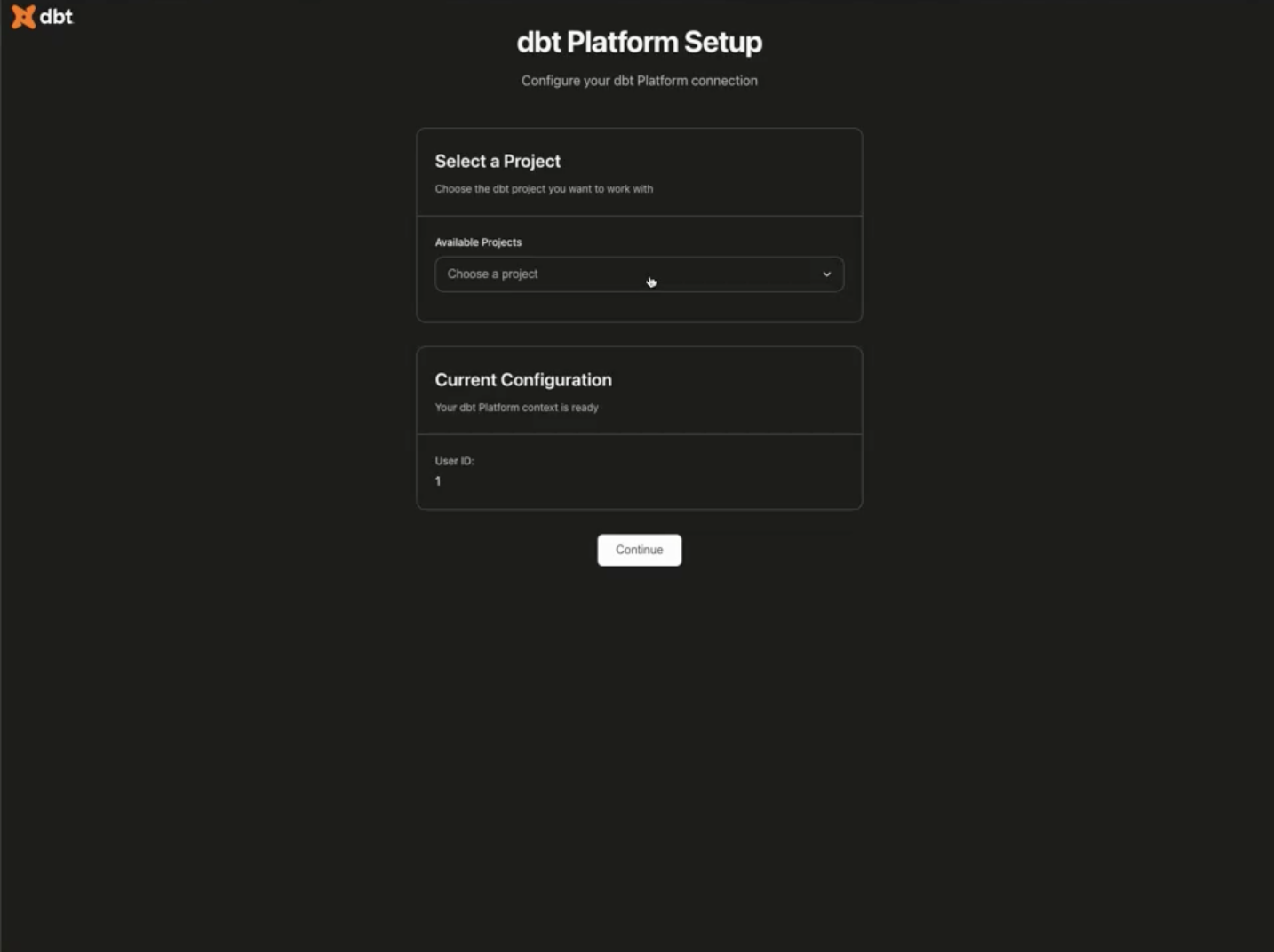](#)Select your dbt platform project
After completing OAuth setup, skip to [Test your configuration](#optional-test-your-configuration).
### CLI only (no dbt platform)
This option runs the MCP server locally and connects it to your local dbt project using `DBT_PROJECT_DIR` and `DBT_PATH`.
If you're using dbt Core v1.x or Fusion and don't need access to dbt platform features (Discovery API, Semantic Layer, Administrative API), you can set up local MCP with just your dbt project information.
Add this configuration to your MCP client (refer to the specific [integration guides](#set-up-your-mcp-client) for exact file locations):
```json
{
"mcpServers": {
"dbt": {
"command": "uvx",
"args": ["dbt-mcp"],
"env": {
"DBT_PROJECT_DIR": "/path/to/your/dbt/project",
"DBT_PATH": "/path/to/your/dbt/executable"
}
}
}
}
```
#### Locating your paths
Follow the appropriate instructions for your OS to locate your path:
macOS/Linux
* **DBT\_PROJECT\_DIR**: The full path to your dbt project folder
* Example: `/Users/yourname/dbt-projects/my_project`
* This is the folder containing your `dbt_project.yml` file.
* **DBT\_PATH**: Find your dbt executable path by running in terminal:
```bash
which dbt
```
* Example output: `/opt/homebrew/bin/dbt`
* Use this exact path in your configuration.
Windows
* **DBT\_PROJECT\_DIR**: The full path to your dbt project folder
* Example: `C:\Users\yourname\dbt-projects\my_project`
* This is the folder containing your `dbt_project.yml` file.
* Use forward slashes or escaped backslashes: `C:/Users/yourname/dbt-projects/my_project`
* **DBT\_PATH**: Find your dbt executable path by running in Command Prompt or PowerShell:
```bash
where dbt
```
* Example output: `C:\Python39\Scripts\dbt.exe`
* Use forward slashes or escaped backslashes: `C:/Python39/Scripts/dbt.exe`
After completing this setup, skip to [Test your configuration](#optional-test-your-configuration).
### Environment variable configuration
If you need to configure multiple environment variables or prefer to manage them separately, you can use an `.env` file or pass them inline. You only need to supply the variables relevant to your setup — dbt CLI variables for CLI-only use, or dbt platform variables for platform features. For the complete list of variables, enabling or disabling toolsets, and logging options, see the [Environment variables reference](./mcp-environment-variables.md).
Where to put the `.env` file
Create the `.env` file in your *dbt project root* (the same folder as `dbt_project.yml`). When referencing it with `--env-file`, always *use an absolute path* so your MCP client can find it reliably. For example, `/absolute/path/to/your-dbt-project/.env`.
Pick the `.env` example that matches your setup. Only include the variables you need:
### CLI only
Use this if you're running dbt commands locally and don't need dbt platform features (Discovery API, Semantic Layer, etc.):
```code
DBT_PROJECT_DIR=/path/to/your/dbt/project
DBT_PATH=/path/to/your/dbt/executable
```
### dbt platform only
Use this if you only need dbt platform features and won't run dbt commands:
```code
DBT_HOST=cloud.getdbt.com
DBT_TOKEN=dbtc_your_token
DBT_PROD_ENV_ID=12345
```
### CLI and dbt platform (most common)
Use this if you want both dbt CLI commands and dbt platform features:
```code
DBT_PROJECT_DIR=/path/to/your/dbt/project
DBT_PATH=/path/to/your/dbt/executable
DBT_HOST=cloud.getdbt.com
DBT_TOKEN=dbtc_your_token
DBT_PROD_ENV_ID=12345
```
### All variables
A complete reference of all available variables. Most setups only need a subset of these — refer to the [API and SQL tool settings](#api-and-sql-tool-settings) and [dbt CLI settings](#dbt-cli-settings) tables for details on each variable.
```code
DBT_HOST=cloud.getdbt.com
DBT_PROD_ENV_ID=your-production-environment-id
DBT_DEV_ENV_ID=your-development-environment-id
DBT_USER_ID=your-user-id
DBT_ACCOUNT_ID=your-account-id
DBT_TOKEN=your-service-token
DBT_PROJECT_DIR=/path/to/your/dbt/project
DBT_PATH=/path/to/your/dbt/executable
```
#### How to pass environment variables to dbt-mcp
Here are some of the ways to pass environment variables. We recommend using an `.env` file with `--env-file` for most setups:
### .env file with \`--env-file\`
**1. `.env` file with `--env-file` (recommended)** (make sure to use an absolute path in `args`):
Reference the file using an absolute path in your MCP client config:
```json
{
"mcpServers": {
"dbt": {
"command": "uvx",
"args": [
"--env-file",
"/absolute/path/to/your-dbt-project/.env",
"dbt-mcp"
]
}
}
}
```
Replace `/absolute/path/to/your-dbt-project` with the full path to the folder containing your `dbt_project.yml`.
### Inline in the MCP client config
**2. Inline in the MCP client config**:
Pass variables directly in the `env` field, replacing the values with your actual ones. This keeps everything in one file but means tokens are stored in your client config:
```json
{
"mcpServers": {
"dbt": {
"command": "uvx",
"args": ["dbt-mcp"],
"env": {
"DBT_HOST": "cloud.getdbt.com",
"DBT_TOKEN": "your-token-here",
"DBT_PROD_ENV_ID": "12345",
"DBT_PROJECT_DIR": "/path/to/project",
"DBT_PATH": "/path/to/dbt"
}
}
}
}
```
### Shell environment variables
**3. Shell environment variables**
Export variables in your terminal before starting the MCP client, replacing the values with your actual ones:
```bash
export DBT_HOST=cloud.getdbt.com
export DBT_TOKEN=your-token-here
export DBT_PROJECT_DIR=/path/to/project
uvx dbt-mcp
```
## API and SQL tool settings
| Environment variable | Required | Description |
| -------------------- | -------------------------------------------------------- | --------------------------------------------------------------------------------------------------------------------------------------------------------------------------------------------------------------------------------------------------------------------------------------------------------------------------------------------------------------------------------------------------------------------------------------------------------- |
| `DBT_HOST` | Required | Your dbt platform [instance hostname](../platform/about-platform/access-regions-ip-addresses.md). The default is `cloud.getdbt.com`. For multi-cell and multi-tenant accounts with a static subdomain, use the full hostname — for example, `abc123.us1.dbt.com`. |
| `DBT_TOKEN` | Required | Your personal access token or service token from the dbt platform.
**Note**: The `execute_sql` tool requires a [Personal Access Token (PAT)](../dbt-apis/user-tokens.md) — service tokens do not work for this tool. For Semantic Layer use, a PAT is also recommended. If you're using a service token for other toolsets, make sure it has at least `Semantic Layer Only`, `Metadata Only`, and `Developer` permissions. |
| `DBT_ACCOUNT_ID` | Required for Administrative API tools and PAT-based auth | Your [dbt account ID](../../faqs/Accounts/find-user-id.md). Also required when using a Personal Access Token (PAT) as your `DBT_TOKEN`. |
| `DBT_PROD_ENV_ID` | Required | Your dbt platform production environment ID |
| `DBT_DEV_ENV_ID` | Optional | Your dbt platform development environment ID |
| `DBT_USER_ID` | Optional | Your dbt platform user ID ([docs](../../faqs/Accounts/find-user-id.md)) |
Use values only, not full URLs
A common mistake is pasting a full URL instead of the value. These variables expect hostnames or numeric IDs:
```bash
# ✅ Correct
DBT_HOST=cloud.getdbt.com # https://cloud.getdbt.com also works
DBT_PROD_ENV_ID=54321
DBT_USER_ID=123
# ❌ Wrong — IDs must be numeric, not full URLs
DBT_PROD_ENV_ID=https://cloud.getdbt.com/deploy/12345/projects/67890/environments/54321
DBT_USER_ID=https://cloud.getdbt.com/settings/profile
```
**Subdomain prefix configuration example:**
✅ **Correct configuration:**
```bash
DBT_HOST=abc123.us1.dbt.com # Use the full hostname including the prefix
DBT_ACCOUNT_ID=12345 # Required when using PAT-based auth
```
You don't need to set `MULTICELL_ACCOUNT_PREFIX` or `DBT_HOST_PREFIX`.
## Environment variables
The self-hosted dbt-mcp supports all flavors of dbt, including dbt Core and dbt Fusion engine.
| Environment variable | Required | Description | Example |
| -------------------- | -------- | --------------------------------------------------------------------------------------------------------------------------------------- | -------------------------------------------------------------------------------- |
| `DBT_PROJECT_DIR` | Required | The full path to where the repository of your dbt project is hosted locally. This is the folder containing your `dbt_project.yml` file. | macOS/Linux: `/Users/myname/reponame`
Windows: `C:/Users/myname/reponame` |
| `DBT_PATH` | Required | The full path to your dbt executable (dbt Core/Fusion/dbt CLI). See the next section for how to find this. | macOS/Linux: `/opt/homebrew/bin/dbt`
Windows: `C:/Python39/Scripts/dbt.exe` |
| `DBT_CLI_TIMEOUT` | Optional | Configure the number of seconds before your agent will timeout dbt commands. | Defaults to 60 seconds. |
### Locating your `DBT_PATH`
Follow the instructions for your OS to locate your `DBT_PATH`:
macOS/Linux
Run this command in your Terminal:
```bash
which dbt
```
Example output: `/opt/homebrew/bin/dbt`
Windows
Run this command in Command Prompt or PowerShell:
```bash
where dbt
```
Example output: `C:\Python39\Scripts\dbt.exe`
**Note:** Use forward slashes in your configuration: `C:/Python39/Scripts/dbt.exe`
**Additional notes:**
* You can set any environment variable supported by your dbt executable, like [the ones supported in dbt Core](../../reference/global-configs/about-global-configs.md#available-flags).
* dbt MCP respects the standard environment variables and flags for usage tracking mentioned [here](../../reference/global-configs/usage-stats.md).
* `DBT_WARN_ERROR_OPTIONS='{"error": ["NoNodesForSelectionCriteria"]}'` is automatically set so that the MCP server knows if no node is selected when running a dbt command. You can overwrite it if needed, but it provides a better experience when calling dbt from the MCP server, ensuring the tool selects valid nodes.
## Controlling tool access
dbt-mcp has two modes for controlling which tools are available. Pick one approach:
* disable mode (turn off what you don't want)
* enable mode (turn on only what you want)
Which mode should I use?
* Disable mode — Use when you want *most* tools available and just need to turn off a few. This is the default behavior.
* Enable mode — Use when you want *only* a small set of tools available (allowlist approach).
**Do not mix both modes** for the same toolset. For example, don't set both `DISABLE_SEMANTIC_LAYER=true` and `DBT_MCP_ENABLE_SEMANTIC_LAYER=true` together — the behavior may be unpredictable.
### Disable mode (default)
All tools are available by default. Set any of these to `true` to turn off a toolset:
| Name | Default | Description |
| ----------------------------- | ------- | ----------------------------------------------------------------------------------------------------------------------------------------------------------------------------------- |
| `DISABLE_DBT_CLI` | `false` | Disable dbt Core, dbt CLI, and dbt Fusion MCP tools. |
| `DISABLE_SEMANTIC_LAYER` | `false` | Disable dbt Semantic Layer MCP tools. |
| `DISABLE_DISCOVERY` | `false` | Disable dbt Discovery API MCP tools. |
| `DISABLE_ADMIN_API` | `false` | Disable dbt Administrative API MCP tools. |
| `DISABLE_SQL` | `true` | SQL MCP tools are disabled by default. Set to `false` to enable. |
| `DISABLE_DBT_CODEGEN` | `true` | [dbt codegen MCP tools](./mcp-available-tools.md#codegen-tools) are disabled by default. Set to `false` to enable (requires dbt-codegen package). |
| `DISABLE_LSP` | `false` | Disable dbt LSP/Fusion MCP tools. |
| `DISABLE_MCP_SERVER_METADATA` | `true` | MCP server metadata tools (like `get_mcp_server_version`) are disabled by default. Set to `false` to enable. |
| `DISABLE_TOOLS` | `""` | A comma-separated list of specific tool names to disable. |
### Enable mode
Use `DBT_MCP_ENABLE_*` variables when you want to explicitly allowlist which toolsets are available. When an enable variable is set, only the enabled toolsets will be active:
| Name | Default | Description |
| ------------------------------- | ------- | -------------------------------------------------------- |
| `DBT_MCP_ENABLE_DBT_CLI` | Not set | Set to `true` to enable dbt CLI tools. |
| `DBT_MCP_ENABLE_SEMANTIC_LAYER` | Not set | Set to `true` to enable Semantic Layer tools. |
| `DBT_MCP_ENABLE_DISCOVERY` | Not set | Set to `true` to enable Discovery API tools. |
| `DBT_MCP_ENABLE_ADMIN_API` | Not set | Set to `true` to enable Administrative API tools. |
| `DBT_MCP_ENABLE_SQL` | Not set | Set to `true` to enable SQL tools. |
| `DBT_MCP_ENABLE_DBT_CODEGEN` | Not set | Set to `true` to enable dbt codegen tools. |
| `DBT_MCP_ENABLE_LSP` | Not set | Set to `true` to enable LSP/Fusion tools. |
| `DBT_MCP_ENABLE_TOOLS` | Not set | A comma-separated list of specific tool names to enable. |
### Precedence
When multiple variables are set, they are evaluated in this order (highest priority first):
1. `DBT_MCP_ENABLE_TOOLS` (enable specific tools by name)
2. `DISABLE_TOOLS` (disable specific tools by name)
3. Toolset enable (`DBT_MCP_ENABLE_*=true`)
4. Toolset disable (`DISABLE_*=true`)
5. Default behavior
## (Optional) Test your configuration
In your command line tool, run the following to test your setup:
**If using the `env` field in JSON:**
```bash
export DBT_PROJECT_DIR=/path/to/project
export DBT_PATH=/path/to/dbt
uvx dbt-mcp
```
**If using an `.env` file:** (use an absolute path, for example to `.env` in your dbt project root)
```bash
uvx --env-file /absolute/path/to/your-dbt-project/.env dbt-mcp
```
If there are no errors, your configuration is correct.
## Set up your MCP client
After completing your configuration, follow the specific integration guide for your chosen tool:
* [Claude](./integrate-mcp-claude.md)
* [Cursor](./integrate-mcp-cursor.md)
* [VS Code](./integrate-mcp-vscode.md)
## Debug configurations
These settings allow you to customize the MCP server’s logging level to help with diagnosing and troubleshooting.
| Name | Default | Description |
| ------------------- | ------- | ------------------------------------------------------------------------------------------------------------------------ |
| `DBT_MCP_LOG_LEVEL` | `INFO` | Environment variable to override the MCP server log level. Options are: `DEBUG`, `INFO`, `WARNING`, `ERROR`, `CRITICAL`. |
To see more detail about what’s happening inside the MCP server and help debug issues, you can temporarily set the log level to `DEBUG`. We recommend setting it temporarily to avoid filling up disk space with logs.
## Troubleshooting
Can't find the uvx executable
Can't find the uvx executable
**Symptoms:** Error messages like `Could not connect to MCP server dbt-mcp`, `Error: spawn uvx ENOENT`, or `spawn uvx ENOENT` in your MCP client.
**Cause:** Your MCP client (like Claude desktop) can't find `uvx` in its PATH because it starts with a limited environment.
**Solution:** Use the full path to `uvx` in your configuration.
1. Find the full path:
* macOS/Linux: Run `which uvx` in Terminal.
* Windows: Run `where uvx` in Command Prompt or PowerShell.
2. Replace `"command": "uvx"` with the full path:
```json
{
"mcpServers": {
"dbt": {
"command": "/full/path/to/uvx",
"args": ["dbt-mcp"],
"env": { }
}
}
}
```
Example on macOS with Homebrew: `"command": "/opt/homebrew/bin/uvx"`
For VS Code (`mcp.json`), the same fix applies — replace `uvx` with its full path in the `command` field.
OAuth login not initiating
OAuth login not initiating
**Symptoms:** The OAuth browser window never opens, or authentication appears to hang.
**Cause:** dbt MCP uses a lock file to avoid repeated authentication. If a previous session left the lock file in place, it can block new authentication attempts.
**Solution:**
1. Close your MCP client (Claude Desktop, Cursor, VS Code, etc.).
2. Delete the self-hosted dbt MCP config files:
* macOS/Linux: `rm -f ~/.dbt/mcp.yml ~/.dbt/mcp.lock`
* Windows: `Remove-Item -Force $env:USERPROFILE\.dbt\mcp.yml, $env:USERPROFILE\.dbt\mcp.lock`
3. Restart your client and try connecting again.
If these steps don't resolve the issue, confirm that AI features are enabled on your account. An account admin can enable them in **Account settings** → **Edit** → toggle on **Enable account access to dbt Wizard features**. Refer to [Enable dbt Wizard](../platform/enable-dbt-ai.md).
For all troubleshooting topics, see [MCP troubleshooting](./mcp-troubleshooting.md).
## Was this page helpful?
YesNo
[Privacy policy](https://www.getdbt.com/cloud/privacy-policy)[Create a GitHub issue](https://github.com/dbt-labs/docs.getdbt.com/issues)
This site is protected by reCAPTCHA and the Google [Privacy Policy](https://policies.google.com/privacy) and [Terms of Service](https://policies.google.com/terms) apply.