# Connect to the remote dbt MCP server
dbt platform
The remote MCP server connects to dbt platform using HTTP. No self-hosted installation is required — you configure your MCP client with a URL and headers instead of running `uvx dbt-mcp`.
[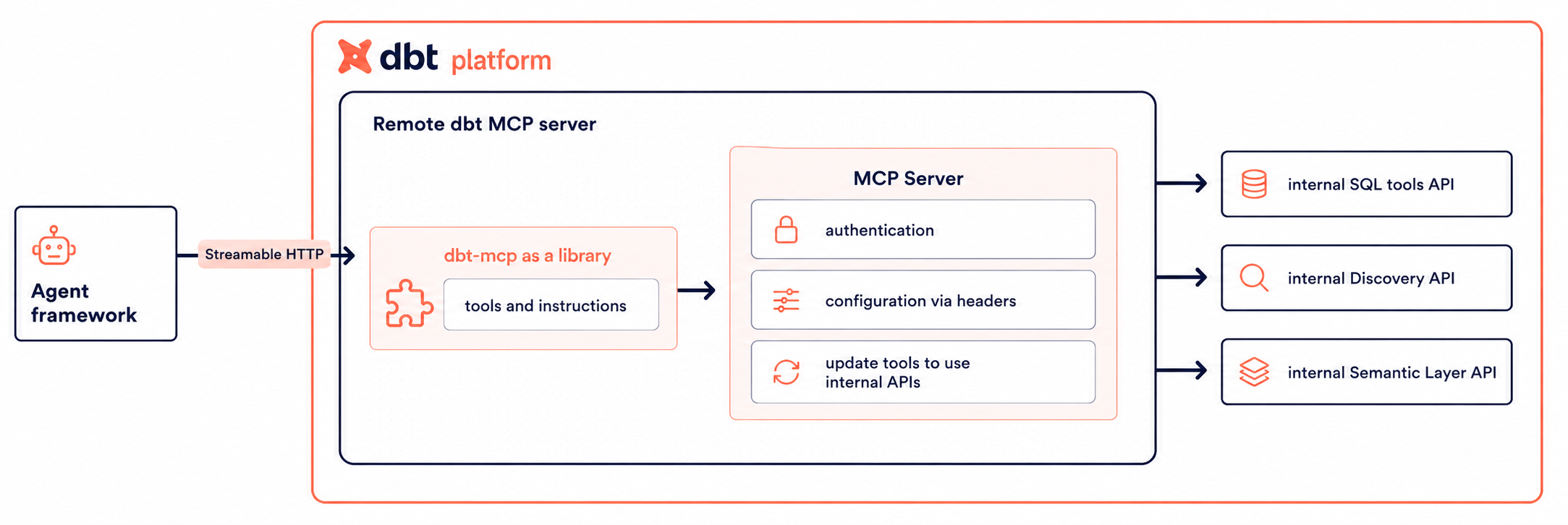](#)Remote dbt MCP server architecture
## When to use remote MCP
Remote MCP is a good fit when:
* You don't want to or can't install software (`uvx`, dbt-mcp) on your machine.
* Your use case is *consumption-based*: querying metrics, exploring metadata, viewing lineage, or running SQL on the platform.
* You need Semantic Layer, Administrative, and Discovery APIs access without a local dbt project.
Self-hosted development requires self-hosted MCP
Self-hosted development and agentic workflows (for example, running dbt commands like `dbt run` or `dbt build` from your AI assistant) require the **self-hosted** MCP server. Remote MCP does not support the self-hosted dbt Core or Fusion CLI or local project access. Use [Connect to dbt platform](./mcp-quickstart-oauth.md) or [Run self-hosted dbt](./mcp-quickstart-cli.md) for those workflows.
## Set up remote MCP
Follow these steps to set up the remote MCP server.
### 1. Enable AI features
In dbt platform, ensure that you have [AI features](../platform/enable-dbt-ai.md) turned on.
### 2. Get your credentials
Obtain the following information from dbt platform:
* **dbt platform host**: Form the URL as `https://YOUR_DBT_HOST_URL/api/ai/v1/mcp/` (for example, `https://cloud.getdbt.com/api/ai/v1/mcp/`). For multi-cell accounts, the host is in the format `ACCOUNT_PREFIX.us1.dbt.com`. Refer to [Access, Regions, & IP addresses](../platform/about-platform/access-regions-ip-addresses.md).
* **Production environment ID**: From **Orchestration** → **Environments** in dbt platform. You will use it as the `x-dbt-prod-environment-id` header (token-based setup only). Refer to [How to find your dbt MCP IDs](./mcp-find-ids.md#dbt-prod-env-id) for step-by-step instructions.
* **Token** — PAT or service token with Semantic Layer and Developer permissions (token-based setup only).
* **If you use `execute_sql` with token-based auth:** You must use a PAT, plus your development environment ID and user ID. Refer to [How to find your dbt MCP IDs](./mcp-find-ids.md) for details. With OAuth, you only need your MCP URL.
### 3. Choose authentication: OAuth or tokens
| Type | Info |
| ---------------------------------------------------------------------------------------------- | ----------------------------------------------------------------------------------------------------------------------------------------------------------------------------------------- |
| **[OAuth (remote)](./setup-remote-mcp.md#oauth-remote-mcp)** | No API tokens in your client config. Requires an OAuth-capable MCP client. Supports `execute_sql`.
Available in public beta for Starter, Enterprise, and Enterprise+ accounts. |
| **Token-based** | PAT or service token in the `Authorization` header. Works with any client and is required for shared/CI setups. For `execute_sql`, you must use a PAT (service tokens do not work). |
info
Remote MCP OAuth is available in public beta for Starter, Enterprise, and Enterprise+ accounts.
### 4. Get your MCP URL and IDs
You can copy your full **MCP URL** from **Account settings** → **Access URLs** → **MCP Endpoint URL** in dbt platform, and paste it directly into your AI tool.
Build your own MCP URL
We recommend using the MCP URL from **Account settings** → **Access URLs** → **MCP Endpoint URL** in dbt platform. However, if you want to build your own MCP URL, use your **Access URL** from **Account settings** in dbt platform. The remote MCP endpoint is `https://YOUR_DBT_HOST_URL/api/ai/v1/mcp`. Replace `YOUR_DBT_HOST_URL` with your hostname only (no `https://`).
For default hosts, multi-cell accounts, and regions, see [Access, Regions, & IP addresses](../platform/about-platform/access-regions-ip-addresses.md).
Depending on your auth method, you may also need:
* **Production environment ID**: From **Orchestration** → **Environments** in dbt platform. Used as the `x-dbt-prod-environment-id` header for token-based setup. Refer to [How to find your dbt MCP IDs](./mcp-find-ids.md#dbt-prod-env-id) for step-by-step instructions.
* **Token** — PAT or service token with Semantic Layer and Developer permissions (token-based setup only).
* **If you use `execute_sql` with token-based auth:** You must use a PAT, plus your development environment ID and user ID. Refer to [How to find your dbt MCP IDs](./mcp-find-ids.md) for details. With OAuth, you only need your MCP URL.
info
Only [`text_to_sql`](./mcp-available-tools.md) consumes your dbt Copilot action allotment. Other MCP tools do not.
When your account runs out of dbt Copilot actions, the remote MCP server blocks every tool that runs through it, including tools invoked from a self-hosted MCP server and [proxied](https://github.com/dbt-labs/dbt-mcp/blob/main/src/dbt_mcp/tools/toolsets.py#L24) to remote MCP, such as SQL and remote Fusion tools.
If you reach your dbt Copilot actions limit, remote MCP tools remain unavailable until the limit resets. If you need help, contact your account manager.
### 5. Configure your MCP client
Configure your MCP client with the MCP URL from the previous step. If you use token-based authentication, also add the required headers.
### OAuth
*Available for Starter, Enterprise, and Enterprise+ accounts*
**Before you connect**
* Your MCP client must support OAuth for HTTP-based MCP servers. If it doesn't, use [token-based authentication](./setup-remote-mcp.md#token-based-authentication) instead.
* On first connect, your client opens a browser for sign-in. dbt then shows a consent screen with the scopes (the specific permissions the client is allowed to use) it's requesting — see [Scopes and consent](../platform/manage-access/connect-apps-oauth.md#scopes-and-consent) for what each scope means.
* Most modern MCP clients self-register on first connect via [dynamic registration (RFC 7591)](../platform/manage-access/connect-apps-oauth.md#dynamic-registration). Clients that don't support it need an admin to register them in **Account settings → Integrations → App integrations**. See [Manual registration](../platform/manage-access/connect-apps-oauth.md#manual-registration).
For the full flow, sessions, and limitations, refer to [OAuth (remote MCP)](./setup-remote-mcp.md#oauth-remote-mcp).
Configure your client with the MCP URL from the previous step. On first connect, your client opens a browser for sign-in and consent. You don't need a personal access token or extra headers to use `execute_sql`.
Some tools (like Claude Desktop) let you add dbt as a custom connector through their UI instead of editing a config file:
The following steps show how to connect dbt as a custom connector in Claude Desktop. The exact UI varies by tool, but the flow is the same: add a custom connector with your MCP URL, complete the OAuth consent flow, then connect.
1. In your AI tool, go to its connector settings and choose to add a custom connector (in Claude Desktop, go to **Chat → Customize → Connectors**, then click **Add custom connector**).
2. Enter a name (for example, `dbt`) and paste your dbt platform MCP URL (for example, `https://abc123.us1.dbt.com/api/ai/v1/mcp`), then click **Add**.
[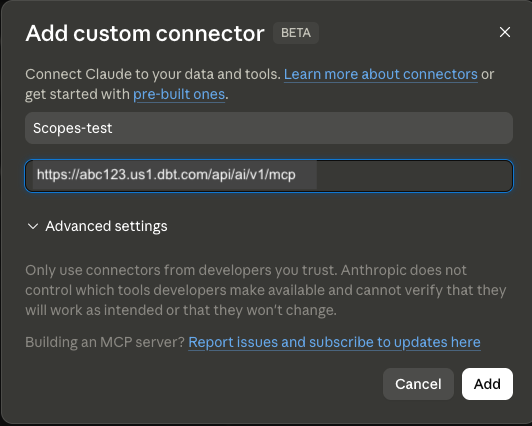](#)Custom connector dialog showing the dbt MCP URL
3. Click **Connect**. The tool redirects you to dbt to complete the OAuth consent flow, where you can approve or deny individual [scopes](../platform/manage-access/connect-apps-oauth.md#scopes-and-consent).
[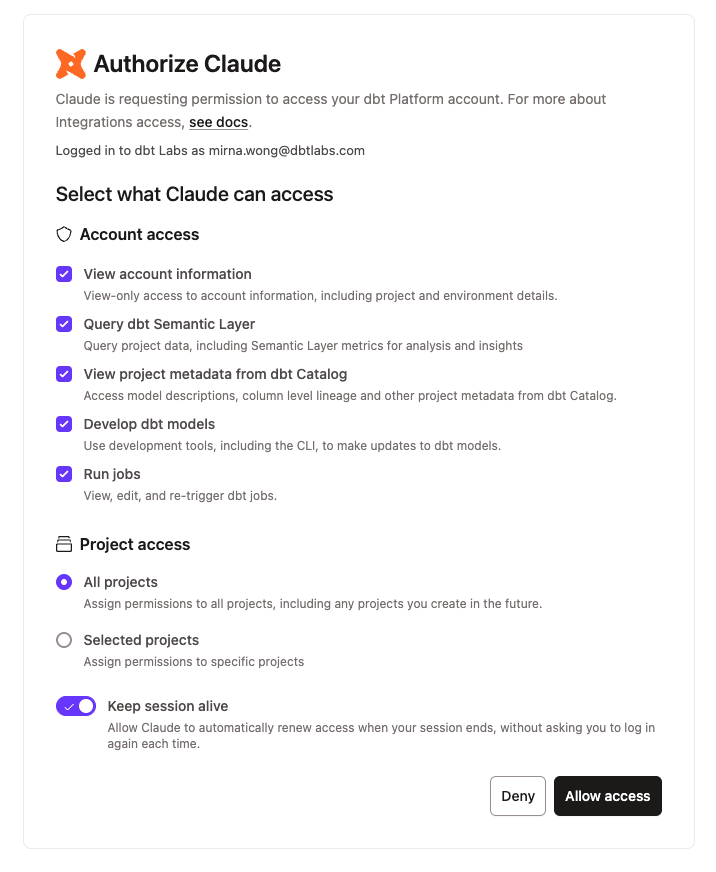](#)OAuth consent screen showing requested scopes and project access
4. After you approve, the connector is added to the **Custom connectors** table and shows as connected.
[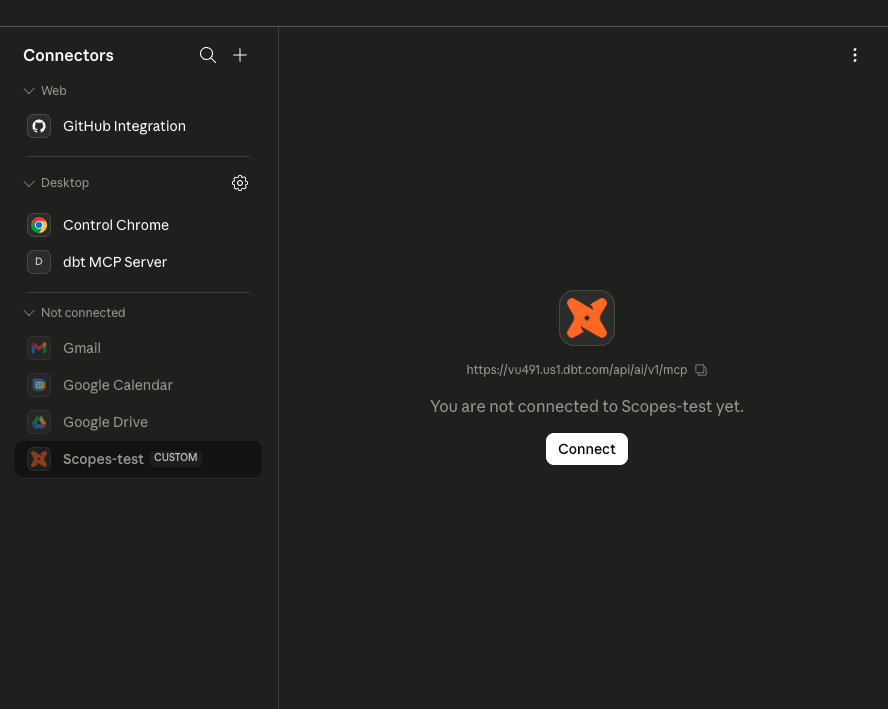](#)Adding a custom dbt connector in an AI tool's connector settings
5. That's it 🎉! Ask your tool a data question like *"What is the total revenue for the last 30 days?"* to confirm the connection.
For tools configured with a JSON file, use the tab that matches your client:
### Claude Code
Add this to `.mcp.json` at your project root:
```json
{
"mcpServers": {
"dbt": {
"type": "http",
"url": "https://YOUR_DBT_HOST_URL/api/ai/v1/mcp/"
}
}
}
```
### Cursor
Add this to `.cursor/mcp.json` (or use the Cursor deeplink in [Integrate Cursor with MCP](./integrate-mcp-cursor.md#set-up-with-remote-dbt-mcp-server)):
```json
{
"mcpServers": {
"dbt": {
"url": "https://YOUR_DBT_HOST_URL/api/ai/v1/mcp/"
}
}
}
```
### VS Code
Add this to `mcp.json` (run **MCP: Open Workspace Folder MCP Configuration** from the command palette). VS Code uses the `servers` key, not `mcpServers`:
```json
{
"servers": {
"dbt": {
"type": "http",
"url": "https://YOUR_DBT_HOST_URL/api/ai/v1/mcp/"
}
}
}
```
### Token-based
Set the server `url` to `https://YOUR_DBT_HOST_URL/api/ai/v1/mcp/` and add the required headers:
* **Required:** `Authorization` (value `Token YOUR_TOKEN` or `Bearer YOUR_TOKEN`), `x-dbt-prod-environment-id`
* **For `execute_sql` with token-based auth or Fusion tools:** Also add `x-dbt-dev-environment-id` and `x-dbt-user-id`
* Use numeric IDs in headers, not full URLs copied from your browser.
### Claude Code
```json
{
"mcpServers": {
"dbt": {
"type": "http",
"url": "https://YOUR_DBT_HOST_URL/api/ai/v1/mcp/",
"headers": {
"Authorization": "Token YOUR_DBT_ACCESS_TOKEN",
"x-dbt-prod-environment-id": "DBT_PROD_ENV_ID",
"x-dbt-user-id": "DBT_USER_ID",
"x-dbt-dev-environment-id": "DBT_DEV_ENV_ID"
}
}
}
}
```
### Cursor
```json
{
"mcpServers": {
"dbt": {
"url": "https://YOUR_DBT_HOST_URL/api/ai/v1/mcp/",
"headers": {
"Authorization": "Token YOUR_DBT_ACCESS_TOKEN",
"x-dbt-prod-environment-id": "DBT_PROD_ENV_ID",
"x-dbt-user-id": "DBT_USER_ID",
"x-dbt-dev-environment-id": "DBT_DEV_ENV_ID"
}
}
}
}
```
### VS Code
VS Code uses the `servers` key, not `mcpServers`:
```json
{
"servers": {
"dbt": {
"type": "http",
"url": "https://YOUR_DBT_HOST_URL/api/ai/v1/mcp/",
"headers": {
"Authorization": "Token YOUR_DBT_ACCESS_TOKEN",
"x-dbt-prod-environment-id": "DBT_PROD_ENV_ID",
"x-dbt-user-id": "DBT_USER_ID",
"x-dbt-dev-environment-id": "DBT_DEV_ENV_ID"
}
}
}
}
```
### Gemini
Gemini uses the `httpUrl` key instead of `url`:
```json
{
"mcpServers": {
"dbt": {
"httpUrl": "https://YOUR_DBT_HOST_URL/api/ai/v1/mcp/",
"headers": {
"Authorization": "Token YOUR_DBT_ACCESS_TOKEN",
"x-dbt-prod-environment-id": "DBT_PROD_ENV_ID",
"x-dbt-user-id": "DBT_USER_ID",
"x-dbt-dev-environment-id": "DBT_DEV_ENV_ID"
}
}
}
}
```
* For the complete list of headers, Cursor and other client examples, and optional headers, refer to [Set up remote MCP](./setup-remote-mcp.md).
* For self-hosted MCP, configuration uses environment variables; check out the [Environment variables reference](./mcp-environment-variables.md) for more information.
Once you have configured your MCP client, you can test your setup by asking your AI assistant a data-related question (for example, *"What models are in my dbt project?"* or *"What metrics are defined in my Semantic Layer?"*). If dbt MCP is working, the response will use your dbt metadata.
## Was this page helpful?
YesNo
[Privacy policy](https://www.getdbt.com/cloud/privacy-policy)[Create a GitHub issue](https://github.com/dbt-labs/docs.getdbt.com/issues)
This site is protected by reCAPTCHA and the Google [Privacy Policy](https://policies.google.com/privacy) and [Terms of Service](https://policies.google.com/terms) apply.