Configuring GCP Private Service Connect for a self-hosted service Enterprise +
The private connection feature is available on the following dbt Enterprise tiers:
- Business Critical
- Virtual Private
To learn more about these tiers, contact us at sales@getdbt.com.
GCP Private Service Connect (PSC) enables secure, private connectivity between dbt and your self-hosted services. These services may include version control systems (VCS), data warehouses, or any other applications you manage. With PSC, you do not need to expose your service to the public internet. All communication occurs over a private network, significantly enhancing security. For more details, refer to the GCP Private Service Connect documentation.
What this guide covers
The focus of this guide is not on any particular service or Backend architecture, but on the Service Attachment that interconnects dbt with your self-hosted service. This attachment process should be standard across most use cases.
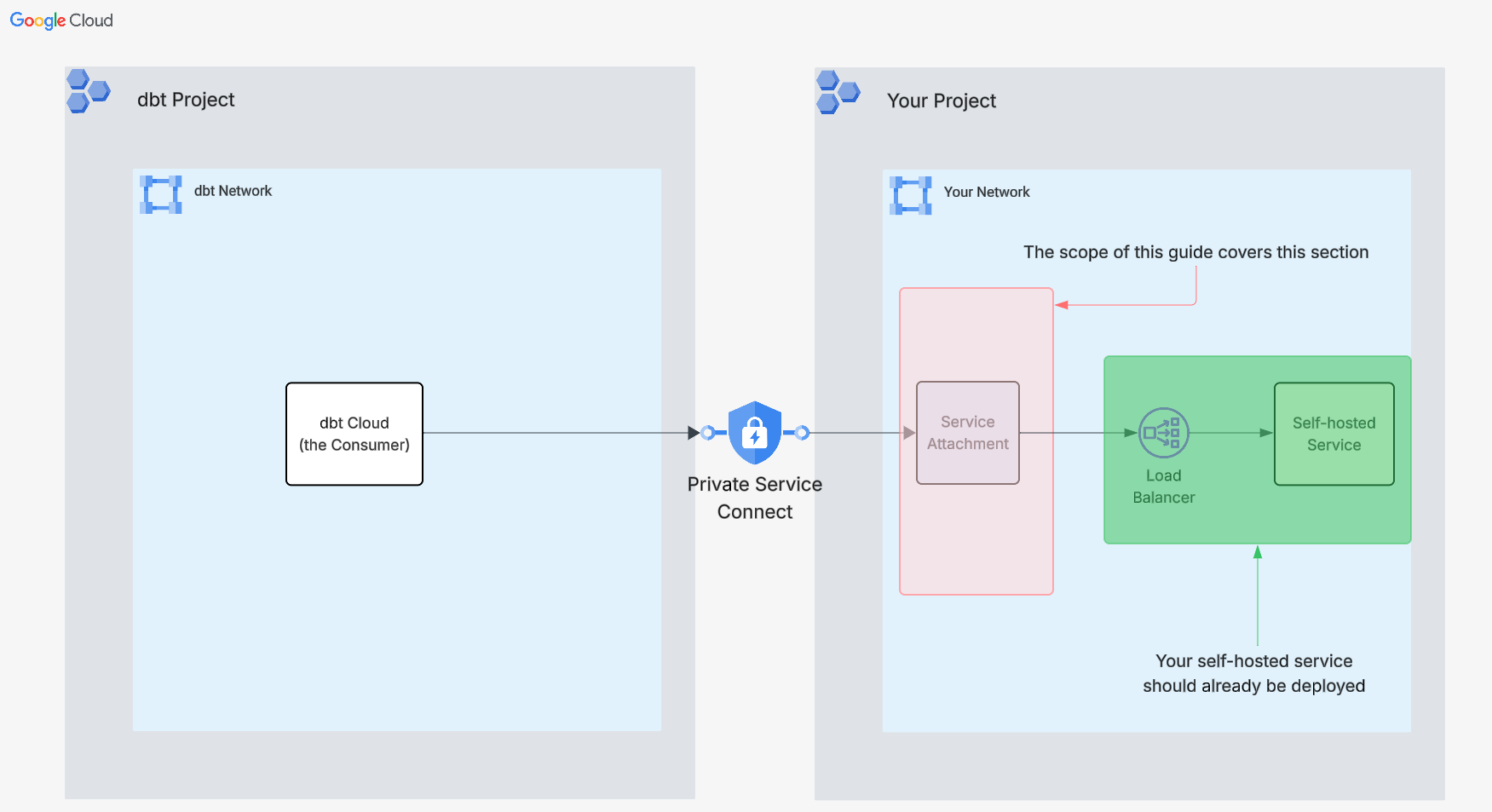 The scope of this guide
This guide does not cover the configuration or troubleshooting of your self-hosted service, load balancer, or backend health, due to the virtually limitless ways these environments can be configured. While dbt Support may assist with such issues on a best-effort basis, we recommend engaging Google Cloud Support to expedite resolution.
Audience
This guide is intended for cloud network administrators or engineers responsible for configuring and maintaining secure network communications within your organization's Google Cloud Platform (GCP) environment.
Terminology
This guide uses several important terms related to Private Service Connect. Understanding these definitions helps ensure successful implementation. For a more detailed explanation of these concepts, refer to the GCP Private Service Connect documentation.
- Consumer: In this context, the Consumer is dbt, which establishes the PSC connection as the client.
- Published Service: The service you are exposing via PSC to the dbt platform, such as your version control system (VCS), data warehouse, or another application.
- Service Attachment: Refers to the resource that is shared with consumer(s) of your Published Service, so that they can establish endpoints to it.
- Backend: Can also be referred to as Network Endpoint Groups (NEGs). This is the particular architecture that your service is running on. For example, this may be VMs, GKE Instance Groups, or even on-prem IPs.
Prerequisites
Before you begin, make sure to review the following requirements:
-
Supported Load Balancer Types
dbt has officially validated Private Service Connect (PSC) functionality with the following load balancer types:
-
Regional Internal Proxy Load Balancer
-
Cross-Regional Internal Proxy Load Balancer
While other load balancer types can be compatible with PSC Service Attachments, this guide assumes your service is configured behind one of the officially supported Proxy Load Balancers. For more details, see the Proxy Load Balancers documentation.
-
-
Service Health
- Confirm that your service or application is operational and healthy behind the designated load balancer before proceeding.
-
dbt GCP Project ID
- Contact dbt Support to obtain the dbt GCP project ID. You will need this in order to share your service attachment with the dbt platform.
Instructions
- Log in to the Google Cloud Platform console
- Navigate to the GCP Organization and Project that your self-hosted service is in.
Create a dedicated service attachment subnet
-
In the search field at the top-middle of the console, search for VPC networks and navigate to its product page.
-
On the product page, click the VPC network link where your self-hosted service is located.
-
Select the Subnets tab on the next page, and click the Add subnet button.
-
In the subnet creation panel:
a. Name: Provide a descriptive name, such as service-attachment-subnet
b. Description: This subnet is dedicated to service attachment(s)
c. Region: Pick the region of your self-hosted service
d. Purpose: Choose Private Service Connect
e. Click Add to create the subnet
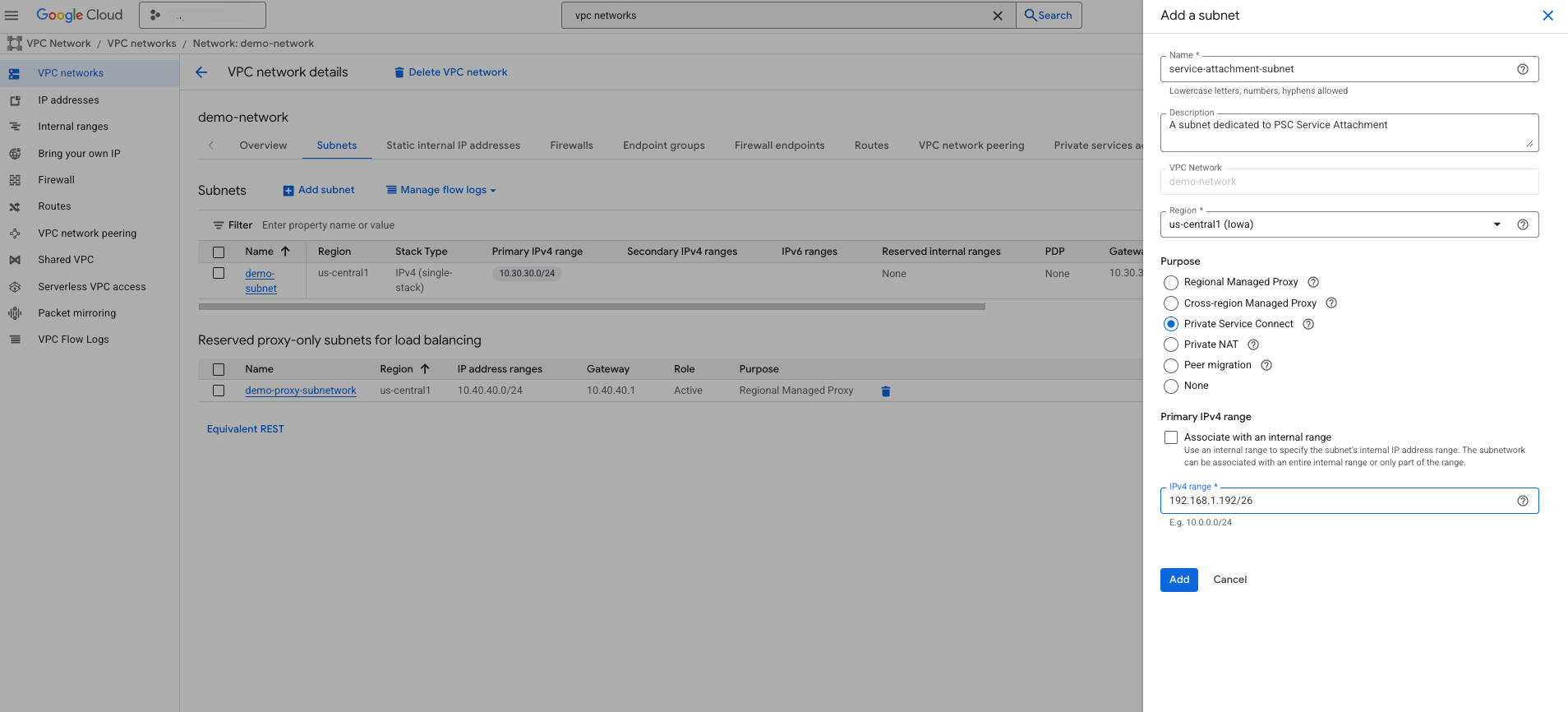 Screenshot of step 6: Subnet creation for PSC Service Attachment
Create a service attachment
-
After the subnet creation for the service attachment has completed, in the search field at the top-middle of the console, search for Private Service Connect, and click on its product page.
-
On the product page, select the Published services tab, and click the Publish service button.
-
In the Publish service page:
Under Target details
a. Choose Load Balancer
b. The load balancer types that dbt has validated are the Regional Internal Proxy Load Balancer and the Cross-Regional Internal Proxy Load Balancer. However, the others may work as well, although not officially supported.
c. In the Load balancer dropdown, choose the load balancer that is in front of your self-hosted service.
d. Choose the relevant Forwarding rule from the dropdown for your load balancer.
Under Service details
e. Give a descriptive Service Name, such as service-to-my-vcs
f. In the Subnets dropdown, choose the subnet that you created in step 6 above.
Under Connection Preference
g. Leave the selection on Accept connections from selected projects
h. Click the Add accepted project button and add dbt's GCP project ID that you acquired from support. Note: This project ID may differ for each configuration.
- Set connection limit to 1
i. Click Add service
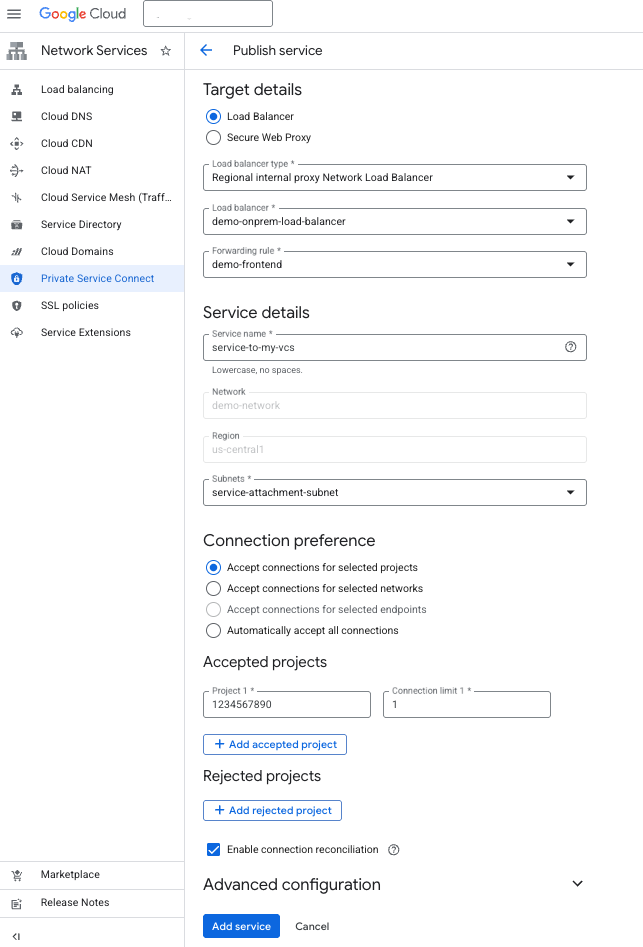 Screenshot of step 9: Creation of PSC Service Attachment
- After the Published Service attachment has been created, click on it to open its details page.
- Copy the Service attachment URI (not the Service attachment ID).
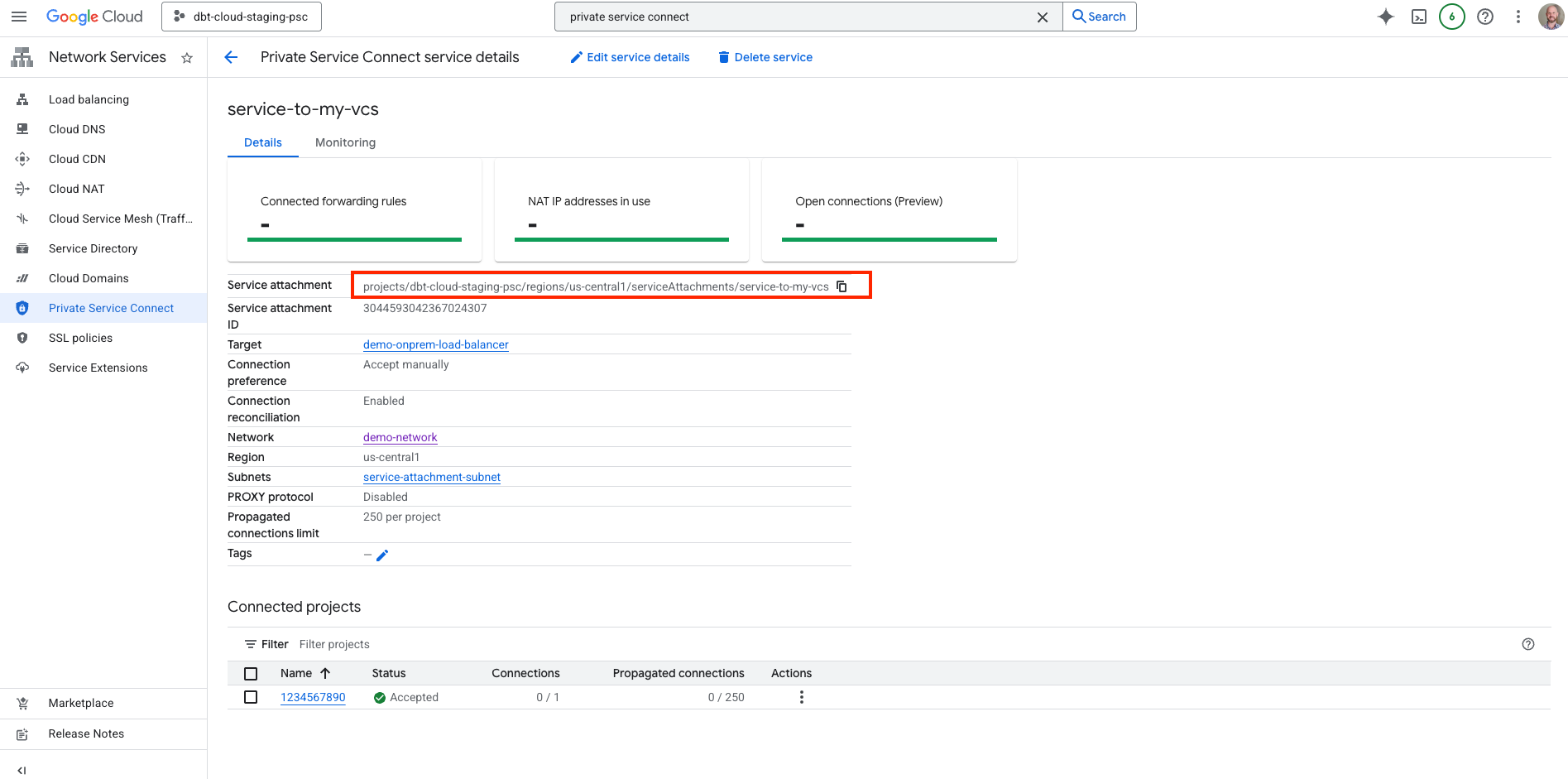 Screenshot of step 11: Copy the Service attachment URI
Providing dbt Support with connection details
- Add the required information to the template below, and submit your request to dbt Support:
dbt Labs will work on your behalf to complete the private connection setup. Please allow 3-5 business days for this process to complete. Support will contact you when the endpoint is available.
Troubleshooting
If the Private Service Connect endpoint has been provisioned and configured in dbt but connectivity is still failing, check the following in your networking setup to ensure requests and responses can be successfully routed between dbt and your service.
Configuration checklist
-
Service Attachment status
In the Google Cloud Console, navigate to Network services → Private Service Connect → Published services. Select your Service Attachment and verify:
- Status is Active
- dbt's project appears in the Connected projects list with status Accepted
-
Load balancer backend health
Navigate to Network services → Load balancing and select your load balancer. Check the Backend services tab to confirm at least one backend is Healthy. Unhealthy backends could indicate the service is down or that firewall rules are blocking health check probes.
-
NAT subnet configuration
Verify the Private Service Connect subnet has sufficient IP addresses available. GCP uses these IPs for SNAT when routing consumer traffic to your backends.
-
Firewall rules
Ensure your VPC firewall rules allow:
- Health check traffic from Google's health check ranges (
35.191.0.0/16and130.211.0.0/22) - Traffic from the proxy-only subnet to your backends (for Proxy Load Balancers)
For more details, see Firewall rules for health checks.
- Health check traffic from Google's health check ranges (
Monitoring
To help isolate connection issues, use Google Cloud's monitoring tools:
Service Attachment metrics
In the Google Cloud Console, navigate to Monitoring → Metrics Explorer. Search for Private Service Connect metrics:
compute.googleapis.com/nat/nat_connections— Tracks active NAT connectionscompute.googleapis.com/nat/sent_bytes_count— Confirms traffic is flowing
Load Balancer logs
Enable logging on your load balancer's backend service to capture request details. Navigate to your backend service, click Edit, and enable Logging with a sample rate of 1.0 for troubleshooting.
For more information, see Private Service Connect monitoring and Load Balancer logging.
Was this page helpful?
This site is protected by reCAPTCHA and the Google Privacy Policy and Terms of Service apply.
