Configuring AWS PrivateLink for a self-hosted service Enterprise +
The private connection feature is available on the following dbt Enterprise tiers:
- Business Critical
- Virtual Private
To learn more about these tiers, contact us at sales@getdbt.com.
AWS PrivateLink enables secure, private connectivity between dbt and your self-hosted services. These services may include version control systems (VCS), data warehouses, or any other applications you manage. With PrivateLink, you do not need to expose your service to the public internet. All communication occurs over a private network, significantly enhancing security. For more details, refer to the AWS PrivateLink documentation.
What this guide covers
The focus of this guide is not on any particular service or backend architecture, but on the Endpoint Service that interconnects dbt with your self-hosted service. This process should be standard across most use cases.
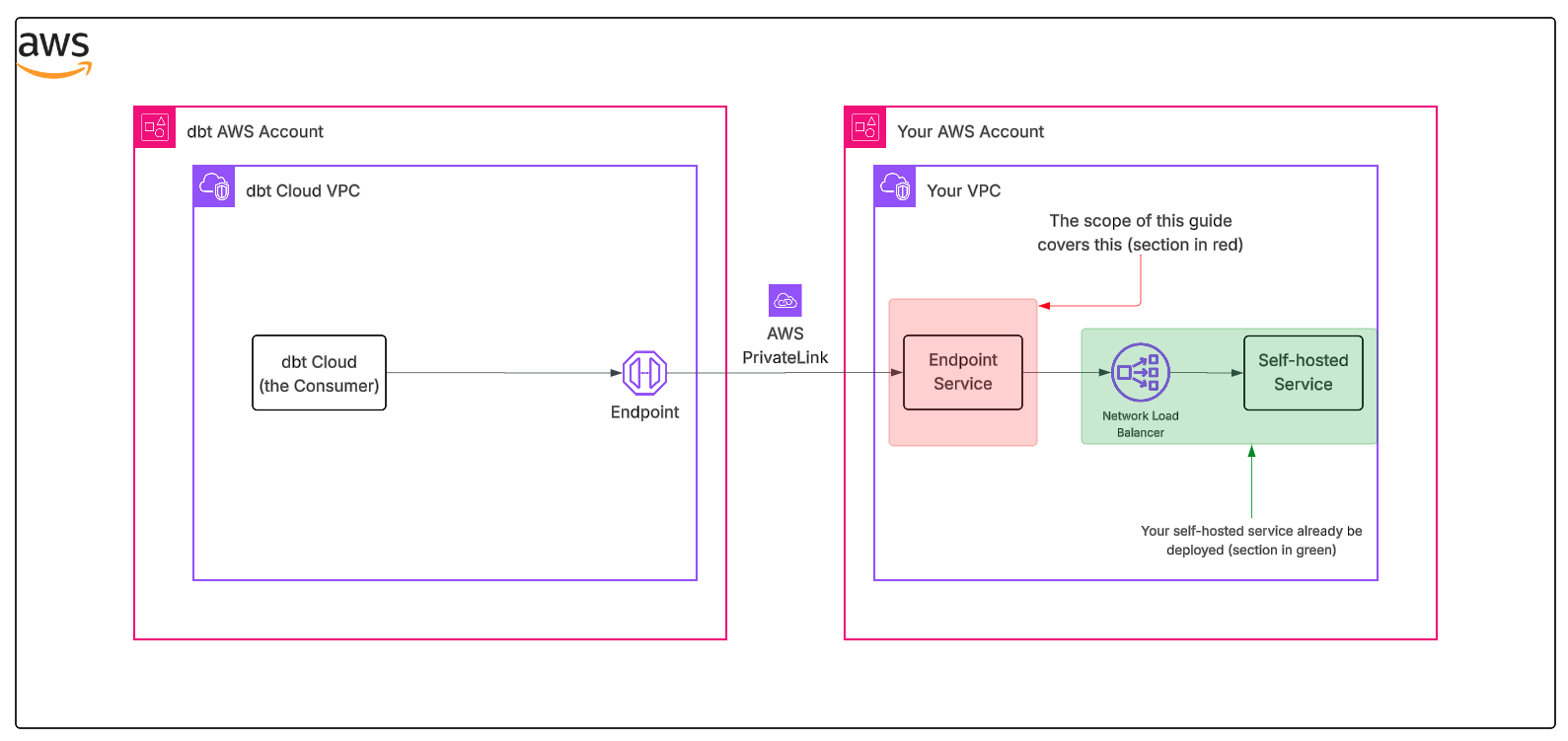 The scope of this guide
This guide does not cover the configuration or troubleshooting of your self-hosted service, load balancer, or target group health, due to the virtually limitless ways these environments can be configured. While dbt Support may assist with such issues on a best-effort basis, we recommend engaging AWS Support to expedite resolution.
Audience
This guide is intended for cloud network administrators or engineers responsible for configuring and maintaining secure network communications within your organization's AWS environment.
Terminology
This guide uses several important terms related to AWS PrivateLink. Understanding these definitions will help ensure successful implementation. For a more detailed explanation of these concepts, refer to the AWS PrivateLink documentation.
- Consumer: In this context, the Consumer is dbt, which creates a VPC Endpoint to connect to your Endpoint Service.
- Service provider: Your organization, which owns and operates the service behind the Network Load Balancer and creates the Endpoint Service.
- Endpoint Service: The AWS resource that exposes your service to consumers, allowing them to create VPC Endpoints to access it. This is tied to a Network Load Balancer.
- Service Name: A globally unique identifier for your Endpoint Service (format:
com.amazonaws.vpce.region.vpce-svc-xxx). You share this with dbt Support to establish the connection. - Network Load Balancer (NLB): The required load balancer type (internal) that sits in front of your service. Your application must run behind an NLB to use PrivateLink.
- Target Group: Routes traffic from the NLB to your service instances (EC2, IP addresses, or ALB).
Prerequisites
Before you begin, make sure to review the following requirements:
-
Supported Load Balancer Types
dbt has officially validated PrivateLink functionality with the following load balancer type:
-
Network Load Balancer (Internal)
While other configurations may be compatible with AWS PrivateLink, this guide assumes your service is configured behind an Internal Network Load Balancer. For more details, see the AWS Network Load Balancer documentation.
-
-
Service Health
- Confirm that your service or application is operational and healthy behind the designated load balancer before proceeding.
-
dbt AWS Account ARN
- Contact dbt Support to obtain the dbt AWS account ARN. You will need this in order to allow dbt to connect to your Endpoint Service.
Additional NLB configuration
The following settings are optional but recommended when configuring your Network Load Balancer for PrivateLink connectivity with dbt.
Cross-zone load balancing
Enable cross-zone load balancing on your NLB to avoid availability zone mismatches between your service and dbt's VPC endpoint. This ensures traffic is distributed evenly across all healthy targets, regardless of which availability zone the request originates from.
Security group configuration
If your NLB has an associated security group, you need to ensure PrivateLink traffic from dbt is allowed. By default, when a security group is associated with an NLB, inbound rules are enforced on all traffic — including PrivateLink traffic.
You have two options:
| Loading table... |
For more details, see Update the security groups for your Network Load Balancer.
Instructions
- Log in to the AWS Console.
- Navigate to the AWS Account and Region where your self-hosted service is located.
Create a VPC endpoint service
-
In the AWS Console, navigate to VPC → Endpoint Services → Create Endpoint Service
-
In the Create endpoint service page:
a. Load balancer type: Select Network
b. Available load balancers: Select the NLB in front of your service
c. Acceptance required: Enable this option (recommended) to manually approve connection requests
d. Click Create
Grant dbt access to the endpoint service
-
After the Endpoint Service is created, select it and go to the Allow principals tab
-
Click Allow principals and add the dbt AWS account ARN that you obtained from support:
- Principal:
arn:aws:iam::<dbt-account-id>:root
- Principal:
Obtain the endpoint service name
- On the Endpoint Service details page, copy the Service name value (format:
com.amazonaws.vpce.region.vpce-svc-xxx)
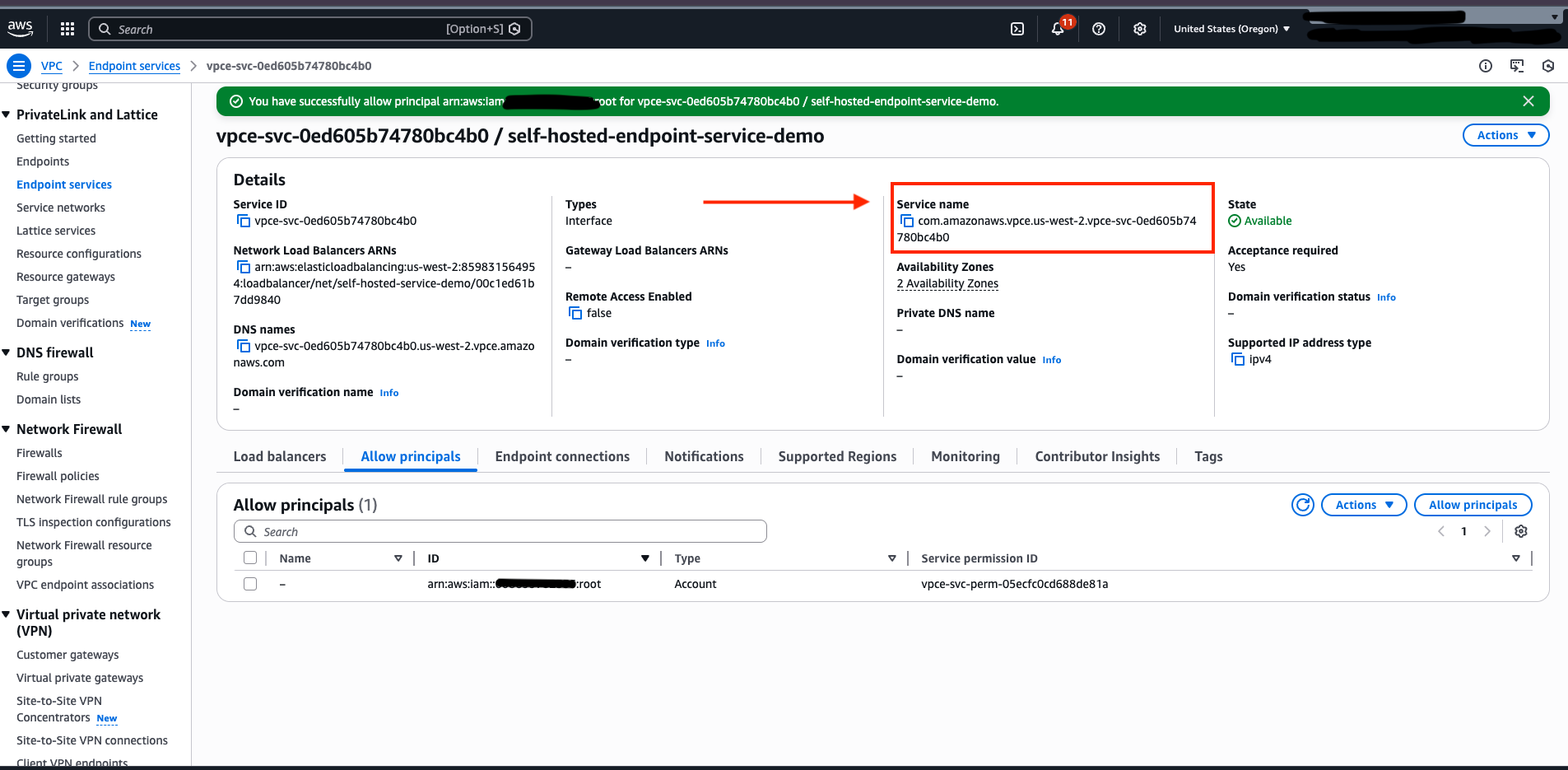 Copy the Endpoint Service name
Providing dbt Support with connection details
- Add the required information to the template below, and submit your request to dbt Support:
dbt Labs will work on your behalf to complete the private connection setup. Please allow 3-5 business days for this process to complete. Support will contact you when the endpoint is available.
Troubleshooting
If the PrivateLink endpoint has been provisioned and configured in dbt but connectivity is still failing, check the following in your networking setup to ensure requests and responses can be successfully routed between dbt and your service.
Configuration checklist
-
NLB security group
The Network Load Balancer (NLB) associated with the VPC Endpoint Service must either not have an associated security group, or the security group must have a rule that allows requests from dbt's private CIDR(s). See Security group configuration for details.
Testing tipTo test if this is the issue, temporarily adding an allow rule of
10.0.0.0/8should allow connectivity until the rule can be refined to the dbt-provided CIDR. -
NLB listener and target group
Check that there is a Listener connected to the NLB that matches the port that dbt is trying to connect to. This Listener must have a configured action to forward to a Target Group with targets that point to your service. At least one (but preferably all) of these targets must be Healthy. Unhealthy targets could suggest that the service is down or that the service is protected by a security group that doesn't allow requests from the NLB.
-
Cross-zone load balancing
Check that cross-zone load balancing is enabled for your NLB (check the Attributes tab of the NLB in the AWS console). If this is disabled, and the zones that dbt is connected to are misaligned with the zones where the service is running, requests may not be able to be routed correctly. See Cross-zone load balancing for details.
-
Routing tables and ACLs
If all the above check out, it may be possible that requests are not routing correctly within the private network. This could be due to a misconfiguration in the VPC's routing tables or access control lists. Review these settings with your network administrator to ensure that requests can be routed from the VPC Endpoint Service to the service and that the response can be returned to the VPC Endpoint Service.
Testing tipOne way to test this is to create a VPC endpoint in another VPC in your network to verify that connectivity is working independent of dbt's connection.
Monitoring
To help isolate connection issues over a PrivateLink connection from dbt, there are a few monitoring sources that can be used to verify request activity. Requests must first be sent to the endpoint to see anything in the monitoring. Contact dbt Support to understand when connection testing occurred or request new connection attempts. Use these times to correlate with activity in the following monitoring sources.
VPC Endpoint Service monitoring
In the AWS Console, navigate to VPC → Endpoint Services. Select the Endpoint Service being tested and click the Monitoring tab. Update the time selection to include when test connection attempts were sent. If there is activity in the New connections and Bytes processed graphs, then requests have been received by the Endpoint Service, suggesting that the dbt endpoint is routing properly.
NLB monitoring
In the AWS Console, navigate to EC2 → Load Balancers. Select the Network Load Balancer (NLB) being tested and click the Monitoring tab. Update the time selection to include when test connection attempts were sent. If there is activity in the New flow count and Processed bytes graphs, then requests have been received by the NLB from the Endpoint Service, suggesting the NLB Listener, Target Group, and security group are correctly configured.
VPC Flow Logs
VPC Flow Logs can provide various helpful information for requests being routed through your VPCs, though they can sometimes be challenging to locate and interpret. Flow logs can be written to either S3 or CloudWatch Logs, so determine the availability of these logs for your VPC and query them accordingly. Flow logs record the Elastic Network Interface (ENI) ID, source and destination IP and port, and whether the request was accepted or rejected by the security group and/or network ACL. This can be useful in understanding if a request arrived at a certain network interface and whether that request was accepted, potentially illuminating overly restrictive rules. For more information on accessing and interpreting VPC Flow Logs, see the AWS documentation.
Was this page helpful?
This site is protected by reCAPTCHA and the Google Privacy Policy and Terms of Service apply.
