Manage user licenses with SCIM EnterpriseEnterprise +
You can manage user license assignments using System for Cross-Domain Identity Management (SCIM) and a user attribute in Okta, so the license type is set as users are provisioned and onboarded.
SCIM license mapping is currently only supported for Okta. For other providers, use SSO license mapping or manage licenses in the dbt platform user interface.
Considerations
Before you enable SCIM license mapping:
- Default license: New users are assigned a Developer license unless you change it manually using SSO license mappings, or using SCIM.
- Best practice: Use one source of truth for license assignment (either dbt platform or SCIM). Don't mix SCIM license management with manual or single sign-on (SSO) mapping changes.
- Analyst license: Only available on select plans. Assigning this license using SCIM will return an error if that license type isn't available for your account. The Analyst license type is not available for new purchase.
Enable SCIM license mapping
To use license management using SCIM, go to your Account settings > SSO & SCIM. Under the SCIM section, enable Manage user licenses with SCIM. This setting enforces license type for a user based on their SCIM attribute and disable the license mapping and manual configuration set up in dbt.
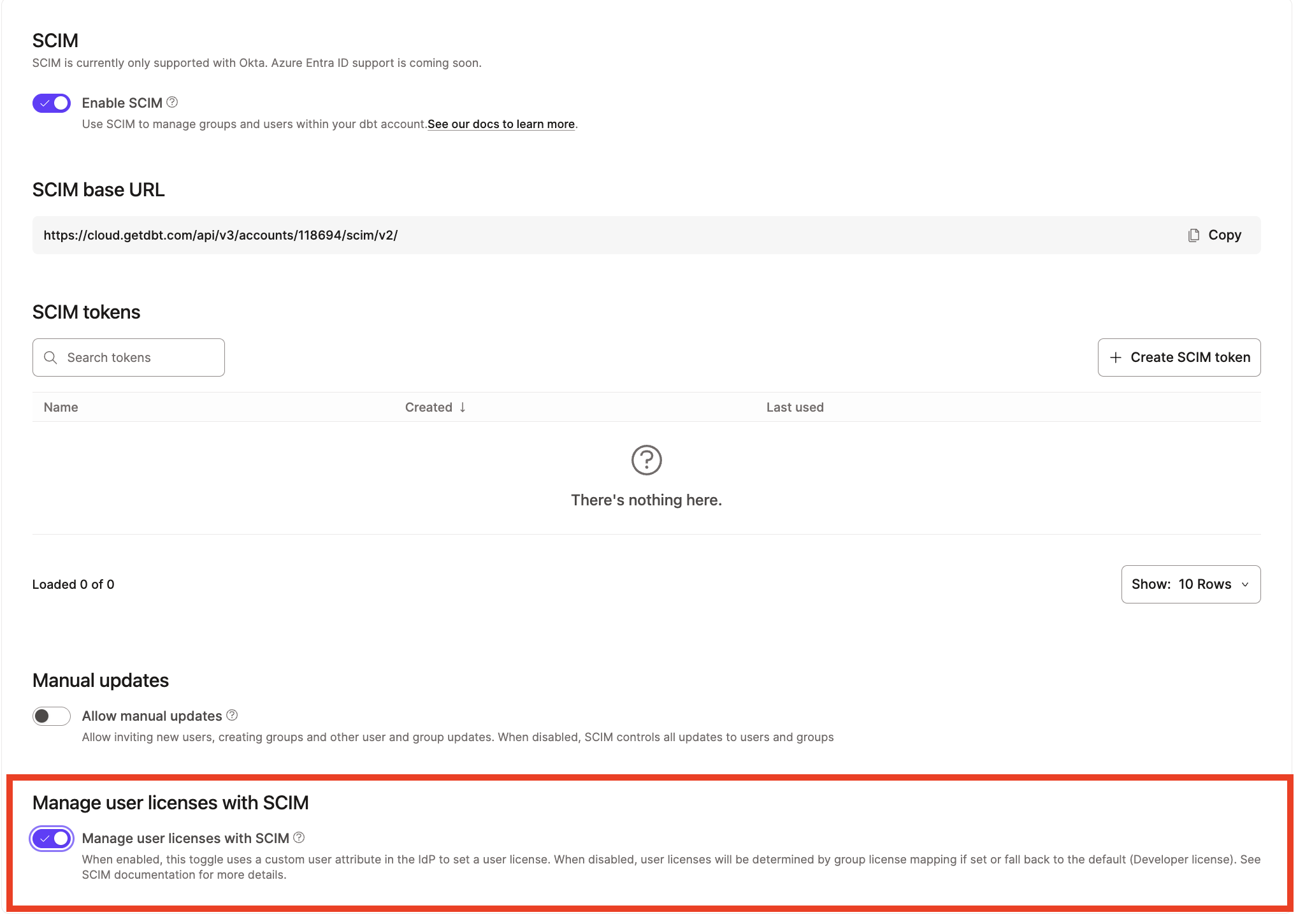 Enable SCIM managed user license distribution.
We recommend that you complete the setup instructions for your identity provider (IdP) prior to enabling this toggle in your dbt account. Once enabled, any existing license mappings in dbt will be ignored.
Do not enable the Manage user licenses with SCIM if you use Microsoft Entra ID. SCIM-native license attributes aren't supported for Entra ID, so enabling this toggle would disable your existing SSO license mappings without a replacement, leaving users without license mapping.
Instead, keep this toggle disabled and use SSO-based Active Directory group > license mapping. This setup works alongside an active Entra ID SCIM configuration.
The recommended steps for migrating to SCIM license mapping are as follows:
- Set up SCIM but keep the toggle disabled so existing license mappings continue to work as expected.
- Configure license attributes in your IdP.
- Test that SCIM attributes are being used to set license type in dbt.
- Enable the toggle to ignore existing license mappings so that SCIM is the source of truth for assigning licenses to users.
Enterprise default groups
On the Enterprise licensing page, the following default groups are available. These are often used for initial setup but should be managed or removed once IdP groups are successfully synced via SCIM.
| Loading table... |
After creating and syncing your specific IdP groups, remove users from these default groups to ensure that SCIM remains the single source of truth for permissions and licensing. Once all users have been removed, you can also delete the groups altogether.
Automated license mapping
Automating license assignments is available for Okta only. It's a common strategy to reduce administrative overhead. For SSO-based license mapping (for example, Entra ID), see Mapped configuration.
Define IdP groups
A common strategy involves defining two primary groups in your IdP, for example:
dbt_developersdbt_read_only
Fundamental licensing rules
Understanding these rules will help you plan your group structure in Okta:
- Default assignment: When someone new is added to your account, they automatically receive a Developer license unless you configure otherwise.
- Mapping basis: The license someone receives is determined by which groups they belong to in your identity provider (Okta) — not by groups you create in dbt platform. In other words, your Okta groups are the source of truth. When you add or remove someone from a group in Okta, their license in dbt platform updates automatically to match.
Mapping logic and precedence
With SSO license mapping, the Developer license takes precedence over all other licenses. With SCIM license mapping (Okta), precedence depends on your configuration — whether you assign the license attribute directly to the user or derive it from group membership through the expression in your Okta Profile Editor.
When you use groups like dbt_developers and dbt_read_only, a user might be in one group, both groups, or neither. The following table shows one common scenario (group-based mapping) and can be useful when you're deciding how to structure your groups or troubleshooting why someone received a particular license.
Users in the Enterprise default group Member are assigned a Developer license by default. Until you remove users from Member (per the best practice earlier), that default applies when they're not in any IdP license-mapping groups. Once you enable SCIM license mapping, the IdP group mapping overrides the Member default.
SSO license mapping (IdP group-based):
| Loading table... |
Add license type attribute for Okta
To add the attribute for license types to your Okta environment:
-
From your Okta application, navigate to the Provisioning tab, scroll down to Attribute Mappings, and click Go to Profile Editor.
-
Click Add Attribute.
-
Configure the attribute fields as follows (the casing should match for each value):
- Data type:
string - Display name:
License Type - Variable name:
licenseType - External name:
licenseType - External namespace:
urn:ietf:params:scim:schemas:extension:dbtLabs:2.0:User - Description: An arbitrary string of your choosing.
- Enum: Select the box for Define enumerated list of values.
- Attribute members: Add the initial attribute and then click Add another until each license type is defined. We recommend adding all of the values even if you don't use them today, so they'll be available in the future. Refer to the following table for the values you can use.
Loading table...
The Analyst license is only available on select plans. It is not available for new purchase.
- Attribute type: Group
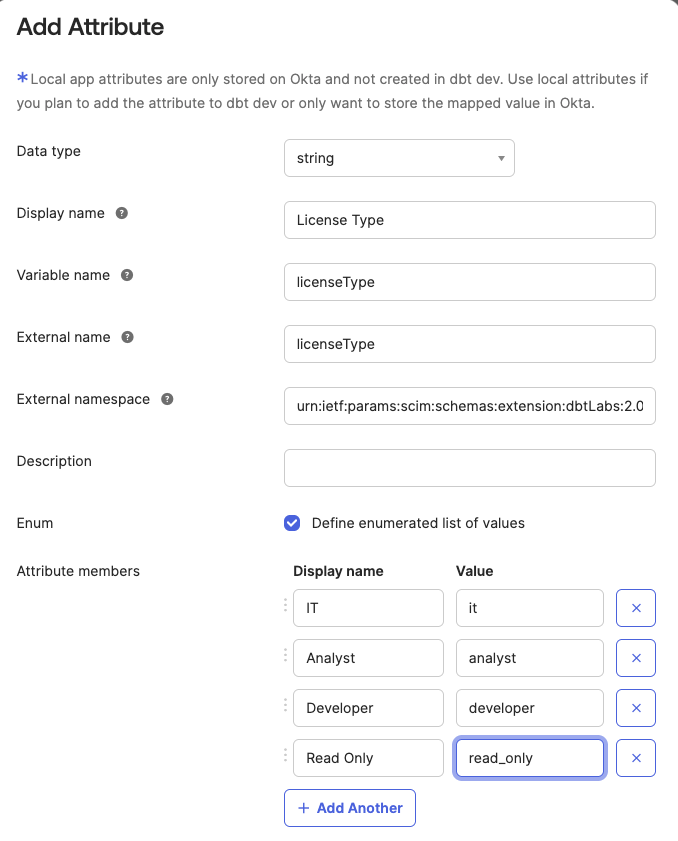 Enter the fields as they appear in the image. Ensure the cases match.
 - Data type:
-
Save the attribute mapping. Users can now have license types set in their profiles and when they are being provisioned.
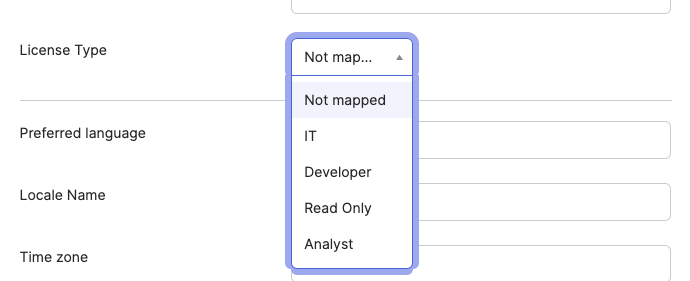 Set the license type for the user in their Okta profile.
Automate license assignments with Okta groups
To automate seat assignments in Okta, use the Profile Editor to map Okta group memberships to dbt license types.
-
Create groups in Okta, for example:
dbt_developersdbt_read_only
-
Within the dbt app Profile Editor in Okta, create mapping rules for Okta users to dbt app users:
- Attribute:
licenseType - Logic (Expression):
(isMemberOfGroupName("dbt_developers") ? 'developer' : 'read_only') - Default behavior: Users not in the
dbt_developersgroup will default to Read-Only.
- Attribute:
Adding or removing users from these Okta groups automatically updates their dbt app profile and triggers a SCIM update to synchronize the licenseType in dbt. Admins also have the option of using Manual Push in the Okta app to synchronize the changes.
Was this page helpful?
This site is protected by reCAPTCHA and the Google Privacy Policy and Terms of Service apply.
