Set up SCIM with Entra ID EnterpriseEnterprise +
dbt platform supports System for Cross-Domain Identity Management (SCIM) with Microsoft Entra ID for user and group provisioning and profile updates.
Microsoft Entra ID doesn't support SCIM-native license mapping (the ability to assign licenses directly via a SCIM attribute, as Okta does). As a workaround, you can use SSO-based Active Directory group → license mapping instead. This works even if you have an active Entra ID SCIM integration running alongside it.
When you use the SSO-based Active Directory group → license mapping setup, keep the Manage user licenses with SCIM (found in Account settings > SSO & SCIM) toggle disabled. Turning it on tells dbt platform to ignore existing SSO license mappings, which would remove license mapping entirely for Entra ID users.
Prerequisites
- Available on Enterprise or Enterprise+ plans.
- You must use Entra ID as your single sign-on (SSO) provider and have it connected in the dbt platform.
- You must have permissions to configure the account settings in dbt platform.
- Complete setup SSO with Entra ID before configuring SCIM settings.
- Complete the Set up SCIM to get your SCIM base URL and token.
Set up Entra ID
- Log in to your Azure account and open the Entra ID configurations.
- From the sidebar, under Manage, click Enterprise Applications.
- Click New Application and select the option to Create your own application.
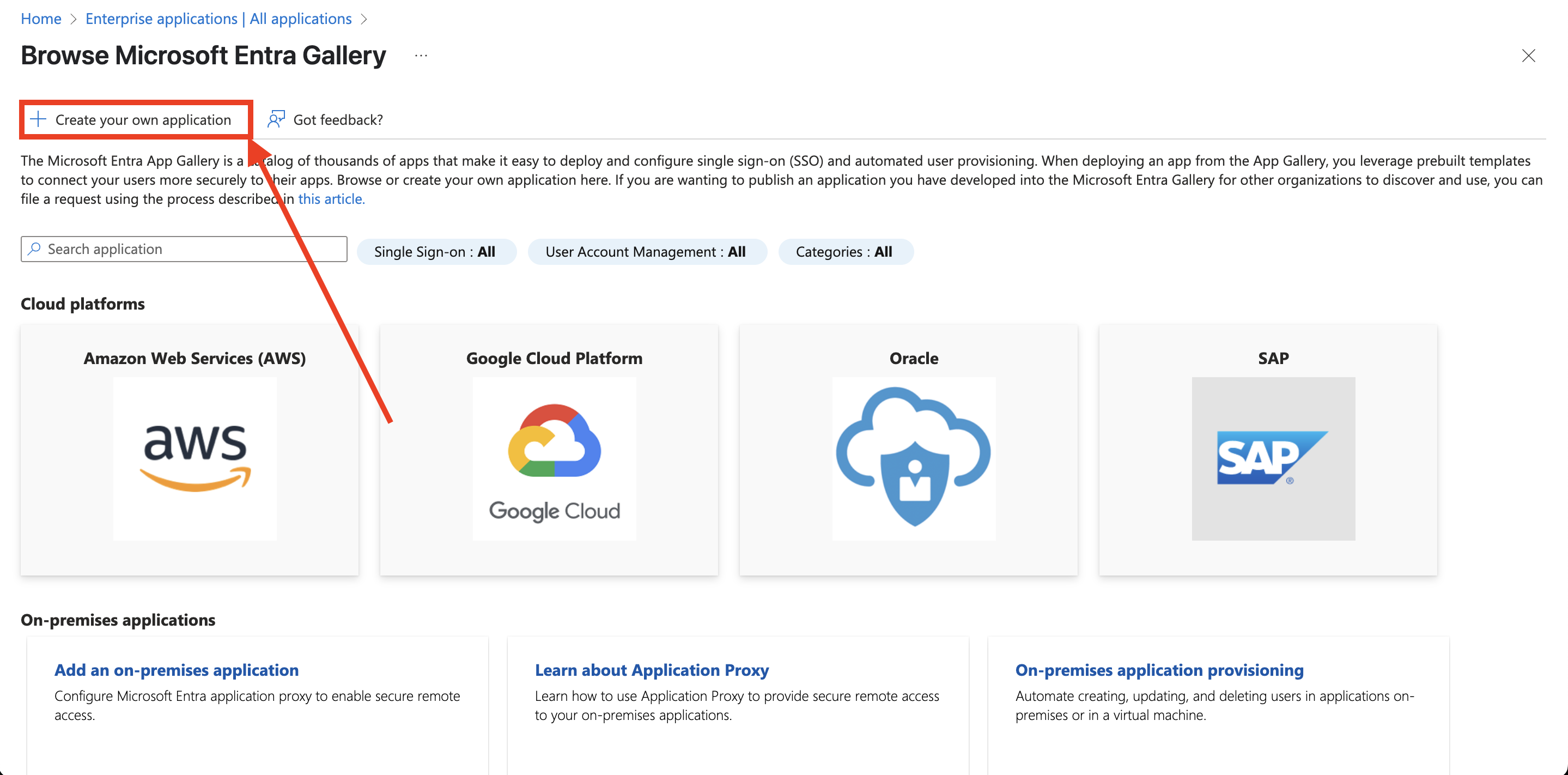 Create your own application.
 - Give your app a unique name and ensure the Integrate any other application you don't find in the gallery (Non-gallery) field is selected. Ignore any prompts for existing apps. Click Create.
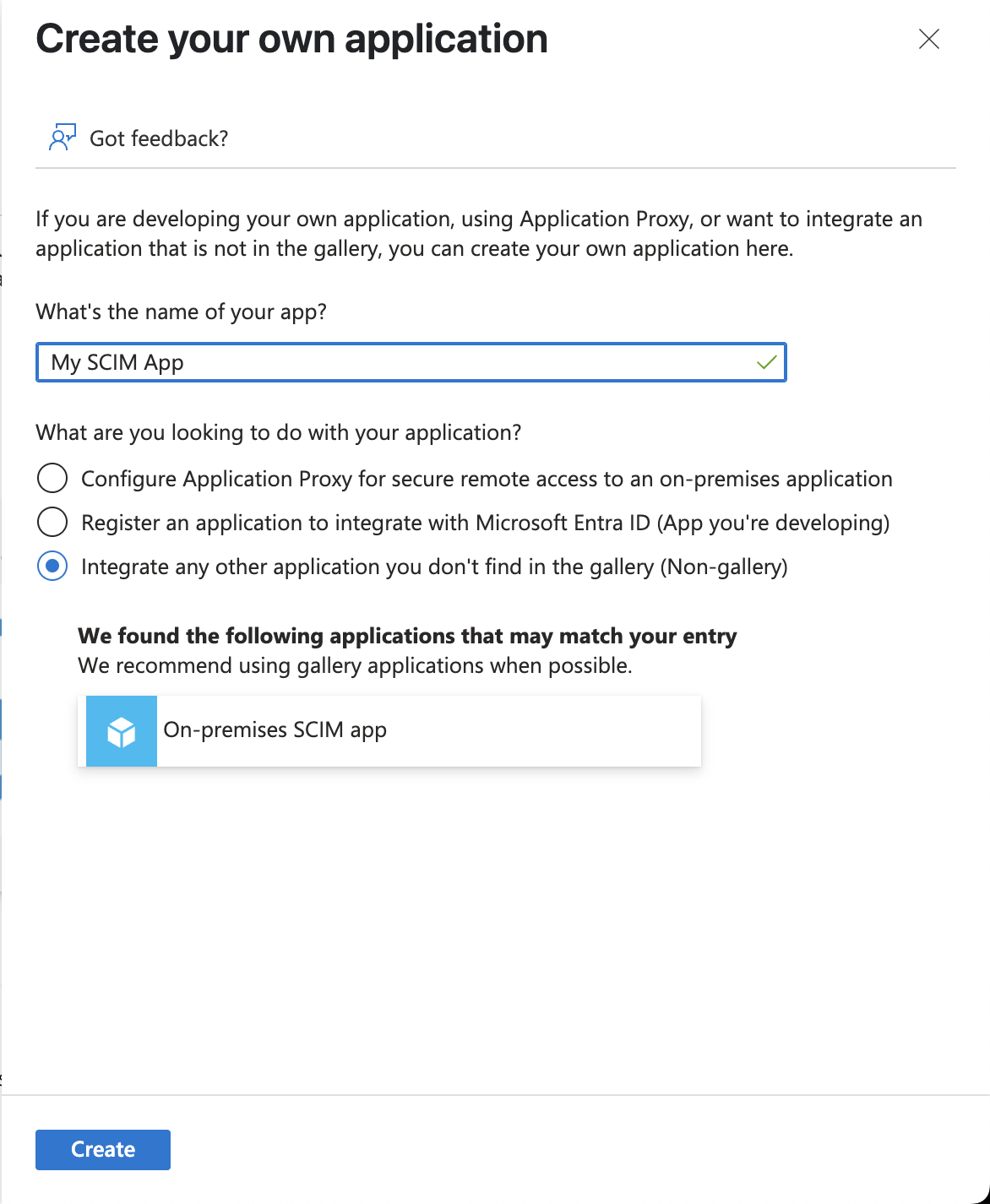 Give your app a unique name.
 - From the application Overview screen, click Provision User Accounts.
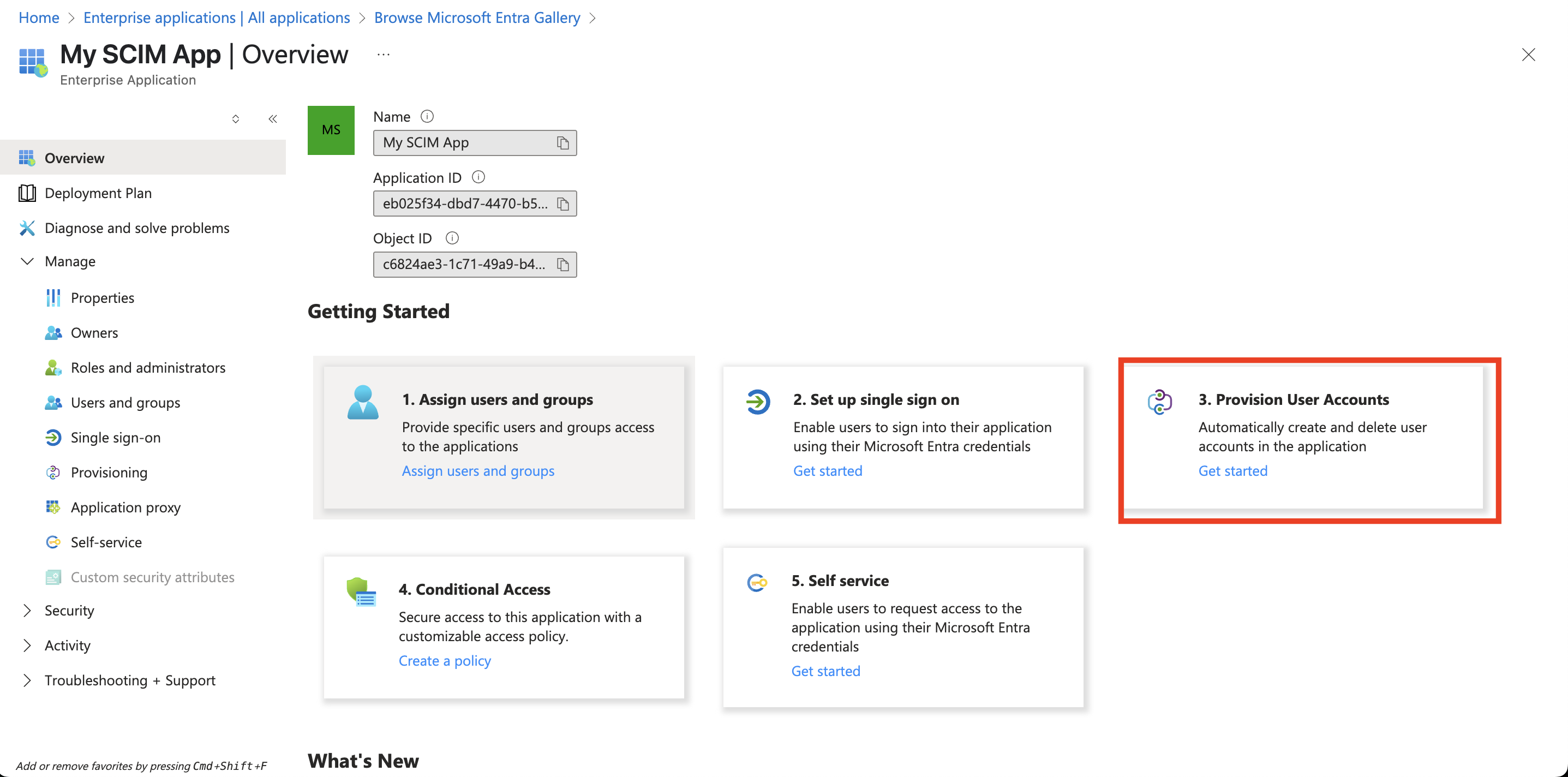 The 'Provision user accounts' option.
 - From the Create configuration section, click Connect your application.
- Fill out the form with the information from your dbt account:
- The Tenant URL in Entra ID is your SCIM base URL from dbt.
- The Secret token in Entra ID is your SCIM token from dbt.
- Click Test connection and click Create once complete.
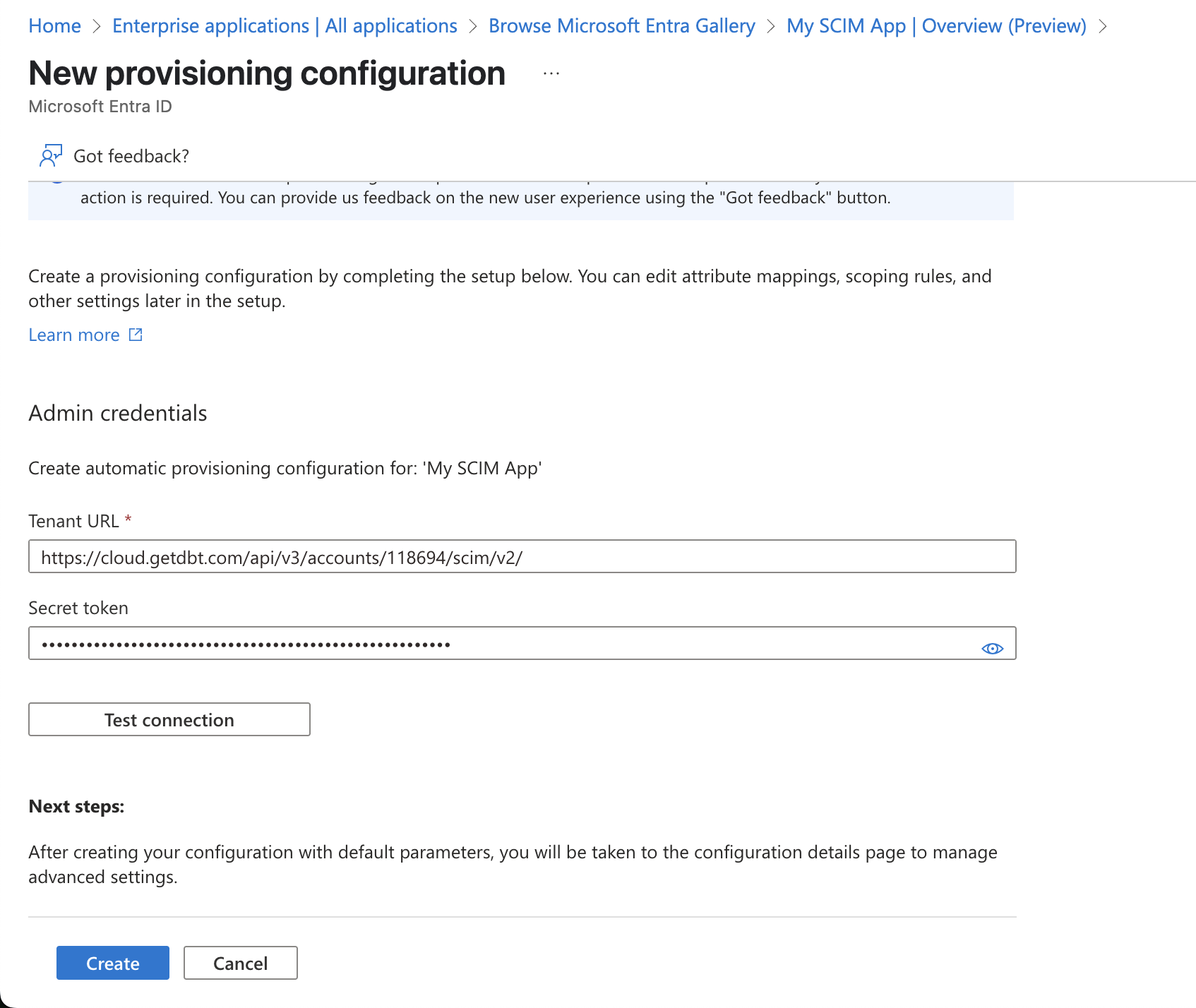 Configure the app and test the connection.
Attribute mapping
To map the attributes that will sync with dbt:
-
From the enterprise app Overview screen sidebar menu, click Provisioning.
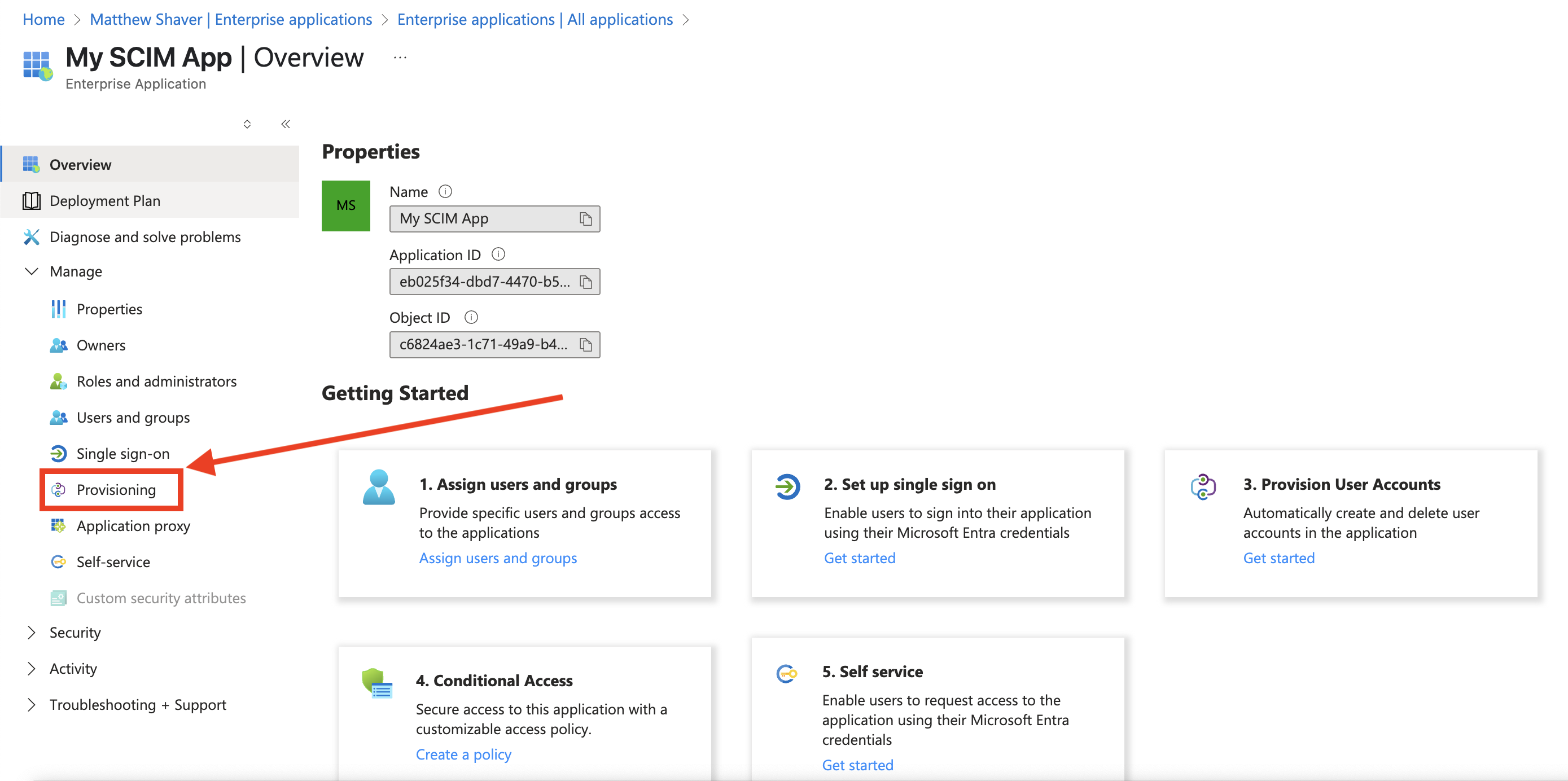 The Provisioning option on the sidebar.
 -
Under Manage, click Provisioning again.
-
Expand the Mappings section and click Provision Microsoft Entra ID users.
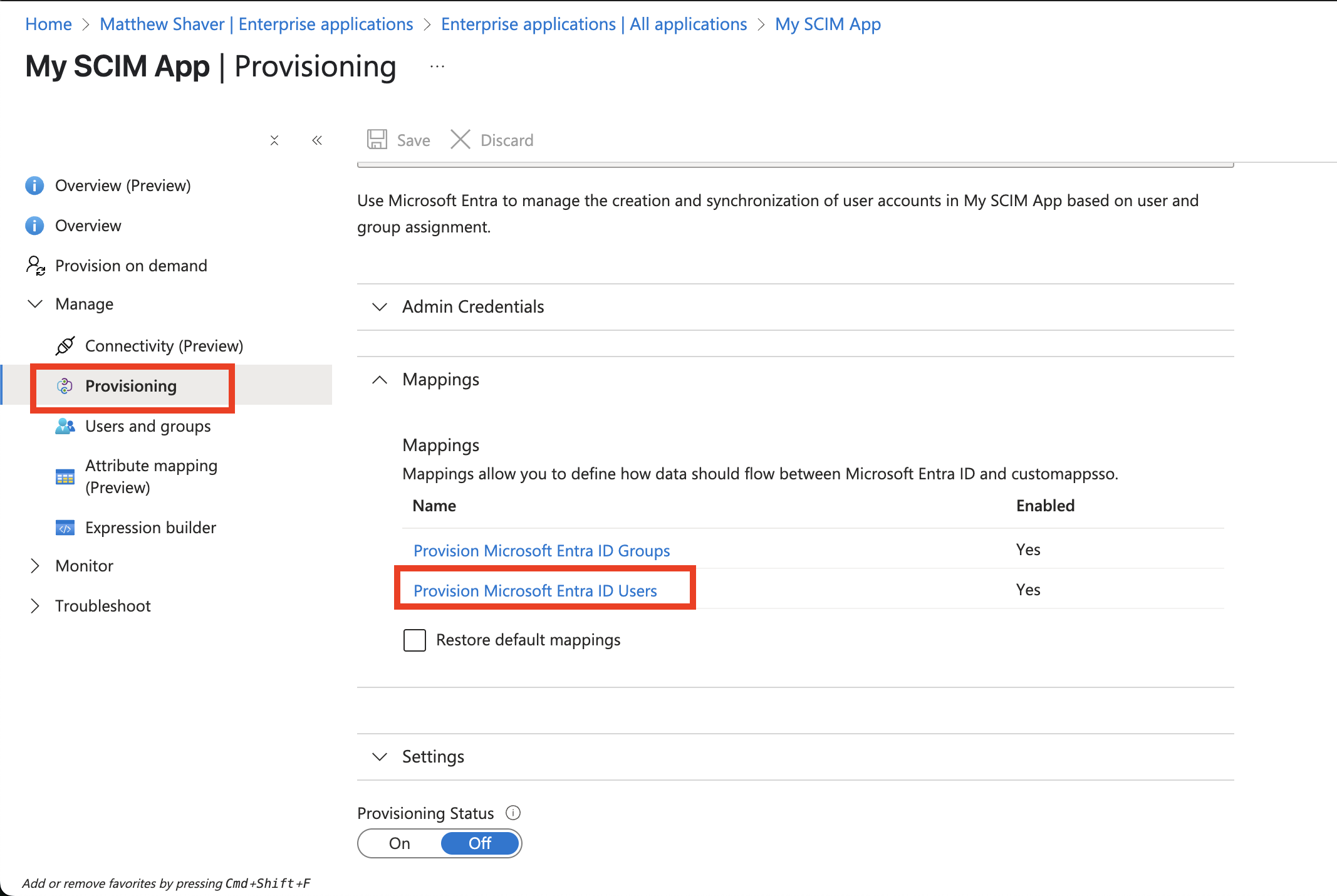 Provision the Entra ID users.
 -
Select the box for Show advanced options and then click Edit attribute list for customappsso.
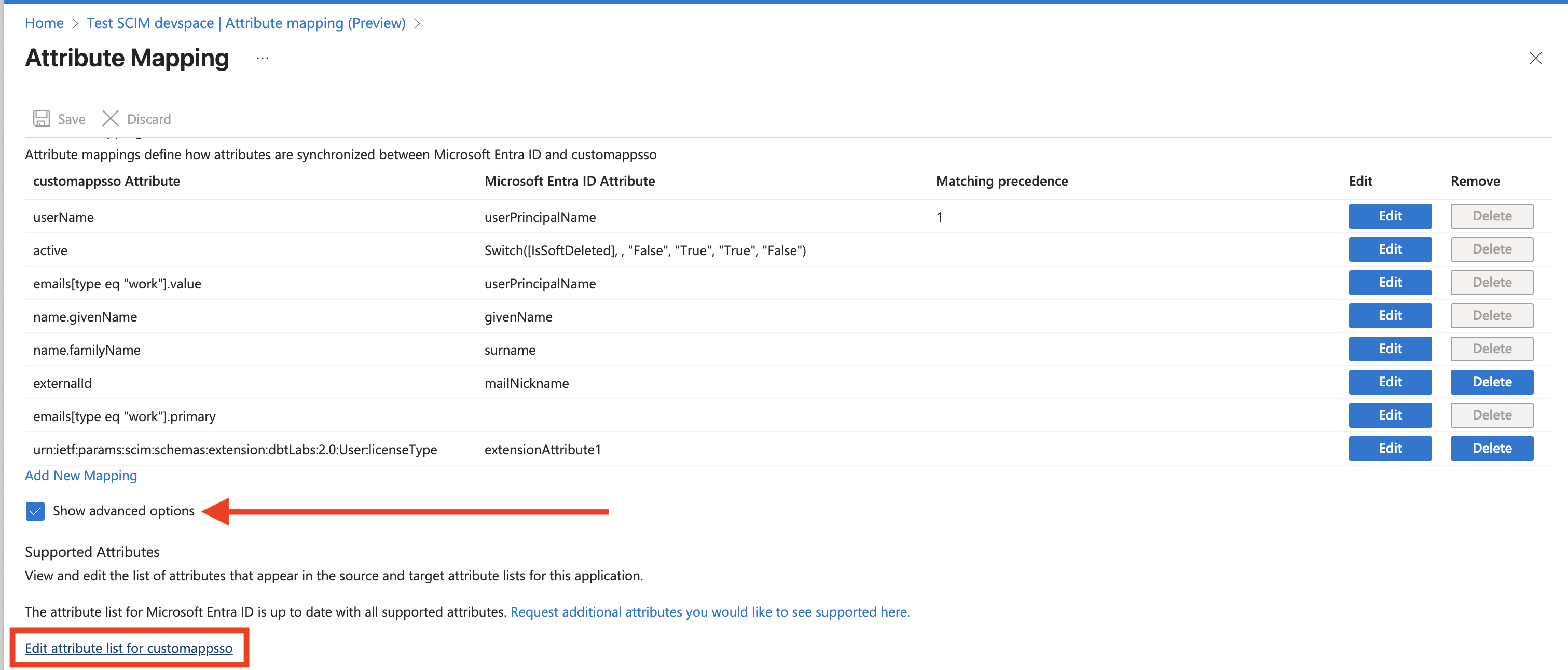 Click to edit the customappsso attributes.
 -
Scroll to the bottom of the Edit Attribute List window and find an empty field where you can add a new entry with the following fields:
- Name:
emails[type eq "work"].primary - Type:
Boolean - Required: True
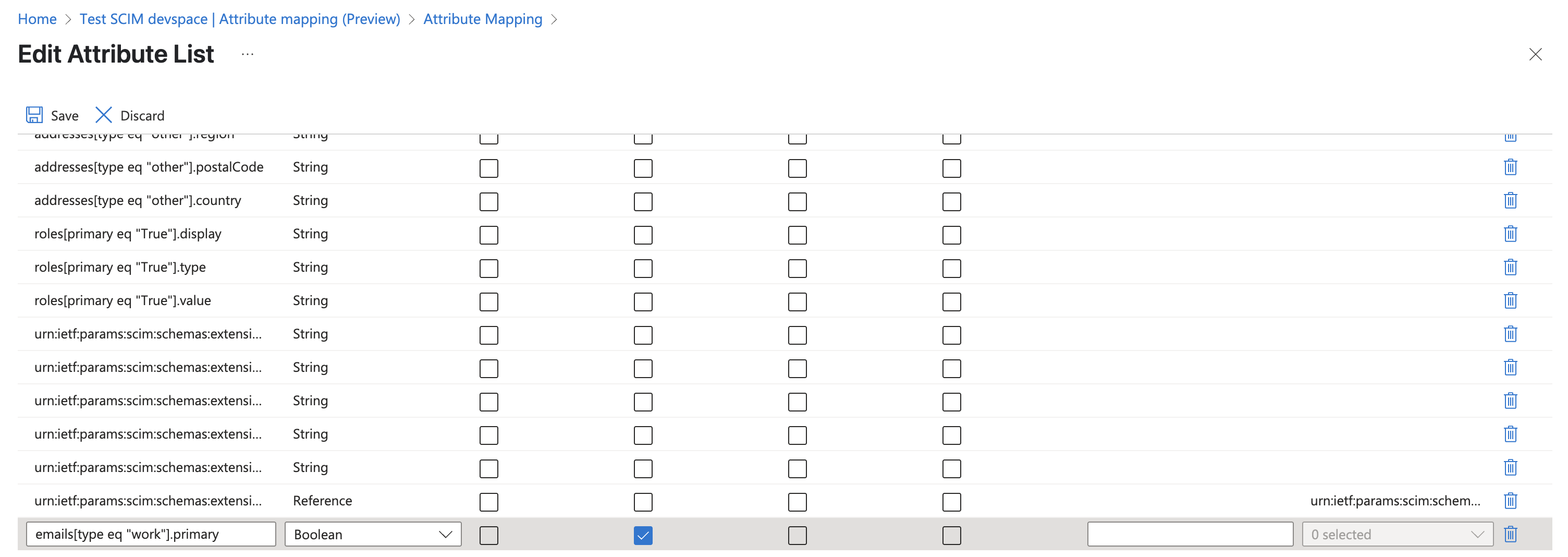 Add the new field to the entry list.
 - Name:
-
Mark all of the fields listed in Step 10 below as
Required.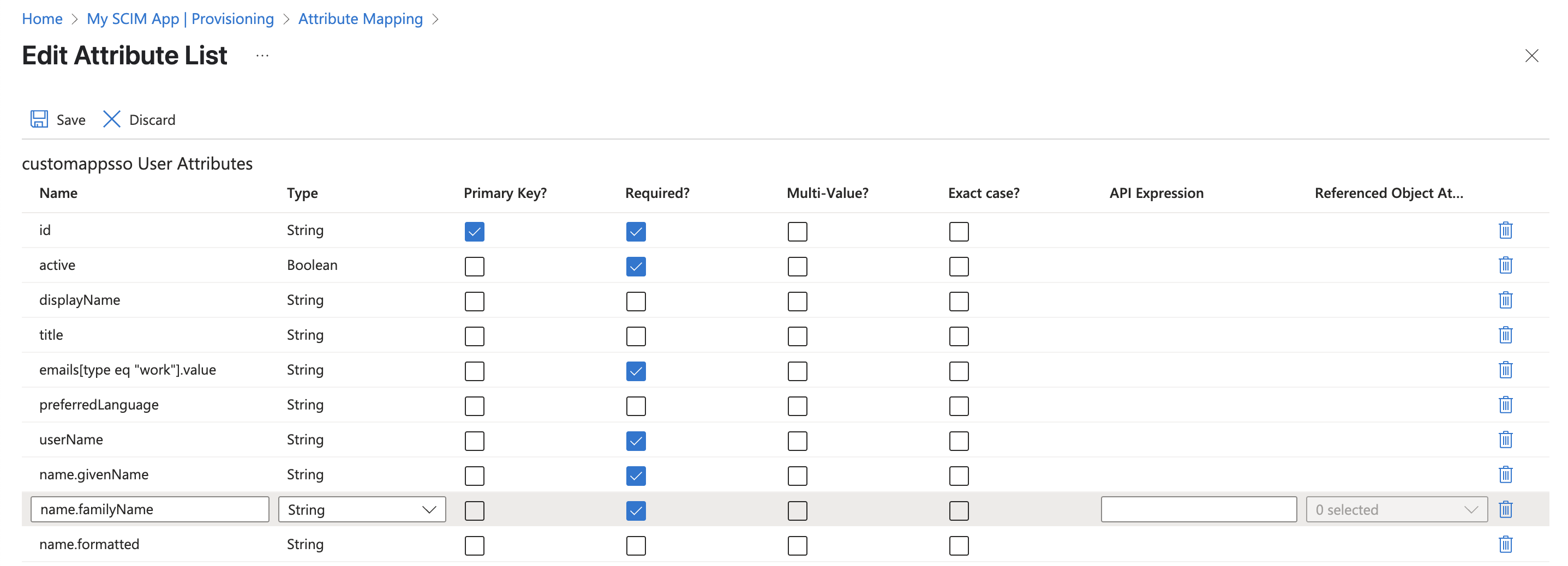 Mark the fields as required.
 -
Click Save.
-
Back on the Attribute mapping window, click Add new mapping and complete fields with the following:
- Mapping type:
none - Default value if null (optional):
True - Target attribute:
emails[type eq "work"].primary - Match objects using this attribute:
No - Matching precedence: Leave blank
- Apply this mapping:
Always
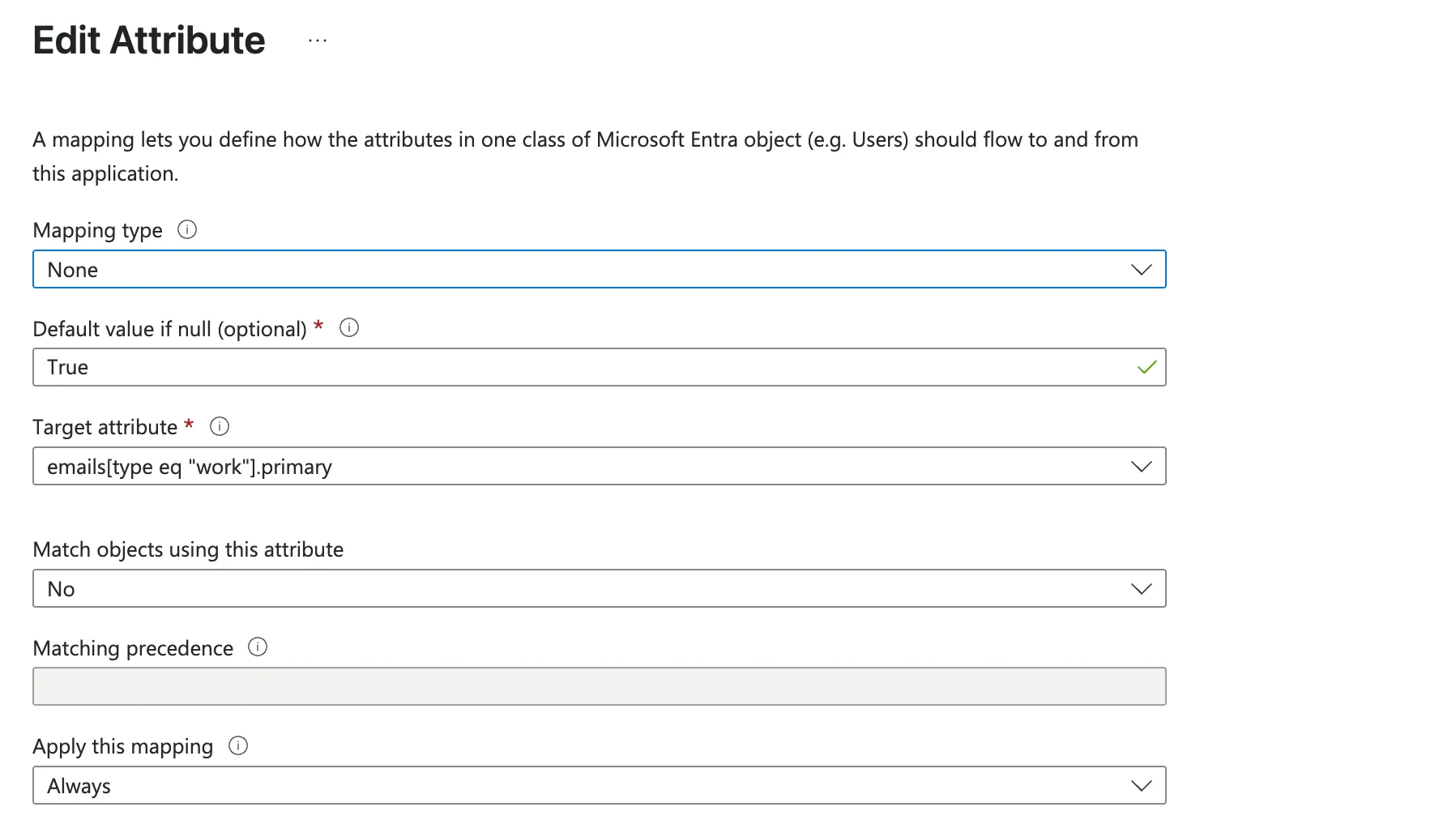 Complete the fields as shown.
 - Mapping type:
-
Click Ok.
-
Make sure the following mappings are in place and delete any others:
- UserName:
userPrincipalNameor the value you want users to leverage to log in to dbt. - active:
Switch([IsSoftDeleted], , "False", "True", "True", "False") - emails[type eq "work"].value:
userPrincipalNameis the most common, but this value needs to be the same set for UserName. - name.givenName:
givenName - name.familyName:
surname - externalid:
mailNickname - emails[type eq "work"].primary
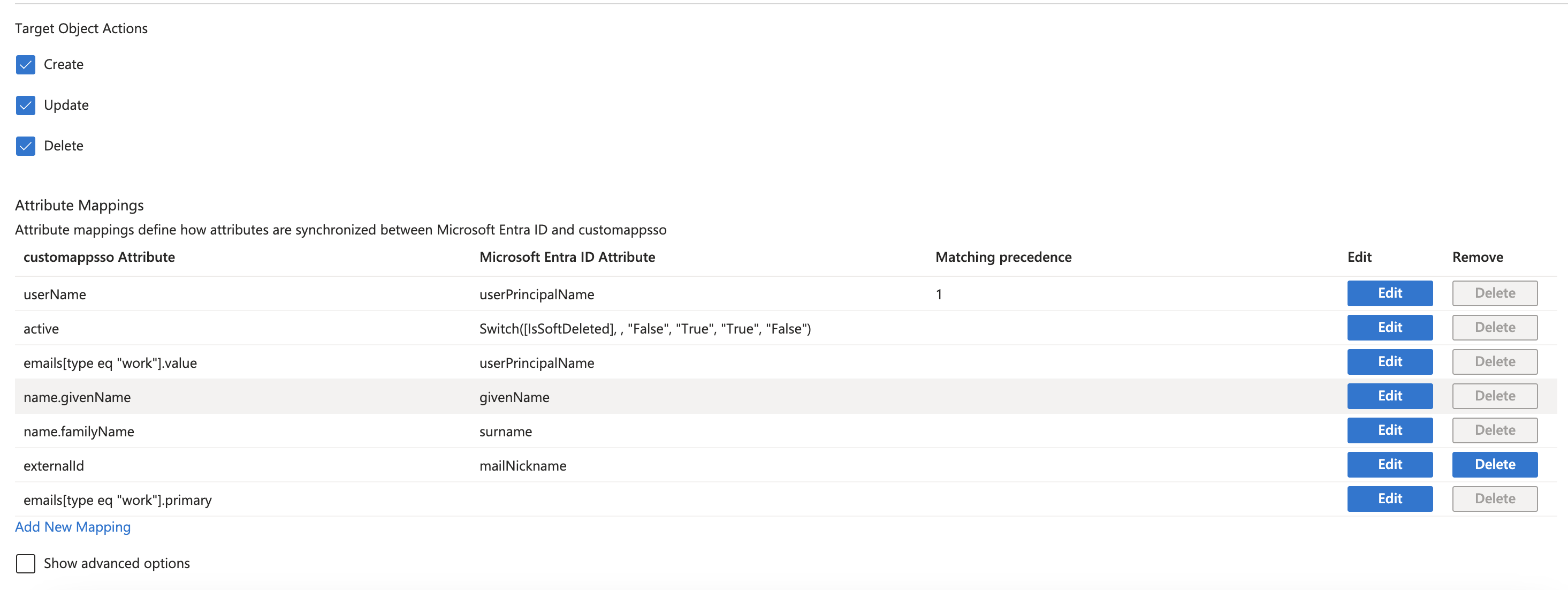 Edit the attributes so they match the list as shown.SSO and SCIM username
When you use both SSO and SCIM with Entra ID, map SCIM UserName to userPrincipalName (or the same Entra attribute users use to sign in to dbt platform). Set emails[type eq "work"].value to that same source.
SCIM needs the values to match so provisioning aligns with SSO; if UserName and emails[type eq "work"].value don't match, users may not sync or match correctly.
- UserName:
-
Click Save.
You can now begin assigning users to your SCIM app in Entra ID!
Assign users to SCIM app
The following steps go over how to assign users/groups to the SCIM app. Refer to Microsoft's official instructions for assigning users or groups to an Enterprise App in Entra ID to learn more. Although the article is written for Databricks, the steps are identical.
- Navigate to Enterprise applications and select the SCIM app.
- Go to Manage > Provisioning.
- To synchronize Microsoft Entra ID users and groups to dbt, click Start provisioning.
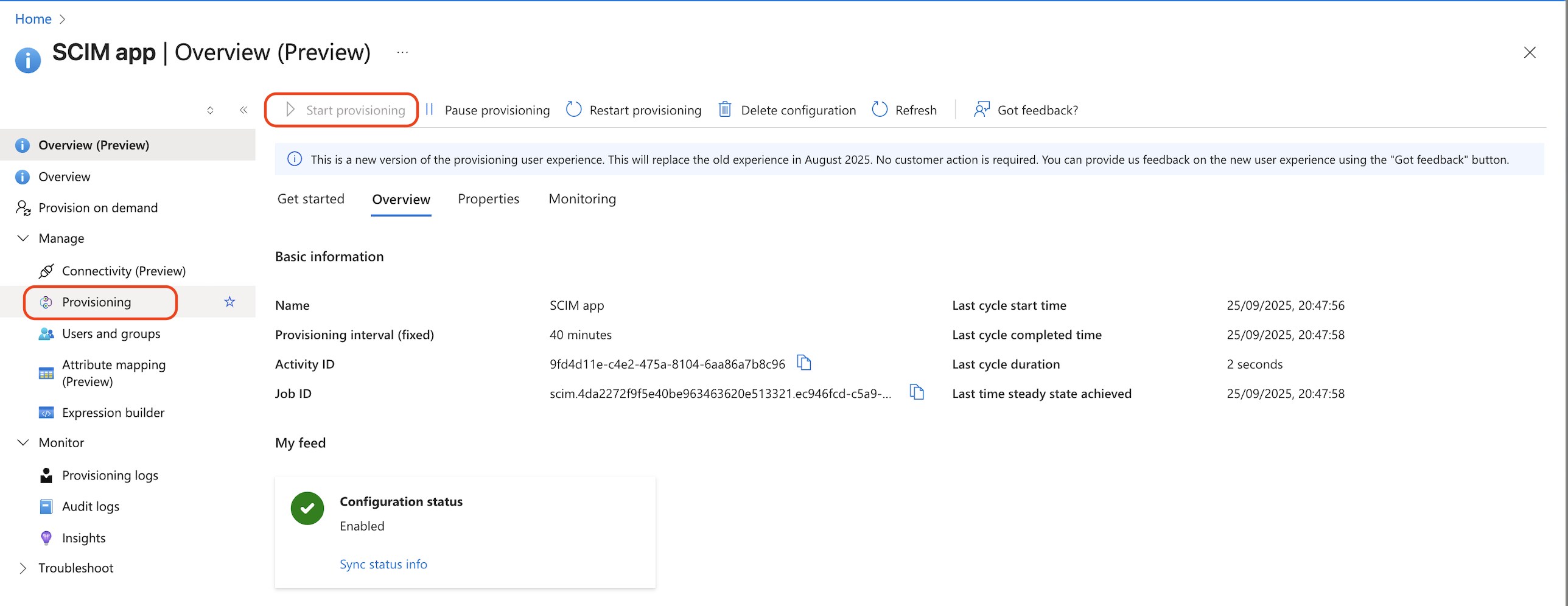 Start provisioning to synchronize users and groups.
 - Navigate back to the SCIM app's overview page and go to Manage > Users and groups.
- Click Add user/group and select the users and groups.
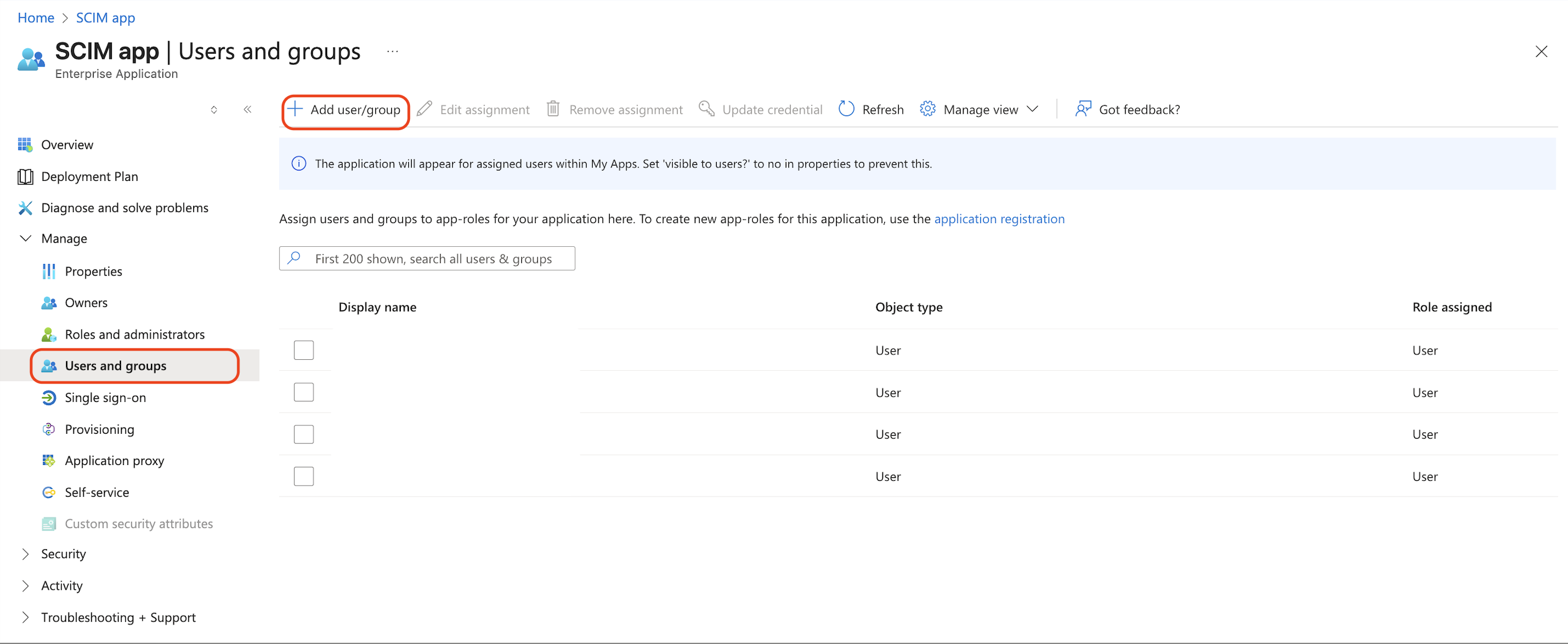 Add user/group.
 - Click the Assign button.
- Wait a few minutes. In the dbt platform, confirm the users and groups exist in your dbt account.
- Users and groups that you add and assign will automatically be provisioned to your dbt account when Microsoft Entra ID schedules the next sync.
- By enabling provisioning, you immediately trigger the initial Microsoft Entra ID sync. Subsequent syncs are triggered every 20-40 minutes, depending on the number of users and groups in the application. Refer to Microsoft Entra ID's Provisioning tips documentation for more information.
- You can also prompt a manual provisioning outside of the cycle by clicking Restart provisioning.
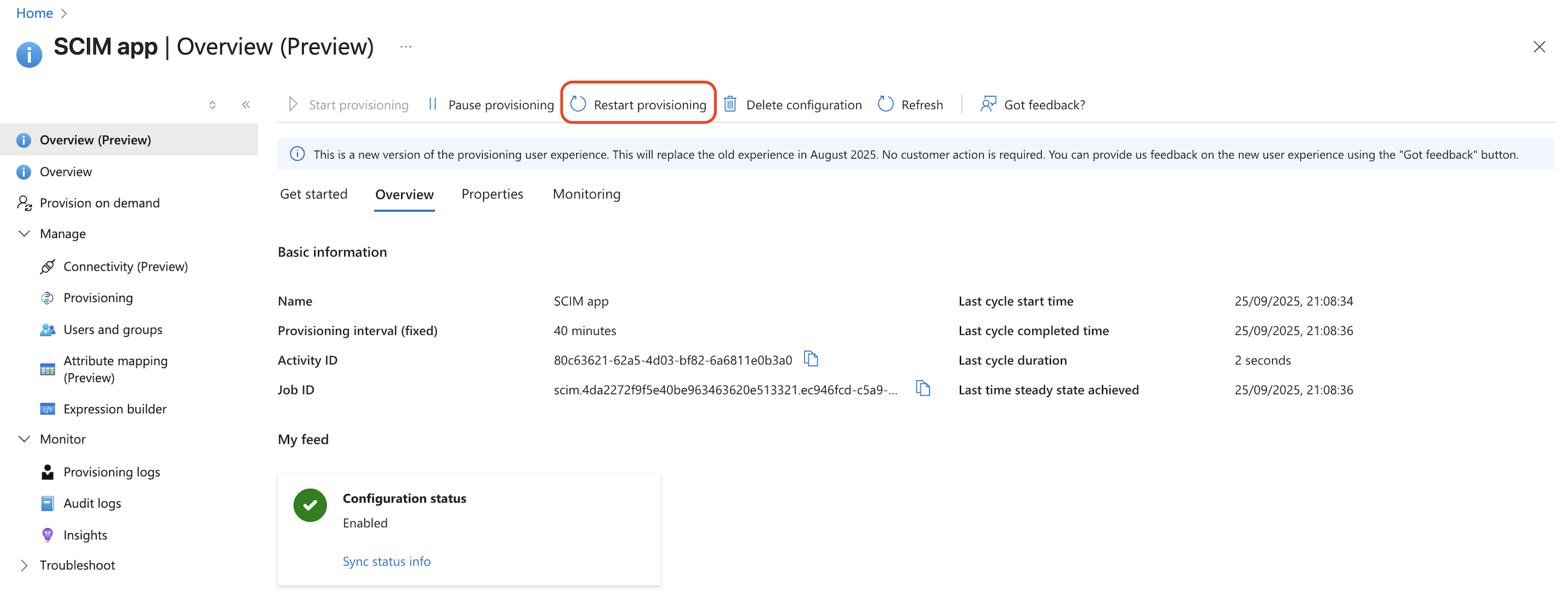 Prompt manual provisioning.
FAQ and troubleshooting
For common questions about SCIM provisioning with Entra ID — including onboarding workflows, attribute matching, IP allowlisting issues, and troubleshooting — refer to SCIM FAQs and troubleshooting.
Was this page helpful?
This site is protected by reCAPTCHA and the Google Privacy Policy and Terms of Service apply.
