Connect PostgreSQL, Lakebase and AlloyDB
dbt platform supports connecting to PostgreSQL and Postgres-compatible databases (AlloyDB, Lakebase).
The following fields are required when creating a connection:
| Field | Description | Examples |
|---|---|---|
| Host Name | The hostname of the database to connect to. This can either be a hostname or an IP address. Refer to the set up pages for adapter-specific details. | Postgres: xxx.us-east-1.amazonaws.com |
| Port | Usually 5432 | 5439 |
| Database | The logical database to connect to and run queries against. | analytics |
Note: When you set up a Postgres connection in dbt, SSL-related parameters aren't available as inputs.
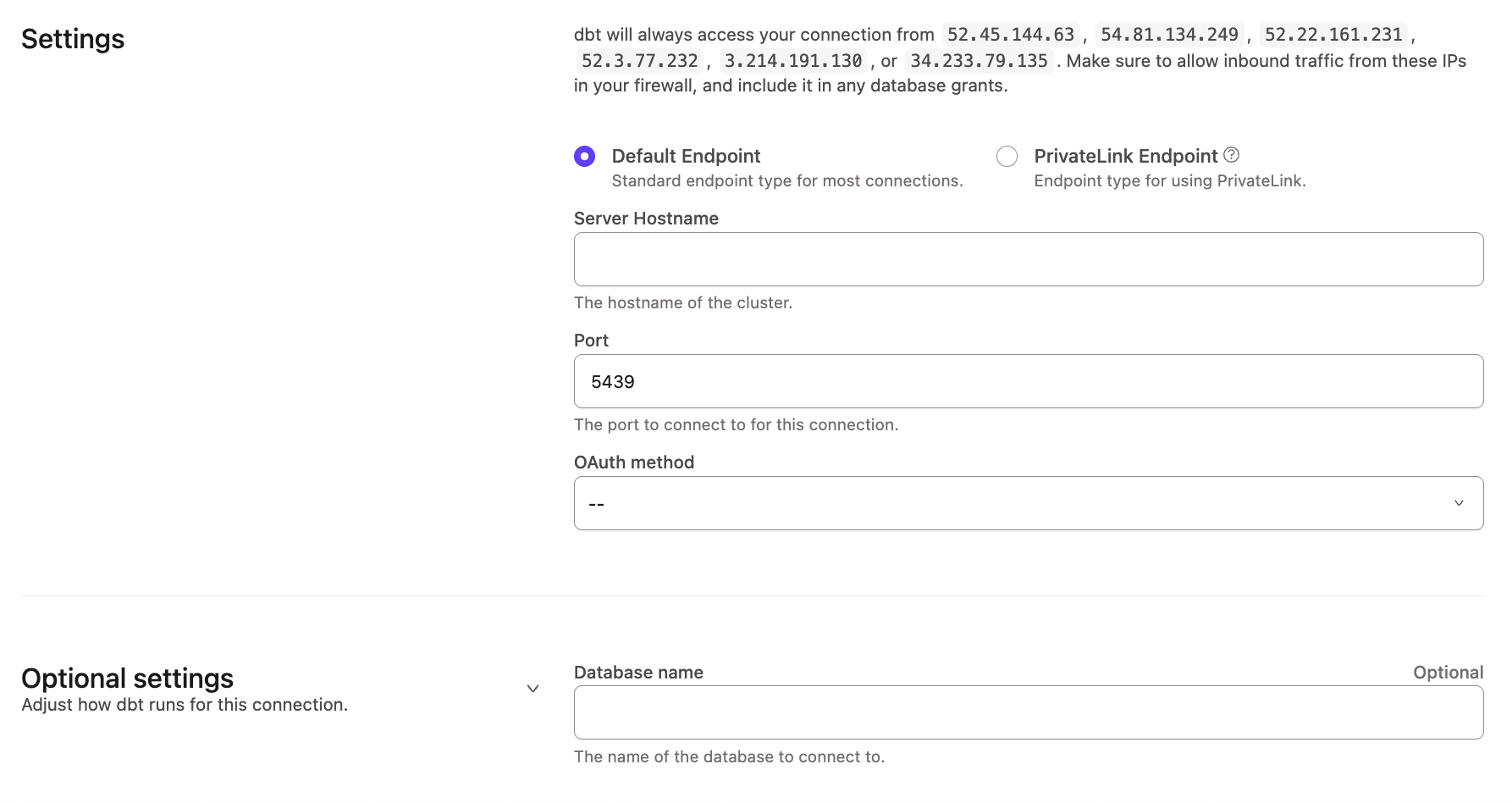 Configuring a Postgres connection
Authentication Parameters
For authentication, dbt users can use Database username and password for Postgres and Postgres-compatible databases. For more information on what is supported, check out the database specific setup page for limitations and helpful tips.
The following table contains the parameters for the database (password-based) connection method.
| Field | Description | Examples |
|---|---|---|
user | Account username to log into your cluster | myuser |
password | Password for authentication | _password1! |
Connecting using an SSH Tunnel
Use an SSH tunnel when your Postgres or AlloyDB instance is not publicly accessible and must be reached through a bastion server. When enabled, dbt platform connects to your database by first establishing a secure connection to the bastion host, which then forwards traffic to your database.
To configure a connection using an SSH tunnel:
- Navigate to Account settings (by clicking on your account name in the left side menu) and select Connections.
- Select an existing connection to edit it, or click + New connection.
- In Connection settings, ensure SSH Tunnel Enabled is checked.
- Enter the hostname, username, and port for the bastion server.
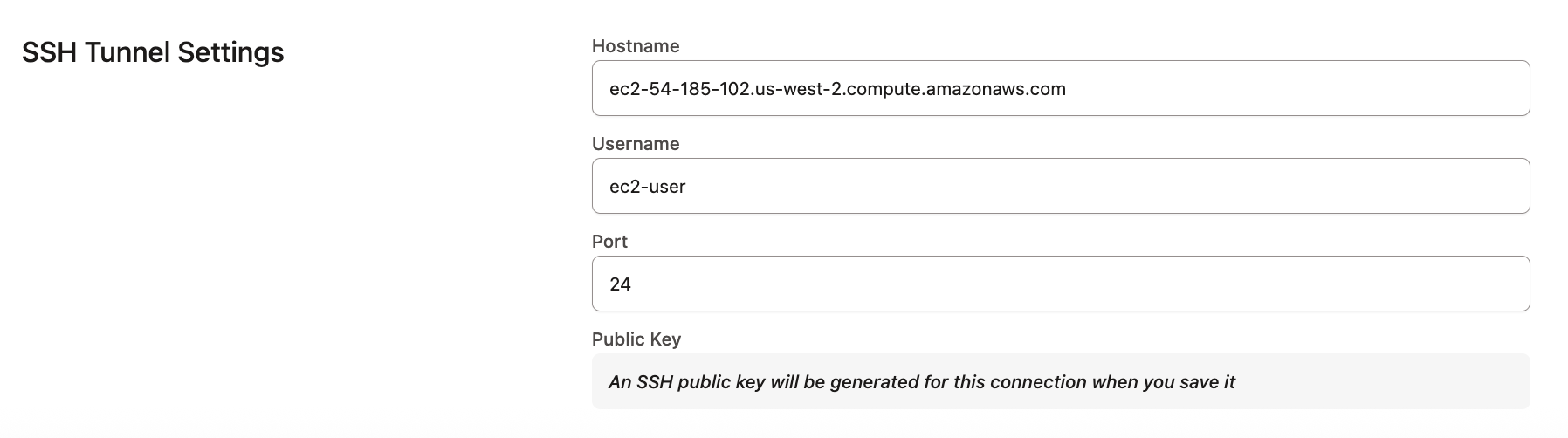 A public key is generated after saving
-
Click Save. dbt platform generates and displays a public key.
-
Copy the newly generated public key to the bastion server and add it to the server’s
authorized_keysfile to authorize dbt platform to connect through the bastion host. If the new key is not added, the SSH tunnel connection will fail.importantEach time you create and save a new SSH tunnel connection, dbt platform generates a unique SSH key pair, even when the connection details are identical to an existing connection.
About the Bastion server in AWS
What is a bastion server?
A bastion server in Amazon Web Services (AWS) is a host that allows dbt to open an SSH connection.
dbt only sends queries and doesn't transmit large data volumes. This means the bastion server can run on an AWS instance of any size, like a t2.small instance or t2.micro.
Make sure the location of the instance is the same Virtual Private Cloud (VPC) as the Postgres instance, and configure the security group for the bastion server to ensure that it's able to connect to the warehouse port.
Configuring the Bastion Server in AWS
To configure the SSH tunnel in dbt, you'll need to provide the hostname/IP of your bastion server, username, and port, of your choosing, that dbt will connect to. Review the following steps:
-
Verify the bastion server has its network security rules set up to accept connections from the dbt IP addresses on whatever port you configured.
-
Set up the user account by using the bastion servers instance's CLI, The following example uses the username
dbtcloud:sudo groupadd dbtcloud
sudo useradd -m -g dbtcloud dbtcloud
sudo su - dbtcloud
mkdir ~/.ssh
chmod 700 ~/.ssh
touch ~/.ssh/authorized_keys
chmod 600 ~/.ssh/authorized_keys -
Copy and paste the dbt generated public key, into the authorized_keys file.
The bastion server should now be ready for dbt to use as a tunnel into the Postgres environment.
Configuration
To grant users or roles database permissions (access rights and privileges), refer to the Postgres permissions page.
FAQs
Was this page helpful?
This site is protected by reCAPTCHA and the Google Privacy Policy and Terms of Service apply.
