# Conversion metrics
Conversion metrics let you measure how often one event leads to another for a specific entity within a defined time window.
For example, you can track how often a user (entity) who visits your site (base event) makes a purchase (conversion event) within 7 days (time window). To set this up, you’ll specify both the time range and the entity that links/joins the two events.
Conversion metrics are different from [ratio metrics](./ratio.md) because you need to include an entity in the pre-aggregated join.
## Parameters
The specification for conversion metrics is as follows:
(Applies to dbt v1.12 and later)
| Parameter | Description | Required | Type |
| ----------------------------------------- | --------------------------------------------------------------------------------------------------------------------------------------- | -------- | -------------- |
| `name` | The name of the metric. | Required | String |
| `description` | The description of the metric. | Optional | String |
| `type` | The type of metric. Set as `conversion` for conversion metrics. | Required | String |
| `label` | The display label for the metric. Accepts plain text, spaces, and quotes. | Optional | String |
| `config` | Configuration settings for the metric. | Optional | Dict |
| `config.group` | The group the metric belongs to. | Optional | String |
| `config.tags` | Tags associated with the metric. | Optional | List |
| `config.meta` | Metadata for the metric. | Optional | Dict |
| `entity` | The entity for each conversion event. | Required | String |
| `calculation` | Method of calculation. Either `conversion_rate` or `conversions`. Defaults to `conversion_rate`. | Optional | String |
| `base_metric` | The base metric name or configuration for the conversion event. Can be a string (metric name) or a dict (for additional customization). | Required | String or Dict |
| `base_metric.name` | The name of the base metric (when using dict format). | Required | String |
| `base_metric.filter` | Filter to apply to the base metric (when using dict format). | Optional | String |
| `base_metric.alias` | Alias for the base metric (when using dict format). | Optional | String |
| `conversion_metric` | The conversion metric name or configuration. Can be a string (metric name) or a dict (for additional customization). | Required | String or Dict |
| `conversion_metric.name` | The name of the conversion metric (when using dict format). | Required | String |
| `conversion_metric.filter` | Filter to apply to the conversion metric (when using dict format). | Optional | String |
| `conversion_metric.alias` | Alias for the conversion metric (when using dict format). | Optional | String |
| `window` | The time window for the conversion event (such as `7 days`, `1 week`, `3 months`). Defaults to infinity. | Optional | String |
| `constant_properties` | List of properties to hold constant between base and conversion events. Can be a dimension or entity. | Optional | List |
| `constant_properties.base_property` | The dimension or entity of the semantic model linked to the `base_metric`. | Required | String |
| `constant_properties.conversion_property` | The dimension or entity of the semantic model linked to the `conversion_metric`. | Required | String |
Refer to [additional settings](#additional-settings) to learn how to customize conversion metrics with settings for null values, calculation type, and constant properties.
The following code example displays the complete specification for conversion metrics and details how they're applied:
(Applies to dbt v1.12 and later)
models/file\_name.yml
```yaml
models:
- name: your_model_name
semantic_model:
enabled: true
.... rest of configs....
metrics:
- name: my_conversion_metric
description: "Tracks how often a base event leads to a conversion event for an entity"
label: "My conversion metric"
type: conversion
entity: my_primary_entity # Required; the entity the conversion is tracked for
calculation: conversion_rate # Optional; conversion_rate | conversions
base_metric: my_base_event_metric # Required; metrics defined in another semantic model
conversion_metric: my_conversion_event_metric # Required; metrics defined in another semantic model
window: 7 days # Optional; defines the time window for conversion
constant_properties: # Optional; list of constant properties
- base_property: my_dimension_or_entity
conversion_property: my_dimension_or_entity
```
## Conversion metric example
The following example will measure conversions from website visits (`VISITS` table) to order completions (`BUYS` table) and calculate a conversion metric for this scenario step by step.
Suppose you have two semantic models, `VISITS` and `BUYS`:
* The `VISITS` table represents visits to an e-commerce site.
* The `BUYS` table represents someone completing an order on that site.
The underlying tables look like the following:
`VISITS`
Contains user visits with `USER_ID` and `REFERRER_ID`.
| DS | USER\_ID | REFERRER\_ID |
| ---------- | -------- | ------------ |
| 2020-01-01 | bob | facebook |
| 2020-01-04 | bob | google |
| 2020-01-07 | bob | amazon |
`BUYS`
Records completed orders with `USER_ID` and `REFERRER_ID`.
| DS | USER\_ID | REFERRER\_ID |
| ---------- | -------- | ------------ |
| 2020-01-02 | bob | facebook |
| 2020-01-07 | bob | amazon |
Next, define a conversion metric as follows:
(Applies to dbt v1.12 and later)
```yaml
models:
- name: your_model_name
semantic_model:
enabled: true
.... rest of configs....
metrics:
- name: visit_to_buy_conversion_rate_7d
description: "Conversion rate from visiting to transaction in 7 days"
type: conversion
label: Visit to buy conversion rate (7-day window)
entity: user
calculation: conversion_rate
base_metric:
name: visits
filter: {{ Dimension('visits__referrer_id') }} = 'facebook'
conversion_metric: buys
window: 7 days
```
To calculate the conversion, link the `BUYS` event to the nearest `VISITS` event (or closest base event). The following steps explain this process in more detail:
### Step 1: Join `VISITS` and `BUYS`
This step joins the `BUYS` table to the `VISITS` table and gets all combinations of visits-buys events that match the join condition where buys occur within 7 days of the visit (any rows that have the same user and a buy happened at most 7 days after the visit).
The SQL generated in these steps looks like the following:
```sql
select
v.ds,
v.user_id,
v.referrer_id,
b.ds,
b.uuid,
1 as buys
from visits v
inner join (
select *, uuid_string() as uuid from buys -- Adds a uuid column to uniquely identify the different rows
) b
on
v.user_id = b.user_id and v.ds <= b.ds and v.ds > b.ds - interval '7 days'
```
The dataset returns the following (note that there are two potential conversion events for the first visit):
| V.DS | V.USER\_ID | V.REFERRER\_ID | B.DS | UUID | BUYS |
| ---------- | ---------- | -------------- | ---------- | ----- | ---- |
| 2020-01-01 | bob | facebook | 2020-01-02 | uuid1 | 1 |
| 2020-01-01 | bob | facebook | 2020-01-07 | uuid2 | 1 |
| 2020-01-04 | bob | google | 2020-01-07 | uuid2 | 1 |
| 2020-01-07 | bob | amazon | 2020-01-07 | uuid2 | 1 |
### Step 2: Refine with window function
Instead of returning the raw visit values, use window functions to link conversions to the closest base event. You can partition by the conversion source and get the `first_value` ordered by `visit ds`, descending to get the closest base event from the conversion event:
```sql
select
first_value(v.ds) over (partition by b.ds, b.user_id, b.uuid order by v.ds desc) as v_ds,
first_value(v.user_id) over (partition by b.ds, b.user_id, b.uuid order by v.ds desc) as user_id,
first_value(v.referrer_id) over (partition by b.ds, b.user_id, b.uuid order by v.ds desc) as referrer_id,
b.ds,
b.uuid,
1 as buys
from visits v
inner join (
select *, uuid_string() as uuid from buys
) b
on
v.user_id = b.user_id and v.ds <= b.ds and v.ds > b.ds - interval '7 day'
```
The dataset returns the following:
| V.DS | V.USER\_ID | V.REFERRER\_ID | B.DS | UUID | BUYS |
| ---------- | ---------- | -------------- | ---------- | ----- | ---- |
| 2020-01-01 | bob | facebook | 2020-01-02 | uuid1 | 1 |
| 2020-01-07 | bob | amazon | 2020-01-07 | uuid2 | 1 |
| 2020-01-07 | bob | amazon | 2020-01-07 | uuid2 | 1 |
| 2020-01-07 | bob | amazon | 2020-01-07 | uuid2 | 1 |
This workflow links the two conversions to the correct visit events. Due to the join, you end up with multiple combinations, leading to fanout results. After applying the window function, duplicates appear.
To resolve this and eliminate duplicates, use a distinct select. The UUID also helps identify which conversion is unique. The next steps provide more detail on how to do this.
### Step 3: Remove duplicates
Instead of regular select used in the [Step 2](#step-2-refine-with-window-function), use a distinct select to remove the duplicates:
```sql
select distinct
first_value(v.ds) over (partition by b.ds, b.user_id, b.uuid order by v.ds desc) as v_ds,
first_value(v.user_id) over (partition by b.ds, b.user_id, b.uuid order by v.ds desc) as user_id,
first_value(v.referrer_id) over (partition by b.ds, b.user_id, b.uuid order by v.ds desc) as referrer_id,
b.ds,
b.uuid,
1 as buys
from visits v
inner join (
select *, uuid_string() as uuid from buys
) b
on
v.user_id = b.user_id and v.ds <= b.ds and v.ds > b.ds - interval '7 day';
```
The dataset returns the following:
| V.DS | V.USER\_ID | V.REFERRER\_ID | B.DS | UUID | BUYS |
| ---------- | ---------- | -------------- | ---------- | ----- | ---- |
| 2020-01-01 | bob | facebook | 2020-01-02 | uuid1 | 1 |
| 2020-01-07 | bob | amazon | 2020-01-07 | uuid2 | 1 |
You now have a dataset where every conversion is connected to a visit event. To proceed:
1. Sum up the total conversions in the "conversions" table.
2. Combine this table with the "opportunities" table, matching them based on group keys.
3. Calculate the conversion rate.
### Step 4: Aggregate and calculate
Now that you’ve tied each conversion event to a visit, you can calculate the aggregated conversions and opportunities (Applies to dbt v1.12 and later) simple metric. Then, you can join them to calculate the actual conversion rate. The SQL to calculate the conversion rate is as follows:
```sql
select
coalesce(subq_3.metric_time__day, subq_13.metric_time__day) as metric_time__day,
cast(max(subq_13.buys) as double) / cast(nullif(max(subq_3.visits), 0) as double) as visit_to_buy_conversion_rate_7d
from ( -- base
select
metric_time__day,
sum(visits) as visits
from (
select
date_trunc('day', first_contact_date) as metric_time__day,
1 as visits
from visits
) subq_2
group by
metric_time__day
) subq_3
full outer join ( -- conversion
select
metric_time__day,
sum(buys) as buys
from (
-- ...
-- The output of this subquery is the table produced in Step 3. The SQL is hidden for legibility.
-- To see the full SQL output, add --explain to your conversion metric query.
) subq_10
group by
metric_time__day
) subq_13
on
subq_3.metric_time__day = subq_13.metric_time__day
group by
metric_time__day
```
### Additional settings
Use the following additional settings to customize your conversion metrics:
* **Null conversion values:** Set null conversions to zero using `fill_nulls_with`. Refer to [Fill null values for metrics](./fill-nulls-advanced.md) for more info.
* **Calculation type:** Choose between showing raw conversions or conversion rate.
* **Constant property:** Add conditions for specific scenarios to join conversions on constant properties.
### Set null conversion events to zero
To return zero in the final data set, you can set the value of a null conversion event to zero instead of null. You can add the `fill_nulls_with` parameter to your conversion metric definition like this:
(Applies to dbt v1.12 and later)
```yaml
metrics:
- name: visits
type: simple
agg: count
expr: visit_id
fill_nulls_with: 0 # set null conversion values to zero in a simple metric
- name: buys
type: simple
agg: count
expr: purchase_id
fill_nulls_with: 0
- name: visit_to_buy_conversion_rate_7_day_window
description: "Conversion rate from viewing a page to making a purchase"
type: conversion
label: Visit to buy conversion rate (7 day window)
entity: user
calculation: conversions
base_metric: visits
conversion_metric: buys
window: 7 days
```
This will return the following results:
[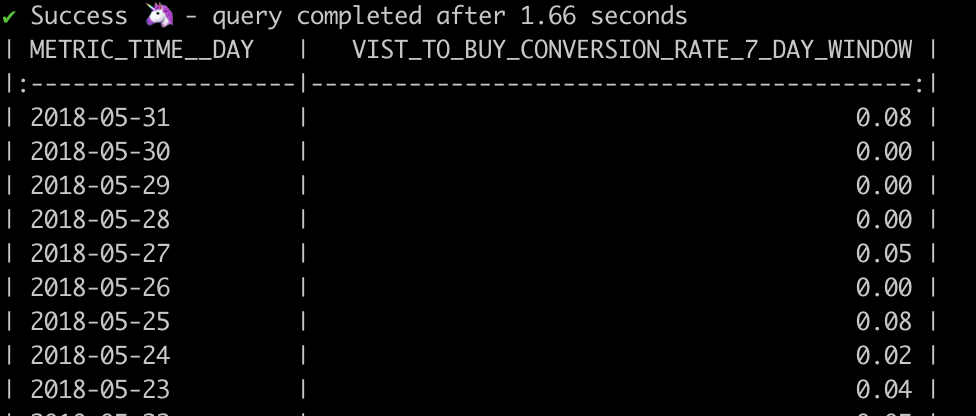](#)Conversion metric with fill nulls with parameter
Refer to [Fill null values for metrics](./fill-nulls-advanced.md) for more info.
### Set calculation type parameter
Use the conversion calculation parameter to either show the raw number of conversions or the conversion rate. The default value is the conversion rate.
You can change the default to display the number of conversions by setting the `calculation: conversion` parameter:
(Applies to dbt v1.12 and later)
```yaml
metrics:
- name: visit_to_buy_conversions_1_week_window
description: "Visit to buy conversions"
type: conversion
label: Visit to buy conversions (1 week window)
entity: user
calculation: conversions
base_metric: visits
conversion_metric: buys
window: 1 week
fill_nulls_with: 0
```
### Set constant property
*Refer to [Amplitude's blog posts on constant properties](https://amplitude.com/blog/holding-constant) to learn about this concept.*
You can add a constant property to a conversion metric to count only those conversions where a specific dimension or entity matches in both the base and conversion events.
For example, if you're at an e-commerce company and want to answer the following question:
* *How often did visitors convert from `View Item Details` to `Complete Purchase` with the same product in each step?*
* This question is tricky to answer because users could have completed these two conversion milestones across many products. For example, they may have viewed a pair of shoes, then a T-shirt, and eventually checked out with a bow tie. This would still count as a conversion, even though the conversion event only happened for the bow tie.
Back to the initial questions, you want to see how many customers viewed an item detail page and then completed a purchase for the *same* product.
In this case, you want to set `product_id` as the constant property. You can specify this in the configs as follows:
(Applies to dbt v1.12 and later)
```yaml
metrics:
- name: view_item_detail_to_purchase_with_same_item
description: "Conversion rate for users who viewed the item detail page and purchased the item"
type: conversion
label: View item detail > Purchase
entity: user
calculation: conversions
base_metric: view_item_detail
conversion_metric: purchase
window: 1 week
constant_properties:
- base_property: product
conversion_property: product
```
You will add an additional condition to the join to make sure the constant property is the same across conversions.
```sql
select distinct
first_value(v.ds) over (partition by buy_source.ds, buy_source.user_id, buy_source.session_id order by v.ds desc rows between unbounded preceding and unbounded following) as ds,
first_value(v.user_id) over (partition by buy_source.ds, buy_source.user_id, buy_source.session_id order by v.ds desc rows between unbounded preceding and unbounded following) as user_id,
first_value(v.referrer_id) over (partition by buy_source.ds, buy_source.user_id, buy_source.session_id order by v.ds desc rows between unbounded preceding and unbounded following) as referrer_id,
buy_source.uuid,
1 as buys
from {{ source_schema }}.fct_view_item_details v
inner join
(
select *, {{ generate_random_uuid() }} as uuid from {{ source_schema }}.fct_purchases
) buy_source
on
v.user_id = buy_source.user_id
and v.ds <= buy_source.ds
and v.ds > buy_source.ds - interval '7 day'
and buy_source.product_id = v.product_id --Joining on the constant property product_id
```
## Related docs
* [Fill null values for metrics](./fill-nulls-advanced.md)
## Was this page helpful?
YesNo
[Privacy policy](https://www.getdbt.com/cloud/privacy-policy)[Create a GitHub issue](https://github.com/dbt-labs/docs.getdbt.com/issues)
This site is protected by reCAPTCHA and the Google [Privacy Policy](https://policies.google.com/privacy) and [Terms of Service](https://policies.google.com/terms) apply.